10 Free Excel Inventory Management Templates for 2026
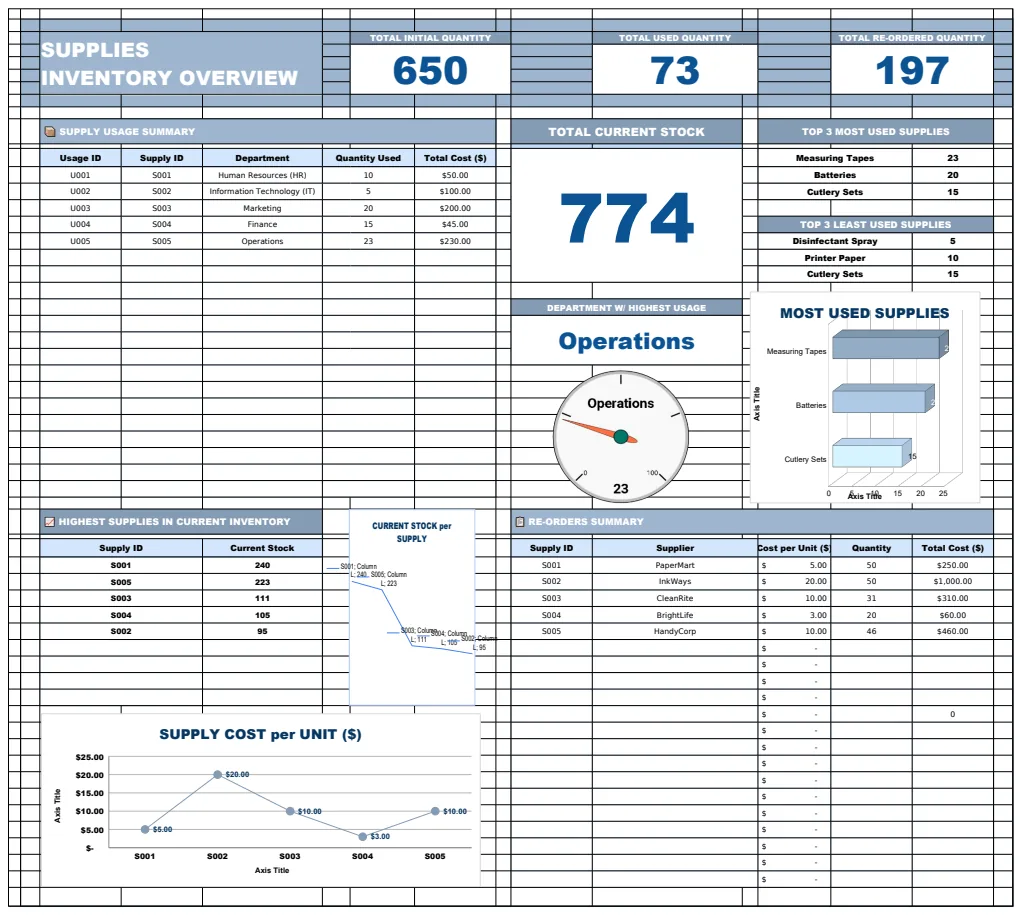
Spreadsheet inventory tracking still works for thousands of small businesses in 2026, especially when you need visibility fast and budgets run tight. A free Excel inventory management template gives y...

Spreadsheet inventory tracking still works for thousands of small businesses in 2026, especially when you need visibility fast and budgets run tight. A free Excel inventory management template gives you stock counts, reorder alerts, and cost tracking without monthly software fees or complex onboarding. You download the file, add your SKUs, and start managing inventory the same day.
These templates work best for businesses holding under $500,000 in stock and fewer than 500 unique items. Beyond that scale, manual entry errors and version conflicts usually push teams toward dedicated inventory software. But for retail shops, small manufacturers, property managers, and freelance resellers, a well-built Excel template handles the job until growth demands more automation.
What Is an Excel Inventory Management Template and Why Use One in 2026?
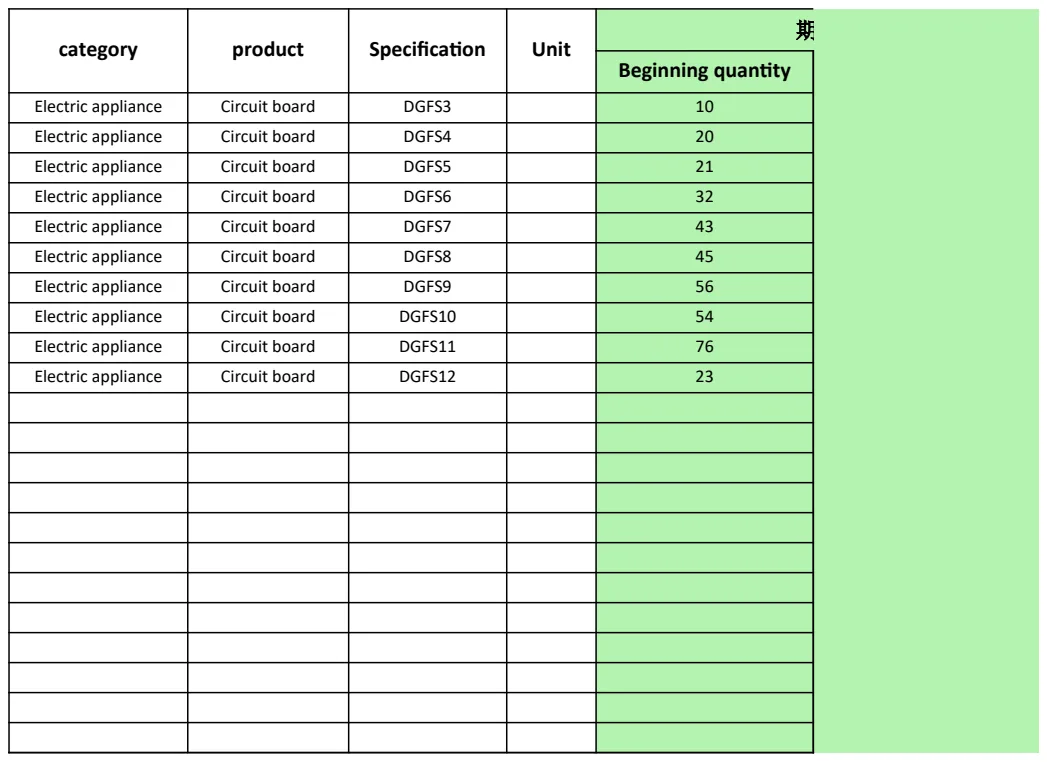
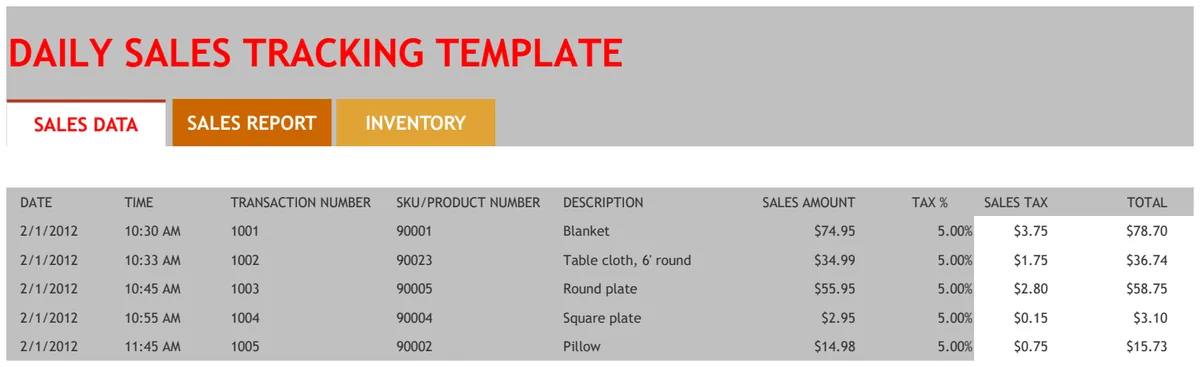
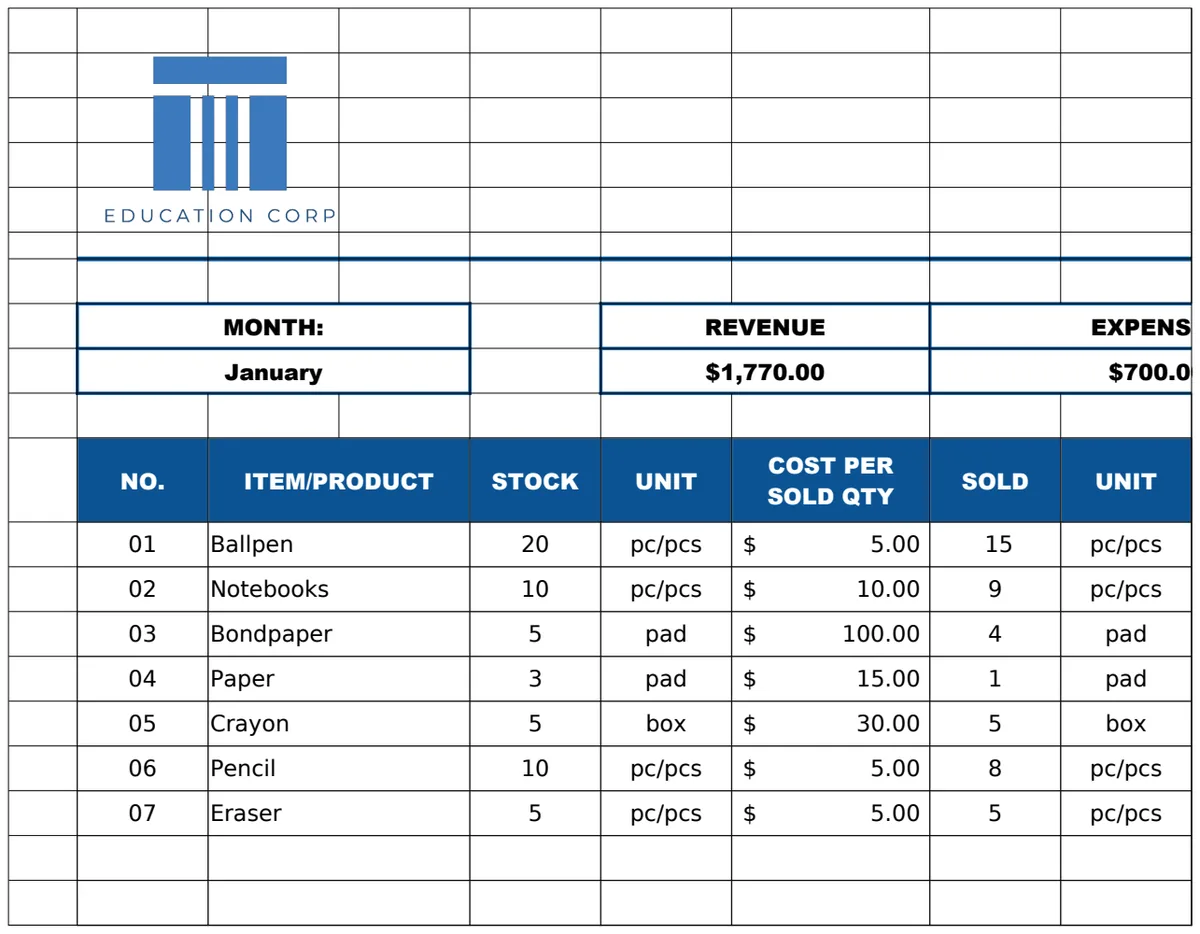
An Excel inventory management template is a pre-built spreadsheet with columns for SKU numbers, product names, quantities on hand, reorder points, supplier details, and unit costs. Most templates include formulas that calculate total inventory value, flag low stock with conditional formatting, and track movements in and out. You input data manually or paste it from CSV exports, and the formulas update automatically.
Small businesses use these templates to avoid carrying costs that average 20 to 30 percent of total inventory value annually. For a business holding $500,000 in stock, that means $100,000 to $150,000 spent just to store, insure, and manage it. Better visibility into what you actually have reduces overstock, prevents stockouts, and cuts waste from expired or obsolete items.
Free templates give you core functionality without upfront cost. Paid templates and software add features like barcode scanning, multi-user access, real-time sync, and integration with e-commerce platforms. If you run a single-location operation with straightforward stock needs, free Excel templates deliver 80 percent of the value at zero cost.
How to Choose the Right Free Excel Inventory Template for Your Business
Match the template structure to how you actually move inventory. Retail shops need SKU tracking, sales velocity, and reorder alerts tied to daily transactions. Manufacturing operations need raw material tracking, work-in-progress counts, and finished goods columns. Property management teams need maintenance supplies, equipment serial numbers, and location fields for multiple buildings.
Look for templates that include the columns you use most often. If you order from multiple suppliers, make sure the template has supplier name and contact fields. If you track expiration dates for food, cosmetics, or chemicals, confirm the template supports date-based alerts. If you manage inventory across multiple warehouses or stores, check whether the template includes location columns and subtotals by site.
Download two or three templates and test them with 10 to 20 real SKUs before committing. Enter actual product names, quantities, and costs. Check whether the formulas work as expected and whether the layout feels intuitive for your team. The best template is the one your staff will actually use every day without confusion.
Key Features to Look for in a Free Inventory Template
Reorder point formulas automatically flag items that need restocking. A basic formula subtracts quantity on hand from your target minimum stock level. If the result is negative, you need to order more. More advanced templates calculate reorder points based on lead time and average daily sales, giving you a buffer before you run out.
Conditional formatting turns cells red, yellow, or green based on stock levels. Set rules so cells turn red when quantity drops below the reorder point, yellow when stock is within 10 percent of the minimum, and green when inventory is healthy. This visual system lets you scan the sheet in seconds and spot problems without reading every number.
SKU tracking columns keep products organized and searchable. Include fields for SKU number, product name, category, unit of measure, and supplier. Add a column for notes where staff can log quality issues, seasonal patterns, or special handling instructions. The more detail you capture upfront, the easier it is to analyze trends and make smarter purchasing decisions later.
Supplier fields should include name, contact person, phone number, email, and lead time in days. When you need to reorder, you have everything in one place. Cost calculation columns track unit cost, quantity on hand, and total value per item. Sum these totals to see your overall inventory value at any moment.
Comparing Popular Free Template Providers

Vertex42 offers over 8 free inventory spreadsheet templates as of June 2026, including basic stock trackers, asset management sheets, and parts inventory logs. The templates use straightforward formulas and work in both Excel and Google Sheets. They suit small businesses that need clean layouts without advanced automation.
Smartsheet, founded in 2005 and still a leading work management platform in 2026, provides inventory templates with built-in collaboration features. Multiple users can edit the same sheet simultaneously, and changes sync in real time. The free tier limits you to two sheets, so you may need to consolidate inventory data or upgrade for larger operations.
Template.net hosts over 10,000 MS Excel templates, including dozens of inventory options. You can filter by industry, format, and feature set. Most templates include sample data and instructions. Licensing allows personal and commercial use with attribution, making them safe for small business deployment.
EXCELDATAPRO and Boxstorm templates focus on retail and e-commerce inventory. They include columns for sales channels, order tracking, and fulfillment status. Katana templates target small manufacturers with material requirements planning columns and production stage tracking. Choose based on whether you sell finished goods or assemble products from raw materials.
Step-by-Step: Setting Up Your Free Excel Inventory Template
Download the template file and save it to a folder with automatic cloud backup. Name the file with today's date so you can track versions. Open the file in Excel or Google Sheets and review the column headers. Most templates include sample data in the first few rows to show you how each field works.
Delete the sample data and start entering your own products. Begin with your 20 highest-value SKUs or fastest-moving items. Fill in SKU number, product name, category, supplier, unit cost, and current quantity on hand. If the template includes a reorder point column, calculate your minimum stock level by multiplying average daily sales by lead time in days, then add a safety buffer of 10 to 20 percent.
Set up data validation for columns that should only accept specific values. For the category column, create a dropdown list with your product categories. For the unit of measure column, limit entries to "each," "box," "case," "pallet," or whatever units you use. Data validation prevents typos and keeps your data clean as more people add entries.
Enter your first stock movement. If you received a shipment, add the quantity to the on-hand column and update the last order date. If you sold items, subtract the quantity and log the transaction date. Check that formulas update automatically and that conditional formatting changes cell colors as expected.
Essential Formulas for Reorder Points and Stock Alerts
Calculate reorder point with this formula: =B2*C2+D2, where B2 is average daily sales, C2 is lead time in days, and D2 is safety stock. If you sell 5 units per day, lead time is 7 days, and you want 10 units as a buffer, the reorder point is 45 units. When quantity on hand drops below 45, place a new order.
Flag low stock with a simple IF statement: =IF(E2<F2,"REORDER","OK"), where E2 is quantity on hand and F2 is reorder point. Copy this formula down the column to check every SKU. Sort the sheet by this column to see all items that need reordering at the top.
Calculate total inventory value with =SUMPRODUCT(G2:G100,H2:H100), where column G holds unit costs and column H holds quantities on hand. This formula multiplies each unit cost by its quantity and sums the results. Update this formula monthly to track how inventory value changes over time.
Track carrying cost per item with =I2*0.25/365*J2, where I2 is unit cost, 0.25 represents 25 percent annual carrying cost, and J2 is average days in stock. If a $50 item sits in your warehouse for 90 days, it costs you about $3.08 just to hold it. Multiply this across hundreds of SKUs and the numbers add up fast.
Using Conditional Formatting to Automate Visual Alerts
Select the quantity on hand column and open the conditional formatting menu. Create a new rule that formats cells red when the value is less than the reorder point. Use a formula like =E2<F2 and apply red fill with white text. This rule highlights every item that needs restocking.
Add a second rule for yellow warnings when stock is within 20 percent of the reorder point. Use the formula =E2<F2*1.2 and apply yellow fill with black text. This gives you advance notice before items hit critical levels. Add a third rule for green cells when stock is healthy, using =E2>=F2*1.2 with green fill.
Apply date-based formatting for expiration tracking. If column K holds expiration dates, create a rule that turns cells orange when =K2<=TODAY()+30, flagging items expiring within 30 days. Create a second rule that turns cells red when =K2<=TODAY(), marking expired inventory that must be removed immediately.
Test your formatting by entering test values that trigger each rule. Make sure colors change as expected and that formulas reference the correct columns. Once formatting works, protect the sheet to prevent accidental changes to formulas while still allowing data entry in quantity and date columns.
Real-World Examples: Free Excel Templates in Action

A small retail shop tracking 200 SKUs uses a Vertex42 template with SKU, product name, quantity, reorder point, and supplier columns. The owner updates quantities daily after closing and reviews the reorder column each Monday morning. Conditional formatting flags 15 to 20 items for reorder each week. Since implementing the template, stockouts dropped from 8 per month to 2, and overstock decreased by 30 percent.
A manufacturing operation with 80 raw material SKUs and 40 finished goods uses a Katana template with separate tabs for materials, work in progress, and finished inventory. The production manager updates material quantities when shipments arrive and when batches move to assembly. The finished goods tab tracks units completed, units shipped, and units in the warehouse. Lead times range from 14 to 45 days, so reorder formulas include a 20 percent safety buffer to avoid production delays.
A property management company with 12 buildings uses a Template.net inventory sheet to track maintenance supplies, cleaning products, and replacement parts. Each building has a location code, and the template subtotals inventory by site. The maintenance supervisor reviews the sheet weekly and consolidates orders across all properties to negotiate better pricing. The template reduced emergency supply runs by 40 percent and cut supply costs by 12 percent in the first year.
Benefits and Limitations of Excel for Inventory Management
Excel works well when you have fewer than 500 SKUs, a single person or small team managing inventory, and straightforward stock movements without complex workflows. You can customize the template exactly how you want, add new columns as needs change, and export data to other systems without vendor lock-in. Setup takes hours instead of weeks, and you avoid monthly software fees that start at $50 and climb fast.
Excel breaks down when multiple users edit the same file simultaneously and overwrite each other's changes. It cannot scan barcodes without third-party add-ins, sync inventory in real time across multiple locations, or integrate directly with e-commerce platforms. Manual data entry introduces errors, and one misplaced decimal point can throw off your entire inventory value calculation.
Carrying costs of 20 to 30 percent of inventory value justify better tools once your stock exceeds $500,000. At that scale, even small improvements in accuracy and efficiency pay for dedicated inventory software within months. If you spend 10 hours per week on manual inventory tasks, automation that cuts that time in half saves 260 hours per year, worth $7,800 at a $30 hourly rate.
Excel remains the right choice for businesses in the early stages, seasonal operations, or teams that need inventory visibility but lack the budget or technical resources for software implementation. Use it as a stepping stone, not a permanent solution.
When to Upgrade from Excel to Dedicated Inventory Software
Multi-user conflicts signal it's time to move beyond Excel. If two people update the same file and one person's changes disappear, you need software with real-time collaboration and change tracking. Dedicated platforms like Streamline, which has over 200 implementation partners worldwide as of 2026, handle concurrent edits without data loss.
Integration needs push businesses toward software. If you sell on Shopify, Amazon, and your own website, you need inventory that syncs automatically across all channels. Excel requires manual exports and imports, creating lag time and increasing error risk. Inventory software connects directly to sales platforms and updates stock levels in real time.
Inventory over $500,000 justifies the investment in better tools. At that value, carrying costs range from $100,000 to $150,000 per year. Software that reduces overstock by 10 percent saves $10,000 to $15,000 annually, covering the cost of most mid-tier inventory platforms.
Barcode scanning becomes essential as SKU count grows. Manually typing product codes for every transaction takes too long and introduces errors. Inventory software with mobile barcode scanning lets warehouse staff update stock in seconds, improving accuracy and freeing time for other tasks.
Common Mistakes to Avoid When Using Free Excel Inventory Templates
Manual entry errors multiply fast. One transposed digit turns 150 units into 105, triggering incorrect reorder decisions and throwing off inventory value calculations. Double-check entries against packing slips and invoices. Use data validation to limit entries to realistic ranges, like setting minimum quantity to zero and maximum to your largest realistic order size.
Skipping backups leads to disaster when files corrupt or laptops fail. Save your inventory file to a cloud service like OneDrive, Google Drive, or Dropbox with automatic sync. Keep a weekly backup on an external drive or second cloud service. Name backup files with the date so you can restore from a specific point if needed.
Ignoring version control creates confusion when multiple people work on the file. Use a shared cloud folder and establish a rule that only one person edits the file at a time. Add a "Last Updated" cell at the top of the sheet with a formula like =NOW() that timestamps the most recent change. Check this timestamp before making edits to confirm you have the latest version.
Failing to update reorder formulas as demand changes leaves you with outdated triggers. Review average daily sales every quarter and adjust reorder point formulas accordingly. Seasonal businesses should recalculate reorder points before peak periods to avoid stockouts when demand spikes.
How to Integrate Your Excel Inventory Template with Other Systems
Export inventory data to CSV format for import into ERP systems, accounting software, or e-commerce platforms. Most systems accept CSV files with standard column headers like SKU, quantity, cost, and supplier. Map your Excel columns to the target system's required fields before export to avoid import errors.
Import sales data from e-commerce platforms to update inventory automatically. Download order reports as CSV files and use Excel's VLOOKUP or XLOOKUP functions to match SKUs and subtract sold quantities from on-hand counts. Run this process daily or weekly depending on sales volume.
Connect Excel to accounting software through CSV export and import workflows. Export inventory value reports from Excel and import them into QuickBooks, Xero, or FreshBooks to reconcile inventory accounts. Some accounting platforms offer Excel add-ins that sync data directly, eliminating manual export steps.
Use Power Query in Excel to automate data refresh from external sources. Connect to CSV files, web APIs, or database tables and set up scheduled refreshes. This approach works well for pulling supplier price lists, updating lead times, or importing sales data without manual copy-paste work.
Where to Download Free Excel Inventory Templates in 2026
Vertex42 provides over 8 free inventory spreadsheet templates at vertex42.com/ExcelTemplates/inventory.html, including basic stock trackers, parts inventory logs, and asset management sheets. Templates work in Excel and Google Sheets with no registration required. Download directly and start using immediately.
Smartsheet offers free inventory templates at smartsheet.com/free-excel-inventory-templates with collaboration features built in. Create a free account to access templates and edit them in the Smartsheet interface or export to Excel format. The free tier limits you to two sheets, suitable for small operations or testing before committing to paid plans.
Template.net hosts over 10,000 MS Excel templates at template.net/inventory/excel, including inventory management options for retail, manufacturing, and property management. Filter by industry and feature set to find templates that match your needs. Most templates allow personal and commercial use with attribution.
EXCELDATAPRO offers retail and e-commerce inventory templates at exceldatapro.com with columns for sales channels and order tracking. Boxstorm provides templates at boxstorm.com focused on warehouse management and fulfillment. Katana templates at katanacloud.com target small manufacturers with material planning columns.
Download templates from multiple sources and test them with real data before choosing one. Customize the template that fits best by adding columns, adjusting formulas, and setting up conditional formatting for your specific workflow. Save the customized version as your master template and make copies for each month or quarter to track changes over time.
Related Resources
Helpful templates and tools

Ultimate Small Business Bundle Templates - Google Sheet + Ms Excel
All-in-One Spreadsheets for Bookkeeping, Inventory, Orders, Billing & Pricing Save Hours Every Week: Automate data entry and dashboards so you can focus on growth, not spreadsheets.

Ultimate Client Tracker CRM Template – Google Sheet & Ms Excel Versions
Get the newsletter
One sharp idea every Sunday.
No fluff. No sales pitches. Just the best of what we publish, hand-picked.
Continue Reading
Related Articles

2026 Excel Payroll Templates: Ultimate Guide & Free Downloads
Running payroll in Excel still works in 2026. Small business owners with 2-10 employees, HR teams managing seasonal workers, and freelancers paying contractors rely on payroll spreadsheet templates to...
13+ Free Sales Tracker Excel Templates for 2026
A sales tracker Excel template gives you a single place to log prospects, track deal stages, forecast revenue, and spot bottlenecks without paying monthly CRM fees. It works as a structured spreadshee...

10 Free Excel Project Management Templates for 2026
Excel project management templates handle 80% of tracking needs for teams under 25 people without monthly software fees. They run offline, require zero onboarding, and give you full control over formu...