Securely store all your passwords with this template
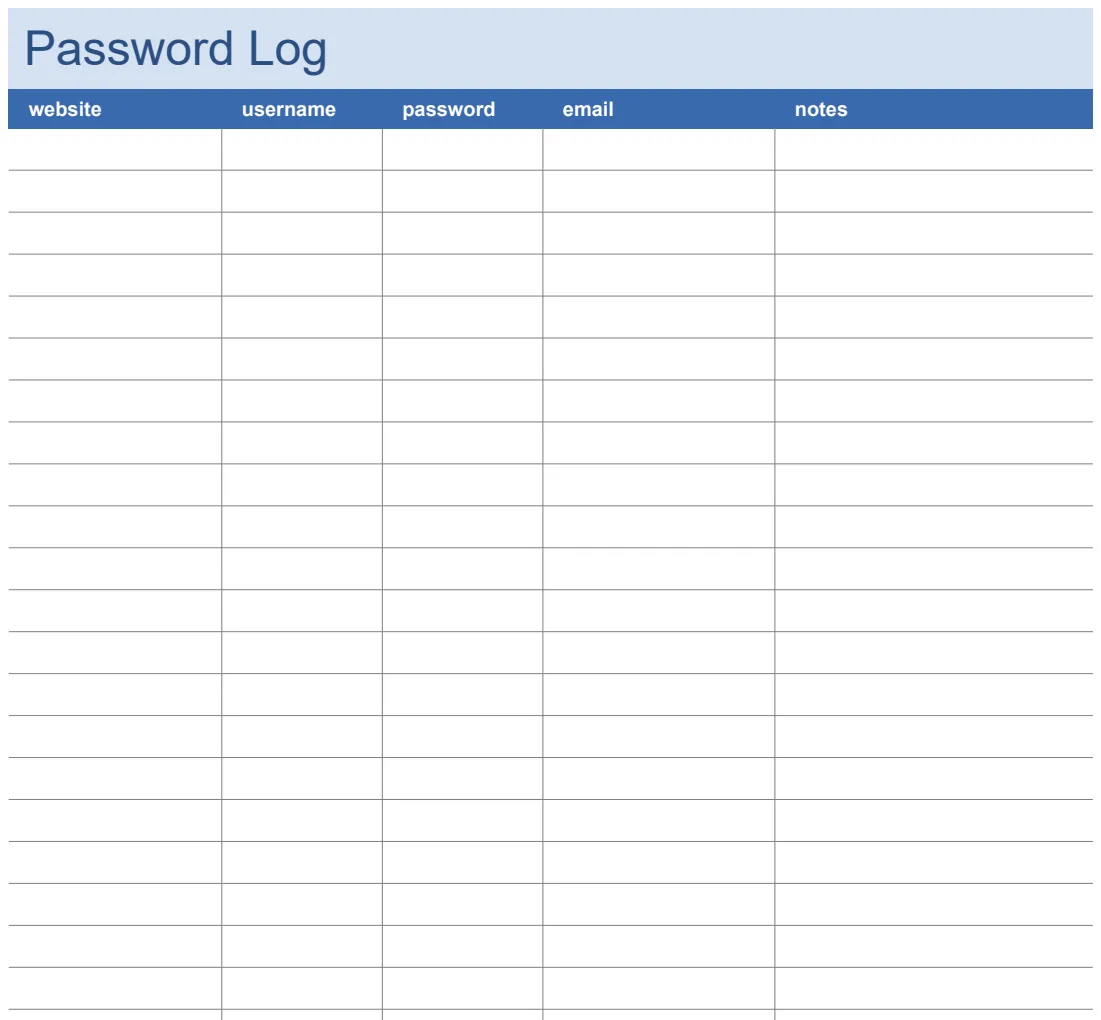
A password tracker spreadsheet template offers a secure and organized solution for managing your digital logins effectively.
Storing passwords in a plain text document or a scattered collection of sticky notes is a recipe for disaster. A well-structured password tracker spreadsheet template, however, offers a secure and organized solution that actually holds up over time.
Consider the alternative: relying on your memory for dozens of unique passwords. It's a losing battle, leading to forgotten logins, security vulnerabilities from reusing weak passwords, and the frustration of constant resets. A dedicated template puts you in control.
Why a Spreadsheet Works
Spreadsheets are powerful tools for organization. When you set one up as a password tracker, you gain several advantages over less structured methods. You can create distinct columns for essential information, apply formatting to highlight important details, and even use formulas for added functionality, all within a single, accessible file.
The key is to build it with security and usability in mind. You're not just listing passwords; you're creating a system. This system should be easy to update as you change passwords, add new accounts, or remove old ones. A good template acts as your blueprint.
Essential Columns for Your Tracker
When building your own password tracker spreadsheet template, start with the core information. Aim for clarity and completeness. Here are the minimum columns you should include:
- Website/Service Name: The name of the website or application (e.g., "Gmail," "Netflix," "Bank of America").
- URL: The direct web address for easy access.
- Username/Email: The specific username or email address associated with the login.
- Password: The actual password. This is the most sensitive column.
- Security Question 1 (Question & Answer): Record the first security question and its answer.
- Security Question 2 (Question & Answer): If applicable, record the second security question and its answer.
- Notes/Comments: Any additional information, like account numbers, recovery emails, or specific instructions.
- Date Last Changed: Crucial for tracking password rotation and security audits.
Securing Your Password Data
This is paramount. A password tracker is only useful if it's more secure than the passwords it's protecting.
Encryption: Never store your password spreadsheet in an unencrypted format on a cloud service like Google Drive or Dropbox without additional protection. Instead, consider using a password manager that offers encryption or encrypting the entire file itself using tools like VeraCrypt or BitLocker.
Password Protection: Most spreadsheet software (Excel, Google Sheets) allows you to password-protect the file. This is a good first layer of defense. Ensure you use a strong, unique password for the spreadsheet file itself.
Physical Security: If you're working on a local file, ensure your computer is secured with a strong login password and that your physical workspace is safe from prying eyes.
Avoid Cloud Sync for Unencrypted Files: If you must sync your spreadsheet across devices, ensure it's done via a secure, encrypted method or use a dedicated password manager. For many, a template like the Password Log is a better starting point as it’s designed with security in mind from the ground up.
Implementing a Password Tracker
Let's walk through creating a basic password tracker in Excel or Google Sheets.
- 01Open a New Spreadsheet: Start with a blank workbook.
- 02Add Column Headers: In the first row, type your column names: "Website/Service," "URL," "Username," "Password," "Security Q1," "Security A1," "Security Q2," "Security A2," "Notes," "Date Last Changed."
- 03Format Headers: Make the first row bold and perhaps add a background color to distinguish it.
- 04Enter Data: Start populating the rows with your account information. Be methodical. For the "Password" column, you might initially type it in plain text.
- 05Apply Password Obfuscation: To make the "Password" column less immediately readable to someone glancing at your screen, select the entire column. Right-click and choose "Format Cells" (Excel) or "Format" > "Number" > "Custom number format" (Google Sheets). In Excel, go to the "Protection" tab and check "Hidden." Then, go to Review > Protect Sheet and set a password. In Google Sheets, you can use a custom number format like
;;;which hides content. You'll then need to unhide it when you need to see or edit a password. Crucially, this is not true encryption. It's basic obfuscation. - 06Add Data Validation (Optional): For the "Date Last Changed" column, you can set data validation to ensure only valid dates are entered. Select the column, go to Data > Data Validation. Choose "Date" and set appropriate criteria.
- 07Set File Password Protection: Save your file and choose to password-protect the document itself.
Advanced Features and Considerations
Once you have the basics in place, you can enhance your password tracker.
Conditional Formatting for Password Age: You can use conditional formatting to highlight passwords that haven't been changed in a while. For example, if the "Date Last Changed" is more than 90 days ago, the row might turn yellow.
- Excel: Select your data range (excluding headers). Go to Home > Conditional Formatting > New Rule > "Use a formula to determine which cells to format." Enter a formula like
=TODAY()-$J2>90(assuming "Date Last Changed" is in column J and your data starts on row 2). Set your desired formatting. - Google Sheets: Select your data range. Go to Format > Conditional formatting. Under "Format rules," choose "Custom formula is" and enter
=TODAY()-J2>90.
Search and Filtering: Modern spreadsheet software makes it easy to find specific entries using built-in search or filtering functions. Simply click the filter icon in the header row and type what you're looking for.
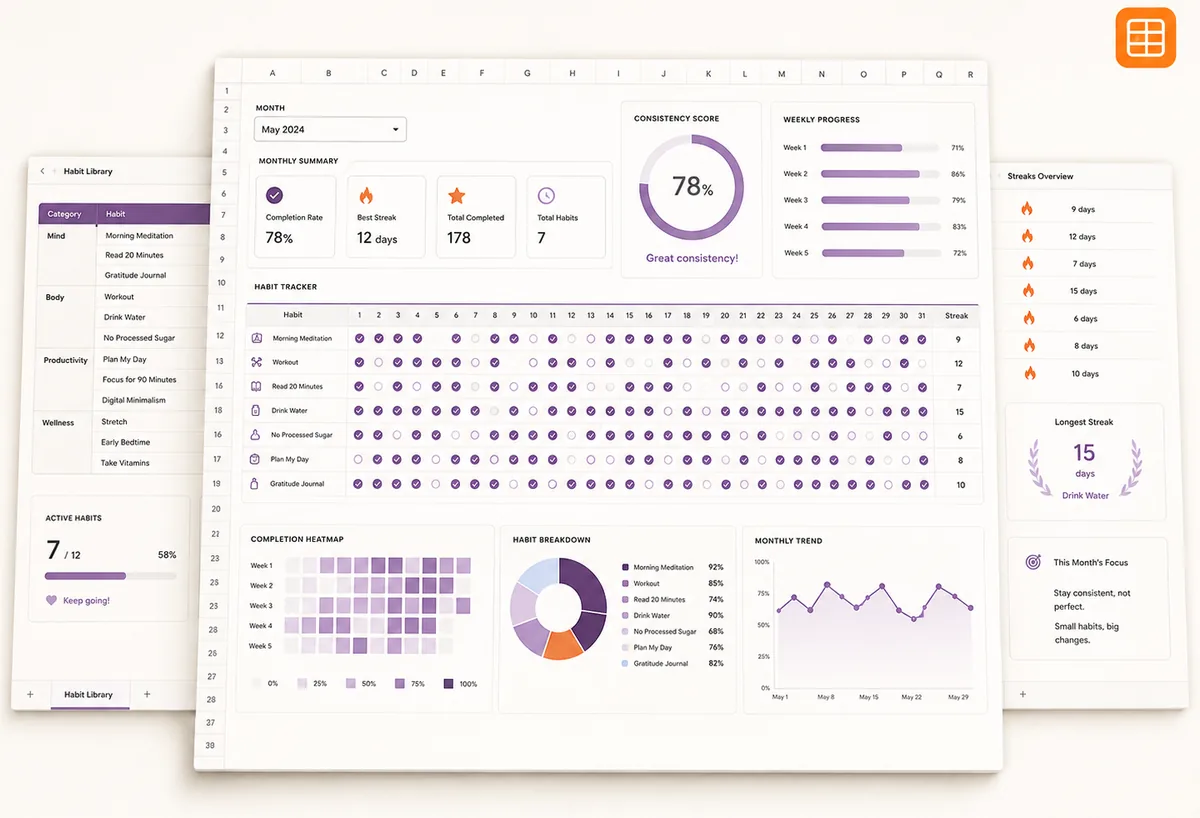
Templates: If building from scratch feels daunting, pre-built solutions can save you time. A template like the Password Manager Dashboard Template offers a more visual and comprehensive approach to managing your credentials.
Common Mistakes to Avoid
Users often make critical errors when setting up or using a password tracker. Be aware of these pitfalls:
- Storing the Spreadsheet Unencrypted: This is the most common and dangerous mistake. If your device is compromised, all your passwords are exposed.
- Using Weak Spreadsheet Passwords: If you password-protect your spreadsheet, use a strong, unique password. The same password you use for your email is not sufficient.
- Reusing Passwords Across Entries: Don't use the same password for your spreadsheet file that you use for any of the accounts you are tracking.
- Not Updating Regularly: Passwords need to be changed periodically. Failing to update the "Date Last Changed" column or the password itself defeats the purpose.
- Sharing the File Insecurely: Avoid emailing your password tracker to yourself or others without robust encryption.
- Leaving Sensitive Data Visible: Ensure you hide or obfuscate the password column when not actively editing it, especially if others might have access to your screen or device.
- Forgetting About Security Questions: Treat security question answers with the same care as passwords. Avoid easily guessable answers.
Frequently Asked Questions
How do I make my password spreadsheet truly secure?
The most effective way is to combine spreadsheet password protection with file-level encryption. Use tools like VeraCrypt to create an encrypted container for your spreadsheet file, or use a dedicated, encrypted password manager. Never rely solely on the spreadsheet's built-in "hidden" attribute for the password column.
Can I use a password tracker spreadsheet template for work accounts?
For sensitive work accounts, it's almost always better to use your company's provided password manager. If you must track them yourself (and have explicit permission), ensure you follow your organization's security policies rigorously, which likely means using approved, encrypted tools.
What if I forget the password to my spreadsheet?
If you forget the password to a password-protected spreadsheet file (not the sheet protection), recovery can be extremely difficult, often impossible without specialized software or brute-force methods that can take a very long time. This underscores the importance of using a strong, memorable password for the file itself, or better yet, relying on a password manager that has robust recovery options.
Is a password tracker spreadsheet template better than a password manager app?
For most people, a dedicated password manager app is superior due to built-in encryption, cross-device sync, and features like auto-fill. However, a spreadsheet can be a viable alternative if you prefer a hands-on approach, require offline access, or have specific organizational needs not met by apps. It can also be a good starting point, perhaps even linking to a more robust solution later, like the Password List template, which offers a structured way to organize data before migrating it. Access to a wide variety of templates, like a Daily Diary & Personal Tracker or a password tracker, is available with a one-time library purchase.