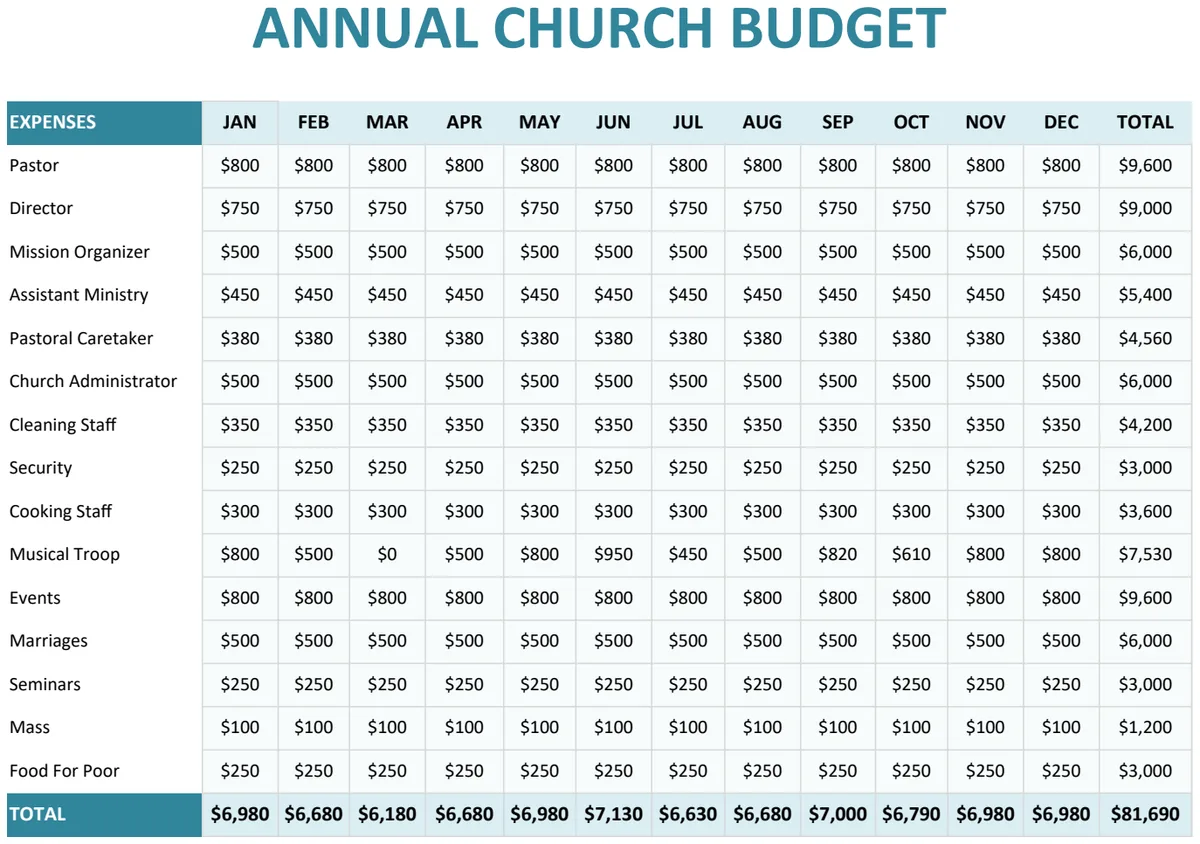
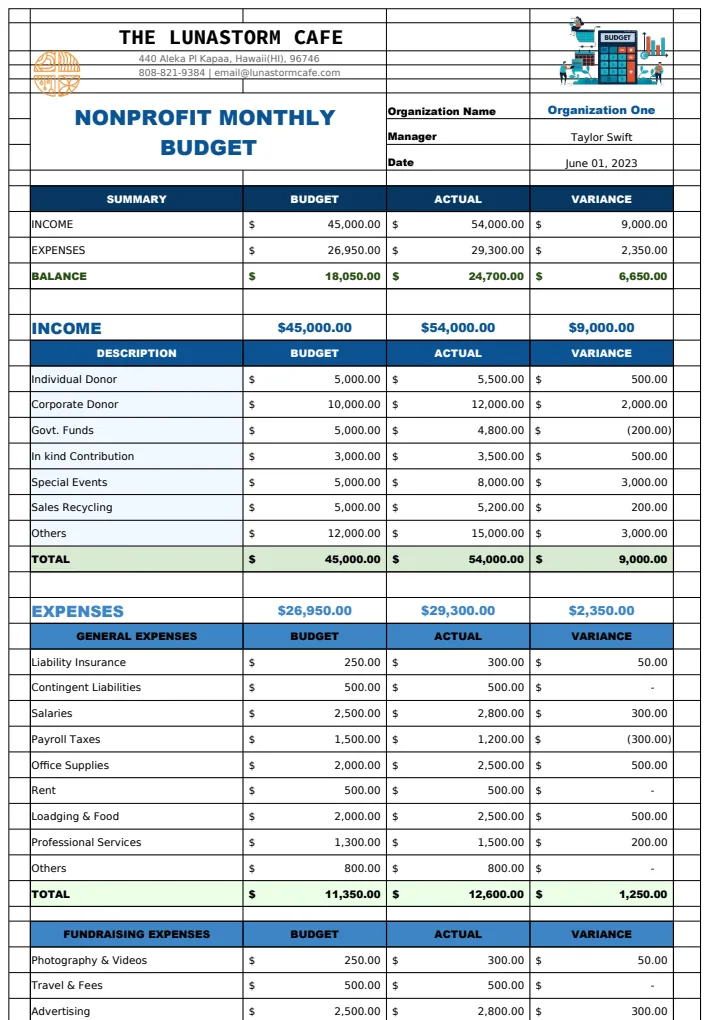
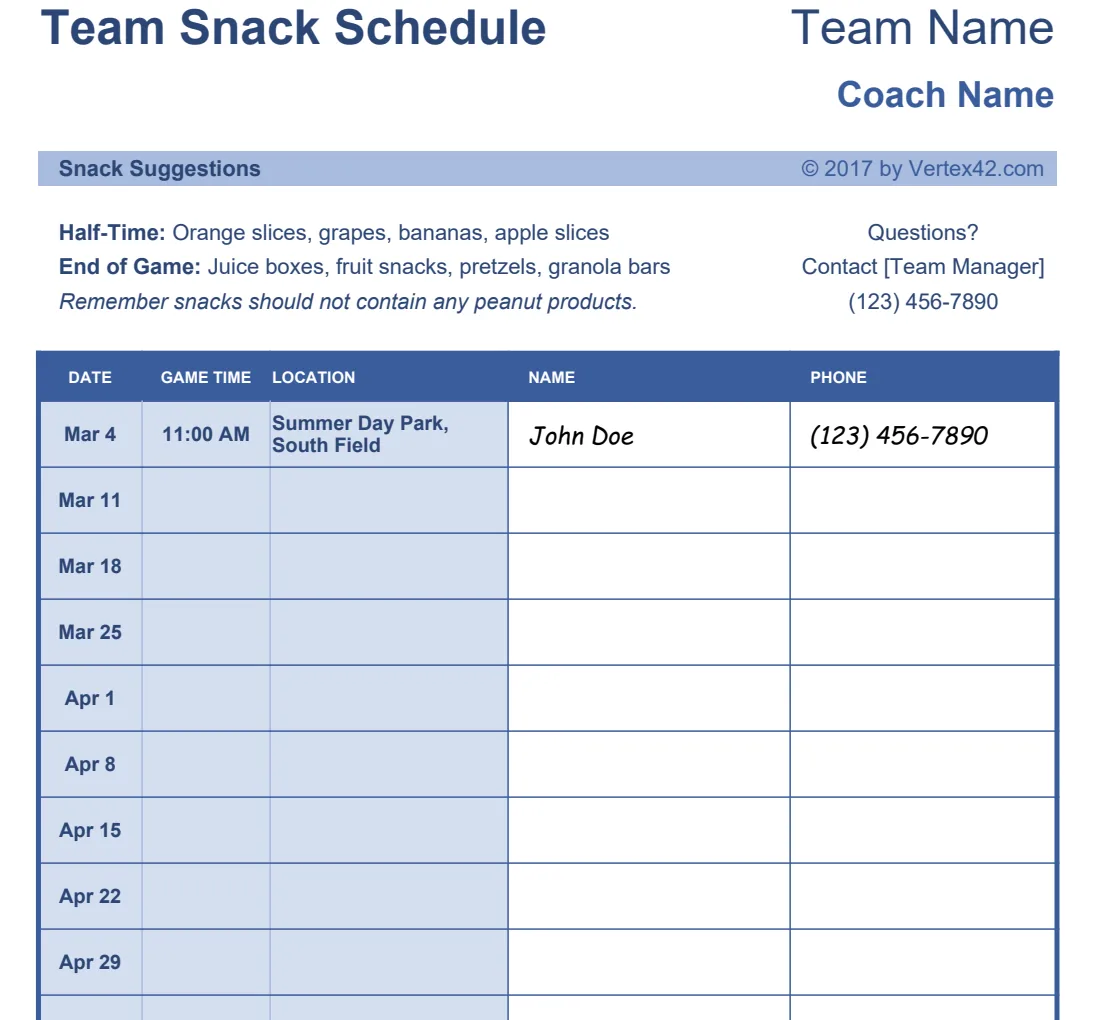
A spreadsheet template for tracking all your charitable giving
This donation tracker spreadsheet template simplifies managing your charitable contributions by separating data and reporting for easier analysis.
The core structure of a functional donation tracker spreadsheet template hinges on how you categorize contributions, and most people overcomplicate this by trying to track too many granular details in one place. A good template separates raw transaction data from summary reporting and donor management. This allows for easier data entry and cleaner analysis, preventing common errors like duplicate entries or misattributed funds.
When you're setting up your donation tracker, think about the journey of a donation: from its receipt to its allocation and the subsequent thank you. A robust system doesn't just record who gave what, when, and how much. It also helps you understand donor patterns, campaign effectiveness, and your overall financial health. This is where a well-designed donation tracker spreadsheet template becomes invaluable for any nonprofit.
Essential Columns for Tracking Donations
At a minimum, your raw data sheet should include the following columns. These form the backbone of your tracking and reporting.
- Donation ID: A unique identifier for each donation. This is crucial for preventing duplicates and for cross-referencing if needed. You can generate this with a simple sequential number or using a formula like
=ROW(). - Donation Date: The date the donation was received or recorded. This is vital for financial reporting and for tracking campaign timelines.
- Donor Name: The full name of the individual, family, or organization making the donation.
- Donor Contact Info: This could be a single column for an email address, or multiple columns for phone number, mailing address, etc., depending on your needs for follow-up.
- Donation Amount: The monetary value of the contribution. Ensure this is formatted as currency.
- Donation Type: Categorize the donation. Common types include:
- Monetary (Cash/Check/Online)
- In-Kind (Goods/Services)
- Pledge
- Membership Dues
- Event Ticket Purchase
- Payment Method: How the donation was made (e.g., Check, Credit Card, PayPal, Bank Transfer, Cash).
- Campaign/Fund: Link the donation to a specific fundraising initiative or program (e.g., "Annual Gala," "Building Fund," "Scholarship Program"). This is critical for measuring campaign success.
- Notes/Memo: A free-text field for any specific details about the donation, like "In memory of..." or "Designated for a specific project."
- Receipt Sent (Yes/No or Date): A flag to indicate if a thank-you receipt has been sent. This helps manage your acknowledgment process.
Setting Up Your Data Entry Sheet
Start with a simple sheet that mirrors these essential columns. Name it something clear, like "Raw Donations" or "Donation Log." For a new nonprofit, this might be the only sheet you need initially. However, as you grow, you'll want more sophisticated tools.
If your organization is school-focused, you might find a template like the School Donation Log Sheet Template particularly helpful for its structured approach to educational institution donations. It includes fields for staff managing the donations, which can be a valuable addition.
Creating Summary and Reporting Sheets
Once you have your raw data, you need ways to analyze it. Create separate sheets for reporting. These sheets will pull data from your "Raw Donations" sheet using formulas.
Total Donations by Campaign
This is a fundamental report. You'll want to see how much each campaign has raised.
- 01Create a new sheet: Name it "Campaign Summary."
- 02List your campaigns: In column A, list all your active and past campaigns. You can manually enter these or use the
UNIQUEfunction to pull them directly from your "Campaign/Fund" column on the "Raw Donations" sheet. For example, in cell A2 of "Campaign Summary," you could put=UNIQUE('Raw Donations'!G2:G1000)(adjust the rangeG2:G1000to cover all your campaign entries). - 03Sum donations for each campaign: In column B, use the
SUMIFSfunction to add up the amounts. If your campaigns are in column A of "Campaign Summary" (starting from A2) and the donation amounts are in column F of "Raw Donations," and campaign names are in column G of "Raw Donations," the formula in B2 would be:
=SUMIFS('Raw Donations'!F:F, 'Raw Donations'!G:G, A2) Drag this formula down for all your listed campaigns.
- 04Add a Grand Total: In a cell below your campaign totals, use
=SUM(B2:B_last_campaign)to get your overall donation total.
Donations by Donor
Understanding your donor base is key to effective stewardship. You can create a donor summary similar to the campaign summary.
- 01Create a new sheet: Name it "Donor Summary."
- 02List unique donors: In column A, use
=UNIQUE('Raw Donations'!C2:C1000)(assuming donor names are in column C). - 03Sum total donations per donor: In column B, use
SUMIFSto calculate the total amount donated by each individual or organization. The formula would look something like:
=SUMIFS('Raw Donations'!F:F, 'Raw Donations'!C:C, A2)
- 04Add average donation amount: In column C, calculate the average donation for each donor using
AVERAGEIFS:
=AVERAGEIFS('Raw Donations'!F:F, 'Raw Donations'!C:C, A2)
- 05Count number of donations: In column D, use
COUNTIFSto see how many times each donor has contributed:
=COUNTIFS('Raw Donations'!C:C, A2)
Tracking In-Kind Donations
In-kind donations (goods or services) require a slightly different approach because they don't involve a monetary amount.
- Valuation: You'll need to assign a fair market value to these items. This column should be separate from the monetary amount.
- Description: A detailed description of the item or service is essential.
- Purpose: Note how the item or service will be used by the organization.
When reporting, you can either sum the valued in-kind donations separately or create a combined report that shows both monetary and in-kind contributions, clearly distinguishing between them. For complex fundraising events, a template like the Fundraising Manager can help integrate these different types of contributions and manage associated expenses.
Implementing Donor Management Features
Beyond just tracking donations, your spreadsheet can help manage relationships.
- Donor Segmentation: Based on donation history (total amount, frequency, campaign preference), you can segment donors into groups (e.g., Major Donors, Lapsed Donors, First-Time Donors). This allows for targeted communication.
- Last Contact Date: Add a column to your "Donor Summary" sheet to track the date of the last communication with a donor.
- Donor Notes: A dedicated section or sheet for qualitative notes about donor preferences, interests, or history can be very beneficial.
Automating with Formulas and Features
Spreadsheets offer powerful tools to automate tasks and reduce manual effort.
- Conditional Formatting: Use conditional formatting to highlight:
- Donations over a certain threshold.
- Donors who haven't given in a while.
- Campaigns that are falling short of their goals.
- Cells where receipt sending is overdue.
- Data Validation: Use data validation to create dropdown lists for "Donation Type," "Payment Method," and "Campaign/Fund." This ensures consistency and prevents typos.
- Pivot Tables: For more advanced analysis, pivot tables are excellent. You can quickly summarize data by donor, campaign, date range, or any combination thereof, without complex formulas.
Common Mistakes to Avoid
Even with a solid template, errors can creep in. Be mindful of these pitfalls:
- Inconsistent Data Entry: Not using dropdowns or standardizing abbreviations leads to messy data that's hard to report on.
- Forgetting to Record Donations: Small cash donations or online gifts can easily be missed if there isn't a clear process for logging them immediately.
- Overly Complex Formulas: While powerful, overly nested or complex formulas can be difficult to troubleshoot when they break. Keep them as simple as possible.
- Not Backing Up Your Data: Spreadsheets can be corrupted or accidentally deleted. Regular backups are non-negotiable.
- Mixing Raw Data and Summary Data: Trying to do all your analysis on the same sheet where you enter raw transactions makes the sheet unwieldy and prone to accidental data deletion.
Frequently Asked Questions
How do I track recurring donations in a spreadsheet?
For recurring donations, you can either record each installment as a separate entry on your "Raw Donations" sheet with a consistent "Donation Date" or mark it as a recurring gift and note the frequency and start date in a separate column. You might also create a separate "Recurring Donors" sheet that lists donor details and the ongoing contribution plan, with your main log tracking the actual payments as they occur.
Can I use a donation tracker spreadsheet template for grant applications?
While a donation tracker is excellent for showing your fundraising history and donor base, it's not a direct substitute for grant application forms. However, the data it provides, total funds raised, breakdown by campaign, donor demographics, is crucial supporting information for demonstrating your organization's financial health and community support within a grant proposal. You'll likely pull aggregated data from your tracker to populate specific sections of a grant application.
What if I receive a donation that's restricted for a specific project?
You should absolutely track restricted donations. Add a column to your "Raw Donations" sheet, perhaps labeled "Restriction/Designation." When you enter a donation, specify the project or purpose the funds are restricted for. On your summary sheets, you can then use SUMIFS again, this time filtering by both "Campaign/Fund" and your new "Restriction/Designation" column, to see how much is allocated to each restricted purpose.
How often should I update my donation tracker?
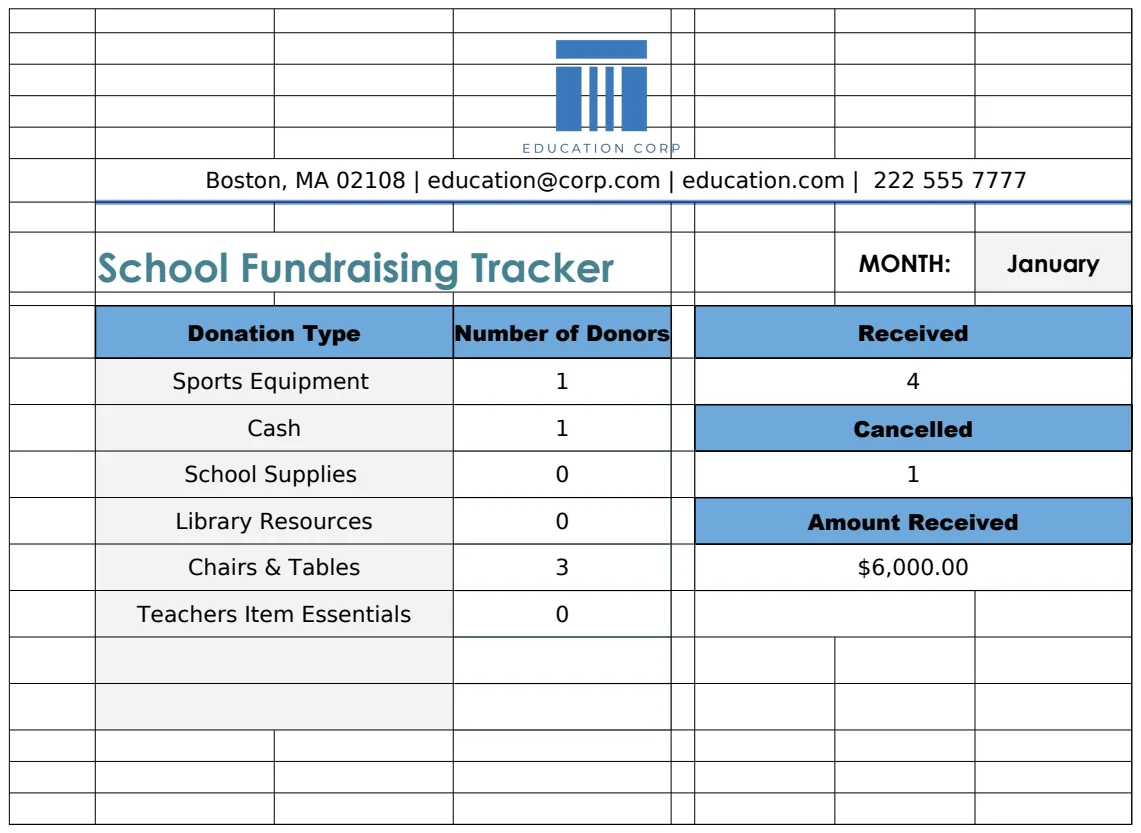
Ideally, you should update your donation tracker daily or at least weekly. The sooner a donation is logged, the less likely it is to be forgotten. For online donations, aim to import or manually enter them within 24-48 hours. Regular updates also ensure your reporting is current and accurate, allowing for timely decision-making and donor acknowledgment. For a comprehensive solution that can integrate with other fundraising efforts, exploring the School Fundraising Tracker Template might offer broader capabilities beyond basic tracking.