Organize your church budget in under an hour.
Discover how a simple spreadsheet can organize your church budget, even if you need a free template to start.
A church budget spreadsheet doesn't need to be complex to be effective. Many churches assume they need highly specialized accounting software to manage their finances, but a well-structured spreadsheet can handle most needs, especially if you're looking for a free church budget spreadsheet template. The key is understanding the core components: income sources, expense categories, and variance tracking.
This article will walk you through setting up a functional church budget in a spreadsheet, covering essential elements and offering practical advice. We'll focus on how to build it yourself, but we'll also point you to some ready-made options if you prefer a head start.
Understanding Your Income Streams
Before you can budget expenses, you need a clear picture of where your money comes from. For a church, this typically includes:
- Tithes and Offerings: The primary source of income, often collected during services.
- Special Collections/Missions: Funds designated for specific purposes or external ministries.
- Building Fund Contributions: Donations specifically earmarked for building maintenance, renovations, or new construction.
- Event Income: Revenue from fundraisers, bake sales, dinners, or ticketed events.
- Rental Income: If the church rents out its facilities to other groups.
- Donations/Gifts: Unexpected contributions from individuals or organizations.
It's crucial to differentiate between unrestricted income (which can be used for general operations) and restricted income (which must be used for a specific purpose). This distinction will be important when you set up your expense categories.
Structuring Your Expense Categories
Expenses for a church fall into several broad buckets. A good template will break these down further. Consider these common areas:
- Personnel Costs:
- Salaries and wages (pastors, staff, administrative).
- Benefits (health insurance, retirement contributions).
- Payroll taxes.
- Housing allowances.
- Ministry Expenses:
- Children's ministry (supplies, curriculum, events).
- Youth ministry (activities, retreats, resources).
- Adult education/Bible studies (materials, guest speakers).
- Worship and music (choir expenses, instrument maintenance, sheet music).
- Missionary support and outreach programs.
- Operational Costs:
- Rent/Mortgage or building maintenance and repairs.
- Utilities (electricity, gas, water, internet).
- Insurance (property, liability).
- Office supplies and postage.
- Technology (software subscriptions, hardware maintenance).
- Cleaning and janitorial services.
- Programmatic Expenses:
- Event costs (materials, catering, rentals).
- Stewardship/Fundraising expenses.
- Debt Service:
- Loan payments (if applicable).
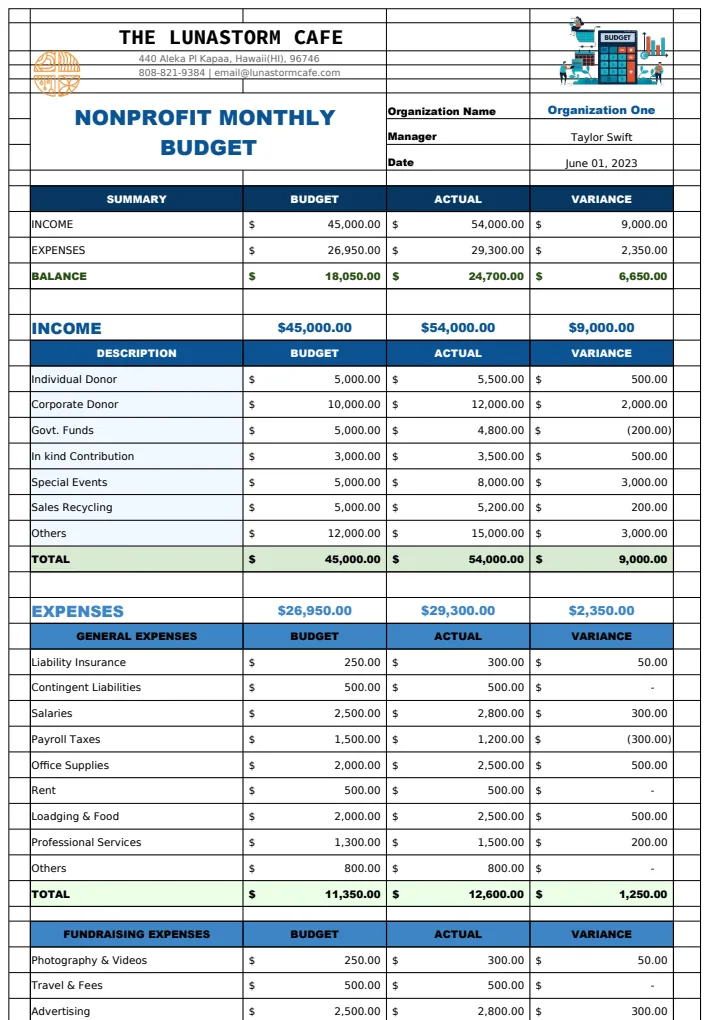
When building your own spreadsheet, create columns for "Budgeted Amount" and "Actual Amount" for each line item. You'll also want a column for "Variance" to see where you're over or under budget.
Building Your Spreadsheet: A Step-by-Step Guide
Let's assume you're using Google Sheets or Excel. Here’s how to construct a basic but effective budget.
- 01Set Up Your Tabs: Create at least two tabs: one for "Budget" and one for "Actuals." You might also want a "Summary" tab.
- 02Budget Tab:
- Column A: Category: List your income and expense categories. Start with income, then list your expense categories, grouped logically (e.g., Personnel, Ministry, Operations).
- Column B: Sub-Category: For more detail, add a sub-category (e.g., under "Personnel," you might have "Pastor Salary," "Secretary Salary").
- Column C: Budgeted Amount: Enter the planned amount for each line item for the year.
- Column D - O: Monthly Breakdown (Optional but Recommended): If you want to track monthly, create columns for each month (Jan-Dec). Distribute your annual budgeted amount across these columns. Some items will be consistent (e.g., salaries), others will fluctuate (e.g., event costs).
- Column P: Annual Total: This column will sum up your monthly budgeted amounts.
- 03Actuals Tab:
- Mirror the structure of your Budget tab.
- Column A: Date: Record the date of the transaction.
- Column B: Description: Briefly describe the transaction (e.g., "Staff Meeting Lunch," "October Utilities").
- Column C: Category: Select the corresponding income or expense category from a dropdown list (this helps with consistency and later analysis).
- Column D: Sub-Category: Select the sub-category.
- Column E: Amount: Enter the actual amount spent or received.
- Column F: Month: Use a formula like
=TEXT(A2, "mmmm")to automatically pull the month from the date.
- 04Summary Tab:
- This tab pulls data from your Budget and Actuals tabs to show performance.
- Row 1: Year: Enter the year you're budgeting for.
- Column A: Category & Sub-Category: List all your income and expense categories.
- Column B: Budgeted (Annual): Use a formula like
=SUMIF(Budget!A:A, "Total Income", Budget!P:P)to pull the total budgeted amount for income. For expenses, you’ll sum specific categories. - Column C: Actual (Annual): Use a formula like
=SUMIF('Actuals'!C:C, "Total Income", 'Actuals'!E:E)to sum all actual income. For expenses, you'll sum actual amounts based on category. - Column D: Variance: Calculate
=C2-B2for each row. A positive number means you spent more than budgeted (for expenses) or received less than budgeted (for income). A negative number is the opposite. - Visuals: Add charts here to easily see budget vs. actual for major categories. A bar chart comparing budgeted and actual income and expenses is very effective.
If this manual setup feels daunting, consider a pre-built solution. A template like the Church Budget Worksheet Template can provide a solid starting point with many of these calculations already set up.
Using Formulas for Automation
Formulas are what make a spreadsheet dynamic and useful. Here are a few key ones:
- SUM: For calculating totals within a column or row.
- SUMIFS: This is incredibly powerful for summing based on multiple criteria. For example, on your Summary tab, to get the total actual expenses for "Children's Ministry" for the year, you might use:
=SUMIFS('Actuals'!E:E, 'Actuals'!C:C, "Ministry Expenses", 'Actuals'!D:D, "Children's Ministry"). - IF: For conditional logic. You could use this to flag variances that exceed a certain percentage. For example,
=IF(D2/B2>0.1, "Over 10% Variance", ""). - VLOOKUP / XLOOKUP: Useful for pulling data from one tab to another. For instance, if you have a separate tab with mission fund allocations, you could use XLOOKUP to pull the budgeted amount for a specific mission project into your main budget.
- Conditional Formatting: This isn't a formula but a formatting rule. Apply it to your Variance column. Set rules to highlight variances over a certain threshold (e.g., red for over budget by more than 10%, yellow for over budget by 5-10%). This makes problem areas immediately visible.
Common Mistakes to Avoid
Many churches stumble when managing their finances in spreadsheets. Here are a few pitfalls:
- Lack of Detail: Overly broad categories make it impossible to pinpoint where money is going or why variances occur. "Miscellaneous" is a red flag.
- Inconsistent Data Entry: Not using consistent category names or entering data sporadically leads to inaccurate totals. Using dropdown lists for categories in your "Actuals" tab is a must.
- Ignoring Restricted Funds: Treating designated donations as general operating funds can lead to serious financial missteps and a loss of donor trust. Clearly separate these.
- Not Reconciling: Failing to regularly compare your spreadsheet to bank statements means errors can accumulate unnoticed.
- Forgetting Depreciation: While not always tracked in basic spreadsheets, understanding that assets like buildings and vehicles lose value over time is important for long-term financial health.
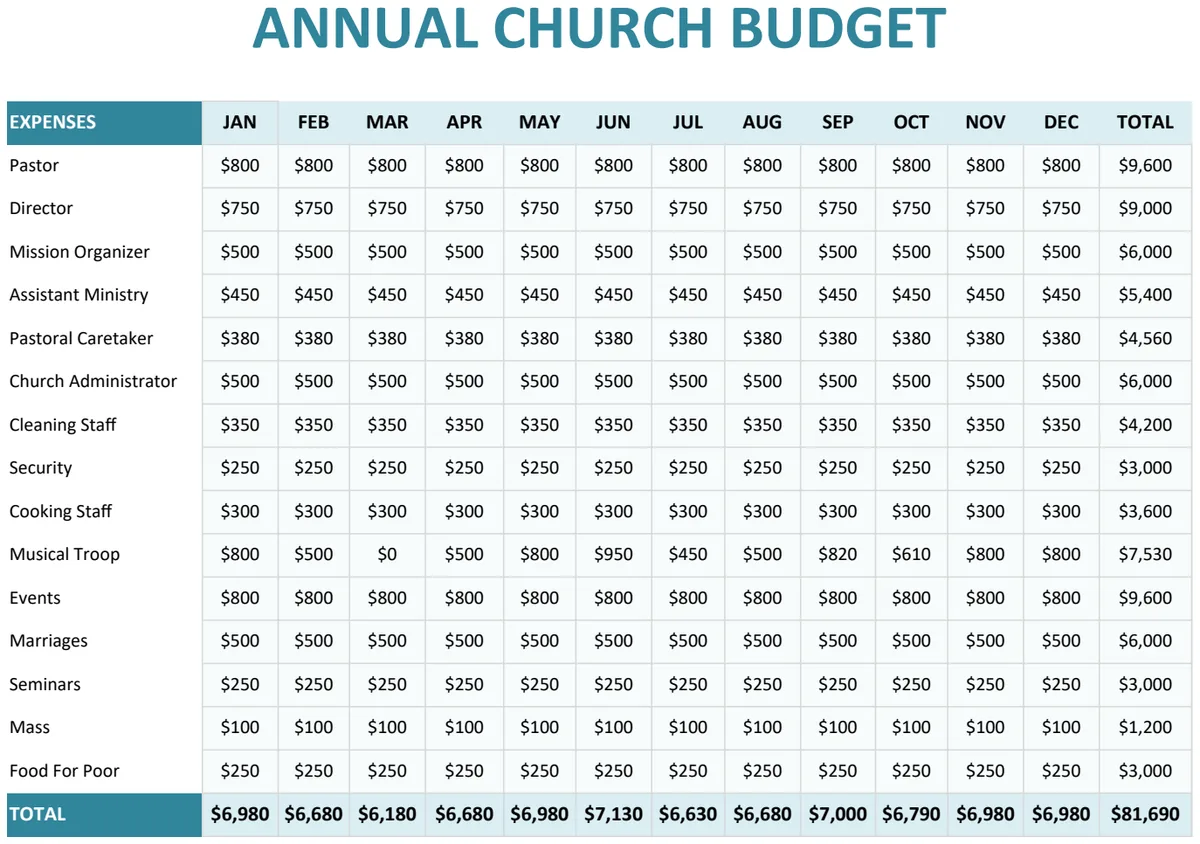
A template like the Annual Church Budget Template can help enforce consistency with its pre-defined categories.
When to Consider a Specialized Template or Software
While a free church budget spreadsheet template can be a great starting point, there are times when you might want more. If your church has complex funding structures, multiple ministries with separate budgets, or a large volume of transactions, a more specialized tool becomes beneficial.
You might find that a template designed for church accounting, with specific fields for offerings, tithes, and missions, saves considerable setup time. For instance, the Annual Church Budget Template US offers monthly expense tracking and visual charts that can be more intuitive than manually building them.
Ultimately, the goal is to have a clear, accurate, and easy-to-understand financial picture. Whether you build it from scratch or adapt a pre-made solution, a functional budget is a cornerstone of responsible church stewardship.
What if my church receives donations in cash?
Cash donations present a tracking challenge. You'll need a process for recording these immediately. Designate a person or team to count and record all cash income, including the date, amount, and any designation (e.g., general offering, building fund). Enter these into your "Actuals" tab promptly. It's also wise to have two people involved in the counting process for accountability.
How do I handle unexpected expenses?
Unexpected expenses are inevitable. The best approach is to build a small contingency fund into your annual budget, typically as a line item under "Operational Costs" or "Reserve Fund." If an unexpected expense arises, assess if it can be covered by this fund. If not, you may need to review other budget categories to see if spending can be reduced elsewhere to accommodate the new cost, or consider a special offering.
Can I track multiple funds within one spreadsheet?
Yes, you can. If you have separate funds (e.g., a general fund, a missions fund, a building fund), you can add a "Fund" column to your "Actuals" tab. Then, when using SUMIFS on your Summary tab, you can add the "Fund" column as an additional criterion. For example, to sum actual expenses for "Utilities" from the "General Fund," your formula might look like: =SUMIFS('Actuals'!E:E, 'Actuals'!C:C, "Operational Costs", 'Actuals'!D:D, "Utilities", 'Actuals'!F:F, "General Fund"). This allows for granular tracking across different financial pools.