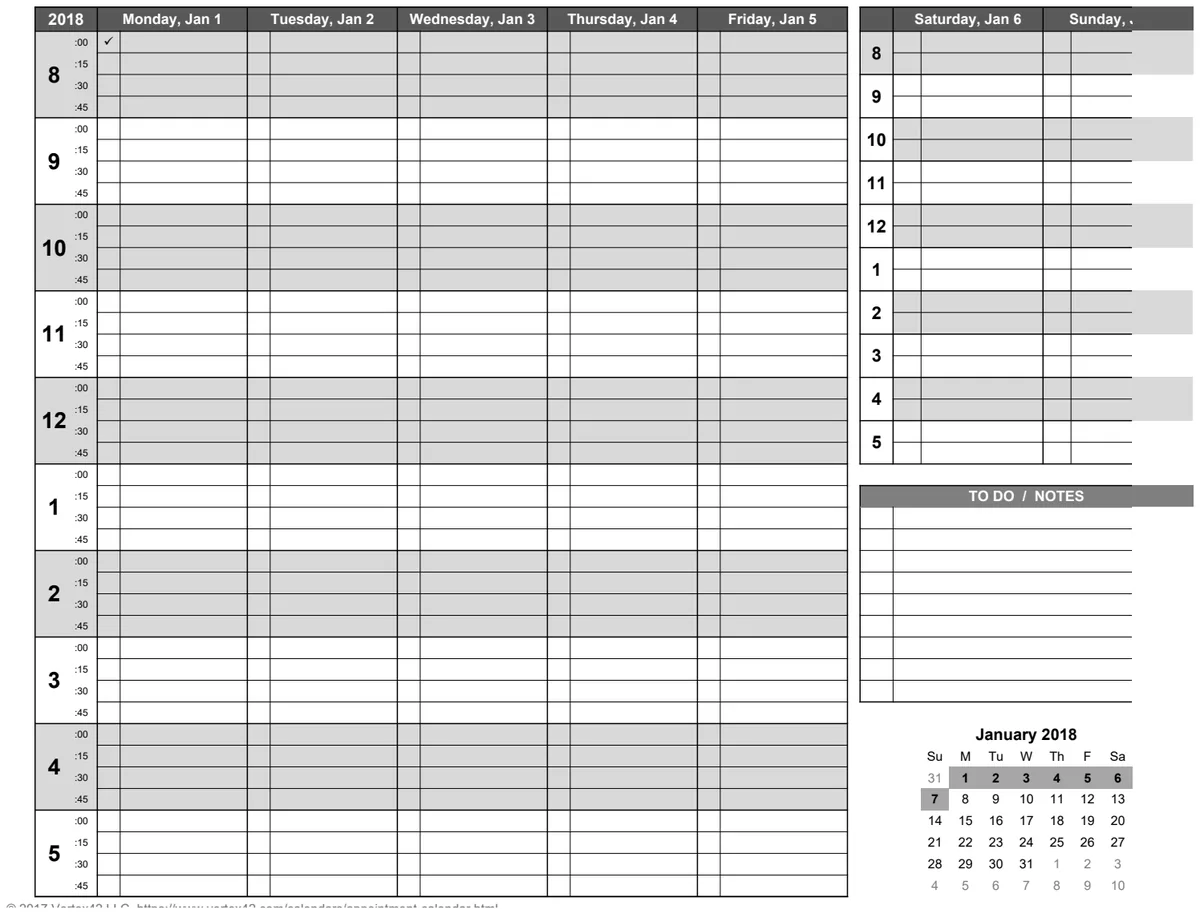
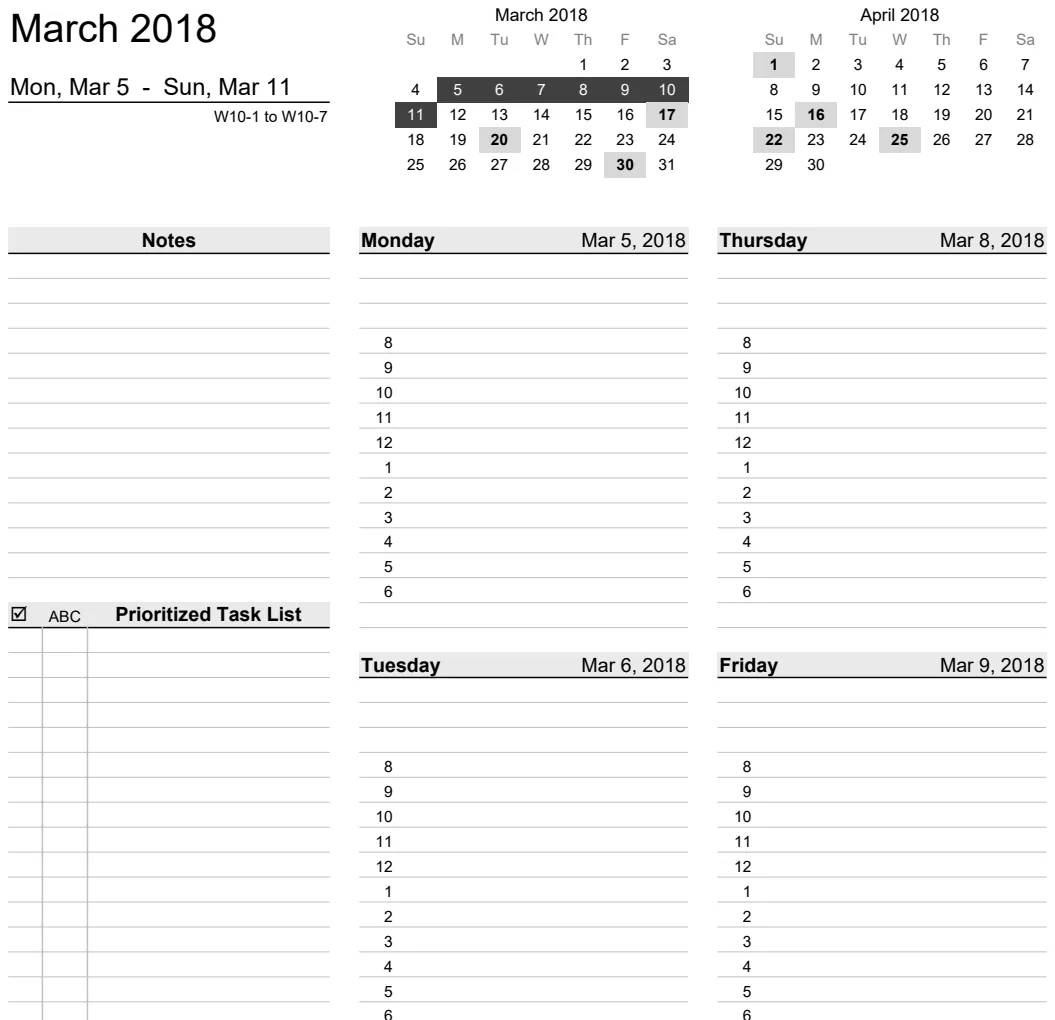
An Excel class schedule template for easy planning
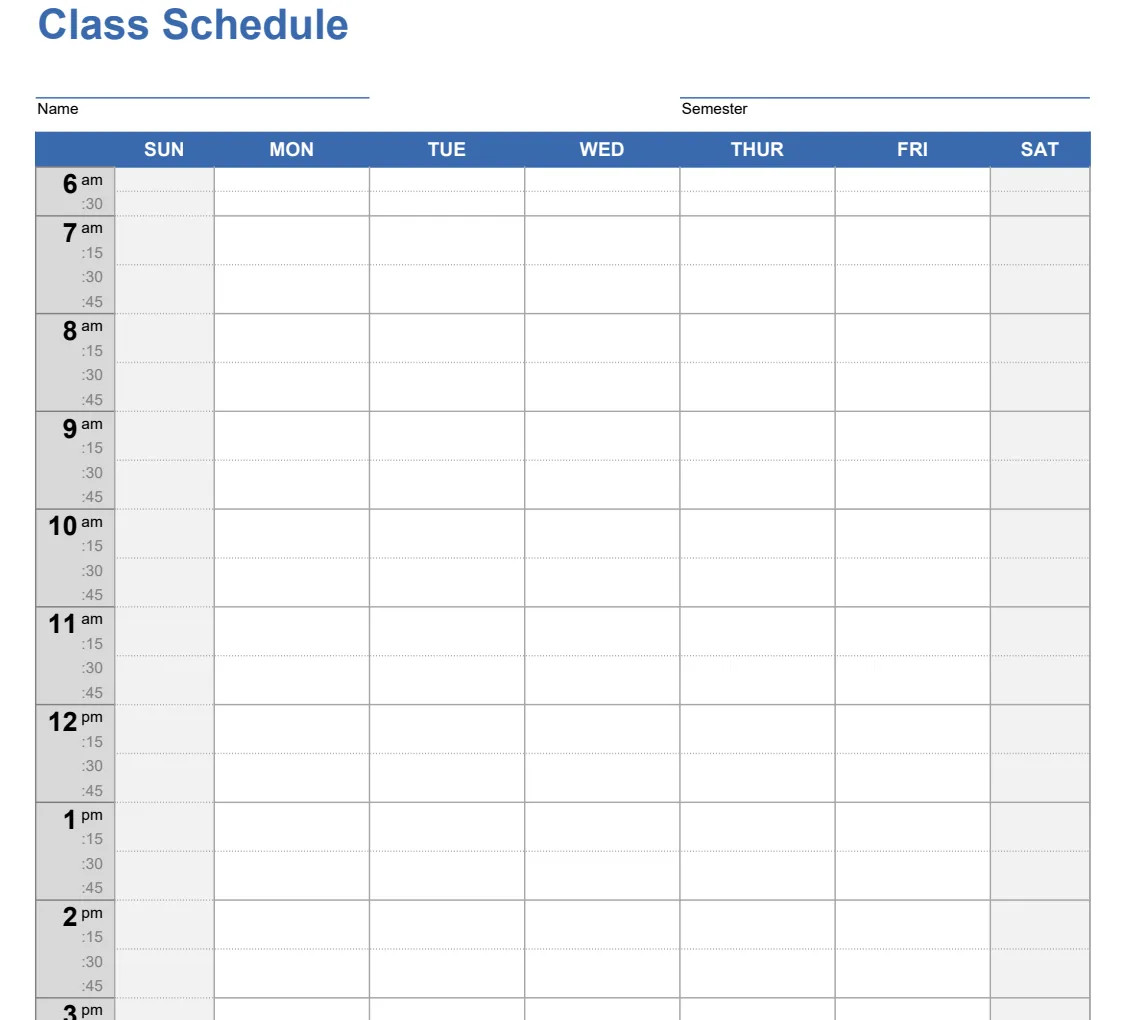
Get a functional Excel spreadsheet to map your week, showing class times, locations, and instructors, ready for immediate download.
By the end of this, you'll have a functional Excel spreadsheet that maps out your entire week, clearly showing class times, locations, and instructors, ready to be downloaded and used immediately. You can organize your academic or personal commitments with a robust, easy-to-read layout, making it simple to avoid conflicts and stay on track. Finding a good class schedule template Excel free is a common need for students, educators, and anyone juggling multiple commitments, and we'll cover how to set one up effectively.
This guide will walk you through building your own from scratch or customizing a pre-built option. We'll cover essential elements, useful formulas, and common pitfalls to avoid, ensuring your schedule works for you.
Building Your Schedule from the Ground Up
Creating a custom schedule offers maximum flexibility. You can tailor it precisely to your needs, whether you're a college student with varied class times or a teacher managing multiple courses. Let's start with the basic structure.
You'll want a clear grid. Typically, this means listing days of the week across the top row and time slots down the first column. For a standard academic week, you might break down each day into hourly or half-hourly increments, starting from early morning to late evening.
Consider the information you need to capture for each class or commitment. Beyond just the time and day, you'll likely want to include:
- Class/Activity Name: The specific name of the course or event.
- Instructor/Professor: The name of the person teaching the class or leading the activity.
- Location/Room Number: Where the class takes place.
- Credits/Duration: For academic classes, the credit hours. For other activities, the expected length.
- Notes: Any extra details, like required materials, homework assignments due, or important reminders.
Setting Up Your Excel Grid
- 01Headers: In cell
A1, type "Time". Starting from cellB1across toF1(orG1if you include Sunday), type the days of the week: "Monday", "Tuesday", "Wednesday", "Thursday", "Friday". - 02Time Slots: In column
A, starting fromA2, enter your time increments. For example,8:00 AM. Drag the fill handle down to automatically populate subsequent times (e.g.,8:30 AM,9:00 AM). Adjust the increment and range to fit your schedule. - 03Formatting: Select your entire grid area (e.g.,
A1toF25, depending on your time range). Go to the "Home" tab, and in the "Font" group, click the "Borders" dropdown. Choose "All Borders" to create a visible grid. You might also want to bold your header row and column for clarity.
Essential Formulas and Features
Excel offers powerful tools to make your schedule dynamic. Even a simple class schedule template Excel free can be enhanced with these.
Conditional Formatting for Clarity
Conditional formatting is invaluable for quickly spotting conflicts or highlighting important entries.
- Highlighting Duplicates: If you accidentally schedule two classes at the same time, you'll want to see it immediately. You can use conditional formatting to highlight duplicate entries within a specific time slot across different days.
- Color-Coding Classes: Assign a color to each subject or type of activity. For example, all math classes could be blue, all science classes green, and extracurriculars yellow.
To set up color-coding by class name:
- 01Select the cells where your class names will appear (e.g.,
B2toF25). - 02Go to the "Home" tab, click "Conditional Formatting," then "New Rule."
- 03Choose "Use a formula to determine which cells to format."
- 04In the formula box, enter
=B2="Math 101"(assumingB2is the first cell in your selection and "Math 101" is a class you want to highlight). - 05Click "Format" and choose a fill color.
- 06Click "OK." Repeat this process for each class, adjusting the formula and color.
Using Data Validation for Consistency
Data validation helps prevent errors by restricting what users can enter into specific cells. This is particularly useful for fields like "Instructor" or "Location" if you have a fixed list.
- 01Create a separate sheet or a dedicated area in your current sheet for your lists (e.g., a list of instructors in column
H, starting fromH2). - 02Go back to your schedule sheet. Select the cells in the "Instructor" column where you want to apply validation (e.g.,
B2toF25). - 03Go to the "Data" tab, click "Data Validation."
- 04Under "Allow," choose "List."
- 05In the "Source" box, click the arrow and select your list of instructors on the other sheet (e.g.,
$H$2:$H$10). - 06Click "OK." Now, when you click on a cell in that range, a dropdown arrow will appear, allowing you to select an instructor from your predefined list.
Leveraging Pre-Built Templates
If building from scratch feels like too much, there are excellent pre-built options. Many of these are designed for immediate use and can be customized. Finding a class schedule template Excel free can save you significant setup time. For instance, a template like Class Schedule provides a weekly grid ready for you to input your course details.
These templates often come with pre-formatted cells, color-coding options, and sometimes even basic formulas for calculating total hours. You can download them and start filling them in right away, or use them as a foundation to add your own specific requirements. Another great option is the Class Schedule Template, which offers a clean, visual layout ideal for tracking multiple subjects.
Common Mistakes to Avoid
Even with a template, it's easy to make errors that can render your schedule less effective.
- Overlapping Times: The most obvious mistake is scheduling two events at the exact same time. Always double-check your entries, especially when copying and pasting or filling down.
- Unrealistic Time Blocks: Don't underestimate travel time between classes or the need for breaks. A schedule that's too packed leads to burnout and missed commitments.
- Lack of Detail: A schedule that only lists class names isn't very helpful. Missing room numbers, instructor names, or crucial notes can lead to confusion and missed information.
- Poor Formatting: A cluttered or unreadable schedule defeats its purpose. Ensure consistent formatting, clear fonts, and appropriate use of color and borders.
Frequently Asked Questions
Can I use this template for more than just academic classes?
Absolutely. The principles of creating a structured grid with time slots and activity details apply to any situation where you need to manage multiple commitments. Whether it's a work schedule, a personal training plan, or a family activity calendar, you can adapt the layout and fields to suit your needs.
What if my school uses a different class period structure (e.g., block scheduling)?
You can easily adjust the time slots. Instead of hourly or half-hourly increments, you would list your specific block periods (e.g., "Block 1: 9:00 AM - 10:30 AM", "Block 2: 10:45 AM - 12:15 PM"). The grid structure remains the same, but the rows will represent your custom blocks rather than fixed time intervals.
How can I easily share my schedule with others?
Excel files can be shared directly via email or cloud storage services like Google Drive or OneDrive. Alternatively, you can save your schedule as a PDF document, which is a static image of your spreadsheet that can be viewed on any device without needing Excel. For a dynamic, shareable calendar, consider integrating your schedule into a cloud-based calendar application after you've finalized it in Excel.
Is there a way to automatically calculate total study hours or class time?
Yes, you can use formulas like SUM or SUMIFS to calculate total hours. For example, if your class times are in column B and you have a column C for duration in hours, you could use =SUM(C2:C25) to get the total hours. If you want to sum hours for specific classes or days, SUMIFS is more appropriate. While building these formulas yourself offers deep customization, a template like Class Timetable Scheduler might already include such features. If you're looking for a wide variety of options, exploring the /templates section can be very beneficial. The library offers unlimited downloads for a one-time fee of $9, giving you access to many different scheduling tools.