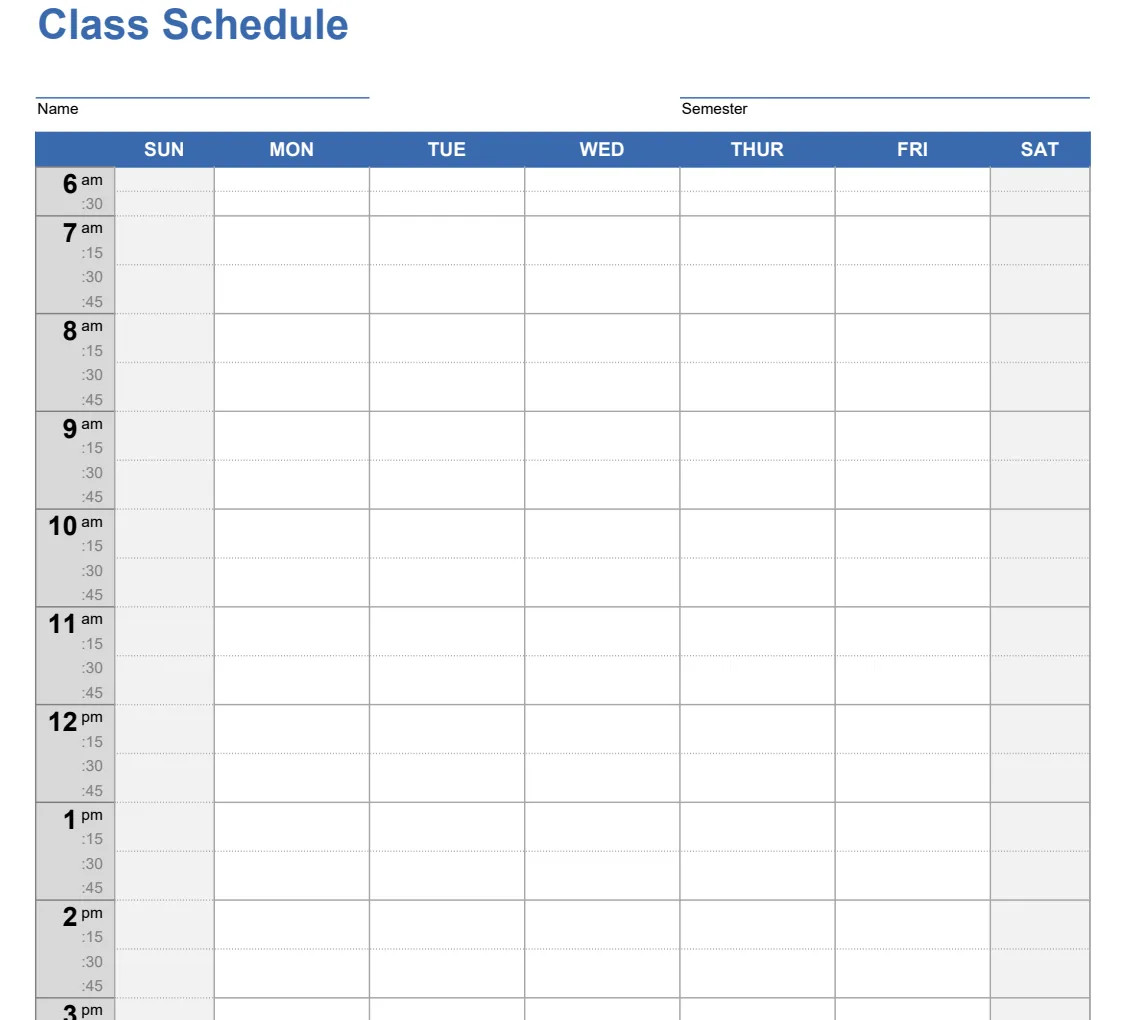
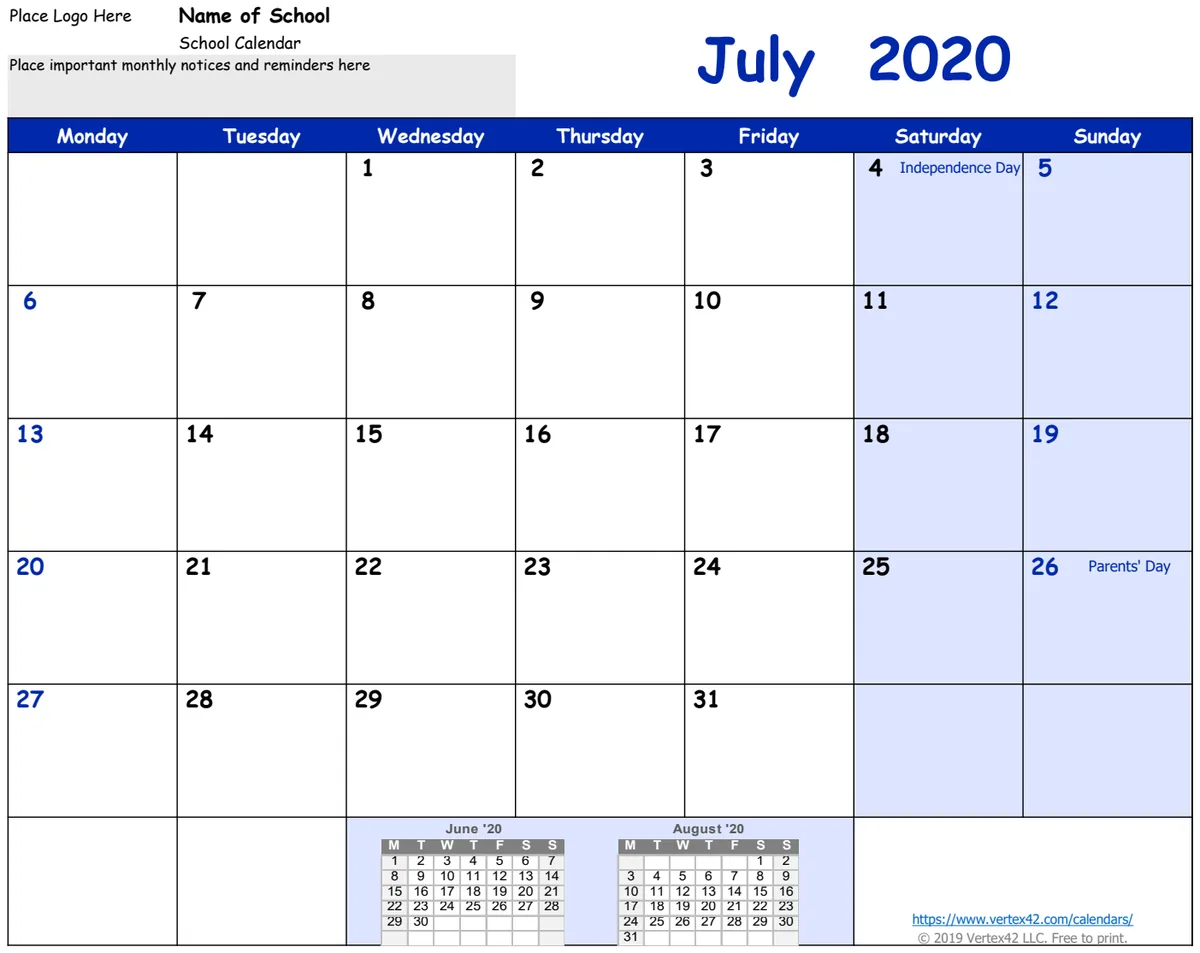
Master your week with a free Excel planner template
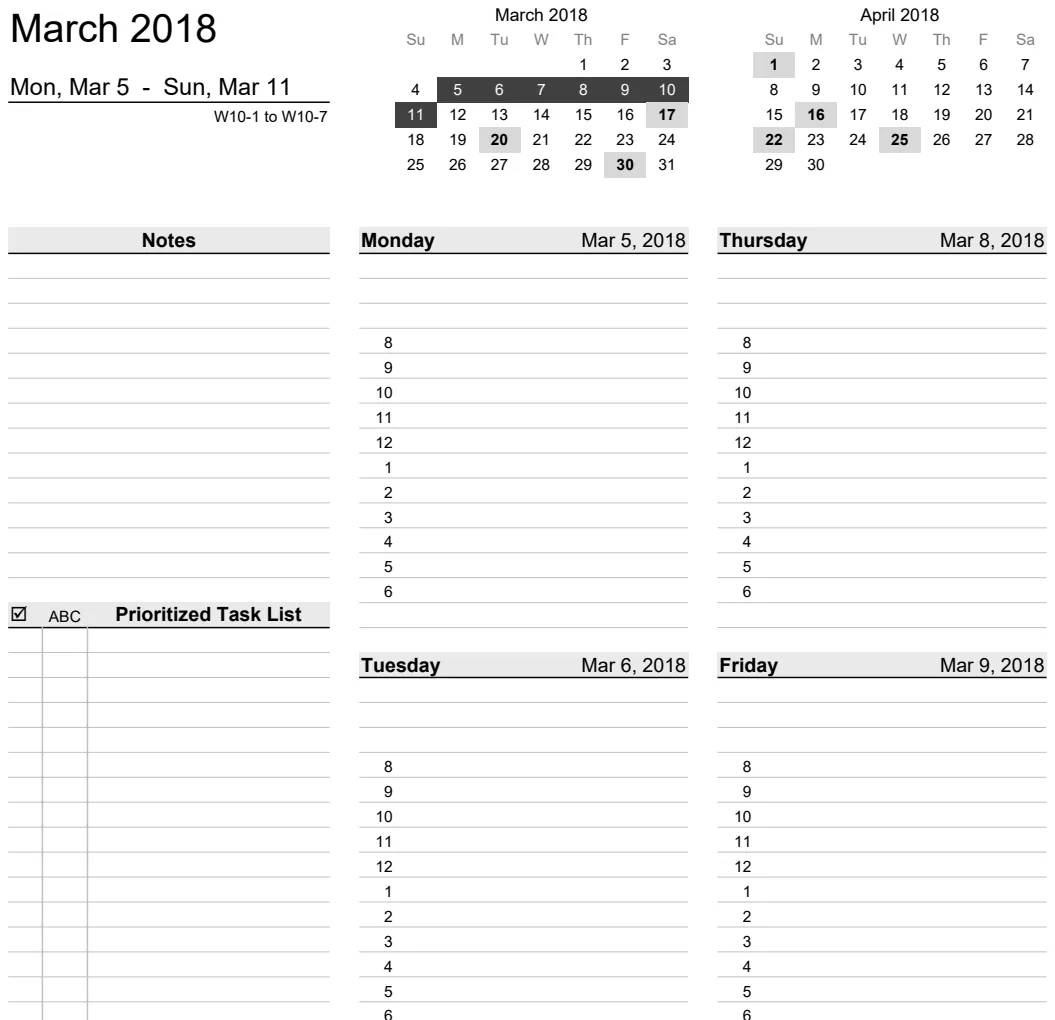
Discover a dynamic weekly planner template in Excel that goes beyond a simple grid to truly organize your life.
The most common mistake people make with a weekly planner template in Excel is assuming it's just a grid. It needs to be dynamic, or you'll spend more time updating it than using it. That's why a truly useful weekly planner template Excel free download often has built-in features like auto-advancing dates, which saves hours of manual entry over time.
If you've searched for a "weekly planner template Excel free," you're likely looking for a practical tool to get your week organized without a steep learning curve. Many free options are static documents, forcing you to manually input dates each week and making it cumbersome to track recurring tasks or appointments. A well-designed template, however, should automate as much as possible.
Why a Dynamic Template Matters
A static planner is essentially a digital piece of paper. You can write in it, but it doesn't "do" anything for you. A dynamic template, on the other hand, uses formulas to manage information. For instance, if a template can automatically update the dates for the upcoming week based on a starting date you input, it saves you from having to manually change 7-14 cells every single week. This might seem minor, but over months and years, that time adds up. It also reduces the chance of errors, like accidentally writing a task on the wrong day because you typed the date incorrectly.
Essential Components of a Good Weekly Planner
Beyond just a blank grid, a functional weekly planner should include several key elements:
- Date Automation: As mentioned, this is crucial. A cell where you input the starting Monday's date should automatically populate the rest of the week's dates.
- Task Lists: Separate areas for daily tasks, prioritized tasks, or to-do items for the week.
- Time Blocking: A column or section that allows you to allocate specific time slots for appointments, meetings, or focused work. This is key for time management.
- Notes Section: A general area for jotting down ideas, reminders, or things to follow up on.
- Prioritization: A way to mark or categorize tasks by importance (e.g., A, B, C priority or high, medium, low).
- Weekly Goals/Focus: A dedicated space to write down your primary objectives for the week.
Building Your Own Dynamic Planner (If You Can't Find One)
If you can't find a "weekly planner template Excel free" download that meets your needs, you can build a basic one yourself. It's more achievable than you might think.
Step 1: Set up the Date Row
- 01In cell
B2, enter the formula=TODAY()or manually input the start date for your week (e.g.,10/14/2024). - 02In cell
C2, enter the formula=B2+1. - 03Drag the fill handle of cell
C2across to the right for six more columns (up toI2). This will automatically fill in the dates for the rest of the week. - 04Format these cells (
B2:I2) to show only the day of the week and the date (e.g., "Mon 10/14"). You can do this by right-clicking the cells, selecting "Format Cells," choosing "Custom," and enteringddd m/din the Type box.
Step 2: Create Day Headers
- 01In cells
B3:I3, enter the formula=B2and drag it across toI3. This will mirror the dates from the row above. - 02Format these cells to display just the day of the week (e.g., "Mon"). Use the custom format
ddd.
Step 3: Add Time Slots
- 01In cell
A4, type8:00 AM. - 02In cell
A5, type the formula=A4+1/24. This adds one hour (1/24th of a day). - 03Drag the fill handle of cell
A5down to create hourly or half-hourly slots for your entire day. Excel will automatically recognize the time format. You'll likely want to drag this down to at least9:00 PMor10:00 PM.
Step 4: Add Task and Notes Areas
- 01Below your time-blocked sections, you can create distinct areas. For example, in the columns below your daily time slots (e.g., starting in row 28 or so), you can create headers like "Daily Tasks," "Priorities," or "Notes."
- 02You can simply leave these as blank cells for typing, or use cell borders to visually separate them.
Step 5: Add Weekly Goals and a To-Do List
- 01To the left or right of your main planner grid, dedicate space for "Weekly Goals" or "Top 3 Priorities." These are usually just a few cells where you can type text.
- 02A separate "Master To-Do List" area can be useful for tasks that don't have a specific time slot but need to be completed during the week.
Using Conditional Formatting for Clarity
Once you have your basic structure, conditional formatting can make your planner much more effective.
- Highlighting Weekends: Select your date row (
B2:I2) and the entire grid. Go to "Conditional Formatting" > "New Rule" > "Use a formula to determine which cells to format." Enter a formula like=OR(WEEKDAY(B$2)=1,WEEKDAY(B$2)=7)(assuming your dates start in row 2). Apply a light grey fill to visually de-emphasize Saturdays and Sundays. - Highlighting High-Priority Tasks: If you add a column for priority (e.g., "P" for high, "M" for medium, "L" for low), you can set up rules. Select your task cells, create a new rule, and use a formula like
=$P4="P"(if your priority indicator is in column P, row 4). Set this to apply a red font or background color. Do similar rules for "M" (yellow) and "L" (green). - Color-Coding Time Blocks: If you want to visually categorize different types of activities (e.g., meetings, focused work, personal time), you can use conditional formatting based on keywords you type into a hidden helper column, or by manually applying fills.
Common Pitfalls to Avoid
- Over-Complication: Don't try to build a planner that does everything. Start with the essentials and add complexity only if you find you genuinely need it. A planner that's too complex becomes a chore to use.
- Ignoring Time Blocking: Many people just list tasks. Without allocating specific time, tasks often get pushed back. Time blocking forces you to be realistic about what fits into your day.
- Not Using Formulas: If you're manually typing dates every week, you're missing out on the biggest advantage of using Excel for planning. A search for a "weekly planner template Excel free" should ideally yield something with automated dates.
- Forgetting Recurring Tasks: If you have daily or weekly recurring appointments, make sure your planner allows for easy entry, or build a separate list of these that you can reference.
Popular Template Options
When searching for a "weekly planner template Excel free," you might find many options. Some are simple and others are quite advanced. For a robust, ready-to-use solution that automates dates and offers a clean layout, you might consider exploring pre-built templates.
For example, the Weekly Planner offers a straightforward way to organize your week with auto-advancing dates, making it a solid choice for daily task management. If you prefer a wider layout for more detailed planning, the Weekly Planner Landscape provides that option with similar date automation and mini monthly calendars for a broader view. If family coordination is key, the Family Planner Weekly consolidates meals, tasks, and schedules into a single, organized weekly view.
How to Handle Recurring Tasks?
Recurring tasks are best managed by having a dedicated section or by noting them directly in your time blocks each day. Some advanced templates might have a "Recurring Tasks" area where you can list them, and you simply check them off daily. For a simpler approach, you can list them at the top of your daily to-do list or integrate them directly into your time-blocking schedule if they occur at a fixed time.
What If I Need More Than One Week?
If you need to plan further ahead, look for templates designed for multiple weeks or months. The Weekly Planner Landscape is one option that extends beyond a single week. Alternatively, you could duplicate your single-week planner sheet within the same Excel file and manually change the starting date for each subsequent week. For a more integrated multi-week solution with holiday tracking, the Weekly Planner with Holiday Tracking could be a good fit.
Can I Share My Planner?
Yes, Excel files can be shared easily. You can send the .xlsx file directly to others via email or cloud storage services like OneDrive or Google Drive. If you want to collaborate in real-time, you could upload the file to a shared cloud service and use Excel's online version or Google Sheets, though the formulas might need minor adjustments if you switch platforms.
Is There a Cost for Advanced Templates?
While many basic "weekly planner template Excel free" options exist, premium templates often include more sophisticated automation, detailed instructions, and professional design. Libraries like ours offer unlimited downloads for a one-time fee of $9, providing access to a wide range of professionally designed and thoroughly tested templates for various needs.