How to make an attendance sheet in Excel with formulas (monthly and yearly)

Every month the same thing happens in a lot of small offices.
Every month the same thing happens in a lot of small offices. Someone opens last month's attendance file, deletes the old marks, retypes the dates, forgets the public holiday on the 14th, and then spends an afternoon counting absences with a pen so payroll can start. A single wrong total means a wrong payslip, and a wrong payslip means an awkward conversation.
An attendance sheet in Excel with formulas removes almost all of that work. You type one code per person per day, and the sheet works out weekends, working days, totals, attendance percentage, late arrivals and payable days on its own. This guide shows how each piece works, with the exact formulas, so you can build it yourself or judge whether a ready-made workbook is worth it.
What a good attendance sheet needs
Before the formulas, decide what the sheet must answer. The questions managers and payroll teams actually ask are:
- How many days did each employee work this month?
- What is their attendance percentage?
- How many days of annual and sick leave have they used, and how many remain?
- Who was late, and how often?
- How many days are payable for payroll?
- Who needs a conversation about absence?
A sheet that answers these six questions covers almost every real use. Everything below is built to feed them.
Step 1: set up the employee list and attendance codes
Start with one list of employees: name, ID, department, joining date and exit date if any. Keep it in one place and have every month read from it, so you never retype a name.
Next, define your attendance codes. One or two letters per code keeps the grid readable:
- P present
- A absent
- L annual leave
- SL sick leave
- HD half day
- WFH work from home
- LT late
- EL left early
Give each code two values: how much it counts as worked and how much it counts as paid. A half day counts 0.5 for both. Annual leave counts 0 as worked but 1 as paid. Unpaid absence counts 0 for both. Putting these values in a small table, instead of burying them in formulas, means you can change a rule once and every month follows.
Add a dropdown (Data, then Data Validation, then List) so people pick a code instead of typing it. This prevents typos like "p" or "Pr" that break your counts.
Step 2: make the dates update automatically
Typing dates by hand is the biggest source of errors. Put the year in one cell and the month number in another, then let the sheet generate the rest.
The first day of the month:
=DATE(Year, MonthNumber, 1)
Each following column is the previous date plus one:
=D4+1
To show the weekday above each date:
=TEXT(D4,"ddd")
For months with fewer than 31 days, hide the extra columns when the date moves into the next month, for example by returning an empty string when MONTH(date) no longer matches the sheet's month.
Step 3: shade weekends and holidays automatically
Use conditional formatting so non-working days are grey without anyone touching them. Select the date columns, add a rule with a formula, and shade the cell when the day is a weekly off day or appears in your holiday list:
=OR(WEEKDAY(D$4,2)>5, COUNTIF(Holidays, D$4)>0)
This version treats Saturday and Sunday as the weekend. If your week runs differently (many countries use Friday and Saturday), change the test or, better, store the weekly off days in a settings cell so one change updates every sheet.
For counting working days in the month, NETWORKDAYS is the standard function:
=NETWORKDAYS(StartDate, EndDate, Holidays)
For other weekends, use NETWORKDAYS.INTL with a seven-character string for Monday to Sunday, where 1 means off. A Friday and Saturday weekend is:
=NETWORKDAYS.INTL(StartDate, EndDate, "0000110", Holidays)
Step 4: count each code with COUNTIF
For each employee row, count how many days carry each code:
=COUNTIF(D5:AH5,"P")
Do the same for A, L, SL, HD and the rest. These totals feed every other number on the sheet.
Days worked adds the worked value of each code:
=COUNTIF(D5:AH5,"P") + 0.5*COUNTIF(D5:AH5,"HD") + COUNTIF(D5:AH5,"WFH")
If your code values live in a table, SUMPRODUCT with a lookup is cleaner than a long formula, because adding a new code does not mean rewriting anything.
Step 5: attendance percentage
Attendance percentage is days worked divided by scheduled working days:
=DaysWorked / WorkingDays
Format the result as a percentage. One detail matters here: do not count weekends and holidays as working days, and do not count the days that have not happened yet in the current month if you want a fair number mid-month. That is why working days to date, not working days in the whole month, is the better denominator for a live sheet.
Step 6: payable days for payroll
Payable days are the number you hand to payroll. They add the paid value of every code, and optionally the paid weekly offs and holidays.
Here is a worked example for a month with 30 days. Four Saturdays and four Sundays are weekly offs, and one public holiday falls on a weekday. That leaves 21 working days.
One employee's month looks like this:
- Present: 17 days
- Annual leave: 1 day
- Sick leave: 1 day
- Half day: 1
- Absent: 1 day
That is 21 days accounted for.
- Days worked: 17 + 0.5 = 17.5
- Attendance percentage: 17.5 / 21 = 83.3%
- Paid value of codes: 17 + 1 + 1 + 0.5 + 0 = 19.5
- Payable days if the holiday is paid: 19.5 + 1 = 20.5
- Payable days if the holiday and the 8 weekly offs are also paid: 20.5 + 8 = 28.5
The last two lines are why a setting for paid weekly offs and holidays matters. Different employers pay them differently, and the sheet should follow your policy, not the other way around.
Step 7: late arrivals and early departures
A code is enough for a simple count of late days:
=COUNTIF(D5:AH5,"LT")
For exact minutes, record time in and time out and compare them with the scheduled shift start:
=MAX(0, TimeIn - ShiftStart) * 1440
Multiplying by 1440 converts a fraction of a day into minutes. Hours worked is:
=(TimeOut - TimeIn) * 24
Night shifts that cross midnight break this simple version, because the time out is smaller than the time in. The fix is the MOD function:
=MOD(TimeOut - TimeIn, 1) * 24
Overtime then becomes the hours beyond the scheduled shift:
=MAX(0, HoursWorked - ShiftHours)
Step 8: yearly summary and leave balances
Twelve monthly sheets are only useful if they roll up. A yearly summary pulls each employee's monthly totals into one row per person, so you can see:
- Days worked and absent days for the whole year
- Annual leave used against the entitlement (balance = entitlement minus used)
- Sick leave used
- Late days and overtime hours
- A flag for anyone whose absence or lateness passes a threshold you set
A heatmap makes patterns easy to spot: colour each month's attendance percentage from red to green, and an employee who is slipping stands out at once.
Mistakes that make attendance sheets unreliable
- Typing dates by hand. One wrong date shifts every weekday below it. Generate dates from the year and month.
- Hard-coding weekends. A fixed Saturday and Sunday breaks for teams on a different week.
- Counting leave as absence. Keep separate codes so leave balances stay correct.
- No holiday list. Public holidays turn into false absences or inflated working days.
- Free-text entries. Without a dropdown, "P", "p " and "Present" are three different values to COUNTIF.
- Forgetting joiners and leavers. An employee who joined on the 18th should not show absences for the 1st to the 17th.
- Overwriting formulas. Lock calculated cells and leave only the attendance cells open to edit.
A ready-made attendance workbook
You can build all of this yourself, and the steps above will get you there. It still takes many hours to link twelve monthly sheets, a yearly summary and a dashboard without a broken reference, and one overwritten formula can change a payroll number without anyone noticing.
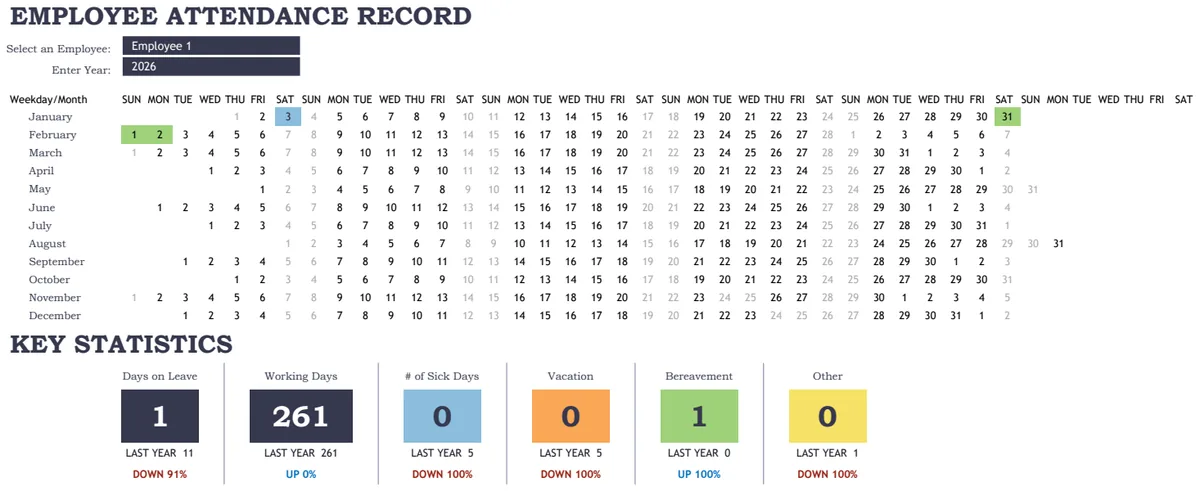
The Employee Attendance Sheet is an Excel workbook with all of it built. Add your employees once and they appear on all 12 monthly sheets. Type or pick one code per person per day, and each month works out totals, attendance percentage, late and early counts and payable days.
Set the year once and every sheet updates its dates and weekdays. Weekly off days are editable, listed holidays are shaded and left out of working days, and twelve codes are included, each with its own worked and paid value. The Yearly Summary shows a 12-month register per employee with leave balances, overtime, payable days and a heatmap. The Dashboard has a month picker and a department comparison. The Daily Sheet prints a daily attendance sheet with time in and time out, and the Employee Card prints one person's full year for the HR file. An optional Time Log works out late minutes, hours and overtime, including night shifts. It covers up to 100 employees, locks the formulas without a password, includes sample data and contains no macros.
If you need something lighter or a different approach, these templates cover related jobs:
Common questions
How do I calculate attendance in Excel with a formula?
Mark each day with a code, count each code with COUNTIF, add up days worked, then divide by scheduled working days. A template does the counting for every employee and every month automatically.
What is the formula for attendance percentage?
Attendance percentage equals days worked divided by scheduled working days, formatted as a percentage. In the worked example above, 17.5 days worked out of 21 working days gives 83.3%. Count half days as 0.5 and leave weekends and holidays out of the working days.
How do I exclude weekends and holidays?
Use NETWORKDAYS(start, end, holidays) for Saturday and Sunday weekends, or NETWORKDAYS.INTL with a weekend string for other weeks. For shading on the sheet, use a conditional formatting rule that tests the weekday and looks the date up in your holiday list.
Can Excel track time in and time out?
Yes. Subtract the time in from the time out and multiply by 24 for hours. For shifts that cross midnight, use MOD(TimeOut - TimeIn, 1) * 24. Late minutes are the time in minus the shift start, multiplied by 1440, with a minimum of zero.
How many employees can one attendance sheet handle?
A formula-driven workbook can handle hundreds, but it gets slower as it grows. The template handles up to 100 employees across 12 months. Larger teams are usually better split by department.
Does it work in Google Sheets?
The workbook is built for Microsoft Excel 2016 or later (desktop or Excel for the web). You can import it into Google Sheets, but sheet protection does not carry over, so locked formulas are easier to overwrite there by accident, and some Excel-only functions may behave differently.
Accurate attendance records protect both sides: employees are paid for the days they worked, and the company has a clear record if a question comes up later. You can preview the Employee Attendance Sheet free; downloading it is included in the OpenWorksheet monthly plan, along with the rest of the library. Leave and pay rules differ by country and employer, so check them against your own policy and local law.