Create employee schedules that work with free Excel templates
Discover how to create effective employee schedules using free Excel templates, avoiding common pitfalls and simplifying your workflow.
The most common mistake when setting up an employee schedule in Excel is over-complicating the structure, leading to errors and wasted time. Many people try to build a single, massive sheet that handles everything from shift assignments to payroll calculations, but that's rarely the most efficient approach. A better strategy involves separating concerns into distinct sheets, making the entire system more manageable and less prone to mistakes. This is especially true when you're looking for an employee schedule template Excel free that actually works.
Most free templates you'll find online are either too basic to be useful or so complex they become unmanageable. You need a template that strikes a balance, providing essential features without overwhelming you. A well-designed template should allow for clear visibility of who is working when, for how long, and on which days, while also accommodating employee availability and specific shift requirements.
Structuring Your Employee Schedule for Clarity
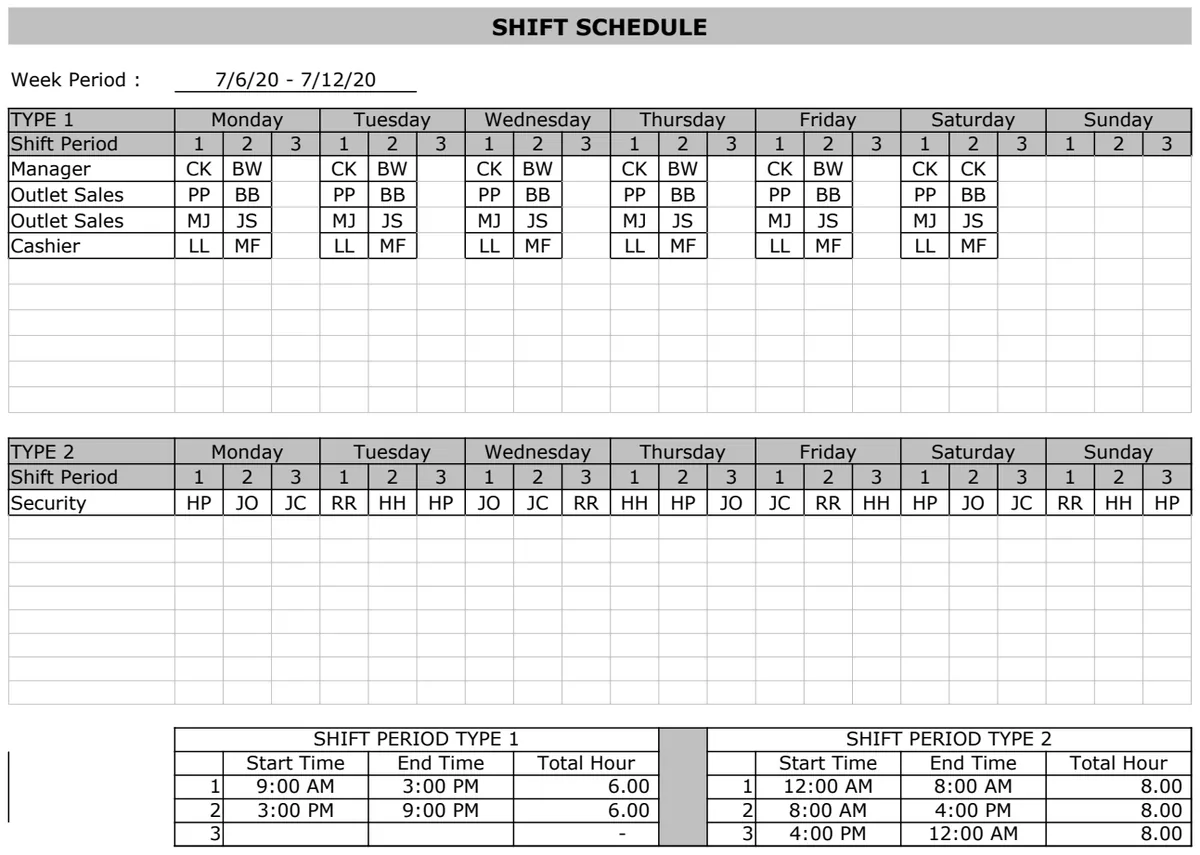
When building an employee schedule, think in terms of distinct functional areas. Instead of one giant spreadsheet, consider using multiple sheets within the same workbook. This modular approach makes it easier to update information, troubleshoot errors, and add new features later. A typical setup might include:
- Employee List: A simple sheet with employee names, contact information, and perhaps their roles or departments.
- Shift Definitions: A list of all possible shifts (e.g., Morning, Afternoon, Evening, Overnight, On-Call) with their start and end times. This ensures consistency.
- Availability: A place for employees to mark their preferred or unavailable times. This can be a simple grid or a more sophisticated form.
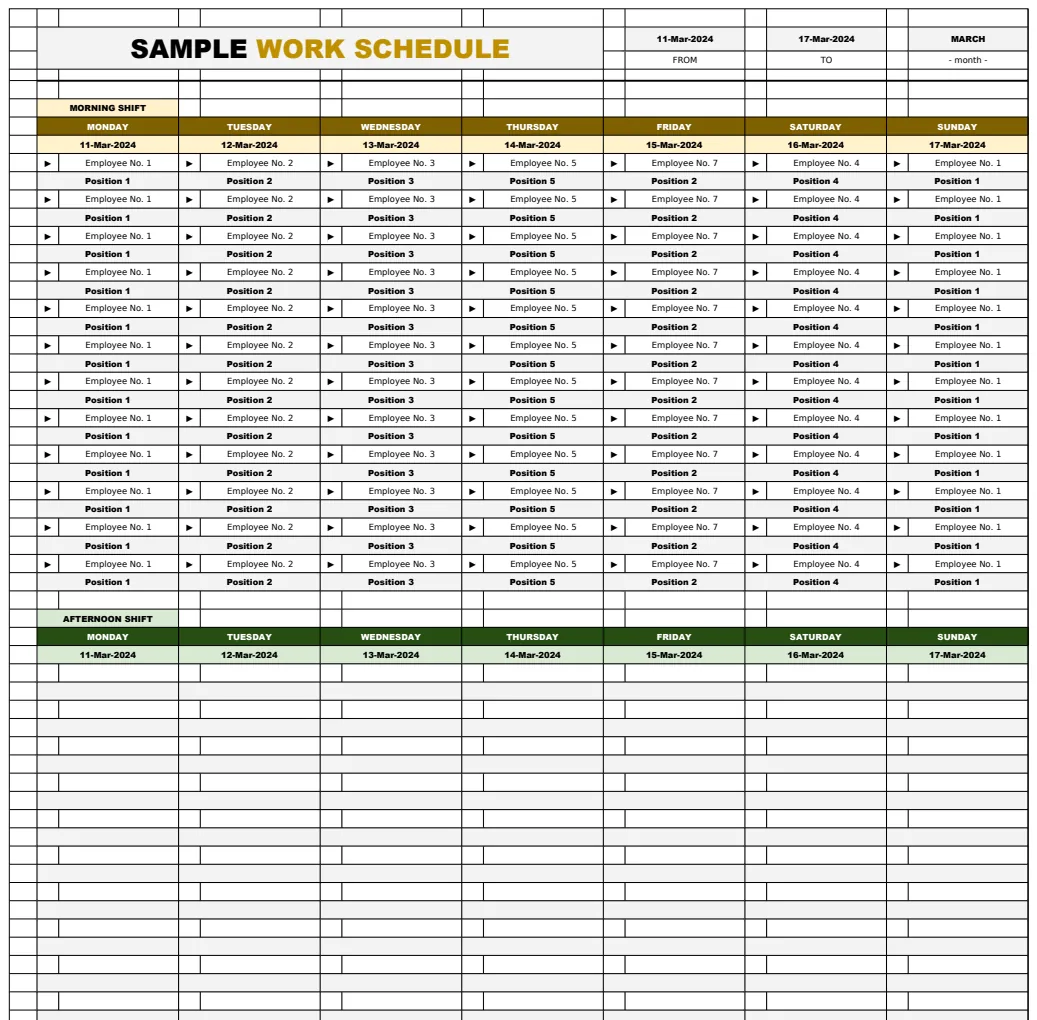
- Schedule Grid: The main view where you assign employees to shifts for specific dates. This is the core of your scheduling.
- Summary/Analysis (Optional): Sheets that pull data from the schedule grid to calculate hours worked, overtime, or labor costs.
This separation prevents a single sheet from becoming a tangled mess of formulas and data.
Essential Columns for Your Schedule Grid
The heart of any employee schedule template Excel free is the main scheduling grid. To make it functional, you’ll need specific columns. Here’s a breakdown of what’s generally required, assuming a weekly view:
- Date: The specific day you are scheduling for.
- Day of the Week: Automatically derived from the date, this helps with readability.
- Shift (or Time Slot): The specific block of time an employee is assigned to work (e.g., 9 AM - 5 PM, 1 PM - 9 PM).
- Employee Name: The name of the employee assigned to that shift.
- Role/Department (Optional): Useful if you have employees who can fill multiple roles or if you need to track departmental coverage.
- Notes/Comments (Optional): For any specific instructions related to that shift or employee (e.g., "Training," "Client meeting," "Manager on duty").
For a more advanced setup that includes tracking employee contact info and availability alongside the schedule, a template like the Employee Schedule Template can be a great starting point. It offers a multi-sheet system designed for comprehensive management.
Automating Key Schedule Elements
Excel's built-in functions can save you a tremendous amount of manual work. Don't shy away from using formulas to automate repetitive tasks.
- 01Day of the Week: If your "Date" column is in column A, starting from A2, you can put this formula in cell B2 (assuming "Day of the Week" is in column B) and drag it down:
=TEXT(A2,"dddd") This will display the full name of the day (e.g., "Monday").
- 02Calculating Shift Durations: If your "Shift" column contains the start and end times, you can calculate the hours worked. For example, if your shift is in column C as "Start Time - End Time" (e.g., "09:00-17:00"), you’d need to parse it. A simpler approach is to have separate "Start Time" and "End Time" columns. If "Start Time" is in column C and "End Time" is in column D, the duration in hours would be:
=(D2-C2)*24 Ensure the cells are formatted as numbers or general.
- 03Counting Hours Per Employee: Using
SUMIFSis excellent for this. If you have a "Total Hours" column (calculated as above) and an "Employee Name" column, you can create a summary table. To sum hours for a specific employee (say, "John Doe" listed in cell G2 of your summary sheet) for a given week, you'd use a formula like:
=SUMIFS(ScheduleGrid!H:H, ScheduleGrid!E:E, G2) Where ScheduleGrid!H:H is the column with calculated hours on your main schedule sheet, and ScheduleGrid!E:E is the employee name column on that same sheet.
Incorporating Employee Availability
Managing employee availability is crucial for creating feasible schedules. A dedicated "Availability" sheet can simplify this. You can set it up as a grid mirroring a week or month, with employees listed down the side and time slots or days across the top. Employees can mark preferences or blocks of unavailable time.
When you’re building the actual schedule, you can then cross-reference this availability sheet. While Excel doesn't have a built-in "conflict checker" that automatically flags issues, you can use conditional formatting or manual review to ensure you aren't assigning shifts to employees who have marked themselves as unavailable. For a system that explicitly plans for availability, the Employee Schedule Template - Shifts V1.1 can help automate date calculations and assignments based on defined shifts.
Using Conditional Formatting to Your Advantage
Conditional formatting is a powerful tool for quickly identifying potential issues or highlighting key information in your schedule. Here are a few practical uses:
- Highlighting Conflicts: If you have a column for "Employee Name" and a separate column indicating "Availability Status" (e.g., "Available," "Unavailable," "Preferred"), you can set up a rule to highlight any row where the status is "Unavailable" but an employee is still scheduled.
- Visualizing Shift Types: Assign different background colors to different shift types (e.g., Morning shifts in light blue, Evening shifts in light orange). This makes the schedule much easier to read at a glance.
- Flagging Overtime: If you're calculating daily or weekly hours, set a threshold (e.g., 40 hours per week). Use conditional formatting to highlight any employee whose total hours exceed this threshold, signaling potential overtime.
- Marking Unfilled Shifts: If a shift is supposed to be covered but no employee name is entered, you can use conditional formatting to highlight that cell or row, ensuring no shifts are missed.
Common Pitfalls to Avoid
Beyond structural issues, several common mistakes can derail even the best-intentioned scheduling efforts:
- Lack of Clear Shift Definitions: Vague shift times (e.g., "Morning") without defined start and end times lead to confusion and inconsistent work durations.
- Manual Date Entry: Relying on manual entry for dates and days of the week is a prime source of errors. Always use formulas to derive these from a starting date.
- No Central Employee Record: Not having a single, updated list of employees can lead to scheduling people who have left or forgetting to include new hires.
- Ignoring Employee Feedback: Failing to account for employee availability or preferences, where possible, can lead to low morale and increased turnover.
- Over-reliance on a Single Sheet: As mentioned, trying to cram too much into one spreadsheet makes it unwieldy and difficult to maintain.
For a template that visualizes schedules clearly, especially for project-based work or complex staffing needs, consider the Employee Schedule Gantt Chart Template. It’s designed to offer a different perspective on scheduling.
Frequently Asked Questions
How do I make an employee schedule template free in Excel?
You can build one yourself using basic Excel functions, or you can download pre-made options. Many organizations find that a well-structured template, like those available at OpenWorksheet, provides a significant head start. The key is to ensure it has the columns and features you need without being overly complex.
What are the most important columns for an employee schedule?
At a minimum, you need columns for the Date, the Day of the Week, the Shift Time, and the Employee Name assigned to that shift. Additional columns for role, department, or notes can be very helpful depending on your specific needs.
Can I use Excel for complex scheduling needs?
Yes, Excel can handle many complex scheduling scenarios, especially with the use of multiple sheets, advanced formulas like SUMIFS and XLOOKUP, and conditional formatting. For very large teams or highly dynamic scheduling requirements, dedicated scheduling software might eventually be more efficient, but Excel is a powerful and accessible tool for most small to medium-sized businesses. If you're looking for a robust system, exploring template options designed for advanced features, such as those with integrated employee data management, can be a great approach. Accessing unlimited downloads of these templates is available for a one-time fee of $9.