Budget your next project in under an hour with Excel
Avoid missed line items and inaccurate forecasting by using a project budget template Excel free download instead of a blank spreadsheet.
Manually calculating project budgets in a blank spreadsheet is a recipe for missed line items and inaccurate forecasting. A well-structured project budget template Excel free download, however, provides a framework that prevents these common pitfalls. You need a system that accounts for everything from labor and materials to overhead and contingency, with clear columns for planned versus actual spending.
That's why starting with a pre-built template is almost always the better choice than a blank sheet. It saves you time and ensures you're thinking about all the critical cost categories from the outset. You can find excellent options online that offer this essential structure, many of which are available for free.
Essential Columns for Your Project Budget
When you're looking for a project budget template Excel free download, pay close attention to the columns it includes. A robust template will go beyond just a few rows for expenses. You should expect to see columns for:
- Category: Broad groupings like Labor, Materials, Equipment, Software, Travel, Marketing, etc.
- Item/Description: Specific details within each category (e.g., "Senior Developer Hours," "Server Rack Model XYZ," "Round-trip Airfare to Client Site").
- Planned Cost: Your initial estimate for each line item.
- Actual Cost: The real amount spent once the work is done.
- Variance: The difference between Planned Cost and Actual Cost (Actual - Planned). This is crucial for tracking overspending or underspending.
- Percentage of Total Budget: Shows the weight of each item relative to the overall project cost.
- Start Date (Planned): When you expect to incur this cost.
- End Date (Planned): When you expect to finish incurring this cost.
- Start Date (Actual): When the expense was actually incurred.
- End Date (Actual): When the expense was actually finalized.
- Notes/Comments: Space for context, vendor details, or justification for variances.
These columns provide the data you need to track progress, identify cost drivers, and learn for future projects.
Setting Up Your Project Budget Template
Let's walk through setting up a sample project budget using a template. Imagine you're planning a small software development project.
- 01Download and Open: Obtain a suitable template. For instance, if you're managing a larger software initiative, a general Project Budgeting Template can be a great starting point. Open it in Excel or Google Sheets.
- 02Define Top-Level Categories: In the "Category" column, start listing your main cost areas. For our software project, these might be:
- Labor
- Software Licenses
- Hardware
- Cloud Hosting
- Contingency
- 03Break Down into Items: Under each category, list the specific items.
- Labor: Senior Developer Hours, Junior Developer Hours, Project Manager Hours, QA Tester Hours.
- Software Licenses: IDE License, Project Management Tool Subscription, Testing Framework License.
- Hardware: Development Workstations (if not already allocated), Server for Staging.
- Cloud Hosting: Development Environment, Staging Environment, Production Environment.
- Contingency: A buffer for unexpected costs.
- 04Estimate Planned Costs: For each "Item," fill in your best estimate for the "Planned Cost." Be as detailed as possible. For example, if a Senior Developer is $100/hour and you estimate 80 hours, the Planned Cost is $8,000.
- 05Enter Dates: Populate the "Planned Start Date" and "Planned End Date" for each cost item. This helps with cash flow planning.
- 06Calculate Totals: Most templates will have formulas to sum up your planned costs per category and a grand total for the entire project. Ensure these are working correctly.
Tracking Actuals and Variances
The real value of a budget template comes not just from planning, but from ongoing tracking. As the project progresses:
- Record Actual Costs: Whenever an expense is incurred, immediately update the "Actual Cost" column for that specific line item. This might involve entering invoices, payroll data, or credit card statements.
- Update Actual Dates: Record the actual start and end dates for when costs were realized.
- Monitor Variance: The "Variance" column will automatically update. A positive variance means you spent more than planned; a negative variance means you spent less.
- Analyze Significant Variances: If a variance is large (e.g., over 10-15% of the planned cost for that item), investigate why. Was the estimate off? Did scope change? Was there an unforeseen issue? Document this in the "Notes/Comments" column.
This continuous monitoring allows you to make informed decisions, adjust plans as needed, and avoid budget overruns.
Common Mistakes to Avoid
Even with a great project budget template Excel free download, people often stumble. Here are a few common mistakes:
- Underestimating Contingency: Failing to include a contingency fund (typically 10-20% of the total budget) is a frequent cause of budget blowouts. Unforeseen issues will arise.
- Not Tracking "Soft Costs": Forgetting to budget for things like project management time, administrative overhead, or travel can lead to significant underestimations.
- Delaying Actuals Entry: Waiting too long to update actual costs means the budget becomes a historical document rather than a real-time management tool.
- Ignoring Variances: Seeing a variance and not investigating it is like driving with your eyes closed. You won't know where the problems are until it's too late.
- Lack of Detail: Being too vague in the "Item/Description" column makes it hard to track specific expenses or understand the root cause of cost overruns.
Customizing Your Template
While pre-built templates are fantastic, you might need to tailor them. Consider these customizations:
- Adding/Removing Columns: If you need to track vendor names, purchase order numbers, or tax implications, add those columns. Conversely, if certain columns aren't relevant to your projects, you can hide or delete them.
- Conditional Formatting: Set up rules to automatically highlight variances. For example, make cells with a variance greater than 10% turn red, and those less than -10% turn green. This makes at-a-glance analysis much easier.
- Formulas for Forecasting: Beyond simple sums, you could add formulas to project future spending based on current trends, although this requires careful setup.
- Linking to Other Sheets: For very complex projects, you might link specific budget line items to detailed task lists or resource allocation sheets.
For specialized industries, like construction, using a template designed for that specific field can be incredibly beneficial. A Construction Project Budget Management Template will already have categories for things like permits, site preparation, and specific material types that a general template might miss.
When to Consider a Paid Template
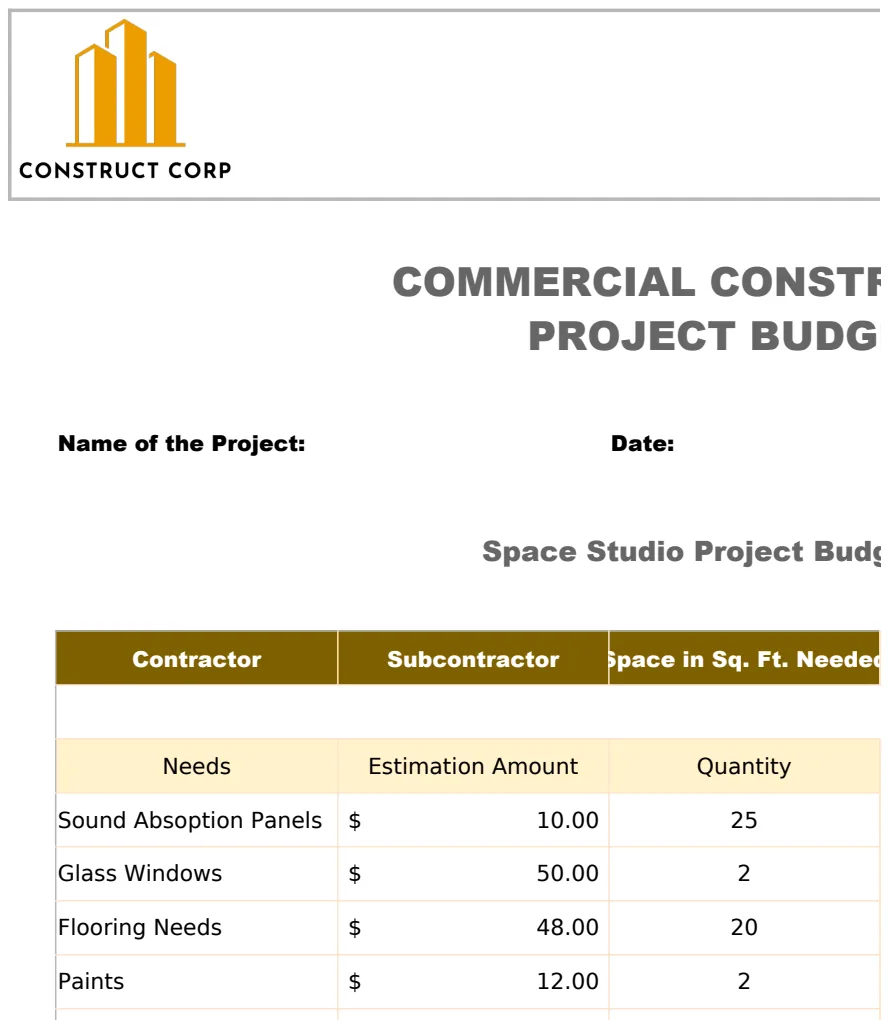
While many excellent free templates exist, sometimes the complexity of your projects or the need for advanced features warrants a paid solution. The cost for unlimited downloads from a reputable library is often a one-time fee, typically around $9. This can be a small price to pay for templates that are professionally designed, thoroughly tested, and offer features like integrated dashboards, advanced reporting, or multi-currency support. If you're managing multiple large-scale projects or work in a sector with highly specific budgeting needs, such as commercial construction, a specialized template like the Commercial Construction Project Budget Template might offer significant advantages over a generic free download.
What if my project has variable costs?
Variable costs, like per-unit material costs or hourly labor that fluctuates, can be handled by building in your assumptions for the "Planned Cost." For example, if you estimate 100 units of material at $5/unit, your planned cost is $500. If the actual price is $5.50/unit, you'd enter $550 as the actual cost. The variance column will then accurately reflect the difference. For very dynamic costs, consider breaking them down further or using a separate sheet for detailed cost calculations that feed into your main budget.
How do I budget for unexpected expenses?
This is precisely what the "Contingency" line item is for. It's a buffer, typically 10-20% of your total planned costs, set aside for unforeseen issues, scope changes, or estimation errors. When an unexpected expense arises, you draw from this contingency. If you have to use a significant portion of your contingency, it's a strong signal that your project is at risk and requires careful management attention.
Can I use this for personal projects?
Absolutely. The principles of budgeting, tracking planned versus actual expenses, and analyzing variances apply to any financial endeavor, whether it's a major construction project or planning your household expenses. You might simplify the categories, but the core structure of a good budget template will still serve you well.