Build a functional spreadsheet without Excel in a weekend.
Discover how to build functional spreadsheets for personal finance and project planning using free tools like Google Sheets.
By the end of this article, you'll be able to organize your personal finances in Google Sheets with a transaction tracker, categorize expenses, and generate a monthly summary report, all without paying a subscription. You'll also understand how to adapt existing Excel templates for free alternatives and identify the best free tools for common tasks like project planning and health tracking. So, to answer the question directly: yes, there are absolutely free alternatives to Excel templates that can meet a wide range of needs.
Many users find themselves needing a robust spreadsheet tool for budgeting, project management, or data analysis but are hesitant about the cost of premium software. The good news is that powerful spreadsheet applications and a wealth of free templates exist. You don't always need to purchase expensive software or premium template packs to get organized. This guide will show you how to leverage free resources effectively.
Understanding Spreadsheet Software Alternatives
Microsoft Excel is the industry standard, but its cost can be a barrier. Fortunately, several excellent free alternatives offer comparable functionality for most everyday tasks. These platforms often come with their own libraries of free templates or allow you to import and edit existing Excel files.
Google Sheets is perhaps the most popular free alternative. It's a web-based application that's part of the Google Workspace suite. You can access it from any device with an internet connection and a Google account. Its collaborative features are also a significant advantage, allowing multiple users to work on the same sheet simultaneously. For anyone asking are there free alternatives to Excel templates, Google Sheets is usually the first and best answer.
Other notable free options include:
- LibreOffice Calc: A powerful, open-source desktop application that's part of the LibreOffice suite. It's a great choice if you prefer offline software and need advanced features that rival traditional desktop applications.
- Apache OpenOffice Calc: Similar to LibreOffice, OpenOffice is another established open-source desktop suite. It offers a familiar interface for users transitioning from older versions of Microsoft Office.
- WPS Office Spreadsheets: Offers a free tier that includes a spreadsheet program with a high degree of compatibility with Microsoft Office files. It's available for desktop and mobile.
Leveraging Free Template Libraries
While software alternatives are crucial, the real power for many users lies in the templates themselves. Many platforms offer free template galleries, and you can often adapt these to your specific needs.
Google Sheets, for instance, has a built-in template gallery accessible when you create a new spreadsheet. This gallery includes templates for:
- Monthly budgets
- Project tracking
- Invoices
- Calendars
- And much more.
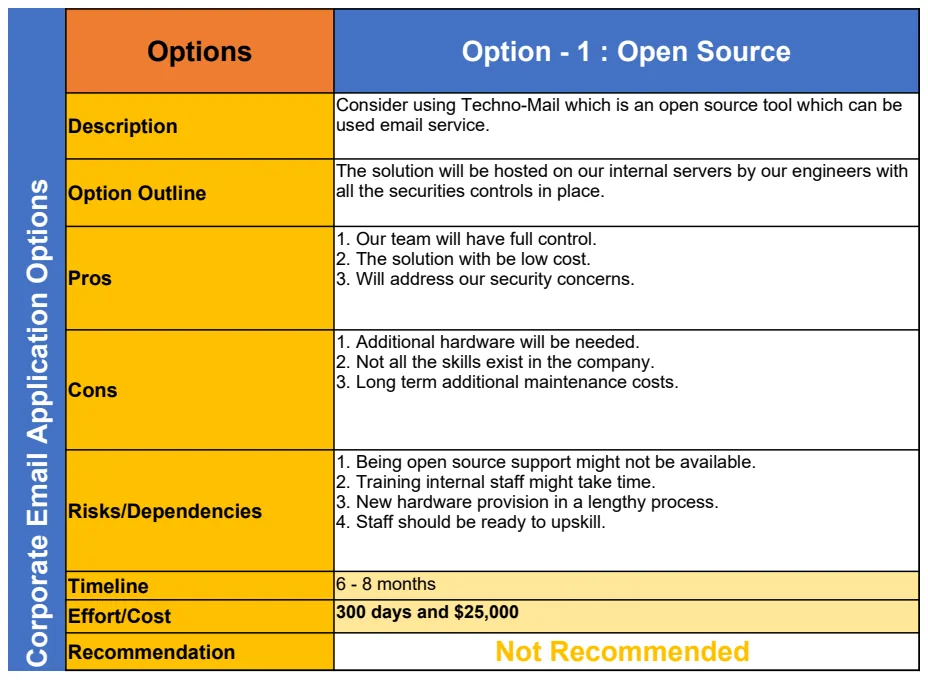
These pre-built structures save you hours of setup time. If you're looking to compare project options and make informed strategic decisions, a template like the Project Options Paper Excel Template can be adapted for use in Google Sheets or LibreOffice Calc. You can download it and then open it with your chosen free software.
Adapting Excel Templates for Free Software
One of the most common concerns is whether Excel templates will work in free alternatives. The good news is that most modern spreadsheet software, including Google Sheets and LibreOffice Calc, has excellent compatibility with Microsoft Excel's .xlsx file format.
Here’s a general process for adapting an Excel template:
- 01Download the Excel template: Obtain the
.xlsxfile from its source. - 02Open with your free software:
- Google Sheets: Go to Google Drive, click "New," then "File upload." Once uploaded, right-click the file and select "Open with" > "Google Sheets." Google Sheets will convert it into its native format.
- LibreOffice Calc: Open LibreOffice Calc and go to "File" > "Open." Navigate to your downloaded
.xlsxfile and select it.
- 03Review and test: Carefully examine the template. Check that all formulas, formatting, charts, and data validation rules have transferred correctly. Some complex VBA macros might not work, but for most standard templates, this isn't an issue.
- 04Make adjustments: You may need to tweak cell references, formatting, or add/remove columns to suit your specific workflow. For example, if the template uses specific date formats, you might need to adjust them in the "Format" menu.
Even if you find a paid template that perfectly matches your needs, you can often purchase it once and then adapt it for use in a free spreadsheet program, saving you recurring costs.
Free Spreadsheet Templates for Personal Finance
Managing personal finances is a common reason people seek out spreadsheet templates. Budgeting, tracking expenses, and monitoring savings goals are all tasks that free spreadsheet software handles well.
A typical personal finance setup might include several sheets within one workbook:
- Transactions: A log of every income and expense. Columns might include:
Date,Description,Category,Amount,Account(e.g., Checking, Credit Card), andNotes. - Categories: A list of your income and expense categories (e.g., Groceries, Rent, Salary, Utilities). This is often used for data validation in the Transactions sheet.
- Summary Report: This sheet uses formulas like
SUMIFSto pull data from Transactions and present it in a more digestible format. You'd typically see totals for each category, overall income, overall expenses, and net savings for a given period (e.g., monthly). - Goals: A section to track savings goals, like a down payment for a house or a vacation fund, showing progress towards each.
You can create this entire system from scratch in Google Sheets or LibreOffice Calc. Alternatively, you can search for "free budget template Google Sheets" or "free expense tracker LibreOffice" to find pre-built options. Many websites offer these, or you can find them directly within the software's template galleries. If you're looking for something to help with health metrics, a template like the Ideal Weight Chart & Calculator can also be adapted for free use.
Free Templates for Project Management
Keeping projects on track often requires organized lists, timelines, and task assignments. Free spreadsheet templates can effectively serve this purpose, especially for smaller teams or individual projects.
Common elements in a free project management template include:
- Task List: Columns might be
Task Name,Assigned To,Due Date,Status(e.g., Not Started, In Progress, Complete),Priority, andNotes. - Timeline/Gantt Chart: While complex Gantt charts are best left to dedicated project management software, you can create a simplified version using conditional formatting in a spreadsheet. This involves coloring cells based on task start and end dates.
- Resource Allocation: A sheet to track who is assigned to what and their estimated workload.
- Budget Tracker: If the project has a budget, a simple tracker for expenses against allocated funds.
For users looking for a structured approach to evaluating options before a project begins, adapting a template like the Project Options Paper Excel Template can be incredibly useful. You can use it in Google Sheets or other free alternatives to lay out different project paths, their pros and cons, and estimated resource needs.
Common Mistakes to Avoid
When working with free templates and software, certain pitfalls can trip you up. Being aware of these can save you a lot of frustration.
- Over-reliance on complex macros: While some free software can handle macros, they are not always as robust or compatible as those in Microsoft Excel. Stick to standard formulas and features where possible.
- Ignoring data validation: If a template includes data validation (e.g., dropdown lists for categories), use it. It prevents typos and ensures consistency, making your summary reports accurate.
- Not backing up your work: Free, web-based tools like Google Sheets usually auto-save, which is a significant benefit. However, for desktop applications, ensure you regularly save and back up your files.
- Trying to replicate every Excel feature: Free alternatives are excellent, but they might not have every single niche feature or advanced add-in that Excel offers. Focus on what you need and find the best free solution for that, rather than expecting a perfect 1:1 replica.
- Messy data entry: Even the best template is useless if the data going into it is inconsistent. Take a few extra seconds to categorize correctly and enter data accurately.
Frequently Asked Questions
Can I use free Excel templates for my business?
Yes, absolutely. Many free templates available online or within free spreadsheet software are suitable for business use, especially for small businesses or startups. You can find templates for invoicing, basic accounting, inventory management, project tracking, and more. Just ensure the template meets your specific business needs and that you understand how it works. For instance, if you need to compare business strategies, a template like the Project Options Paper Excel Template can be a great starting point.
How do I find more free spreadsheet templates?
Beyond the built-in galleries in Google Sheets and LibreOffice Calc, many websites offer free templates. Search terms like "free Google Sheets templates," "free Excel budget template," or "open-source spreadsheet templates" will yield numerous results. Look for reputable sources. Some websites offer templates as lead magnets for their paid services, but many also provide genuinely useful free resources. You might also find communities dedicated to spreadsheet sharing.
Is Google Sheets as powerful as Excel?
For most common tasks like budgeting, data entry, basic analysis, and charting, Google Sheets is just as powerful as Excel. It excels in collaboration and accessibility. Excel still holds an edge in very advanced statistical functions, complex VBA macro development, and specific niche features used in fields like financial modeling or engineering. However, for the vast majority of users, Google Sheets or LibreOffice Calc provide more than enough power.
What if a free template doesn't have the exact features I need?
This is where your spreadsheet skills come in. You can often extend a free template's functionality yourself. This might involve adding new columns to your transaction log, creating new categories in your budget summary, or using formulas like VLOOKUP or XLOOKUP to pull data from one sheet to another. For more complex additions, you might need to learn a bit more about spreadsheet formulas or conditional formatting. Many online tutorials can guide you through these enhancements. If you're looking for a vast library of professionally designed templates for a one-time fee, our collection at OpenWorksheet offers unlimited downloads for $9.