Build your hiring pipeline tracker in 5 minutes
Build a dynamic recruitment tracker spreadsheet template that adapts to your changing hiring needs and streamlines your process.
The most common failure of a recruitment tracker spreadsheet template is its inability to adapt as hiring needs change, often due to rigid, pre-defined fields that can't accommodate new data points or stages. This inflexibility arises from building the sheet without considering future hiring volume, diverse role requirements, or the addition of new assessment methods. You need a template that’s not just a static list, but a dynamic system ready for evolution. A well-structured recruitment tracker spreadsheet template can transform a chaotic hiring process into an organized, data-driven operation. It helps you keep track of every candidate, every stage, and every critical detail, ensuring no promising applicant falls through the cracks.
Why You Need a Recruitment Tracker
Hiring is complex. It involves multiple stakeholders, diverse communication channels, and a pipeline of candidates that can fluctuate wildly. Without a centralized system, managing this process becomes an exercise in frustration. You might rely on email chains, sticky notes, or even just memory, all of which are prone to error and inefficiency. A dedicated recruitment tracker spreadsheet template provides a single source of truth. It allows you to see at a glance where each candidate stands, who is responsible for the next step, and what the overall hiring timeline looks like. This visibility is crucial for making informed decisions, identifying bottlenecks, and ensuring a positive candidate experience.
Essential Columns for Your Tracker
To build an effective recruitment tracker, consider these core columns. They provide the foundational data you'll need to manage your hiring process efficiently:
- Job Title: The specific position being hired for.
- Candidate Name: The full name of the applicant.
- Contact Information: Email address and phone number.
- Source: Where the candidate was found (e.g., LinkedIn, referral, job board).
- Application Date: When the candidate applied for the role.
- Current Stage: The present step in your hiring process (e.g., Applied, Screened, Interviewing, Offer Extended, Hired, Rejected).
- Stage Last Updated: The date the candidate moved into the current stage.
- Assigned Recruiter/Hiring Manager: The person responsible for the candidate's progression.
- Interview Dates: Scheduled or completed interview dates.
- Notes/Feedback: A space for key observations, feedback from interviews, or other relevant details.
- Offer Amount (if applicable): The proposed salary or compensation package.
- Start Date (if hired): The anticipated or confirmed start date for the new employee.
- Rejection Reason (if applicable): A brief explanation for why a candidate was not selected.
Structuring Your Hiring Stages
The "Current Stage" column is the heart of your tracker. Defining clear, sequential stages is vital. A typical flow might look like this:
- 01Applied: Candidate has submitted an application.
- 02Initial Screen: Recruiter reviews application and resumes.
- 03Phone Screen: A brief call to assess basic qualifications and fit.
- 04Hiring Manager Interview: In-depth discussion with the direct manager.
- 05Technical/Skills Assessment: A test or exercise to evaluate job-specific skills.
- 06Panel Interview: Meeting with multiple team members.
- 07Final Interview: Often with a senior leader or department head.
- 08Reference Checks: Contacting previous employers.
- 09Offer Extended: A formal job offer is presented.
- 10Offer Accepted: Candidate agrees to the terms.
- 11Hired: Candidate has accepted and is ready to onboard.
- 12Rejected: Candidate did not proceed past a certain stage.
You might need to customize these stages based on your specific hiring process and the types of roles you recruit for. For instance, some technical roles might have multiple coding challenges, while creative roles might focus heavily on portfolio reviews.
Using Formulas for Insights
Once your data is in place, formulas can elevate your recruitment tracker from a simple list to a powerful analytical tool.
- Calculating Time in Stage: Use a formula to determine how long a candidate has been in their current stage. If your "Stage Last Updated" is in cell
F2and today's date is in cellG1(you can use=TODAY()inG1), then in a new column, sayH2, you'd enter=G1-F2to get the number of days. You can then use conditional formatting to highlight candidates who have been in a stage for too long, indicating a potential bottleneck. - Counting Candidates per Stage:
COUNTIFis your friend here. To count how many candidates are in the "Interviewing" stage, if your "Current Stage" column isG, you’d use=COUNTIF(G:G, "Interviewing"). This gives you a quick overview of your pipeline volume. - Tracking Time to Hire: This is a critical metric. If your "Application Date" is in column
Eand "Hired" or "Offer Accepted" date is in columnK, you can calculate the total duration. For a row where a candidate is hired, the formula might look like=K2-E2. Averaging these figures across all hired candidates gives you your average time to hire. - Filtering and Sorting: While not strictly a formula, understanding how to use Excel's or Google Sheets' built-in filter and sort functions is paramount. This allows you to quickly view candidates by job title, recruiter, or stage.
Automating with Conditional Formatting
Conditional formatting adds visual cues to your spreadsheet, making it easier to spot trends and issues at a glance.
- Highlighting Long Stays: Set up a rule for your "Time in Stage" column (e.g., column
H). If the number of days is greater than 7, for example, the cell turns yellow. If it's over 14 days, it turns red. This immediately draws your attention to candidates who might be stalled. - Visualizing Stage Progression: You can use icon sets or color scales to represent the "Current Stage." For instance, a simple data bar can show progress through the stages, with "Applied" being at the start and "Hired" at the end.
- Identifying Key Candidates: If you have a "Hot Candidate" flag column, you can use conditional formatting to make those rows stand out with a distinct background color.
Common Mistakes to Avoid
Many organizations stumble when setting up their recruitment tracker. Here are a few common pitfalls:
- Over-complication: Trying to track too much information in one sheet. This makes data entry tedious and analysis difficult. Start with the essentials and add complexity only if needed.
- Lack of Standardization: Not defining clear stages or using inconsistent terminology for stages or sources. This makes reporting and analysis unreliable.
- No Ownership: Failing to assign responsibility for updating the tracker. If no one is accountable, the data becomes stale quickly.
- Ignoring Data: Building a tracker but not actually using the data to make decisions or identify improvements. The tracker is a tool, not just a record.
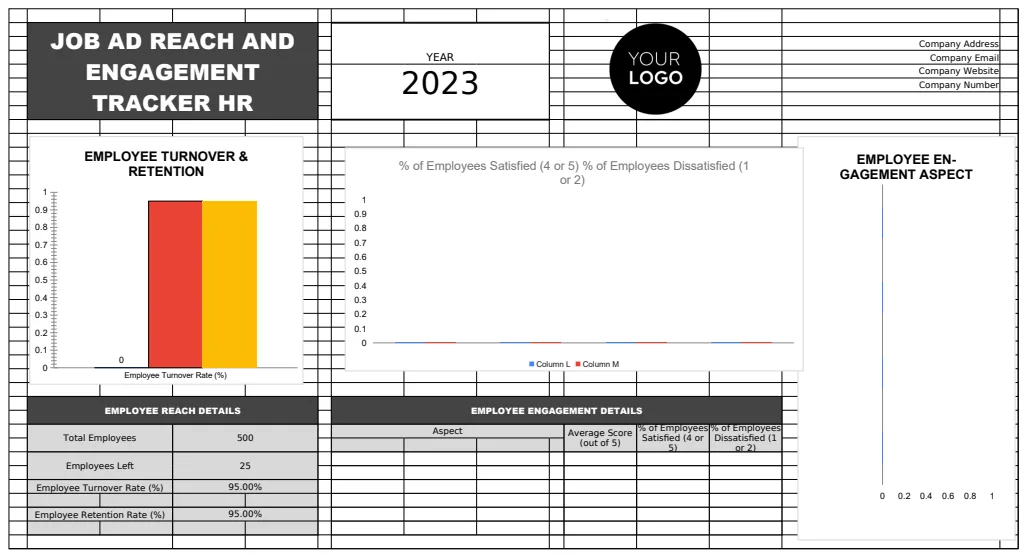
- Ignoring Candidate Experience: Focusing solely on internal metrics without considering how the process impacts the candidate. A poor experience can lead to lost talent, even for candidates you've marked as "Hired." For a broader view of how your job postings are performing and attracting candidates, consider a template like the Job Ad Reach and Engagement Tracker HR.
Expanding Your Recruitment Toolkit
While a robust recruitment tracker spreadsheet template is a cornerstone, you might also benefit from specialized tools. For instance, tracking the costs associated with each hire is crucial for budgeting and ROI analysis. The Hiring Costs Tracker Template can help you meticulously log expenses from advertising to onboarding. Similarly, if you're managing a high volume of applications, a dedicated Candidate Screening Tracker can help you manage and evaluate applicants more efficiently through distinct screening phases. For those who rely heavily on external job boards, ensuring you're getting the best value and not missing renewal deadlines is important; a Job Board Subscription and Renewal Tracker HR Template can prevent costly oversights.
How to Customize Stages for Different Roles
To customize stages, first map out the unique steps required for each job family. For example, a software engineering role might have a "Coding Challenge" stage, while a sales role might have a "Role Play Simulation." Create a separate tab in your spreadsheet listing these custom stages. Then, use data validation (Dropdown lists) in your "Current Stage" column, pulling from this custom list based on the "Job Title" in the same row. This ensures accuracy and consistency.
What if I have multiple recruiters using the same tracker?
If multiple recruiters are using the tracker, ensure clear guidelines are established for data entry and updates. Assigning ownership for each candidate to a specific recruiter or hiring manager is essential. You can add a "Owner" column to track this. Regularly scheduled check-ins or a shared document for status updates can help maintain data integrity. For very large teams, consider cloud-based solutions or more advanced Applicant Tracking Systems (ATS), though a well-managed shared spreadsheet can work effectively for many.
How do I transition from a spreadsheet to an ATS?
The transition to an Applicant Tracking System (ATS) usually involves data migration. Most ATS platforms offer import tools that can ingest data from CSV files, which you can export from your spreadsheet. Before migrating, clean your spreadsheet data thoroughly, remove duplicates, standardize formats, and ensure all essential fields are populated. Test the import with a small data subset first. Plan for a period of overlap or parallel operation to ensure accuracy and to train your team on the new system. The initial investment in an ATS can significantly improve efficiency and scalability as your hiring volume grows.