5 crucial payroll fields for your free Excel template
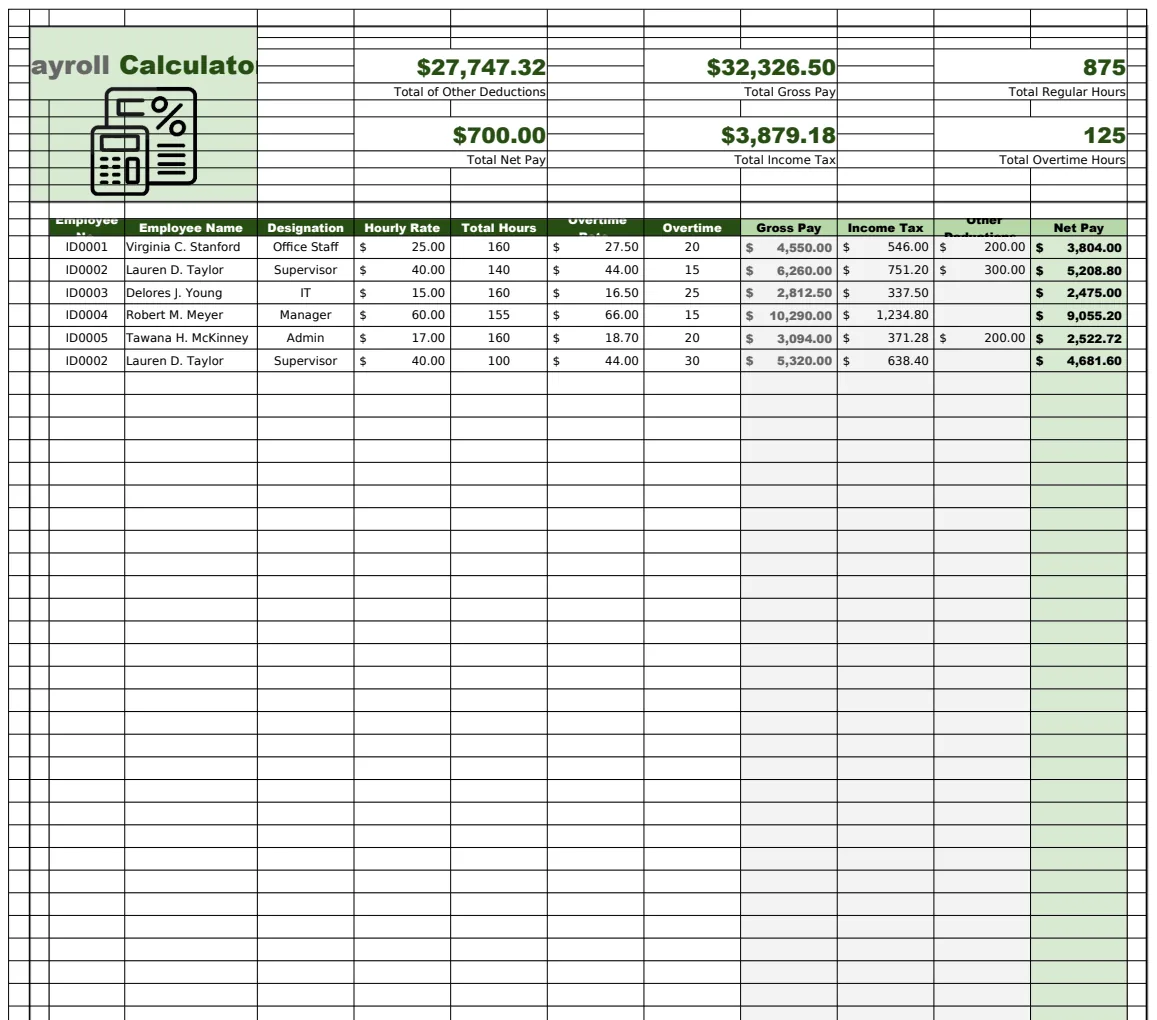
Discover the 5 crucial payroll fields needed for an effective free Excel payroll template download.
The structure of your payroll spreadsheet is the most critical element, and most people overlook how to organize it for accuracy and ease of use. Getting this wrong means you're not just looking at a messy file; you're looking at potential compliance issues and a lot of wasted time. If your goal is a solid payroll template Excel free download, you need to build it with specific, functional sections from the start. A well-designed template will save you hours each pay period, ensuring everyone is paid correctly and on time.
Many downloadable templates are just data dumps, offering little in the way of automation or clear reporting. A truly useful payroll template Excel free download should guide you through the process, minimizing manual entry and reducing errors. This means defining clear inputs, calculations, and outputs. We'll walk through how to set up a robust system that can handle your payroll needs effectively, whether you're a small business owner or an HR administrator.
Essential Columns for Your Payroll Sheet
At its core, your payroll spreadsheet needs to capture specific data points for each employee for each pay period. Think of these as your primary data entry fields.
Here are the absolute must-have columns:
- Employee ID: A unique identifier for each person. This prevents confusion, especially with similar names.
- Employee Name: Full name for easy reference.
- Pay Rate: The hourly wage or annual salary.
- Hours Worked: For hourly employees, the total hours for the pay period. For salaried employees, this might be a fixed value or used for tracking leave.
- Gross Pay: This is a calculated field:
Pay Rate * Hours Worked(for hourly) orAnnual Salary / Number of Pay Periods per Year(for salaried). - Deductions - Pre-Tax: This includes things like 401(k) contributions, health insurance premiums, or FSA contributions.
- Deductions - Post-Tax: Things like garnishments or Roth IRA contributions.
- Taxes - Federal Income Tax: The amount withheld for federal income tax.
- Taxes - State Income Tax: The amount withheld for state income tax (if applicable).
- Taxes - Local Income Tax: The amount withheld for any local income tax (if applicable).
- Taxes - Social Security: The employer and employee portions of Social Security tax.
- Taxes - Medicare: The employer and employee portions of Medicare tax.
- Net Pay: This is the final calculated amount:
Gross Pay - Total Deductions - Total Taxes.
Setting Up Calculation Columns
Once you have your raw data columns, you need to build the calculations that turn that data into actionable payroll figures. This is where a good payroll template Excel free download truly shines, automating what would otherwise be tedious manual work.
Your calculation columns will largely automate the figures for Gross Pay, Net Pay, and total deductions/taxes.
- Gross Pay Formula: For an hourly employee in cell F2 (assuming Pay Rate is in C2 and Hours Worked in D2), the formula would be
=C2*D2. For a salaried employee, assuming annual salary in C2 and bi-weekly pay periods (26 per year), it might be=C2/26. - Total Deductions Formula: If your pre-tax deductions are in column G and post-tax in column H, this would be
=SUM(G2:H2). - Total Taxes Formula: Summing federal (I2), state (J2), local (K2), Social Security (L2), and Medicare (M2) taxes:
=SUM(I2:M2). - Net Pay Formula: This is the final, crucial calculation:
=F2-N2-O2(assuming Gross Pay in F2, Total Deductions in N2, and Total Taxes in O2).
Handling Employee Tax Information
Accurate tax withholding is non-negotiable. Your spreadsheet needs a way to manage each employee's tax situation. This typically involves setting up a separate sheet or a dedicated section to store W-4 information.
Key pieces of data to track for each employee include:
- Filing Status: Single, Married Filing Separately, Married Filing Jointly, Head of Household.
- Number of Dependents: As claimed on their W-4.
- Additional Income: Any income not from this employer.
- Deductions: Any additional deductions claimed on the W-4.
- Extra Withholding: Any additional amount the employee wishes to have withheld per pay period.
You can use this information to calculate federal and state income tax withholding. Many templates use lookup tables or nested IF statements to approximate these values based on pay rate, filing status, and allowances. For precise calculations, especially with changing tax laws, you might consider a dedicated payroll calculator. A tool like the Payroll Calculator with Federal Tax Tables can help ensure accuracy.
Automating Deductions and Benefits
Beyond taxes, you need to account for other deductions. This includes things like health insurance premiums, retirement contributions, and any other benefits that are deducted from an employee's paycheck.
- Define Deduction Types: Create clear labels for each type of deduction. This could be a separate table listing deduction codes, descriptions, and whether they are pre-tax or post-tax.
- Link to Employee Elections: For each employee, you'll need to specify which deductions apply to them and the amounts. This might be done on a separate "Employee Benefits" sheet that links back to your main payroll calculation.
- Formula Logic: Your main payroll sheet will then reference this information. For example, if an employee has health insurance with a $100 pre-tax deduction, your formula in the "Deductions - Pre-Tax" column would pull that $100 value.
Creating a Payroll Register for Record-Keeping
A payroll register is a running log of all payroll transactions for a specific period. It's essential for auditing, reporting, and tracking year-to-date (YTD) earnings and deductions.
To create this:
- 01Duplicate Data: For each pay period, you'll want to copy the calculated data (Gross Pay, Net Pay, each tax, each deduction) from your main payroll calculation sheet.
- 02Add YTD Columns: Introduce columns for Year-to-Date Gross Pay, YTD Net Pay, YTD Federal Tax Withheld, etc.
- 03Update YTD Totals: Each pay period, your YTD columns should add the current period's figures to the previous YTD totals. For example, YTD Gross Pay in row 3 would be
=F3 + Previous_YTD_Gross_Pay_Cell. - 04Employee Identification: Ensure each entry is clearly tied to an Employee ID and Name.
A dedicated Payroll Register template can provide a structured way to manage this historical data, making it much easier to generate reports.
Setting Up for Different Pay Frequencies
Your template should be flexible enough to handle different pay frequencies, weekly, bi-weekly, semi-monthly, or monthly.
- Input for Pay Frequency: Have a cell where you can select the pay frequency for the current payroll run.
- Dynamic Salary Calculation: If you have salaried employees, your Gross Pay calculation needs to adjust based on this frequency. For example, an annual salary of $60,000 paid weekly ($60,000/52) is different from when paid bi-weekly ($60,000/26).
- Date Tracking: Ensure you have clear columns for the Pay Period Start Date and Pay Period End Date, and the Check Date.
This is where a template like the Administration Payroll Calculator Template can be very helpful, as it's designed with these administrative details in mind.
Common Mistakes to Avoid
Even with a good structure, payroll can go wrong. Here are some common pitfalls:
- Incorrect Pay Rate Entry: A simple typo in an hourly rate can lead to significant over or underpayment. Double-check all manual entries.
- Ignoring State/Local Taxes: Forgetting to account for specific state or local tax requirements can lead to compliance issues.
- Manual YTD Calculations: If you're manually summing YTD figures each period, errors are almost guaranteed. Use formulas to automate this.
- Not Reconciling Bank Statements: Failing to match your payroll expenses to your bank statements means you might miss errors or fraudulent activity.
- Outdated Tax Tables: Tax laws change. If your template relies on hardcoded tax figures, they can quickly become obsolete.
Frequently Asked Questions
How do I ensure my payroll template is compliant with tax laws?
While a template can help organize calculations, it doesn't guarantee compliance. You must ensure your formulas accurately reflect current federal, state, and local tax rates and regulations. For critical accuracy, especially with federal withholding, consider using a template that explicitly incorporates up-to-date tax tables or consult official tax resources.
Can I use a free Excel template for a large number of employees?
For a small number of employees (say, under 10-15), a well-structured Excel template can work. However, as your employee count grows, Excel can become slow, prone to errors, and difficult to manage. Payroll software or more advanced template solutions are generally better suited for larger organizations to maintain efficiency and accuracy.
What if an employee has irregular pay, like overtime or bonuses?
Your template should accommodate these. You'll need specific columns for overtime hours and rates, and separate columns for bonuses or commissions. Ensure your "Gross Pay" calculation can sum these different pay types correctly. Some templates might have separate sections or input fields for these variable pay components.
How often should I update my payroll template?
You should review your template at least annually, and immediately whenever there are significant changes to tax laws (federal, state, or local), minimum wage rates, or benefit deduction rules. If your template uses hardcoded tax figures, these must be updated as soon as new rates are published by the relevant tax authorities.