Create service invoices in Excel in minutes.
Create professional service invoices in Excel in minutes using free templates that simplify billing and payment tracking.
Many people assume a "service invoice template Excel free" means settling for something basic or clunky. The reality is that even free Excel templates can be powerful tools for managing client billing, tracking payments, and projecting revenue if you know what to look for and how to adapt them. Building a functional invoice system doesn't require expensive software; it often just means a well-structured spreadsheet.
You can create a professional-looking invoice that captures all necessary details without costing a dime upfront. This involves understanding the core components of a service invoice and how to organize them within Excel. A well-designed template saves you time on every invoice, reduces errors, and presents a polished image to your clients.
Essential Components of a Service Invoice
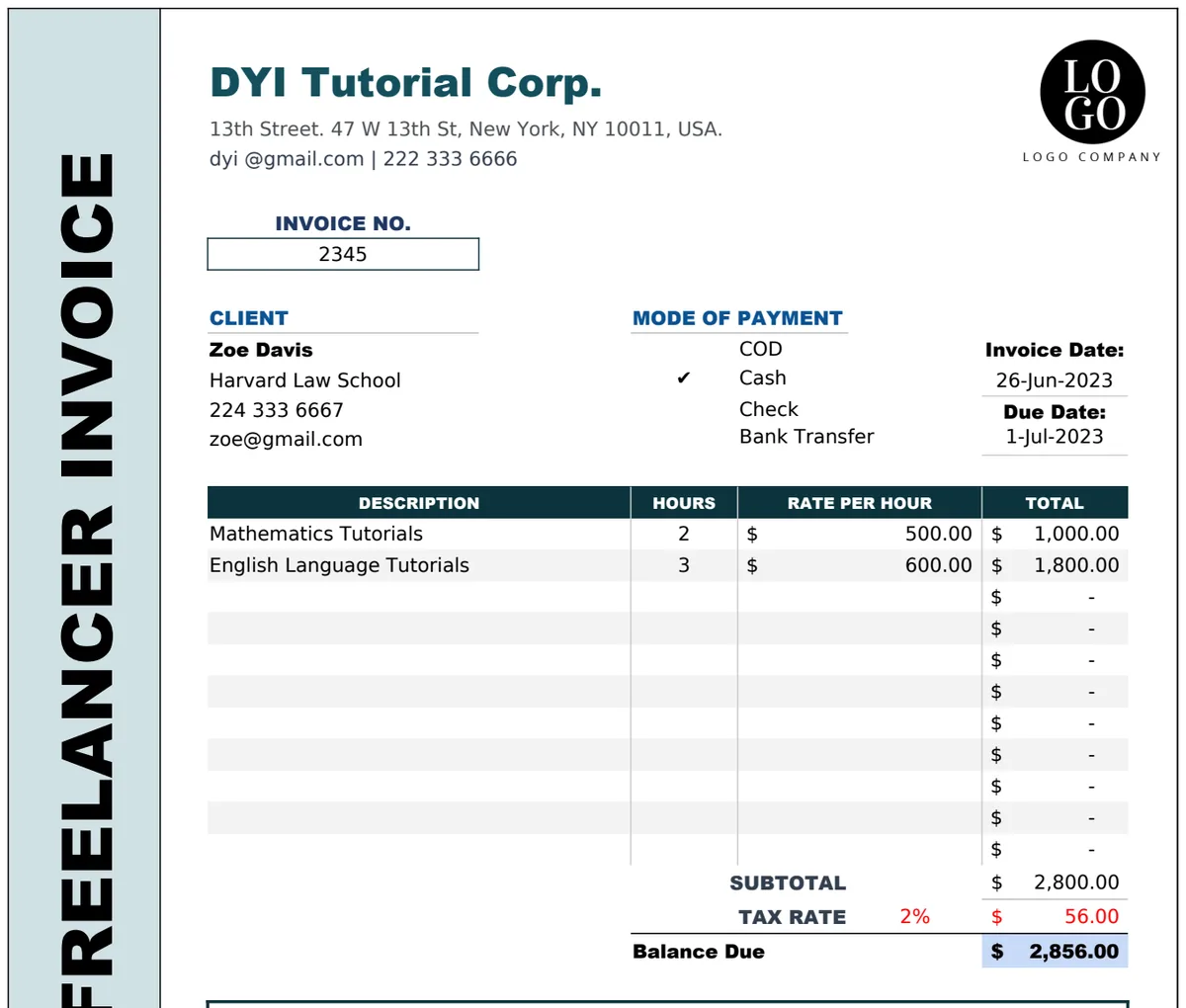
A good service invoice needs to clearly communicate what was done, by whom, when, and for how much. Here are the non-negotiable elements you should include:
- Your Business Information: Name, address, phone number, email, and website (if applicable). This establishes your identity and provides contact points.
- Client Information: Name, address, and contact details of the person or company being billed.
- Invoice Number: A unique, sequential identifier for each invoice. This is crucial for record-keeping and tracking.
- Invoice Date: The date the invoice is issued.
- Service Dates/Period: The timeframe during which the services were provided.
- Detailed Description of Services: This is the heart of a service invoice. Break down the work performed clearly. For example, instead of "Consulting," list "Initial Project Consultation (2 hours)," "Website Design Mockups (4 hours)," and "Content Strategy Development (3 hours)."
- Line Item Costs: For each service, specify the hourly rate or a fixed project fee, the quantity (e.g., hours), and the total cost for that line item.
- Subtotal: The sum of all line item costs before taxes or other charges.
- Taxes: Applicable sales tax, VAT, or other taxes, with the rate clearly stated.
- Total Amount Due: The final figure the client needs to pay, including taxes and any other fees.
- Payment Terms: Clearly state when payment is due (e.g., "Net 30," "Due upon receipt") and accepted payment methods (e.g., bank transfer, check, online payment gateway).
- Notes/Thank You: A brief message to the client can enhance customer relations.
Setting Up Your Free Excel Service Invoice
You don't need to start from scratch. Begin with a blank workbook and set up your columns on a new sheet. Let's call this sheet "Invoice_Template."
- 01Header Section:
- In cell
A1, type your business name. - In cells
A2:A4, list your business address, phone, and email. - To the right, starting around column
ForG, create fields for "Invoice Number," "Invoice Date," and "Service Period." You can label these in cells likeF1,F2,F3. - Leave space below your business info for the client's details. You can label fields like "Bill To:" in
A6.
- 02Service Details Table: This is where your line items go.
- Create column headers in a row, for example, Row 8:
A8: "Description"B8: "Hours/Units"C8: "Rate"D8: "Line Total"- In cell
E8, you might put "Service Date" if you track individual service dates per line item.
- 03Calculations:
- For the "Line Total" column (
D), in cellD9(assuming your first service item is in row 9), enter the formula:=B9*C9. Drag this formula down as far as you anticipate needing rows for services. - Below the table, create fields for "Subtotal," "Tax Rate," "Tax Amount," and "Total Due." For instance, in cell
Cstarting around row 20: C20: "Subtotal:"C21: "Tax Rate:"C22: "Tax Amount:"C23: "Total Due:"- In the corresponding cells to the right (e.g.,
D20,D21,D22,D23), you'll place your formulas: - Subtotal:
=SUM(D9:D19)(adjust the rangeD19to cover all your potential line item rows). - Tax Rate: You can either type the rate directly into a cell (e.g.,
D21would be0.08for 8%) or create a dedicated cell on another sheet for it, referencing it here. - Tax Amount:
=D20*D21. - Total Due:
=D20+D22.
- 04Payment Terms and Notes:
- Add a section below the totals for "Payment Terms" and "Notes." Label these clearly.
Advanced Features for a Better Service Invoice Template
While a basic setup is functional, adding a few features can significantly improve your "service invoice template Excel free" experience.
Dynamic Client Information
If you bill the same clients repeatedly, you can create a separate sheet (e.g., "Clients") with columns for Client Name, Address, Phone, and Email. Then, on your invoice sheet, you can use VLOOKUP or XLOOKUP to pull this information based on a client selection. This ensures consistency and saves re-typing.
For example, if you have a dropdown list in cell B6 on your Invoice sheet to select a client name, and your "Clients" sheet has client names in column A and their addresses in column B, you could use this formula in B7 (for the client's address):
=XLOOKUP(B6, Clients!A:A, Clients!B:B, "Client not found")
This formula looks for the name in B6 within the first column of your "Clients" sheet and returns the corresponding value from the second column (the address).
Automated Invoice Numbering
While manual numbering is common, you can automate it. On a separate "Settings" sheet, keep track of the last invoice number used. On your invoice template, you can use a formula like:
="INV-" & TEXT(MAX(Invoice_Template!F2, Settings!B1)+1, "0000")
This formula (assuming your invoice date is in F2 and last number used is in Settings!B1) would create an invoice number like "INV-0001". You'd still need to update Settings!B1 manually or with more complex VBA if you want full automation.
Conditional Formatting for Clarity
Use conditional formatting to highlight important information:
- Overdue Invoices: If you track payment dates, you can highlight invoices where the due date has passed and the payment date is still blank.
- Pending Payments: Highlight rows where the "Total Due" is greater than zero but the payment date hasn't been entered.
- Paid Invoices: Once the payment is recorded, you could change the background color of the entire invoice row or a specific "Status" column to green.
Common Mistakes to Avoid
When building or using a service invoice template, many users fall into a few common traps:
- Inconsistent Invoice Numbering: Skipping numbers or reusing them makes tracking difficult and can look unprofessional.
- Vague Service Descriptions: Clients need to understand exactly what they are paying for. Ambiguity can lead to disputes.
- Missing Key Information: Forgetting your business details, client contact info, or clear payment terms can delay payments.
- Unclear Payment Terms: If your client doesn't know when they owe you money or how to pay, they might pay late or incorrectly.
- Not Proofreading: Typos in amounts, dates, or client names are easily made and look bad. Always double-check.
- Overly Complex Formatting: While a professional look is good, making the sheet too complicated with excessive graphics or hidden formulas can make it hard to use and update.
When to Consider a Dedicated Template
While you can certainly create a robust "service invoice template Excel free," there are times when a pre-built template or even dedicated invoicing software becomes more appealing.
Pre-Built Templates
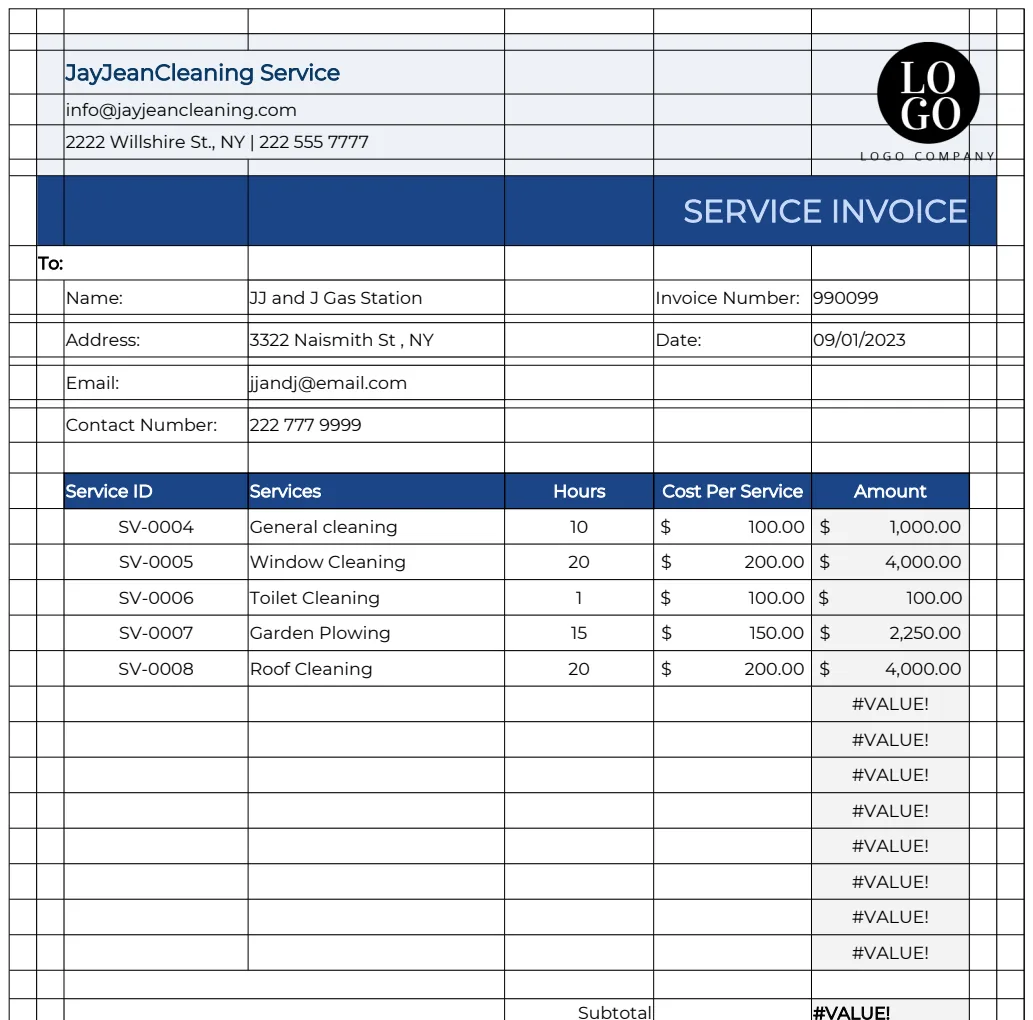
If you're in a specific trade like cleaning or handyman services, a specialized template can already have the right fields. For instance, a Service Invoice Template might be designed with fields for tracking staff hours or specific service codes relevant to your industry. Similarly, a Handyman Invoice Template might include common repair items or materials. These templates save you the initial setup time and ensure you're not missing industry-specific details.
Transitioning to Software
As your business grows, managing invoices manually in Excel, even with a great template, can become time-consuming. If you're sending dozens of invoices a month, dealing with payment reminders, and needing to generate financial reports, the time invested in a dedicated invoicing system often pays for itself. These systems offer features like automated payment processing, recurring invoices, client databases, and detailed reporting that go beyond what a spreadsheet can easily manage.
Common Follow-Up Questions
Can I add my company logo to a free Excel template?
Absolutely. You can insert your logo by going to the "Insert" tab in Excel, selecting "Pictures," and choosing your logo file. Position it in the header area of your invoice, usually near your business name. You may need to adjust cell sizes or use text boxes to ensure it fits well without disrupting the layout.
How do I make sure my invoices look professional if I'm using a free template?
Focus on clean formatting. Use consistent fonts (like Arial, Calibri, or Times New Roman) in a readable size (10-12pt). Ensure adequate white space so the invoice doesn't look cluttered. Use bolding for headings and totals to guide the reader's eye. Avoid excessive colors or complex graphics. A simple, well-organized layout is often more professional than an over-designed one.
What's the difference between a service invoice and a product invoice?
A product invoice details goods sold, typically including item numbers, quantities, and per-unit prices. A service invoice, on the other hand, details labor or professional services rendered, usually itemized by task, hourly rate, or project fee, often with the number of hours or units. Both share common elements like client and business information, invoice numbers, and totals, but the core of the line items differs significantly.
Where can I find more templates if my current free setup isn't enough?
Many websites offer free and paid templates for various business needs. For professional, industry-specific options, you might explore template libraries. For example, a dedicated Invoice Template for Cleaning Service could be far more tailored than a general business invoice. Some libraries offer a one-time purchase for unlimited downloads, which can be cost-effective if you use many different templates over time.