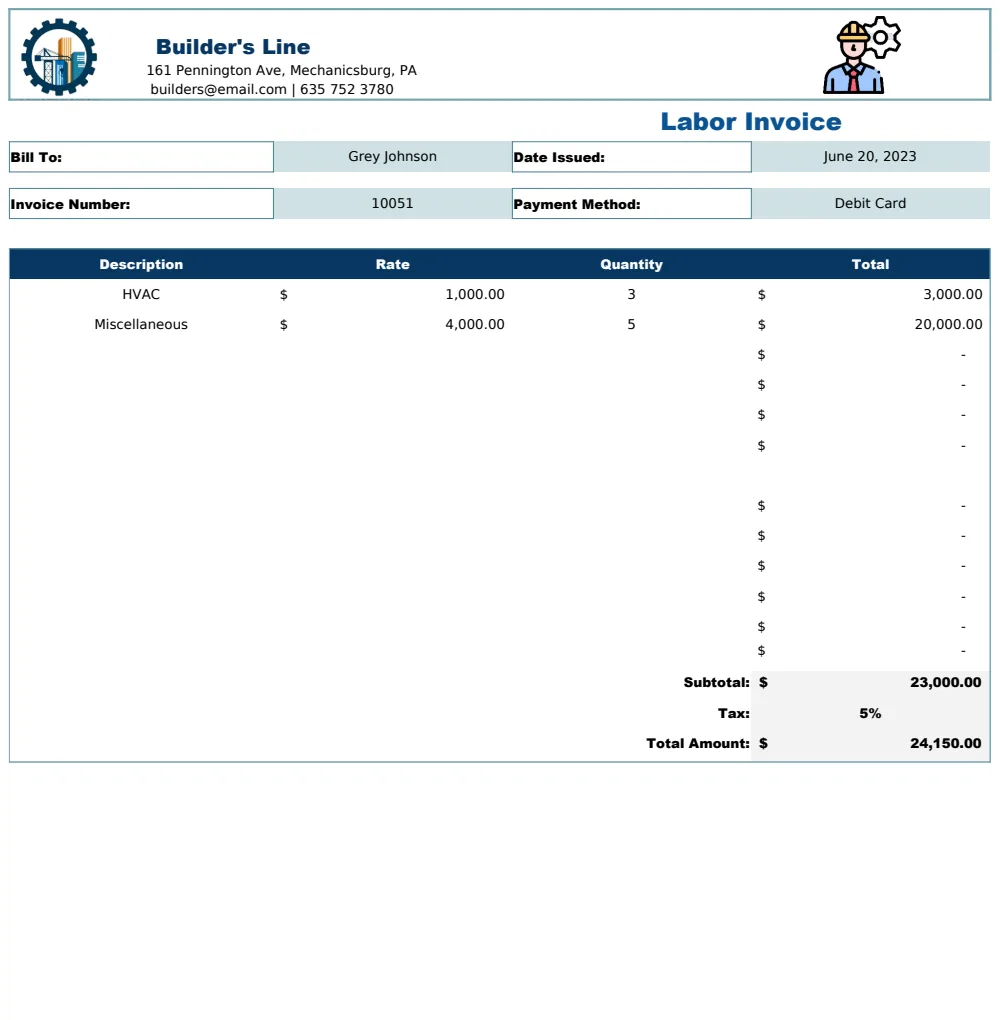
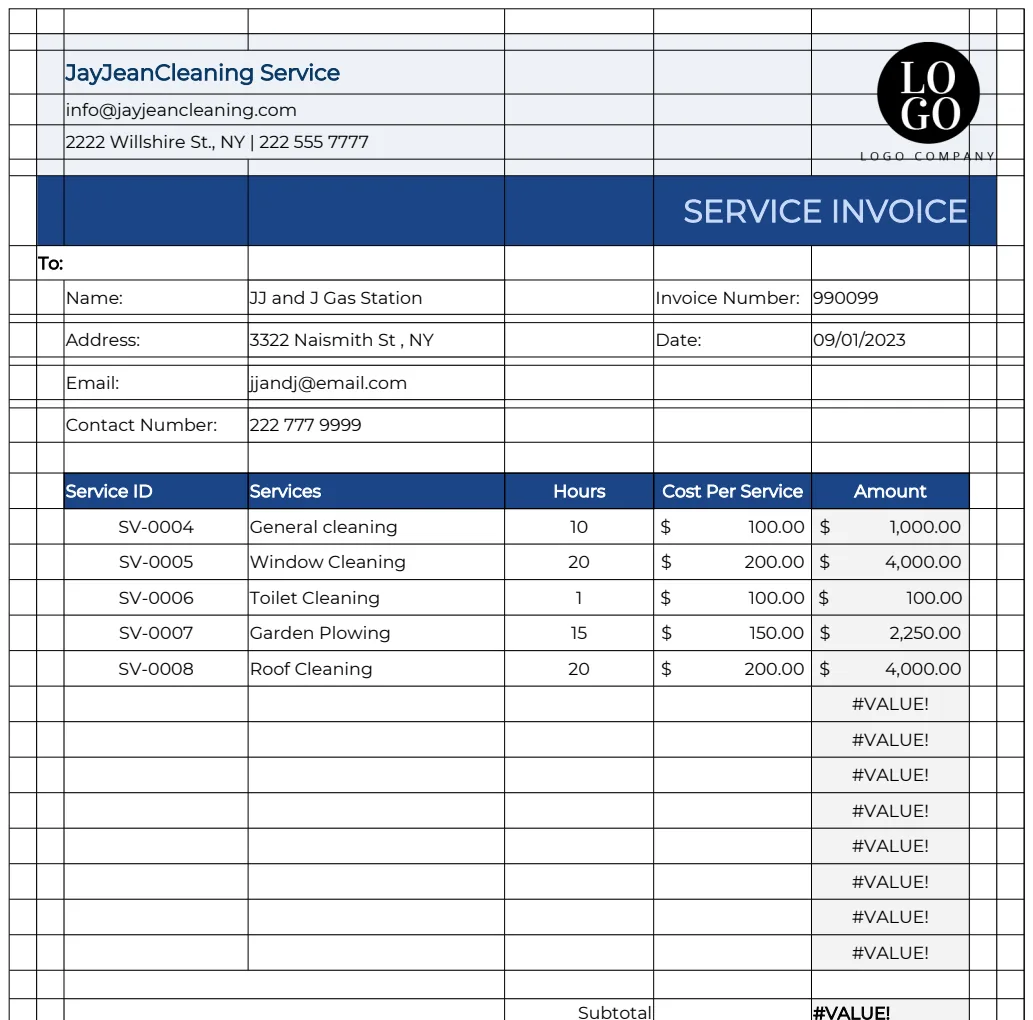
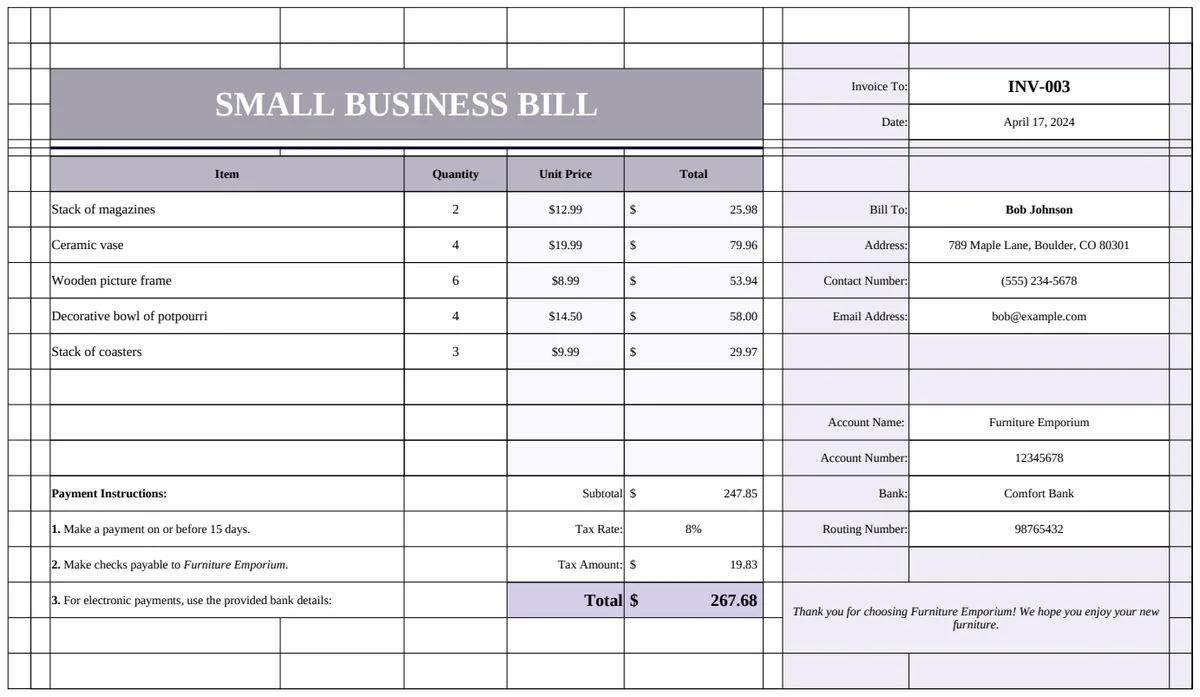
Get your free Excel purchase order template now
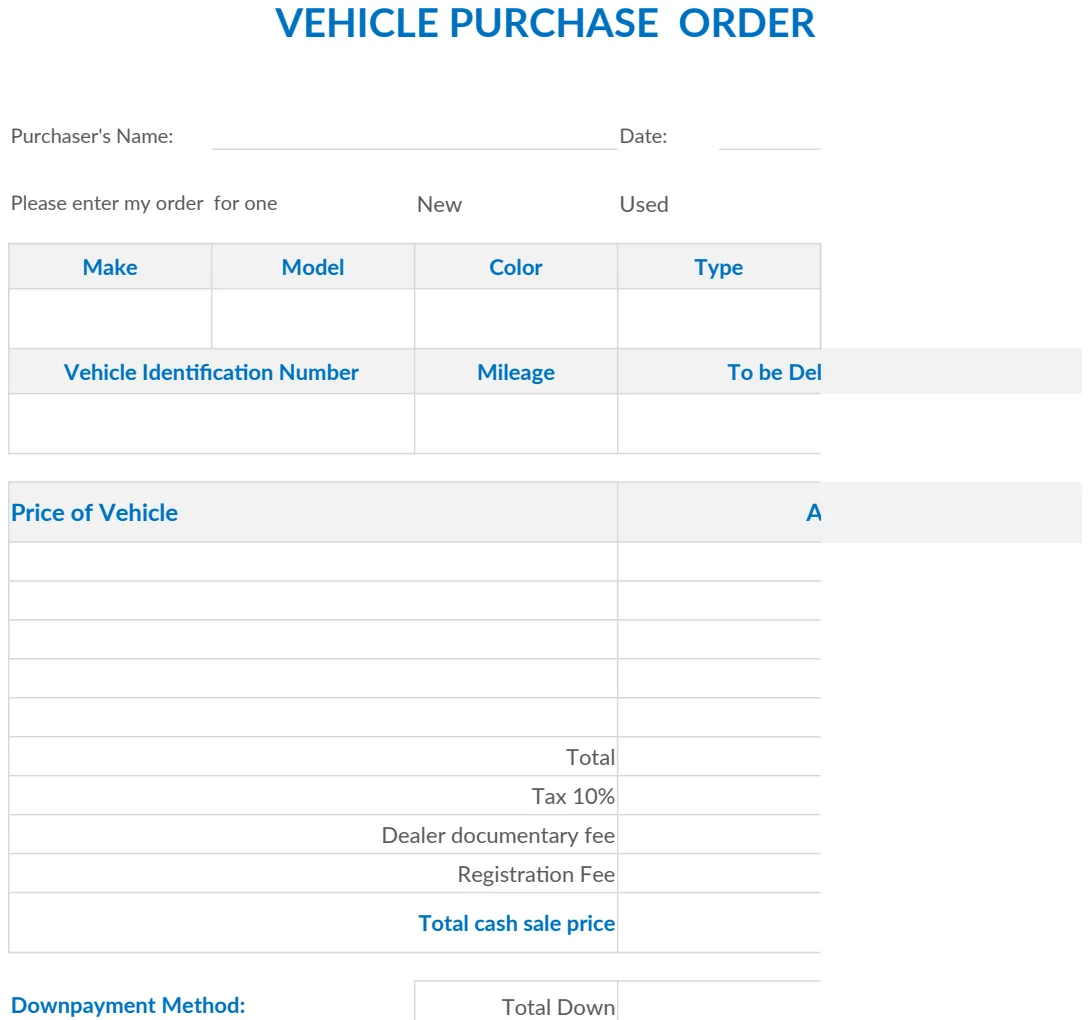
Find a functional purchase order template Excel free download that goes beyond layout to capture essential data for easy analysis.
The most common mistake people make with a purchase order template is focusing only on the layout, not on the data structure that makes it useful. A good purchase order form needs to be more than just a pretty document; it needs to capture information in a way that’s easy to sort, filter, and analyze later. This is why finding a truly functional purchase order template Excel free download requires looking beyond just the visual design.
You're likely here because you need a clear, standardized way to request goods or services from a vendor, and you want a ready-made solution to get started quickly. A well-designed template prevents miscommunication, ensures accurate record-keeping, and can even help with budgeting and inventory management. For many businesses, especially small ones or those just starting out, a free download is the perfect entry point.
What Makes a Purchase Order Template Effective?
Beyond the basic fields like vendor name, item description, quantity, and price, an effective purchase order template should allow for clear categorization and tracking. Think about adding columns for:
- PO Number: A unique identifier for each order.
- Date Issued: When the order was created.
- Vendor Information: Name, address, contact person, phone, email.
- Ship To Address: Where the goods should be delivered.
- Item/Service Description: Clear, concise details of what is being ordered.
- Part Number/SKU: If applicable, for precise identification.
- Quantity: The number of units ordered.
- Unit Price: The cost per individual unit.
- Line Total: Quantity multiplied by Unit Price.
- Subtotal: Sum of all Line Totals.
- Tax Rate/Amount: Applicable taxes.
- Shipping/Handling: Any additional delivery costs.
- Grand Total: The final amount due.
- Payment Terms: Net 30, Due on Receipt, etc.
- Delivery Date: When the items are expected.
- Notes/Special Instructions: Any specific requirements.
The structure of these fields in your spreadsheet is paramount. Using separate columns for each piece of data, rather than jamming multiple pieces of information into a single cell, is critical for future analysis.
Setting Up Your Excel Purchase Order
When you download a purchase order template Excel free download, you'll often find it's already laid out with these basic fields. However, you can customize it to fit your specific needs.
- 01Review Existing Columns: Open the template and identify all the columns present. Do they align with the essential information you need?
- 02Add or Remove Columns: If a column is missing, like a "Department" or "Project Code" for internal tracking, add it. If there's a column you’ll never use, delete it to keep things clean.
- 03Format Cells: Ensure that numerical fields (Quantity, Unit Price, Totals) are formatted as currency or numbers, and dates are formatted correctly. This prevents errors and makes calculations accurate.
- 04Implement Formulas: Most templates will have basic sum formulas for line totals and grand totals. Double-check these. For example, a Line Total formula in cell
G2(assuming Quantity is inE2and Unit Price inF2) would be=E2*F2. The Grand Total might be=SUM(G2:G100)if your line totals are in column G and you expect up to 100 items. - 05Add Data Validation: For fields like "Payment Terms" or "Vendor Name," consider using data validation to create dropdown lists. This ensures consistency and reduces typos. To do this, go to the "Data" tab, select "Data Validation," choose "List" as the Allow option, and then specify your list of terms or vendors.
Key Components of a Purchase Order
A purchase order serves as a legally binding document between a buyer and a seller. It officially requests goods or services and outlines the terms of the transaction. Therefore, clarity and completeness are non-negotiable.
- Buyer Information: Your company's name, address, and contact details. This is crucial for record-keeping and for the vendor to know who is ordering.
- Vendor Information: The supplier's name, address, and contact details.
- PO Number: A unique identifier that allows both parties to reference the specific transaction. This is vital for tracking and accounting.
- Order Date: The date the purchase order is issued.
- Itemized List: A detailed breakdown of each product or service being ordered, including quantity, description, unit price, and total price for each item. For complex orders, like those involving specialized equipment or services, a template that allows for extensive detail is essential. For instance, if you're ordering a fleet of vehicles, you'll need a dedicated Vehicle Purchase Order to capture specific makes, models, VINs, and customization options.
- Terms and Conditions: This section covers payment terms (e.g., Net 30), delivery dates, shipping methods, and any other relevant contractual clauses.
- Totals: A clear summary of the subtotal, taxes, shipping costs, and the final grand total.
Advanced Customization and Usage
Once you have a basic purchase order template set up, you can enhance its utility.
Using Lookup Functions for Efficiency
If you frequently order from the same vendors or purchase the same items, you can integrate lookup functions like VLOOKUP or XLOOKUP (available in newer Excel versions).
Scenario: You have a separate sheet named "Vendor List" with columns for "Vendor Name" and "Vendor Contact." You want to automatically populate the vendor's contact person on your PO.
Steps:
- 01On your PO template, ensure you have a column for "Vendor Name" (e.g., cell
B5) and a column for "Vendor Contact" (e.g., cellB6). - 02On your "Vendor List" sheet, have Vendor Names in column A and Vendor Contacts in column B.
- 03In cell
B6of your PO template, enter the followingXLOOKUPformula:
=XLOOKUP(B5,'Vendor List'!A:A,'Vendor List'!B:B,"Vendor Not Found",FALSE) This formula looks for the value in cell B5 (the Vendor Name on your PO) within column A of your "Vendor List" sheet. If found, it returns the corresponding contact from column B. If not found, it displays "Vendor Not Found."
Tracking Purchase Orders
A purchase order template is the first step. To truly manage your procurement process, you need a system for tracking these orders from issuance to receipt. You might maintain a separate spreadsheet where you log each PO number, vendor, order date, expected delivery date, actual delivery date, and status (e.g., "Ordered," "Shipped," "Received," "Invoiced").
This tracking sheet can be invaluable for:
- Confirming Orders: A Purchase Order Confirmation Template is often sent by the vendor to acknowledge your order, which you can then cross-reference with your tracking.
- Managing Deliveries: Ensuring goods arrive on time and as expected.
- Budgeting: Keeping track of outstanding commitments.
- Reconciliation: Matching received goods against invoices.
Common Mistakes to Avoid
- Inconsistent PO Numbering: Skipping numbers or reusing them creates confusion and makes tracking impossible. Implement a strict, sequential numbering system.
- Vague Item Descriptions: "Parts" or "Supplies" is not enough. Be specific: "10 x Widget Model X-100, Blue, 10cm diameter."
- Ignoring Payment Terms: Not clearly stating or understanding payment terms can lead to late fees or strained vendor relationships.
- Failing to Get a Confirmation: For significant orders, always request a PO confirmation from the vendor. This ensures they have received and understood your order correctly. A dedicated Purchase Order Confirmation Template can help vendors standardize their acknowledgments.
- Not Storing POs Properly: Treating POs as disposable documents. They are important financial records. Store them systematically, whether in a digital folder structure or a dedicated system.
Local vs. Standard Purchase Orders
Depending on your purchasing needs, you might require different types of POs. For day-to-day operational purchases from local suppliers, a Local Purchase Order Template might be more suitable. These often focus on speed and simplicity for smaller, recurring orders. Standard purchase orders, especially for larger or more complex transactions, might include more detailed contractual clauses and specifications. The core structure of capturing essential data remains the same, but the emphasis and specific fields can vary.
Frequently Asked Questions
Can I use a free purchase order template for any business?
Yes, a free purchase order template Excel free download can be a great starting point for most small to medium-sized businesses. However, if your business operates in a highly regulated industry or deals with very complex contracts, you might need a more specialized solution that includes specific legal clauses or compliance features.
How do I ensure my purchase order is legally binding?
For a purchase order to be legally binding, it needs to clearly identify the buyer and seller, specify the goods or services being ordered, state the price, and include terms of agreement. Both parties must agree to the terms, often by signing or acknowledging the PO. The template provides the framework, but the agreement between parties solidifies the legal aspect.
What if a vendor doesn't accept my purchase order?
If a vendor has specific requirements or prefers not to use POs, discuss their process. Some may prefer a formal invoice or a different ordering method. Maintaining open communication is key. You can adapt your internal process to match their preferred method while still ensuring you capture the necessary data for your records.
Can I make my purchase order template more professional-looking?
Absolutely. Beyond the functional columns, you can add your company logo, use your brand colors, and ensure consistent formatting. A professional appearance builds credibility with your vendors. Many templates offer customization options for branding.