Excel vs. Google Sheets: Which weight loss tracker wins?
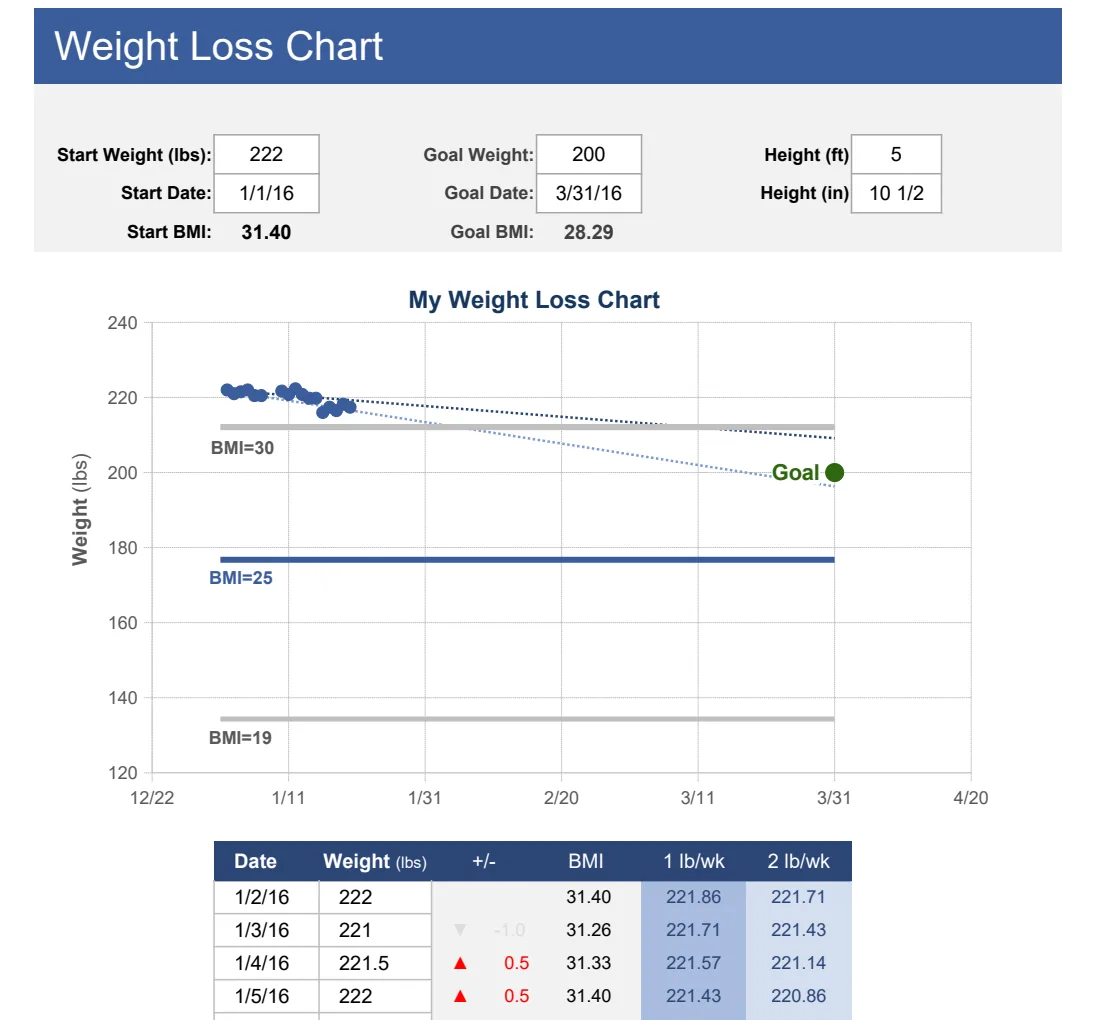
Discover the best weight loss tracker spreadsheet template to automate progress and keep motivation high without tedious manual calculations.
The most common reason people abandon a weight loss tracker spreadsheet template is that it becomes too much work to update, leading to a cascade of missed entries and lost motivation. Often, this happens because the template isn't set up to automatically calculate key metrics, forcing manual calculations that are tedious and prone to error.
A well-designed weight loss tracker spreadsheet template should minimize manual input and maximize insight. It should automatically update your progress, show trends, and highlight achievements, making the process feel rewarding rather than a chore. This keeps you engaged and focused on your goals.
Setting Up Your Weight Loss Tracker
When you're starting a weight loss journey, having a clear, organized way to see your progress is crucial. This is where a dedicated spreadsheet comes in. You don't need to be an Excel wizard to build one that works. The key is to keep it simple, focused on the data that matters most to you, and easy to update.
Think about the core information you need to track. At a minimum, this will likely include:
- Date: The date you recorded your weight.
- Weight: Your weight in pounds or kilograms.
- Change from Last Entry: The difference between your current weight and the previous recorded weight.
- Total Change: The overall difference between your current weight and your starting weight.
These basic columns will give you a clear picture of your daily and overall progress.
Essential Columns for Tracking
Beyond the absolute basics, adding a few more columns can significantly enhance the insights you gain from your weight loss tracker spreadsheet template. These additions help you understand why your weight might be fluctuating and identify patterns.
Consider these columns:
- Body Fat Percentage: If you have access to a scale that measures this, it's a valuable metric to track alongside weight.
- Waist Circumference: Measuring your waist at a consistent point (e.g., navel level) can indicate fat loss even if the scale isn't moving much.
- Water Intake: Tracking how much water you drink can highlight its potential impact on your weight.
- Exercise Duration/Type: A simple entry noting if you exercised and for how long, or the type of exercise, can correlate with weight changes.
- Sleep Duration: Poor sleep can affect hormones that regulate appetite and metabolism.
- Notes/Mood: A quick comment about how you're feeling, what you ate, or any significant events can provide context for weight fluctuations.
Each of these columns adds another layer of data that can help you make informed decisions about your diet and exercise.
Automating Calculations with Formulas
This is where the magic happens and where many spreadsheets fall short. Manually calculating the "Change from Last Entry" and "Total Change" every single time you weigh yourself is tedious. Let's set up formulas to do it for you.
Assume your data starts on row 2, with headers in row 1.
- Column A: Date
- Column B: Weight (lbs or kg)
- Column C: Change from Last Entry
- Column D: Total Change
Formula for "Change from Last Entry"
In cell C2, you can leave this blank or enter "N/A" since there's no previous entry. Starting from C3, enter the following formula:
=B3-B2
This formula subtracts the weight in the cell directly above (B2) from your current weight (B3). To apply this to all subsequent rows, click on cell C3, grab the small square at the bottom-right corner (the fill handle), and drag it down to the last row of your data.
Formula for "Total Change"
For the "Total Change" column, you need to compare your current weight to your starting weight. Assuming your first weight entry is in B3:
In cell D3, enter the formula:
=B3-$B$3
The $ signs around B3 create an absolute reference. This means that no matter where you copy this formula, it will always refer back to the first weight entry in cell B3. Drag the fill handle down from D3 to apply this to all rows.
These simple formulas will automatically update as you add new weight entries, saving you time and ensuring accuracy.
Visualizing Your Progress with Charts
Numbers on a spreadsheet are useful, but a visual representation can be incredibly motivating. Charts turn raw data into easily digestible trends.
Line Chart for Weight Over Time
- 01Select your data: Highlight the "Date" column (Column A) and the "Weight" column (Column B), including your header row.
- 02Insert Chart: Go to the "Insert" menu and select "Chart."
- 03Choose Chart Type: Most spreadsheet programs will default to a line chart, which is perfect for tracking trends over time. If not, select "Line Chart."
- 04Customize: Make sure your chart has clear axis labels (e.g., "Date" for the horizontal axis, "Weight (lbs)" for the vertical axis) and a title like "Weight Loss Progress."
This chart will show you your weight fluctuations day by day and highlight the overall downward trend. Seeing this line move in the right direction can be a powerful motivator.
Bar Chart for Weekly Changes
You might also want to visualize your weekly progress. This can help you see if you're consistently losing weight week over week.
- 01Create a helper column: Add a new column, perhaps labeled "Weekly Change," and use a formula to calculate the difference between your weight at the end of a week and the beginning. This can be a bit more complex, often involving
IFstatements to identify the end of a week or using theAVERAGEfunction for weekly averages. - 02Insert Bar Chart: Once you have your weekly changes calculated, create a bar chart. The x-axis would be the weeks, and the y-axis would be the change in weight. This clearly shows you which weeks you made the most progress.
A template like the Weight Loss Chart Tracker often has these charts pre-built, saving you the setup time and ensuring they are formatted for maximum impact.
Avoiding Common Pitfalls
Even with a well-structured spreadsheet, people often stumble. Being aware of these common issues can help you stay on track.
- Inconsistent Weigh-Ins: Weighing yourself at different times of day, after eating or drinking, or under different conditions can lead to misleading data. Aim for consistency, first thing in the morning, after using the restroom, before eating or drinking anything.
- Ignoring Non-Scale Victories: The scale doesn't tell the whole story. If your clothes are fitting better, you have more energy, or your measurements are down, those are significant wins. Make a habit of noting these in your "Notes" column or a separate section.
- Overly Complex Spreadsheets: Trying to track too many variables can make the spreadsheet overwhelming. Stick to the metrics that are most important to your journey. If a template is too complex, you're less likely to use it. For a simpler approach, consider the Weight Loss Tracker.
- Not Reviewing Progress Regularly: A spreadsheet is only useful if you look at the data. Schedule time weekly, or even daily, to review your entries and charts. This helps you stay accountable and adjust your strategy.
- Giving Up After a Bad Day: One high-weight reading doesn't undo your progress. Understand that weight fluctuates daily due to water retention, sodium intake, and other factors. Focus on the overall trend, not just individual data points.
When to Consider a Pre-Built Template
While building your own weight loss tracker spreadsheet template is a great exercise, sometimes you just need to get started quickly. If you're looking for a ready-made solution that already incorporates best practices for tracking and visualization, a pre-built template can be invaluable.
Templates often come with:
- Pre-configured formulas for accurate calculations.
- Automated charts that update as you input data.
- Sections for setting goals and tracking milestones.
- Clear instructions and guidance.
For example, the Weight Loss Chart offers robust charting features, and the Daily Diary & Personal Tracker allows you to integrate weight tracking with other personal goals and reflections. These resources can provide the structure and motivation you need without the initial setup effort. Accessing a library of these templates typically costs a one-time fee for unlimited downloads.
How to Use a Pre-Built Template Effectively
- 01Read the instructions: Most templates come with a brief "How to Use" section. Take a minute to read it.
- 02Input your starting data: Enter your starting weight, date, and any other initial measurements.
- 03Establish a routine: Decide on your weigh-in schedule (e.g., Monday mornings) and stick to it.
- 04Update consistently: Make it a habit to log your weight and other metrics immediately after weighing yourself.
- 05Review your charts: Regularly look at the graphs and summaries provided. Use this information to celebrate successes and identify areas for adjustment.
What if my scale measures in kg but I prefer lbs?
Most templates, including those at OpenWorksheet, are designed to handle either unit of measurement. Look for a setting or a dedicated column where you can specify "lbs" or "kg." If it's not explicitly stated, you can often simply input your numbers in your preferred unit, and the formulas will work correctly as long as you're consistent. For example, if you input 70 kg, the calculations for change will be in kg. If you prefer lbs, you'd enter the equivalent value in pounds.
Can I track multiple people with one template?
Generally, a standard weight loss tracker spreadsheet template is designed for individual use. However, you could adapt it. You'd typically need to duplicate the entire sheet for each person or create additional sections with separate data entry areas and corresponding charts for each individual. Some more advanced templates might have built-in features for multiple users, but for most, duplication is the straightforward approach.
How often should I update my weight?
The optimal frequency for updating your weight depends on your personal preference and the recommendations of your healthcare provider. Daily weigh-ins can be useful for observing short-term fluctuations and understanding how different factors impact your weight. However, daily changes are often due to water retention and can be discouraging. Many people find weighing in once or twice a week, at the same time of day, under the same conditions, to be more practical for tracking the overall trend without getting caught up in daily noise.