Free Excel cash flow statement template for small business
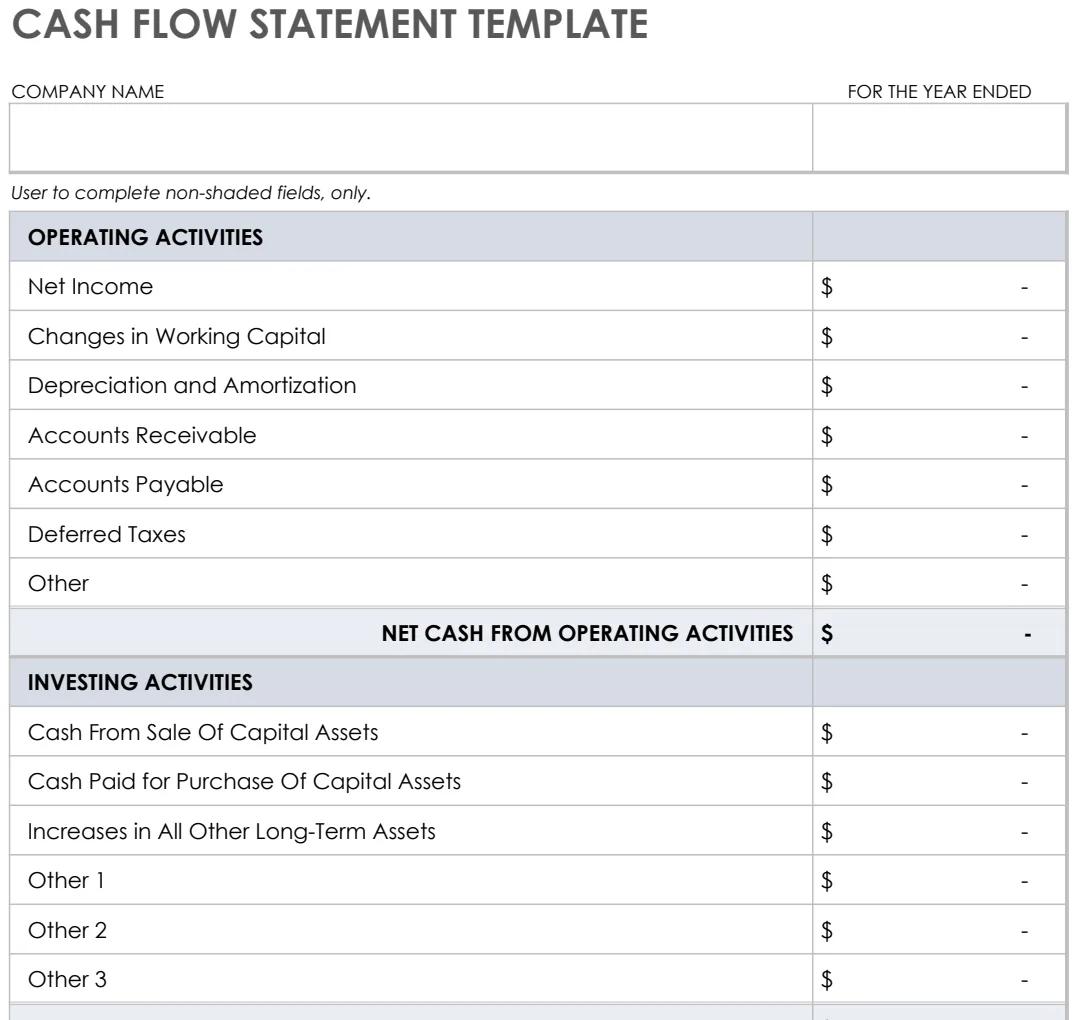
This free Excel cash flow statement template helps small businesses categorize transactions for better financial insights.
The most common failure with a cash flow statement template Excel free is a lack of clear transaction categorization, leading to an inability to distinguish between operational, investing, and financing activities. This often happens because users try to force every transaction into a pre-defined box without understanding the underlying purpose of each cash flow section. Without accurate categorization, the statement becomes a mere list of cash movements, devoid of the insights needed to manage liquidity or plan for the future.
Building a functional cash flow statement from scratch can be daunting, but a well-structured template can significantly simplify the process. Many businesses, especially small ones, find themselves needing a reliable cash flow statement template Excel free to track their financial health. The key is to select a template that allows for detailed transaction input and then automatically aggregates this data into the three core sections: cash flow from operations, cash flow from investing, and cash flow from financing. This structured approach ensures that the final statement provides actionable information rather than just a historical record.
Understanding the Three Core Cash Flow Activities
A cash flow statement is fundamentally divided into three distinct sections, each detailing a different type of cash movement:
- Cash Flow from Operating Activities (CFO): This is the lifeblood of your business. It includes cash generated from your primary business operations, selling goods or services, paying suppliers, and covering employee salaries. For instance, receiving payment from a customer for a product sale is an operating inflow, while paying your rent or wages is an operating outflow. This section reveals how effectively your core business is generating cash.
- Cash Flow from Investing Activities (CFI): This section deals with cash spent on or received from long-term assets. Buying new equipment, purchasing property, or selling off an old vehicle all fall under investing activities. These are typically significant, infrequent transactions that impact the business's asset base.
- Cash Flow from Financing Activities (CFF): This area tracks cash movements related to debt, equity, and dividends. Issuing new stock, repaying a business loan, or paying dividends to shareholders are all financing activities. This section shows how your business is funded and how it repays its investors or lenders.
Common Pitfalls When Building Your Statement
Beyond basic categorization errors, several other mistakes can derail your cash flow statement:
- Confusing Accrual Accounting with Cash Flow: Many businesses operate on an accrual basis, recognizing revenue when earned and expenses when incurred, regardless of when cash changes hands. A cash flow statement, however, only tracks actual cash movements. Failing to adjust for non-cash items like depreciation or changes in accounts receivable and payable will lead to an inaccurate picture.
- Ignoring Non-Cash Transactions: While the statement focuses on cash, understanding non-cash expenses like depreciation is crucial for reconciling net income to operating cash flow. These need to be added back in the "indirect method" approach to CFO.
- Inconsistent Period Reporting: If you're trying to track trends, ensure you're using consistent time periods. Mixing monthly, quarterly, and annual data without a clear reporting structure will make comparisons difficult.
- Lack of Detail in Supporting Schedules: The main statement provides a summary. Without detailed sub-schedules for accounts receivable, accounts payable, inventory, and other working capital components, it's hard to pinpoint why cash flow from operations has changed.
Building Your Cash Flow Statement: A Practical Walkthrough
Let's walk through a simplified process using a hypothetical set of transactions. For this example, imagine you're tracking cash for the month of April. You'll need columns for the date, a description of the transaction, the amount, and most importantly, the category (Operating, Investing, or Financing).
Step 1: Set Up Your Template Columns
In your Excel sheet, create the following columns:
- Date: The date the transaction occurred.
- Description: A brief, clear explanation of the transaction (e.g., "Customer Payment - Invoice #123," "Purchased New Laptop," "Loan Repayment").
- Amount: The cash inflow (positive number) or outflow (negative number).
- Category: This is critical. Use a dropdown or type one of these: "Operating," "Investing," "Financing."
- Sub-Category (Optional but Recommended): For more granular analysis. For example, under "Operating," you might have "Sales Revenue," "Supplier Payments," "Salaries." Under "Investing," "Asset Purchase," "Asset Sale." Under "Financing," "Loan Principal Payment," "New Debt."
Step 2: Input Your Transactions
Enter each cash transaction you have for the period. Be meticulous with your categorization.
- Example Transaction 1: April 5th, Customer Payment for Services Rendered - $5,000. Category: Operating. Sub-Category: Sales Revenue.
- Example Transaction 2: April 10th, Paid Rent for Office Space - $2,000. Category: Operating. Sub-Category: Rent Expense.
- Example Transaction 3: April 15th, Purchased New Server Hardware - $7,500. Category: Investing. Sub-Category: Asset Purchase.
- Example Transaction 4: April 20th, Made Monthly Loan Principal Payment - $1,000. Category: Financing. Sub-Category: Loan Principal Payment.
- Example Transaction 5: April 25th, Received Cash from Selling Old Equipment - $500. Category: Investing. Sub-Category: Asset Sale.
Step 3: Summarize Using Formulas
Now, you'll use formulas to aggregate these transactions. Assume your transaction data is in Sheet1, starting from row 2.
In a separate summary sheet (or section of your main sheet), create summary rows:
- Total Cash from Operating Activities:
Use the =SUMIFS() function. In cell B2 of your summary sheet, assuming your transaction data is in Sheet1 with Category in column D and Amount in column C: =SUMIFS(Sheet1!C:C, Sheet1!D:D, "Operating")
- Total Cash from Investing Activities:
In cell B3 of your summary sheet: =SUMIFS(Sheet1!C:C, Sheet1!D:D, "Investing")
- Total Cash from Financing Activities:
In cell B4 of your summary sheet: =SUMIFS(Sheet1!C:C, Sheet1!D:D, "Financing")
Step 4: Calculate Net Change and Ending Balance
- Net Change in Cash:
In cell B5 of your summary sheet, sum the three categories: =SUM(B2:B4)
- Beginning Cash Balance:
You'll need to know your cash balance at the start of the period. Let's say this is $10,000. Enter this into cell B6.
- Ending Cash Balance:
In cell B7 of your summary sheet: =B6 + B5
This structure provides a clear, actionable cash flow statement. For more complex needs, especially tracking over multiple periods, a template designed for this can save significant setup time. The IC Cash Flow Statement Template offers this multi-period tracking functionality.
Using Conditional Formatting for Clarity
Once your formulas are set up, you can use conditional formatting to visually highlight key figures.
- Positive Net Change: Select the cell showing your Net Change in Cash (e.g., B5). Go to Conditional Formatting -> Highlight Cells Rules -> Greater Than. Enter "0" and choose a green fill or font color.
- Negative Net Change: Do the same, but select "Less Than" and enter "0," choosing a red fill or font color.
- Ending Cash Balance: You might want to highlight a healthy ending balance. For instance, if you want to see if your ending balance is above $20,000, select the ending balance cell (e.g., B7), go to Conditional Formatting -> Highlight Cells Rules -> Greater Than, enter "20000," and choose a suitable color.
This visual feedback makes it easier to spot trends and potential issues at a glance.
Leveraging Templates for Efficiency
While building a cash flow statement from scratch is educational, using a pre-built template can dramatically speed up the process and reduce errors. If you're looking for a cash flow statement template Excel free that’s robust and easy to use, consider solutions that offer structured input and automated calculations.
For businesses needing to forecast cash flow over several years, the 3 Year Cash Flow Statement template is invaluable. It provides pre-built formulas and a framework for projecting cash movements, helping you anticipate future needs. Similarly, the Cash Flow Statement template offers annual, 3-year, and monthly views, giving you flexibility in how you analyze your cash position. These templates are designed to handle the complexities of cash flow reporting, allowing you to focus on interpreting the results.
Common Mistakes to Avoid
- Mixing Personal and Business Finances: Ensure your template is strictly for business transactions. Personal cash movements should never be mixed into a business cash flow statement.
- Not Reconciling with Bank Statements: Regularly compare the cash balance shown on your statement with your actual bank account balance. Discrepancies indicate errors in your data entry or categorization.
- Overly Complex Categorization: While detail is good, an excessive number of sub-categories can become unmanageable. Aim for clarity and consistency.
- Forgetting Interest Payments: Interest paid on loans is an operating expense, not a financing outflow (though the principal repayment is financing). Ensure you're correctly categorizing interest.
How to Handle Depreciation?
Depreciation is a non-cash expense, meaning no cash actually leaves your bank account for it. When using the indirect method for calculating cash flow from operations, you'll start with net income (which has depreciation subtracted) and then add depreciation back. This is because depreciation reduces your reported profit but doesn't affect your cash balance. If you're using the direct method, you won't explicitly show depreciation; you'll focus on actual cash receipts and payments.
What if I have Multiple Bank Accounts?
If you have multiple business bank accounts, the total cash flow statement should aggregate the activity from all of them. You might track each account's activity separately in your transaction log and then sum them up for the final statement, or you might have a consolidated view where all transactions are entered into one log, clearly marked with the originating account if necessary for internal reconciliation. The key is that the final statement reflects the total cash position of the business.
Is a Cash Flow Statement the Same as a Profit and Loss Statement?
No, they are fundamentally different. A Profit and Loss (P&L) statement, also known as an Income Statement, shows your revenues, expenses, and ultimately your net profit or loss over a period, typically using accrual accounting. A Cash Flow Statement shows the actual movement of cash into and out of your business over the same period, broken down into operating, investing, and financing activities. A business can be profitable on its P&L but still run out of cash if it doesn't manage its cash flow effectively.
Can I Get a Cash Flow Statement Template Excel Free That Includes Forecasting?
Yes, many templates go beyond historical tracking to include forecasting capabilities. These often have sections where you can input projected income and expenses for future periods. The IC Cash Flow Statement Template is designed to help with forecasting by allowing you to track cash flows across multiple future periods, giving you a clearer picture of your liquidity. Access to these kinds of advanced tools is often part of a library of templates, which can be a one-time purchase for unlimited downloads.