Google Sheets vs. Excel for project tracking
Discover the best project tracker template Google Sheets for managing marketing initiatives and moving beyond basic task management.
When you're juggling multiple marketing initiatives, a simple to-do list quickly becomes a bottleneck. You need a system that can handle dependencies, track progress across different channels, and provide clear visibility for stakeholders. That's where a well-structured project tracker template Google Sheets becomes essential, moving beyond basic task management to a true command center for your projects.
A generic template often falls short because it doesn't account for the specific nuances of project management, like tracking budget burn rates, identifying critical path items, or managing resource allocation. The most effective Google Sheets project tracker template will offer customizable fields and views that adapt to your workflow, not the other way around.
Why a Basic Spreadsheet Isn't Enough
Many of us start with a simple spreadsheet, listing tasks, due dates, and maybe a status column. However, as projects grow in complexity, this approach quickly crumbles. You might find yourself with dozens of rows, making it impossible to get a quick overview. Identifying which tasks are blocking others becomes a manual search. Reporting on overall project health to your team or clients turns into a time-consuming export and reformatting exercise. This is precisely the scenario a dedicated project tracker template Google Sheets is designed to solve.
Key Components of an Effective Project Tracker
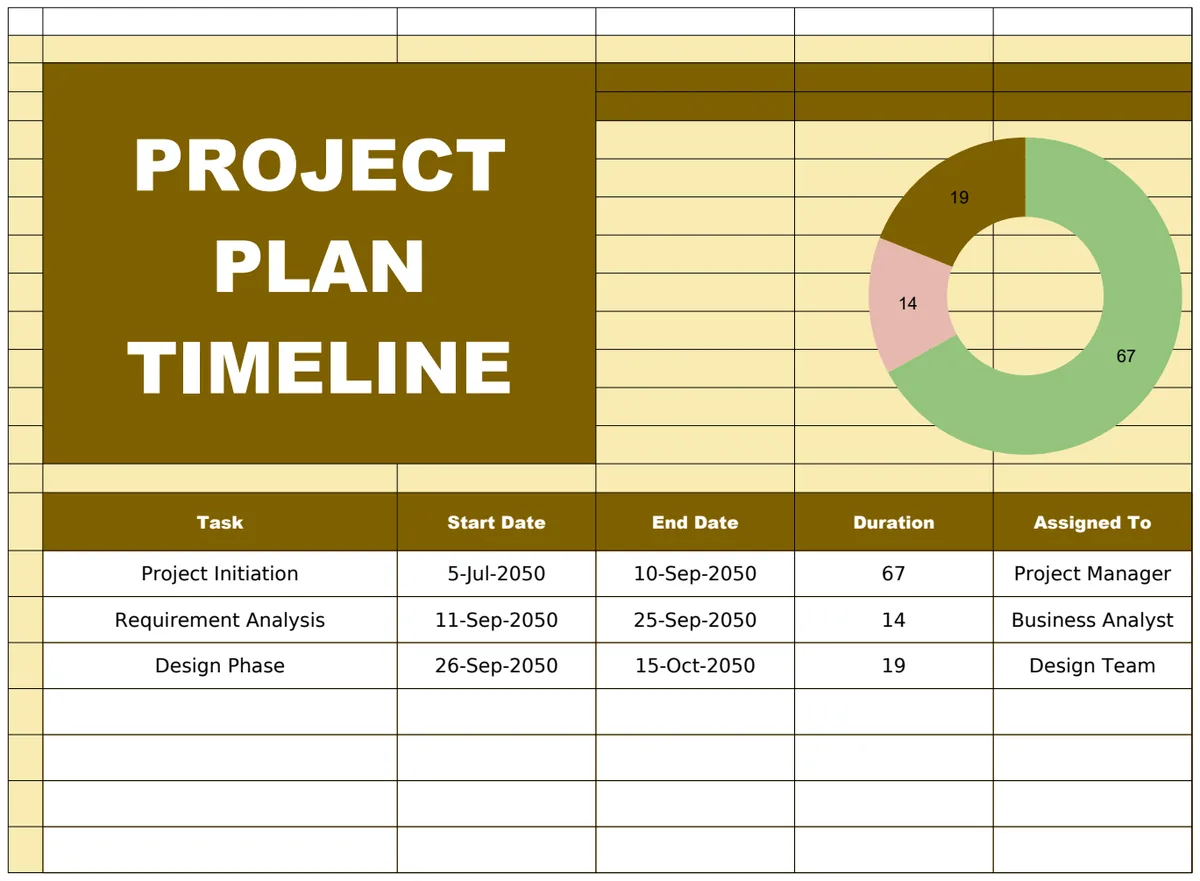
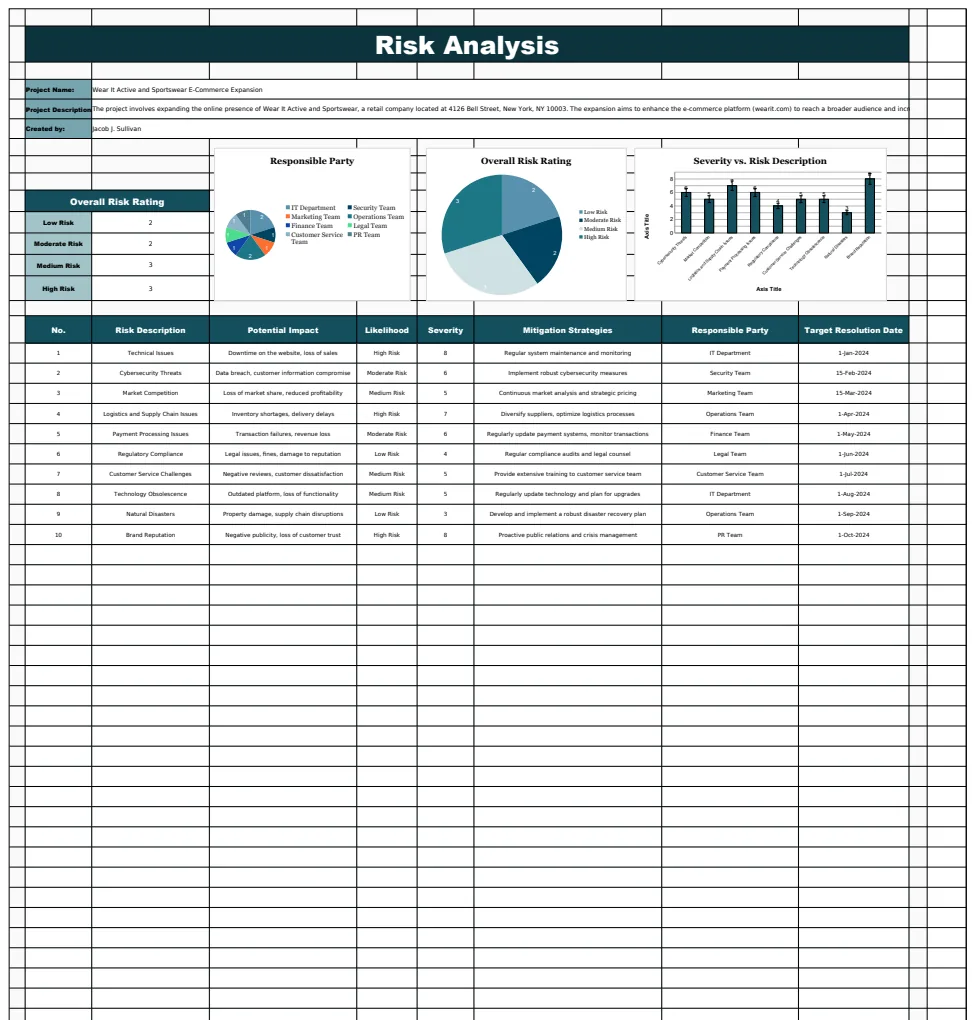
An effective project tracker template Google Sheets should go beyond just listing tasks. It needs to provide context and facilitate decision-making. Consider these core components:
- Project Name: A clear identifier for each initiative.
- Task/Deliverable: Specific action items or outputs required.
- Assigned To: Who is responsible for completing the task.
- Start Date: When the task is scheduled to begin.
- Due Date: When the task needs to be completed.
- Status: A dropdown indicating progress (e.g., Not Started, In Progress, Blocked, Completed, On Hold).
- Priority: High, Medium, Low, to help focus efforts.
- Completion %: A numerical indicator of how far along a task is.
- Notes/Comments: A space for crucial details or roadblocks.
- Project Phase: Categorize tasks by project stage (e.g., Planning, Development, Testing, Launch).
- Dependencies: A column to link to preceding or succeeding tasks.
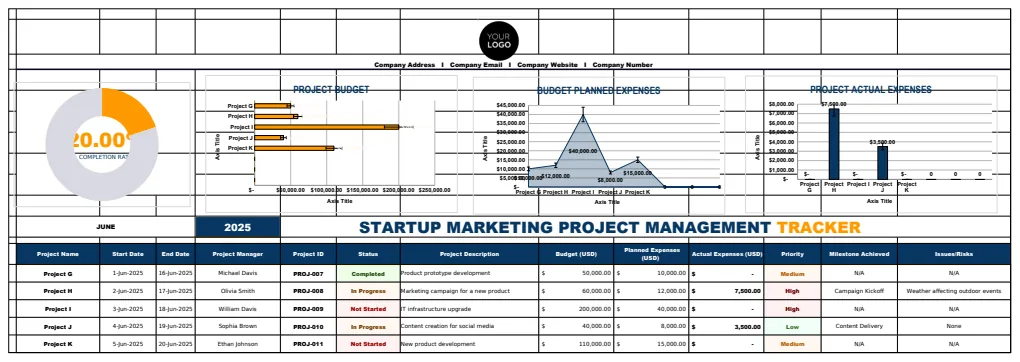
For marketing-focused startups, a template like the Startup Marketing Project Management Tracker Template can be invaluable, offering pre-built fields for campaign specifics, target audiences, and budget tracking.
Building Your Custom Project Tracker in Google Sheets
You can customize a project tracker template Google Sheets to fit your exact needs. Here’s a common setup and how to enhance it:
- 01Set Up Your Columns: Create the columns listed above in a new Google Sheet. Use clear, concise headers.
- 02Data Validation for Status and Priority: To ensure consistency, use Data Validation.
- Select the "Status" column.
- Go to
Data>Data validation. - Under "Criteria," choose "List from a range" or "List of items."
- Enter your status options:
Not Started,In Progress,Blocked,Completed,On Hold. - Repeat this process for the "Priority" column, using
High,Medium,Low.
- 03Conditional Formatting for Visual Cues: Make your tracker more intuitive with color-coding.
- Select the entire data range (excluding headers).
- Go to
Format>Conditional formatting. - For "Status":
- Rule: "Text is exactly" "Completed" -> Format: Green background.
- Rule: "Text is exactly" "Blocked" -> Format: Red background.
- Rule: "Text is exactly" "In Progress" -> Format: Yellow background.
- For "Due Date":
- Rule: "Date is before" "today" AND "Status" "is not" "Completed" -> Format: Light red background (to flag overdue tasks).
- 04Adding Formulas for Insights:
- Task Count: To see how many tasks are in each status, use
COUNTIF. In a separate summary area, you might have a cell with=COUNTIF(StatusColumnRange, "Completed"). - Overall Progress: A simple way to gauge project health is an average of the "Completion %" column, if you're diligent about updating it.
=AVERAGE(CompletionPercentageColumnRange). - Identifying Blocked Tasks: You can use a formula like
FILTER(TaskNameRange, StatusColumnRange="Blocked")to pull a list of all blocked tasks into another sheet or section.
This structured approach ensures that your project tracker template Google Sheets is not just a list, but a dynamic tool.
Tracking Project Deliverables and Operations
For operational teams, tracking the completion of specific project deliverables is paramount. This involves ensuring that each defined output meets its requirements and is signed off. A template designed for this, like the Operations Project Deliverables Tracker Template, can include fields for:
- Deliverable Name
- Owner
- Due Date
- Status (Draft, Review, Approved, Rejected)
- Approval Date
- Link to Deliverable (e.g., a Google Drive link)
This level of detail helps prevent scope creep and ensures accountability for each critical component of a project.
Common Mistakes to Avoid
When setting up and using a project tracker, several common pitfalls can undermine its effectiveness:
- Over-complication: Trying to track too many metrics initially can lead to a tracker that's too complex to maintain. Start with the essentials and add complexity as needed.
- Inconsistent Updates: A tracker is only as good as the data it contains. If tasks aren't updated regularly, it becomes unreliable. Schedule brief, daily check-ins for team members to update their tasks.
- Ignoring Dependencies: Failing to link tasks that rely on each other can cause significant delays and missed deadlines. Visually representing dependencies or using formulas to highlight them is crucial.
- Lack of Standardization: If different team members use different terminology for statuses or priorities, the data becomes messy. Use data validation to enforce consistent choices.
- Not Reviewing the Data: The tracker should inform decisions. Regularly review the progress, identify bottlenecks, and adjust plans based on the information presented.
A well-maintained project tracker template Google Sheets can prevent these issues by providing a clear, shared view of project status.
Advanced Features and Customization
Once you have the basics down, you can enhance your project tracker template Google Sheets further.
Project Timelines and Gantt Charts
While Google Sheets isn't a full-fledged project management software, you can create a basic Gantt chart. This involves using conditional formatting on a timeline grid. For each task, you color-code the cells corresponding to its start and end dates. This provides a visual representation of project schedules and task durations. You can also use formulas to automatically calculate task durations (=EndDate - StartDate + 1).
Budget Tracking Integration
For projects with budgets, you can add columns for planned costs, actual costs, and variance. Formulas can then sum these up per task or per project phase, giving you a real-time view of financial health. This is particularly useful for marketing projects where ad spend, content creation, and agency fees can fluctuate.
Resource Management
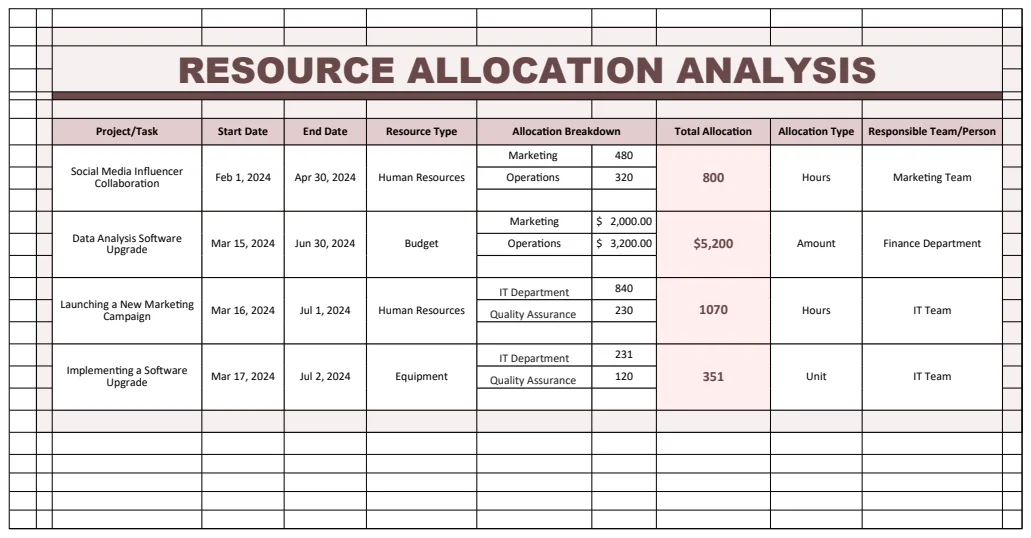
If you have a limited team, understanding who is overloaded is critical. You can add a "Planned Hours" or "Estimated Effort" column to tasks and then use SUMIF or SUMIFS formulas to aggregate the total effort assigned to each team member on a given day or week. This helps in reallocating tasks and preventing burnout.
When to Consider a Dedicated Tool
While a project tracker template Google Sheets is powerful and cost-effective, there are times when dedicated project management software might be a better fit. This is often the case when:
- You have very complex interdependencies between tasks that require sophisticated network diagrams.
- Your team requires advanced collaboration features like real-time document co-editing within tasks, or integrated chat.
- You need robust reporting dashboards with automated executive summaries.
- You are managing a large portfolio of projects and need portfolio-level analysis.
For many smaller teams, startups, or specific project types like schoolwork, a well-configured Google Sheets template can be all you need. The library at OpenWorksheet offers many options, such as the Startup Marketing Project Management Tracker Template or the School Class & Project Tracker, which can be customized to your exact specifications. Access to these and more is available with a one-time purchase for unlimited downloads.
Can I import data from other project management tools?
Yes, typically you can export data from most project management tools into a CSV format. You can then import this CSV file into Google Sheets using File > Import. Once imported, you'll need to clean up the data, set up your data validation, and apply conditional formatting as described above to make it function as your primary tracker.
How do I share my project tracker with my team?
Google Sheets makes sharing simple. Click the "Share" button in the top right corner. You can invite specific people via email, set permissions (Viewer, Commenter, Editor), or generate a shareable link. For team collaboration, granting "Editor" access allows everyone to update task statuses and progress in real-time.
What if I need to track multiple projects simultaneously?
You have a few options. You can create a separate tab within the same Google Sheet for each project, or you can create a master project list where each row represents a project, and then link to individual project tracker sheets. Another approach, particularly for marketing teams, is to use a single, comprehensive tracker like the Startup Marketing Project Management Tracker Template and add a "Project Name" column to differentiate tasks across various initiatives.