How to make a YouTube content planner spreadsheet?
A well-structured youtube content planner spreadsheet template is essential for managing your YouTube channel's growth effectively.
The most common pitfall for a YouTube content planner spreadsheet template is a lack of clear status tracking, leading to forgotten ideas and missed deadlines. This often happens because creators get excited about brainstorming new video concepts but fail to build a system for managing them from inception to publication. A well-structured template should go beyond just listing video titles; it needs to guide each idea through distinct stages.
To effectively manage your YouTube channel's growth, you need a system that captures every idea, tracks its progress, and ensures consistent output. This is where a dedicated youtube content planner spreadsheet template becomes invaluable. It acts as your central hub for all things video, from initial concepts and keyword research to production schedules and performance analysis. Without one, your best ideas can get lost in scattered notes or forgotten altogether.
Why You Need a Dedicated YouTube Planner
Simply jotting down video ideas in a notebook or a generic to-do list app won't cut it for YouTube. The platform demands a consistent flow of content, and each video requires multiple steps: brainstorming, scriptwriting, filming, editing, thumbnail creation, SEO optimization, and promotion. A dedicated spreadsheet template helps you visualize this entire workflow, ensuring no critical step is missed. It’s about building a repeatable process that scales with your channel.
Think of it as building the infrastructure for your content factory. You wouldn't build a house without a blueprint, and you shouldn't aim to build a successful YouTube channel without a clear plan for your content. A well-organized planner allows you to see your content pipeline at a glance, identify potential bottlenecks, and plan for future series or seasonal content.
Essential Columns for Your YouTube Content Planner
A robust youtube content planner spreadsheet template should include more than just a title and a date. Here’s a breakdown of essential columns that will make your planning actionable:
- Video Title (Working Title): The initial idea for your video. This can evolve as you develop the concept.
- Topic/Niche: Categorize your video to ensure you're covering your channel's core themes.
- Video Type: Is it a tutorial, vlog, review, Q&A, challenge, or something else?
- Target Audience: Who are you trying to reach with this specific video?
- Keywords/Search Terms: What terms will people use to find this video? This is crucial for discoverability.
- Status: This is perhaps the most critical column. Use defined stages like "Idea," "Scripting," "Filming," "Editing," "Thumbnail Ready," "SEO Complete," "Scheduled," "Published," "Needs Refresh."
- Priority: High, Medium, Low. Helps you decide what to work on next.
- Due Date (Production): When does the video need to be filmed by?
- Due Date (Publish): The target date for releasing the video.
- Script/Outline Link: A direct link to your script or outline document.
- Filming Notes: Specific requirements for the shoot (props, locations, shots needed).
- Editing Notes: Specific instructions for the editor (B-roll needed, music cues, specific cuts).
- Thumbnail Status: "Concept," "Design in Progress," "Approved," "Final."
- Thumbnail Link: A link to the final thumbnail file.
- SEO Notes: Specific keywords to include in the title, description, and tags.
- Call to Action (CTA): What do you want viewers to do after watching (subscribe, visit a link, watch another video)?
- Promotion Channels: Where will you promote this video (Instagram, Twitter, Facebook, etc.)?
- Performance Notes (Optional): After publishing, you can add brief notes on what worked well or what could be improved for future videos based on analytics.
Structuring Your Planner for Maximum Impact
Beyond just listing columns, the way you structure your spreadsheet matters. For a youtube content planner spreadsheet template, consider these organizational strategies:
Using Drop-down Lists for Status and Priority
To ensure consistency and avoid typos in your "Status" column, use data validation to create drop-down lists. This makes updating statuses quick and error-free. Similarly, a drop-down for "Priority" (e.g., High, Medium, Low) helps standardize your decision-making.
Conditional Formatting for Visual Cues
Conditional formatting can dramatically improve the usability of your planner. For instance:
- Highlight upcoming deadlines: Set a rule to turn the "Publish Date" cell yellow if it's within the next 7 days, and red if it's past due.
- Color-code by status: Assign a different background color to each status (e.g., light blue for "Scripting," orange for "Filming," green for "Published"). This gives you an instant visual overview of your content pipeline.
- Flag urgent tasks: Make rows with "High" priority turn bold or have a distinct border.
Sorting and Filtering Capabilities
Ensure your spreadsheet is set up to be easily sorted and filtered. You'll want to sort by publish date to see what's coming up, filter by status to see all videos currently being edited, or filter by topic to see all videos related to a specific niche. Most spreadsheet programs offer robust sorting and filtering tools that work automatically once your data is entered.
A Walkthrough: Planning Your Next Video Series
Let's say you want to plan a three-part series on "Beginner's Guide to Urban Gardening." Here’s how you might use your youtube content planner spreadsheet template:
- 01Add Series Header: In a new section or dedicated sheet, create a header row for your series. You might add a column for "Series Title" and then link each video within the series to this header.
- 02Create Individual Video Entries: For each part of the series, add a new row.
- Video Title:
- Part 1: "Urban Gardening 101: Your First Balcony Garden"
- Part 2: "Best Plants for Small-Space Gardening: Arugula & Herbs"
- Part 3: "Troubleshooting Common Urban Garden Pests"
- Topic/Niche: Urban Gardening
- Video Type: Tutorial / Informative
- Target Audience: New gardeners, apartment dwellers.
- Keywords: "balcony garden setup," "container gardening tips," "best herbs for pots," "urban gardening pests," "organic pest control small garden."
- Status: Start all at "Idea."
- Priority: All "High" for the series.
- Due Date (Production): Assign dates, e.g., Part 1 filming by next Friday, Part 2 by the following Tuesday, Part 3 by the Tuesday after that.
- Due Date (Publish): Aim for weekly releases: Part 1 in two weeks, Part 2 in three weeks, Part 3 in four weeks.
- Script/Outline Link: Create separate documents for each script and paste the links.
- Thumbnail Status: "Concept" for all.
- SEO Notes: Ensure the main keyword is in the title and description for each.
- CTA: "Subscribe for more gardening tips," "Watch Part 2 of the series."
- 03Update Status Progressively: As you work, update the "Status" column.
- Once the script for Part 1 is done, change its status to "Scripting Complete."
- After filming, change to "Filming Complete."
- Continue this through editing and before scheduling.
- 04Schedule and Confirm: Once a video is ready and scheduled in YouTube Studio, change its status to "Scheduled." After it's live, update to "Published."
This systematic approach ensures you manage the complexity of a series without losing track of individual components.
Common Mistakes to Avoid
Many creators stumble when implementing their content planning. Be mindful of these pitfalls:
- Overly Ambitious Schedule: Trying to publish daily when you can only realistically produce quality weekly content will lead to burnout and lower-quality videos. Be honest about your capacity.
- Ignoring SEO: Simply making videos you like isn't enough. Failing to research keywords and optimize titles/descriptions means fewer people will discover your content, no matter how good it is.
- Inconsistent Status Updates: If your "Status" column isn't kept current, the entire system breaks down. It becomes a list of outdated information rather than a real-time project manager.
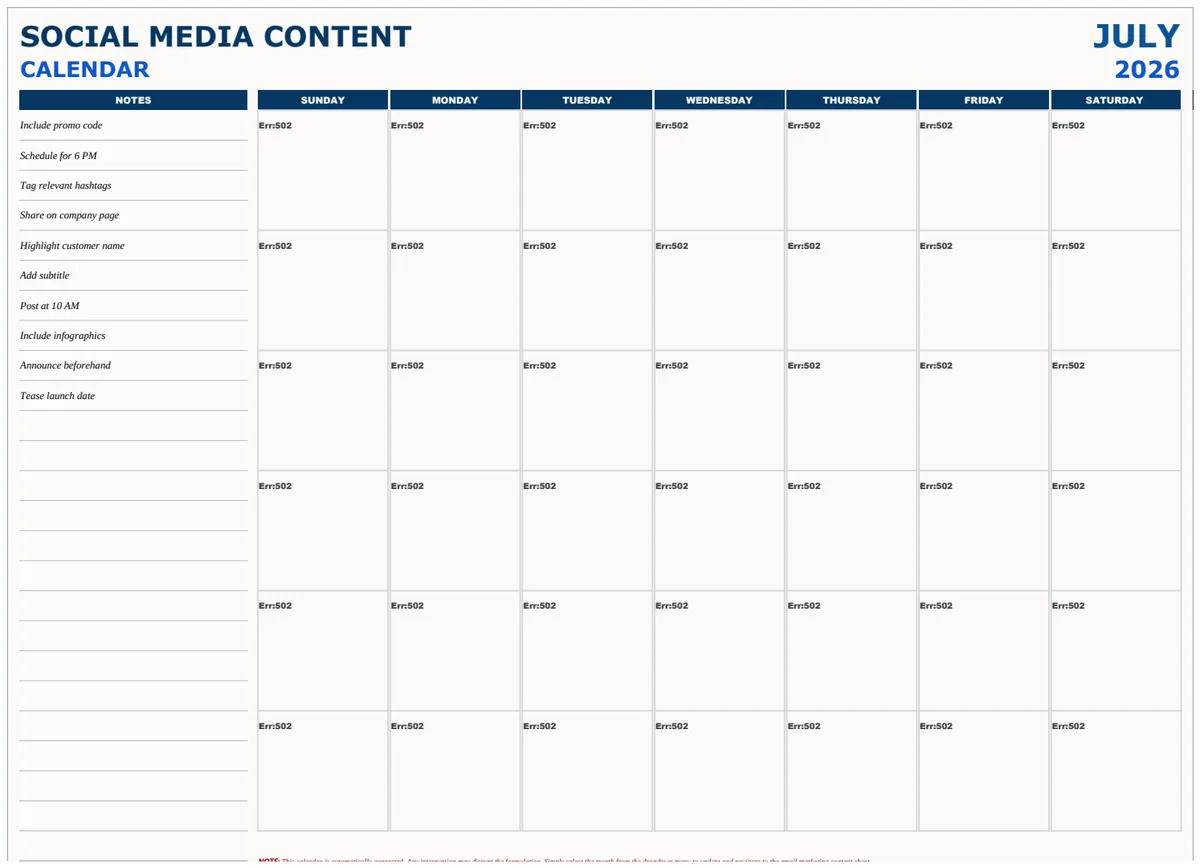
- No Plan for Promotion: A great video that nobody sees is a wasted effort. Allocate time and resources to promoting your content across other platforms. For this, a template like the Advertising Social Media Content Calendar Template can be helpful.
- Forgetting About Thumbnails: The thumbnail is the first impression. Don't treat it as an afterthought. Plan its creation alongside the video content.
Advanced Tips and Customization
Once you're comfortable with the basics, you can enhance your youtube content planner spreadsheet template.
Tracking Video Performance
Consider adding columns for key performance indicators (KPIs) directly into your planner once a video is published. This allows you to see trends over time without needing to constantly check YouTube Analytics. You could add:
- Views (7-Day): A snapshot of initial traction.
- Watch Time (Hours): A key metric for YouTube's algorithm.
- Audience Retention (%): Where are viewers dropping off?
- Click-Through Rate (%): How effective is your thumbnail and title?
By comparing these metrics against your video topics, types, and even thumbnail designs, you can refine your content strategy.
Budgeting for Content Creation
If you're investing in equipment, software, or even outsourcing tasks like editing or thumbnail design, you'll want to track those expenses. A separate sheet or integrated section for budgeting, much like in a Content Marketing Budget Template US, can help ensure your content production is financially sustainable.
Integrating with Other Calendars
While a spreadsheet is powerful, you might want to sync your publish dates with a more visual calendar. Tools like Google Calendar or dedicated content calendar platforms can often import data or sync via integrations, giving you a different perspective on your schedule. For general content planning across multiple channels, a Content Calendar or a Content Calendar template can serve as a broader overview.
Frequently Asked Questions
Can I use a generic content calendar template for YouTube?
Yes, you can adapt a general content calendar, but a dedicated youtube content planner spreadsheet template will likely have columns specifically relevant to video production, such as script links, filming notes, and SEO considerations, which a generic calendar might lack.
How often should I update my planner?
Ideally, you should update your planner daily or at least every other day. Mark statuses as completed, add new ideas as they come, and adjust due dates if necessary. The more current your planner, the more useful it is.
What if I have more ideas than I can produce?
That’s a good problem to have! Your planner helps you prioritize. Use the "Priority" column and your channel's goals to decide which ideas get made first. You can also use your planner to identify evergreen topics that can be revisited later.
Can I use this for multiple YouTube channels?
You can, by adding a "Channel Name" column to your spreadsheet and filtering your view by channel. Alternatively, you might create separate sheets or even separate files if the content strategies for each channel are vastly different. This ensures your planning remains focused for each audience.