Sheets vs Excel: Which free stock tracker wins?
Using a stock inventory spreadsheet template free requires a dynamic approach, not just a static list, to avoid common mistakes.
The most common mistake people make with a stock inventory spreadsheet template free is treating it as a static list. It needs to be a dynamic system that reflects every incoming shipment and every outgoing sale. Without that constant update, your "free template" quickly becomes inaccurate, leading to stockouts or excess inventory.
This is why a transactional approach is key. You're not just listing what you have; you're recording the events that change what you have. Think of it as a ledger for your goods. This might sound like extra work, but it’s the only way to maintain reliable data. Many businesses start with a simple list and then find themselves overwhelmed when they need to know specific stock levels at a given time.
The Core Transactional Columns
At its heart, a transactional inventory system needs to capture the "what," "when," "how many," and "where" of every inventory movement. For a free stock inventory spreadsheet template, you'll typically want at least the following columns:
- Date: The date of the transaction (receipt or sale).
- Item Name/SKU: A unique identifier for the product. Consistency here is crucial.
- Transaction Type: This will be either "In" (for receiving inventory) or "Out" (for sales or usage).
- Quantity: The number of units involved in the transaction. This will be a positive number for "In" and a negative number for "Out."
- Location (Optional but Recommended): If you store inventory in multiple places (e.g., warehouse A, retail floor, back room), this column is vital.
- Reference/Order ID (Optional): A link to the purchase order, sales order, or invoice number. This aids in auditing.
Setting Up Your Transactions Sheet
Let's imagine you're setting up a new sheet for tracking. You might name it "Transactions."
- 01Column A: Date: Format this column as a Date.
- 02Column B: Item Name: This column will hold the name of your product. You can use data validation (Data > Data validation > List from a range) to create a dropdown list populated from a separate "Products" sheet, ensuring consistency.
- 03Column C: SKU: If you use Stock Keeping Units, add a column for them here. Again, data validation is your friend.
- 04Column D: Transaction Type: Use data validation to create a dropdown with only two options: "In" and "Out."
- 05Column E: Quantity: This is where you'll enter the number of units. For an "In" transaction, enter a positive number (e.g., 10). For an "Out" transaction, enter a negative number (e.g., -2). This makes summing up quantities much easier later.
- 06Column F: Location: If applicable, use data validation for a list of your storage locations.
- 07Column G: Reference: You can leave this as plain text for order numbers or invoice IDs.
This "Transactions" sheet is the engine. Every time you receive a new batch of widgets or sell a single unit, you add a new row here.
Calculating Current Stock Levels
Now, how do you get your current stock levels from this transaction log? This is where formulas come in. You'll need a separate sheet, perhaps called "Inventory Summary" or "Stock Levels."
On your "Inventory Summary" sheet, you'll have a list of all your unique Item Names (or SKUs) in one column (let's say Column A). In the adjacent column (Column B), you'll use a formula to sum up all the transactions for that specific item.
The most common and effective formula for this is SUMIFS. If your "Transactions" sheet is named as such, and your Item Names are in Column A of the "Inventory Summary" sheet, the formula in cell B2 (assuming your first item is in A2) would look something like this:
``Excel =SUMIFS(Transactions!E:E, Transactions!B:B, A2, Transactions!D:D, "In") - SUMIFS(Transactions!E:E, Transactions!B:B, A2, Transactions!D:D, "Out") ``
Explanation:
SUMIFS(Transactions!E:E, Transactions!B:B, A2, Transactions!D:D, "In"): This part sums all positive quantities from Column E in the "Transactions" sheet where the Item Name (Column B in "Transactions") matches the item in cell A2 of your "Inventory Summary" sheet, and the Transaction Type (Column D in "Transactions") is "In."SUMIFS(Transactions!E:E, Transactions!B:B, A2, Transactions!D:D, "Out"): This part does the same for "Out" transactions.- The subtraction
(...) - (...)gives you the net change, which is your current stock.
Important Note: For this formula to work correctly, remember that "In" quantities should be positive numbers and "Out" quantities should be negative numbers in your "Transactions" sheet. If you entered "Out" quantities as positive numbers, you’d need to adjust the formula to add them:
``Excel =SUMIFS(Transactions!E:E, Transactions!B:B, A2, Transactions!D:D, "In") + SUMIFS(Transactions!E:E, Transactions!B:B, A2, Transactions!D:D, "Out") `` Here, the negative numbers in the "Out" SUMIFS would effectively subtract from the total.
You can then drag this formula down to apply it to all your items. This "Inventory Summary" sheet now shows your real-time stock levels derived directly from your transaction log.
Enhancing Your Free Stock Inventory Spreadsheet
A basic transactional setup is functional, but you can add significant value with a few more features.
Product Details and Costs
You'll likely want a dedicated "Products" sheet. This sheet can list:
- Item Name
- SKU
- Description
- Category
- Cost Per Unit: This is crucial for calculating inventory value.
- Reorder Point: The minimum stock level before you need to order more.
- Supplier Information: Contact details, lead times.
You can then use VLOOKUP or XLOOKUP on your "Inventory Summary" sheet to pull the Cost Per Unit from the "Products" sheet based on the Item Name or SKU. For example, if your "Products" sheet has Item Names in Column A and Cost Per Unit in Column E, and your "Inventory Summary" sheet has Item Names in Column A, the formula in Column C (for Cost) would be:
``Excel =XLOOKUP(A2, Products!A:A, Products!E:E, "Not Found", 0) ``
Inventory Valuation
With the current stock level (from your "Inventory Summary" sheet) and the Cost Per Unit (pulled from "Products"), you can easily calculate the total value of your inventory. Add a column to your "Inventory Summary" sheet, let's call it "Total Value," with a formula like:
``Excel =B2 * C2 `` (Assuming B2 is Current Stock and C2 is Cost Per Unit). Summing this "Total Value" column gives you your total inventory worth.
Low Stock Alerts
This is where a free stock inventory spreadsheet template really shines. On your "Inventory Summary" sheet, compare your "Current Stock" (Column B) against your "Reorder Point" (which you can pull from the "Products" sheet using XLOOKUP into a new column, say Column D).
You can then use conditional formatting to highlight items that are at or below their reorder point.
- 01Select the "Current Stock" column (e.g., B2:B100).
- 02Go to Format > Conditional formatting.
- 03Under "Format rules," choose "Custom formula is."
- 04Enter the formula:
=B2<=D2(assuming Column B is Current Stock and Column D is Reorder Point for the first row). - 05Choose a fill color (e.g., light red) and text color.
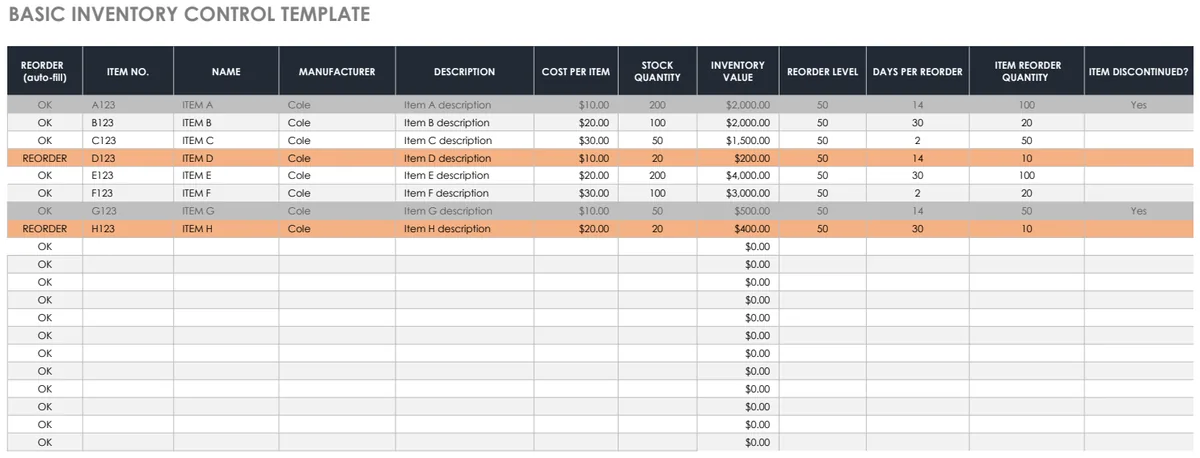
This visually flags items you need to reorder, making your inventory management proactive. For a more advanced setup, consider a template like the Basic Inventory Control, which automates these alerts.
Common Pitfalls to Avoid
Even with a well-structured template, errors can creep in. Here are a few common mistakes:
- Inconsistent Item Names/SKUs: If you type "Blue Widget" once and "blue widget" another time, your
SUMIFSwill not count them together. Use data validation to prevent this. - Forgetting to Log Transactions: This is the most common reason for inaccurate data. Make it a habit. Log receipts immediately upon arrival and sales as they happen.
- Incorrect Quantity Entry: Entering 10 as positive for an outgoing sale, or forgetting to make outgoing quantities negative if your formula relies on that. Double-check your entries.
- Not Reconciling Physical Counts: Spreadsheets are only as good as the data entered. Periodically conduct physical inventory counts and compare them to your spreadsheet numbers. Investigate discrepancies.
- Ignoring Inventory Value: A free stock inventory spreadsheet template can do more than just track counts. Understanding the financial value of your stock is critical for business planning and budgeting.
Advanced Features and Next Steps
If your inventory needs grow beyond a single spreadsheet, there are more sophisticated solutions. However, for many small businesses, a well-maintained template is sufficient.
Tracking Multiple Locations
If you have multiple warehouses or retail spaces, ensure your "Transactions" sheet has a "Location" column. Your "Inventory Summary" sheet can then be expanded to show stock levels per location, or a consolidated total across all. This can involve more complex SUMIFS or SUMPRODUCT formulas, or even pivoting data. The Small Business Inventory Template is designed to handle more complex setups like this.
Supplier Performance
You can extend your "Products" sheet to track supplier lead times and reliability. By comparing the date you placed an order with the date the inventory was received (using your transaction log), you can calculate average lead times per supplier. This data helps you negotiate better terms or identify more dependable suppliers. The Stock Inventory Control template offers features that can help organize vendor information alongside stock.
When a Template Isn't Enough
If you're dealing with thousands of SKUs, complex Bills of Materials, or need real-time integrations with sales channels like e-commerce platforms, a spreadsheet might hit its limits. In such cases, specialized inventory management software becomes necessary. However, for many businesses starting out or managing a moderate inventory, a robust spreadsheet system, perhaps built from a template like the Inventory Workbook Template, provides an excellent, cost-effective solution.
Frequently Asked Questions
What if I have items with variations, like different sizes or colors?
You should treat each variation as a unique SKU. For example, "T-Shirt - Blue - Large" should have its own row in your "Products" sheet and its own tracking in your "Transactions" and "Inventory Summary" sheets. This ensures accurate counts for each specific item.
How often should I update my inventory spreadsheet?
Ideally, you should update your transaction log daily, or even in real-time, as transactions occur. This means logging sales as they're made and receipts as they're received. Your "Inventory Summary" sheet will then reflect current levels automatically. A weekly or monthly physical count is also recommended to verify accuracy.
Can I use this for raw materials as well as finished goods?
Absolutely. The principles of tracking incoming and outgoing quantities apply to raw materials just as they do to finished products. You would simply list your raw materials on your "Products" sheet and track their usage in production as "Out" transactions.
What's the best way to handle returns?
Returns are typically treated as "In" transactions. You'll add a new row in your "Transactions" sheet with the "Date," the "Item Name/SKU," set the "Transaction Type" to "In," and enter the quantity returned as a positive number. You might also add a note in the "Reference" column indicating it was a return.