Stop guessing: build a bakery order tracker that works
Stop guessing and build a bakery order tracker spreadsheet template that works for your business. Manage orders efficiently.
A simple list of orders won't cut it when you're juggling custom cake designs, dietary restrictions, and delivery schedules. You need a system that tracks each order from inquiry to pickup, ensuring nothing falls through the cracks. This is where a well-structured bakery order tracker spreadsheet template becomes indispensable, moving beyond basic data entry to offer genuine operational insight.
If you've ever found yourself double-checking customer notes against your baking schedule or scrambling to confirm delivery times, you understand the need for a centralized system. A robust bakery order tracker spreadsheet template doesn't just record what customers want; it helps you manage your production flow, track payments, and even identify your most popular items. We'll walk through building one and highlight key features that make it work.
Core Components of Your Bakery Order Tracker
At its heart, your tracker needs to capture all the essential information for each order. Think of these as your foundational columns.
- Order ID: A unique identifier for each transaction. This can be a simple sequential number (1001, 1002, etc.) or a more complex code incorporating the date (e.g., 2024-10-26-001).
- Order Date: When the order was placed.
- Customer Name: The name of the person placing the order.
- Customer Contact: Phone number and/or email address.
- Item(s) Ordered: A clear description of the product(s). For custom items, this might be "Custom 8-inch round chocolate cake, buttercream frosting, 'Happy Birthday' inscription."
- Quantity: How many of each item.
- Due Date: When the order needs to be ready for pickup or delivery.
- Flavor/Details: Specific customizations (e.g., vanilla bean, gluten-free, nut-free, specific colors).
- Price per Item: The cost of each individual item.
- Total Price: The calculated total for that line item or the entire order.
- Deposit Paid: Amount of deposit received.
- Balance Due: The remaining amount owed.
- Payment Status: (e.g., "Deposit Paid," "Balance Due," "Paid in Full").
- Order Status: (e.g., "New," "In Progress," "Ready for Pickup," "Delivered," "Cancelled").
- Pickup/Delivery Date & Time: When the customer is scheduled to receive the order.
- Notes: Any additional special instructions or customer requests.
Setting Up Your Spreadsheet
Let's build a practical example. Imagine you're using Google Sheets or Excel. You'll create a sheet named "Orders."
- 01Header Row: In the first row (Row 1), enter the column titles listed above. Make sure they are descriptive. For example, instead of just "Contact," use "Customer Contact (Phone/Email)."
- 02Formatting:
- Format the "Order Date," "Due Date," and "Pickup/Delivery Date & Time" columns as Date or Date/Time.
- Format the "Price per Item," "Total Price," and "Deposit Paid" columns as Currency (e.g., $).
- Use Bold for your header row to make it stand out.
- Consider "Wrap Text" for the "Item(s) Ordered" and "Notes" columns so longer entries are fully visible without widening columns excessively.
- 03Data Entry: Start entering your orders, one per row.
Example Row:
| Order ID | Order Date | Customer Name | Customer Contact (Phone/Email) | Item(s) Ordered | Quantity | Due Date | Flavor/Details | Price per Item | Total Price | Deposit Paid | Balance Due | Payment Status | Order Status | Pickup/Delivery Date & Time | Notes | | :------- | :--------- | :------------ | :----------------------------- | :-------------------------------------------- | :------- | :--------- | :------------------------------ | :------------- | :---------- | :----------- | :---------- | :------------- | :---------------- | :-------------------------- | :---------------------------------- | | 1001 | 2024-10-26 | Jane Doe | 555-123-4567 | Custom 8-inch round vanilla cake | 1 | 2024-10-30 | Vanilla bean, buttercream | $55.00 | $55.00 | $25.00 | $30.00 | Balance Due | In Progress | 2024-10-30 14:00 | Blue frosting, "Happy Birthday" | | 1002 | 2024-10-26 | John Smith | john.smith@email.com | Dozen Chocolate Chip Cookies | 2 | 2024-10-28 | | $30.00 | $60.00 | $60.00 | $0.00 | Paid in Full | Ready for Pickup | 2024-10-28 11:00 | Box for office |
Automating Calculations
To make your bakery order tracker spreadsheet template truly efficient, you'll want to automate calculations.
- Total Price: If you have "Quantity" in Column F and "Price per Item" in Column I, you can put this formula in Column J:
=F2*I2. Drag this formula down for all rows. - Balance Due: If "Total Price" is in Column J and "Deposit Paid" is in Column K, use
=J2-K2in Column L. - Deposit Paid & Balance Due: You might want to use data validation for the "Payment Status" column. Create a list with options like "Deposit Paid," "Balance Due," and "Paid in Full."
Enhancing Functionality with Formulas
Beyond basic calculations, advanced formulas can provide powerful insights.
Calculating Total Revenue and Outstanding Balances
You can easily sum up your sales and outstanding amounts. At the bottom of your "Total Price" column (say, in J50 if your data ends at J49), use =SUM(J2:J49). Do the same for "Deposit Paid" and "Balance Due."
Conditional Formatting for Status and Due Dates
This is where your tracker comes alive.
- Order Status: Select your "Order Status" column (Column N). Go to Conditional Formatting. Set up rules to highlight cells based on their content. For instance:
- If "Ready for Pickup" is selected, turn the cell Green.
- If "Cancelled" is selected, turn the cell Red.
- If "In Progress" is selected, turn the cell Yellow.
- Due Dates: Highlight orders that are due soon or overdue. Select your "Due Date" column (Column H).
- If the date is less than today's date, format the cell Red. This signals an overdue order.
- If the date is within the next 3 days, format it Orange. This is a good prompt for upcoming work.
Managing Inventory and Ingredients
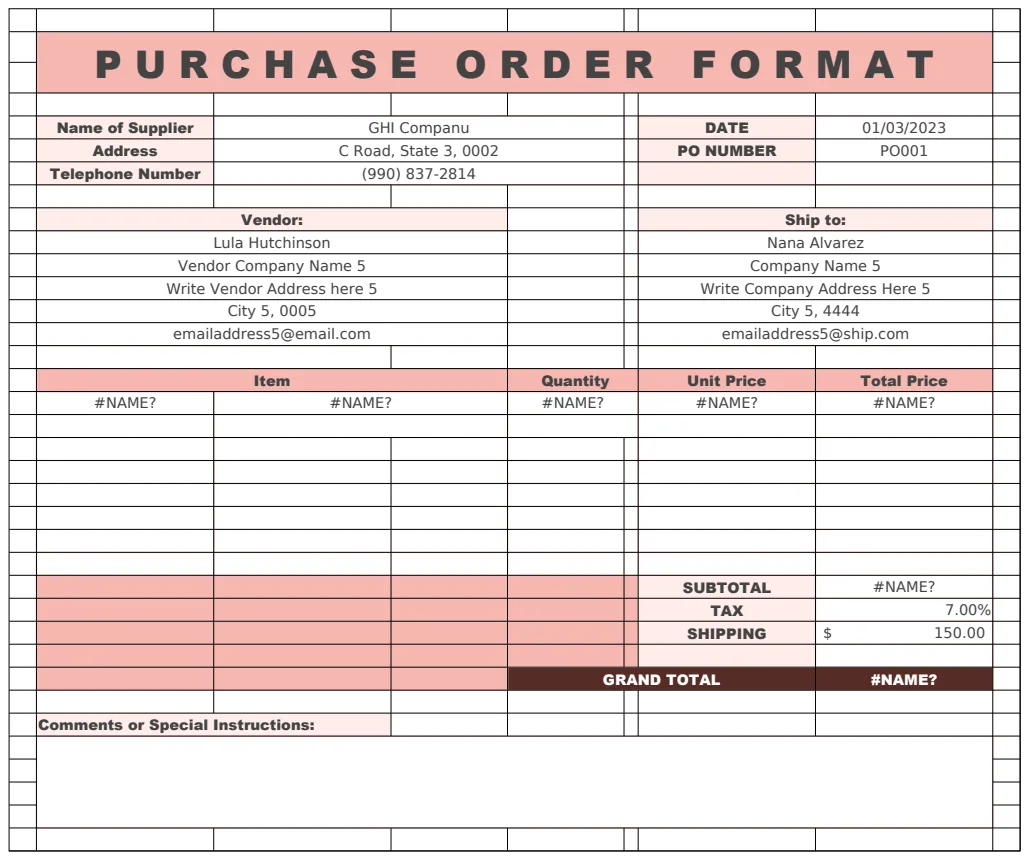
While this article focuses on orders, a comprehensive system might link to inventory. If you find yourself constantly checking if you have enough fondant or specific flavorings, consider a separate sheet or a more advanced template like the Purchase Order Format and List. This template helps manage procurement and ensures you have the raw materials for those custom creations.
Tracking Customer Information and History
A good bakery order tracker spreadsheet template can also serve as a customer relationship tool.
- Customer List Sheet: Create a separate sheet for "Customers." Include columns for Customer Name, Phone, Email, Address, and perhaps a "First Order Date" and "Last Order Date." You can use formulas like
=VLOOKUPor, more efficiently,=XLOOKUPto pull customer details into your main Orders sheet when you type their name, reducing data entry errors. - Repeat Customers: By referencing your customer list and order history, you can easily identify repeat customers and offer loyalty incentives or personalized recommendations.
Key Mistakes to Avoid
- Inconsistent Data Entry: Not using dropdowns for "Order Status" or "Payment Status" leads to variations like "Paid" vs. "paid" vs. "P. Paid." This breaks sorting and filtering.
- Lack of Unique IDs: Without a unique "Order ID," it becomes incredibly difficult to track a specific order if multiple customers have the same name or you have similar items.
- Over-Complication: Trying to build an all-in-one system for everything from recipe management to social media scheduling in one spreadsheet. Start with order tracking and expand only as needed.
- Ignoring the "Notes" Field: This field is crucial for custom orders. Forgetting to check it can lead to incorrect decorations or missed dietary requirements.
- Not Backing Up: Spreadsheets can be lost or corrupted. Make regular backups of your vital order data.
Frequently Asked Questions
How do I track deposits and final payments effectively?
Use dedicated columns for "Deposit Paid" and "Balance Due." Implement conditional formatting on the "Payment Status" column to visually flag orders that are not "Paid in Full." You can also use formulas to automatically calculate the balance due after a deposit is entered.
Can I use this for different types of baked goods (cakes, cookies, bread)?
Absolutely. The "Item(s) Ordered" and "Flavor/Details" columns are designed for flexibility. You can list "Custom 3-tier wedding cake" or "2 dozen sourdough loaves" and use the details column for specific requests like "fondant roses" or "whole wheat."
What if I need to track order fulfillment for delivery versus pickup?
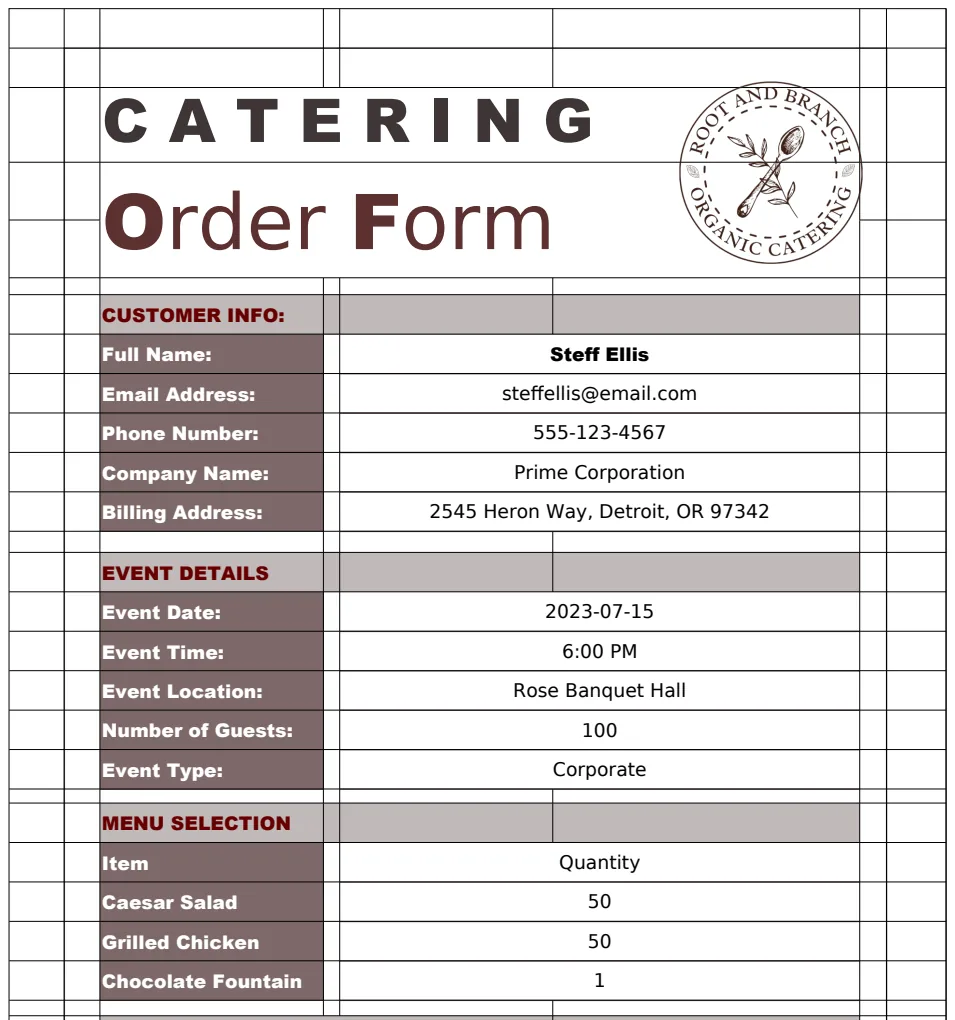
Add a "Delivery/Pickup" column with a dropdown menu. You can then use this to filter your orders and manage your delivery routes or prepare for customer pickups. You might also want separate columns for "Delivery Address" and "Delivery Date/Time" if delivery is a significant part of your business. This level of detail is something you might find in a template like the Cake Order Form, which is designed specifically for capturing order specifics.
How can I see my sales performance over time?
Create a separate "Dashboard" sheet. Use formulas like SUMIFS to pull data from your main "Orders" sheet. For example, you could sum "Total Price" for orders placed in a specific month or year, or calculate total revenue from "Paid in Full" orders. This helps you understand trends and busy periods. For managing purchase orders, consider the Purchase Order Tracker to keep track of outgoing orders for supplies.
The OpenWorksheet library offers a variety of templates, including solutions for purchase orders and forms, that can complement your bakery's operational needs. Access to all templates is available with a one-time payment of $9.