Stop guessing your content deadlines with this Google Sheets calendar
Create a Google Sheets editorial calendar to organize content ideas, keywords, assignments, and deadlines for your team.
By the end of this, you'll have a functional editorial calendar in Google Sheets, complete with columns for content ideas, target keywords, author assignments, due dates, and publication status, all visually organized and ready for your team. This isn't just about listing content; it's about building a system that ensures consistent, strategic content creation. A well-structured editorial calendar template Google Sheets can be the backbone of your content marketing efforts.
You're aiming for clarity and execution. You need a tool that moves ideas from brainstorming to published reality without getting lost in email threads or scattered notes. A shared Google Sheet is perfect for this, offering real-time collaboration and a centralized source of truth for your entire content pipeline.
Setting Up Your Core Calendar Sheet
Let's start with the foundational sheet for your editorial calendar. You'll want to create a new Google Sheet and name it something clear, like "Master Editorial Calendar." Then, set up the following columns. These are essential for tracking your content journey:
- Content Idea/Title: A brief, descriptive name for the piece of content. This could be a blog post title, a video concept, or a social media campaign theme.
- Content Type: Specify what kind of content this is (e.g., Blog Post, Video, Infographic, Podcast Episode, Social Media Post).
- Target Audience/Persona: Who is this content for? Be specific if you have defined personas.
- Primary Keyword/Topic: The main keyword or subject matter the content will focus on. This is crucial for SEO.
- Secondary Keywords/Topics: Any related keywords or sub-topics that will be covered.
- Content Format: Detail the specific format (e.g., "How-to Guide," "Listicle," "Case Study," "Interview," "Product Review").
- Author/Owner: Who is responsible for creating this content?
- Editor/Reviewer: Who is responsible for reviewing and approving the content?
- Draft Due Date: When the first draft is expected to be completed.
- Review Due Date: When the edited draft is expected to be ready for final approval.
- Final Approval Date: When the content has been given the green light for publication.
- Publication Date: The target date for when the content will go live.
- Platform(s): Where will this content be published or distributed (e.g., Website Blog, YouTube, LinkedIn, Instagram, Newsletter)?
- Status: This is a critical column. Use a dropdown list for statuses like "Idea," "Drafting," "In Review," "Approved," "Scheduled," "Published," "On Hold."
- URL (Published): Once published, the direct link to the content.
- Notes/Brief: Any additional context, specific instructions, or links to supporting documents.
Using Data Validation for Streamlined Status Updates
The "Status" column is incredibly powerful, but it only works if it's consistently updated. Data validation in Google Sheets is your best friend here.
- 01Select the entire "Status" column (click the column header, e.g., "P").
- 02Go to Data > Data validation.
- 03Under "Criteria," choose "List from a range".
- 04For the range, you can either type your list directly (e.g.,
Idea,Drafting,In Review,Approved,Scheduled,Published,On Hold) or, better yet, create a separate, hidden sheet named "Lists" and put these statuses in a column there. Then, your range would look something likeLists!A1:A7. - 05Ensure "Show dropdown list in cell" is checked.
- 06Click "Save".
Now, each cell in your "Status" column will have a dropdown, making it fast and easy for team members to select the current status. This prevents typos and ensures uniformity.
Visualizing Your Content Pipeline with Conditional Formatting
Seeing what needs attention at a glance is invaluable. Conditional formatting can highlight content based on its status or upcoming deadlines.
Let's say you want to highlight rows where the status is "In Review" in yellow, and "Published" in green.
- 01Select the entire data range of your calendar (e.g., A2:P100, assuming your headers are in row 1).
- 02Go to Format > Conditional formatting.
- 03Under "Format rules," click "Add another rule".
- 04For the first rule:
- Apply to range: Ensure your selected range is correct.
- Format cells if...: Choose "Custom formula is".
- Value or formula: Enter
= $P2="In Review"(assuming "Status" is column P and your data starts on row 2). - Formatting style: Choose a light yellow fill color.
- 05Click "Done".
- 06Click "Add another rule".
- 07For the second rule:
- Apply to range: Same range as before.
- Format cells if...: Choose "Custom formula is".
- Value or formula: Enter
= $P2="Published" - Formatting style: Choose a light green fill color.
- 08Click "Done".
You can add many more rules: highlight rows where the "Draft Due Date" is in the past and the status isn't "Published," or highlight upcoming "Publication Dates." This visual cue helps prevent bottlenecks and missed deadlines.
Tracking Multiple Platforms and Content Types
Your content strategy likely involves more than just blog posts. You might be planning social media updates, video releases, or podcast episodes. An editorial calendar template Google Sheets can handle this diversity.
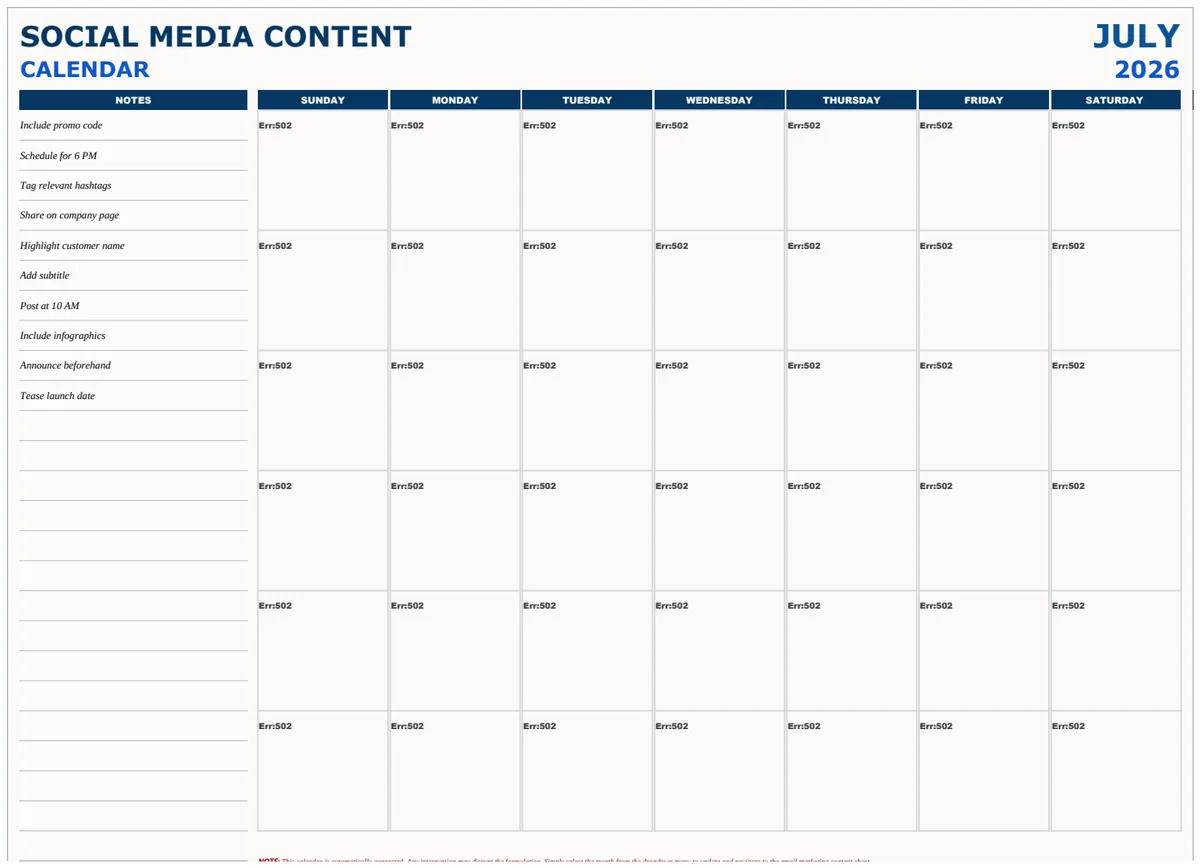
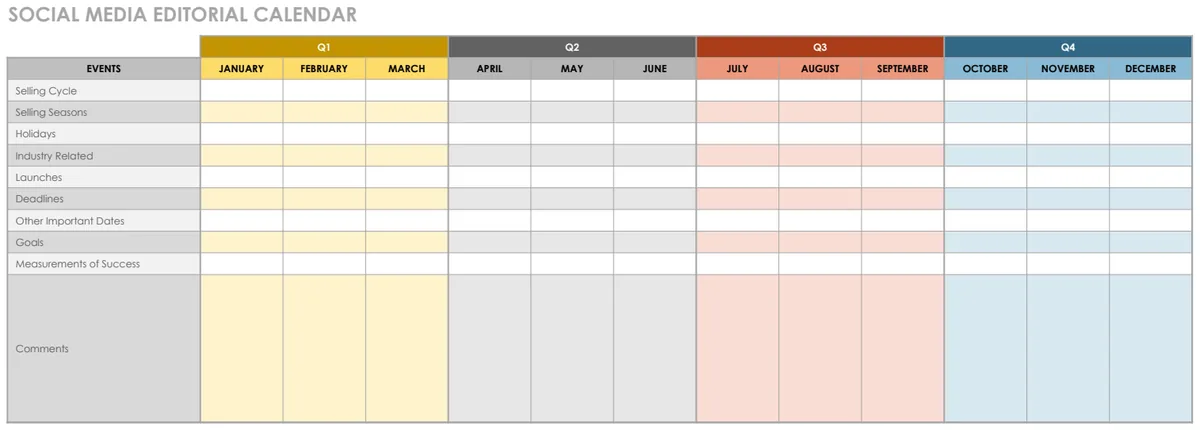
If your primary focus is social media, a dedicated template can be incredibly helpful. The Social Media Editorial Calendar template is designed to track posts across different platforms, assign responsibilities, and manage scheduling over a 12-month period. It often includes fields for platform-specific details like character counts or image/video requirements.
For a broader view of all content initiatives, including blog posts, whitepapers, and webinars, the Content Calendar template offers a robust solution. It helps organize your content strategy visually, ensuring a consistent flow of valuable material to your audience.
Managing Content Updates and Revisions
Content isn't always a one-and-done affair. You might need to update older blog posts, refresh evergreen content, or manage a series of related articles. Your editorial calendar can track this.
Consider adding columns like:
- Version: A simple number to track revisions (e.g., v1.0, v1.1, v2.0).
- Last Updated Date: When the content was last modified.
- Update Reason: Why was it updated (e.g., "Refresh stats," "Add new section," "SEO optimization").
This helps maintain content quality and relevance over time.
Common Mistakes to Avoid
- Overly Complex Setup: Don't start with dozens of columns. Begin with the essentials and add complexity only as needed. A cluttered sheet is a neglected sheet.
- Lack of Ownership: Every piece of content needs a clear owner for drafting, editing, and approval. If no one is assigned, it won't get done.
- Ignoring the "Status" Column: A dropdown is useless if no one updates it. Make it a habit, perhaps by reviewing the calendar at the start of each team meeting.
- Not Factoring in Review Time: Publication dates often slip because the time needed for editing and approval isn't realistically scheduled. Use your "Review Due Date" and "Final Approval Date" columns diligently.
- Forgetting Distribution: Content creation is only half the battle. Ensure your calendar includes platforms and promotional plans.
Frequently Asked Questions
Can I use this editorial calendar for print content?
Absolutely. While many templates are geared towards digital, you can adapt the columns. Replace "Platform" with "Publication Name" or "Medium," and adjust deadlines to suit print lead times. You might even find a school calendar template useful for planning academic or seasonal print publications if that's your niche.
How do I share this Google Sheet with my team?
In Google Sheets, click the green "Share" button in the top right corner. You can then enter your team members' email addresses and set their permissions (Viewer, Commenter, or Editor). For larger teams, you can generate a shareable link.
What if I need a calendar that's more visual, like a Kanban board?
Google Sheets doesn't natively offer Kanban views. However, you can simulate this by using conditional formatting to color-code rows based on status and then filtering the sheet to show only one status at a time. For true Kanban functionality, you might explore dedicated project management tools or more specialized templates.
Is there a cost to using Google Sheets for my editorial calendar?
Google Sheets itself is free to use with a Google account. If you find you need more advanced features or pre-built solutions, OpenWorksheet offers a library of templates, including various editorial and content calendars, for a one-time purchase of $9, giving you unlimited downloads.