Stop losing money: Fix your Google Sheets personal budget
Discover how to create a Google Sheets personal budget tracker that automatically categorizes spending and visualizes your finances.
By the end of this, you'll have a personal budget tracker in Google Sheets that automatically categorizes your spending and visualizes your financial health, ready to use. You'll also understand how to adapt and expand upon existing templates to build other useful tools for your life. Finding the right Google Sheets templates for personal use can feel overwhelming, but focusing on your specific needs makes the process much simpler.
Why Use Templates for Personal Finance?
Managing personal finances is a constant balancing act. You need to know where your money is going, how much you have coming in, and how to plan for the future. Doing this manually in a spreadsheet can be time-consuming and prone to errors. Pre-built templates provide a solid foundation, saving you hours of setup and ensuring key calculations are already in place. Think about tracking your monthly bills, planning for a vacation, or simply understanding your spending habits. A well-designed template can make all of this significantly easier and more insightful.
Setting Up Your Personal Budget Tracker
A good personal budget tracker in Google Sheets typically includes several key components. You'll want a section for income, another for expenses, and a summary that shows your net financial position. For expenses, it's crucial to have categories. This allows you to see at a glance if you're overspending on dining out, entertainment, or subscriptions. Many templates also include a way to log transactions, which then feed into the categorized summaries.
Let's walk through a basic setup for tracking income and expenses. Imagine you have a sheet named "Transactions" and another named "Summary".
- 01Transactions Sheet:
- Column A:
Date(Enter the date of the transaction). - Column B:
Description(e.g., "Groceries at SuperMart", "Monthly Rent", "Salary Deposit"). - Column C:
Category(e.g., "Food", "Housing", "Income", "Utilities"). This is a dropdown list for consistency. - Column D:
Amount(Enter positive numbers for income, negative numbers for expenses).
- 02Summary Sheet:
- Cell A1: "Monthly Summary"
- Cell A3: "Category"
- Cell B3: "Total Spent/Earned"
- In cells A4 downwards, list your expense and income categories (e.g., "Food", "Housing", "Utilities", "Income").
- In cell B4, you'll use a formula to sum up all transactions for that category. If your "Transactions" sheet has data from row 2 downwards, and your categories are in column C, your formula in B4 might look like this:
=SUMIF(Transactions!C:C, A4, Transactions!D:D). This formula sums all values in column D of the "Transactions" sheet where the corresponding value in column C matches the category listed in cell A4 of your "Summary" sheet. Drag this formula down for all your categories.
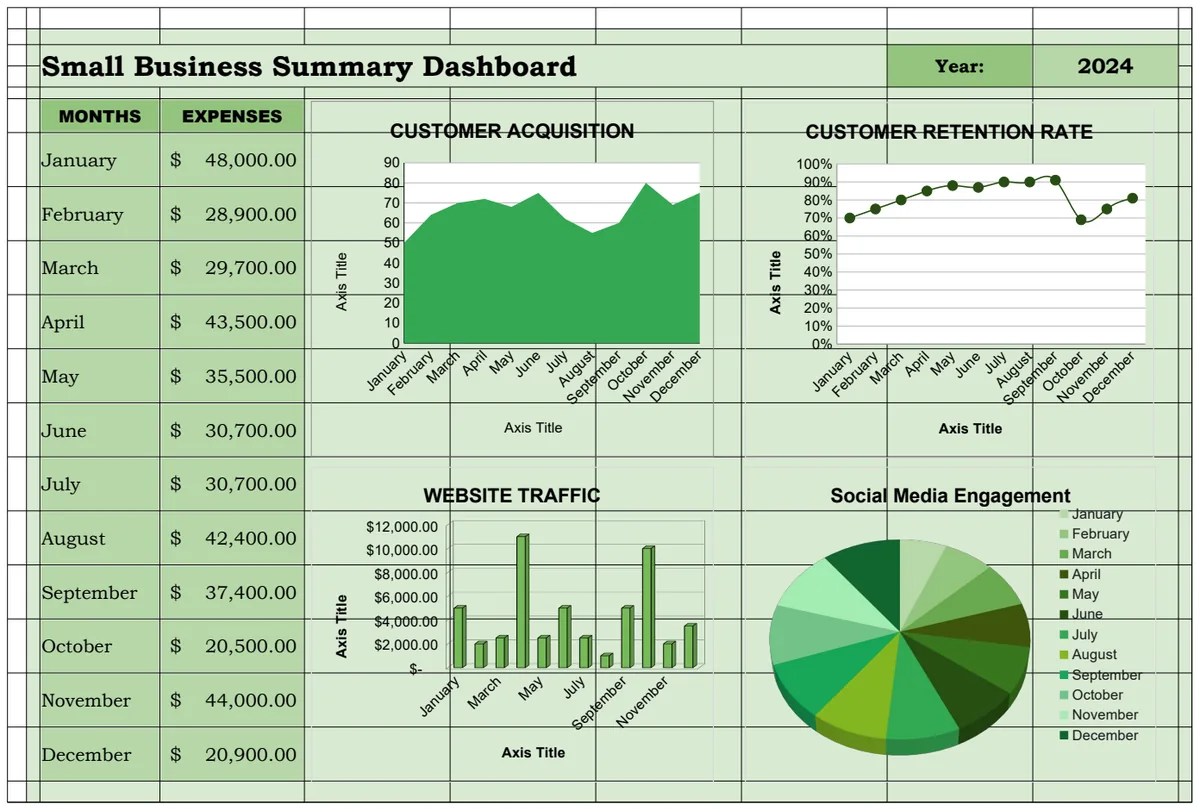
This setup provides a clear overview. You can further enhance this with charts on the "Summary" sheet showing spending by category.
Beyond Budgeting: Other Personal Use Templates
While budgeting is a common need, people use Google Sheets templates for personal use in many other areas of their lives. Think about managing personal projects, tracking hobbies, or even planning life events. For instance, if you're looking to improve your personal organization and productivity, a set of Bullet Journal Templates can be incredibly effective. These templates often come with pre-set layouts for daily, weekly, and monthly planning, with dynamic date calculations that automatically update as you move through the year. This saves you from manually adjusting dates on every page.
Goal Setting and Progress Tracking
Achieving personal goals requires clear definition and consistent tracking. A SMART Goals Worksheet can help you break down vague aspirations into specific, measurable, achievable, relevant, and time-bound objectives. This worksheet typically guides you through defining each aspect of your goals, helping you identify potential obstacles and the resources needed for success. Regularly revisiting and updating your progress against these defined goals is key to staying motivated and on track.
Managing Personal Projects and Hobbies
Do you have a personal project you're passionate about, like restoring a classic car, writing a novel, or learning a new skill? Spreadsheets can be excellent tools for this. You might set up a sheet to track tasks, deadlines, materials purchased, and budget allocated. For a creative endeavor, you could have columns for "Idea," "Status," "Notes," and "Next Action." This keeps everything organized and visible, preventing tasks from falling through the cracks.
Organizing Personal Information and Records
Sometimes, you need a structured way to keep track of personal information that isn't necessarily financial. This could include things like a list of books you want to read, movies you want to watch, or even important personal documents and their expiry dates. Creating simple databases for these purposes is straightforward. You might have columns for "Item Name," "Status," "Rating," or "Date Acquired." The versatility of Google Sheets means you can tailor these organizational tools precisely to your needs.
Common Mistakes to Avoid
When using or adapting Google Sheets templates for personal use, a few common pitfalls can hinder their effectiveness:
- Over-complication: Trying to build a system that tracks too many things at once can lead to confusion and abandonment. Start simple and add complexity only as needed.
- Inconsistent Data Entry: If you don't consistently log transactions or update your progress, the data becomes unreliable, and the template loses its value. Make data entry a habit.
- Ignoring Visualizations: Charts and graphs are powerful tools for understanding data. Don't just look at raw numbers; use visual summaries to spot trends and insights more easily.
- Not Customizing: Templates are starting points. If a category doesn't apply to you or a column is missing crucial information, adjust it.
Frequently Asked Questions
Can I use these templates for more than just personal budgeting?
Absolutely. While budgeting is a primary use case, the principles of organization and tracking found in many templates can be applied to almost any personal endeavor. Whether you're planning a wedding, tracking fitness goals, managing a personal collection, or even organizing family recipes, a well-structured spreadsheet can be invaluable.
How do I make sure my data stays private with Google Sheets?
Google Sheets offers robust privacy controls. Your data is private to your Google account unless you explicitly choose to share it. You can control sharing permissions at the document level, allowing you to grant view-only, comment, or edit access to specific people if needed. For personal use, simply keeping documents unshared ensures your data remains private.
What if I need a template for something very specific, like tracking my plant collection or a Dungeons & Dragons campaign?
For highly specific needs, you can often adapt existing templates or build your own from scratch. For instance, you could take a simple inventory template and modify the columns to include "Plant Species," "Last Watered," and "Sunlight Needs." Similarly, a campaign tracker might use columns for "Character Name," "Level," "Inventory," and "Quest Log." The underlying structure of rows and columns is flexible enough for almost any organizational task.
Is there a one-time cost for accessing these templates?
Many platforms offer templates with a one-time purchase for unlimited downloads, providing access to a library of resources for a single fee. This can be a cost-effective way to get started with a variety of useful tools for personal and professional use without ongoing subscription costs.