Stop making these on-call schedule errors with Excel
Stop making common on-call schedule errors. Find a robust free Excel template to manage rotations, contact info, and protocols efficiently.
Managing an on-call schedule can feel like juggling chainsaws while blindfolded if you don't have a clear system. A robust on-call schedule template Excel free download is essential for ensuring coverage without burning out your team or creating coverage gaps. This isn't about finding just any spreadsheet; it's about locating one that handles the complexities of rotating shifts, contact information, and emergency protocols efficiently.
Many teams start with a simple table, but quickly find it breaks down when rotation patterns change, or when you need to quickly see who's on call next month. The challenge often lies in the dynamic nature of on-call duties, people get sick, take vacations, or swap shifts, and your schedule needs to adapt. Finding a truly useful on-call schedule template Excel free that accounts for these variables can save you hours of administrative headaches each week.
Setting Up Your On-Call Schedule Sheet
When you're building your own on-call schedule or adapting a template, think about the core information you need at a glance. This includes the date, the person on call, their contact number, and perhaps a secondary contact. You'll also want space for notes, like specific responsibilities for that day or week, or any known limitations.
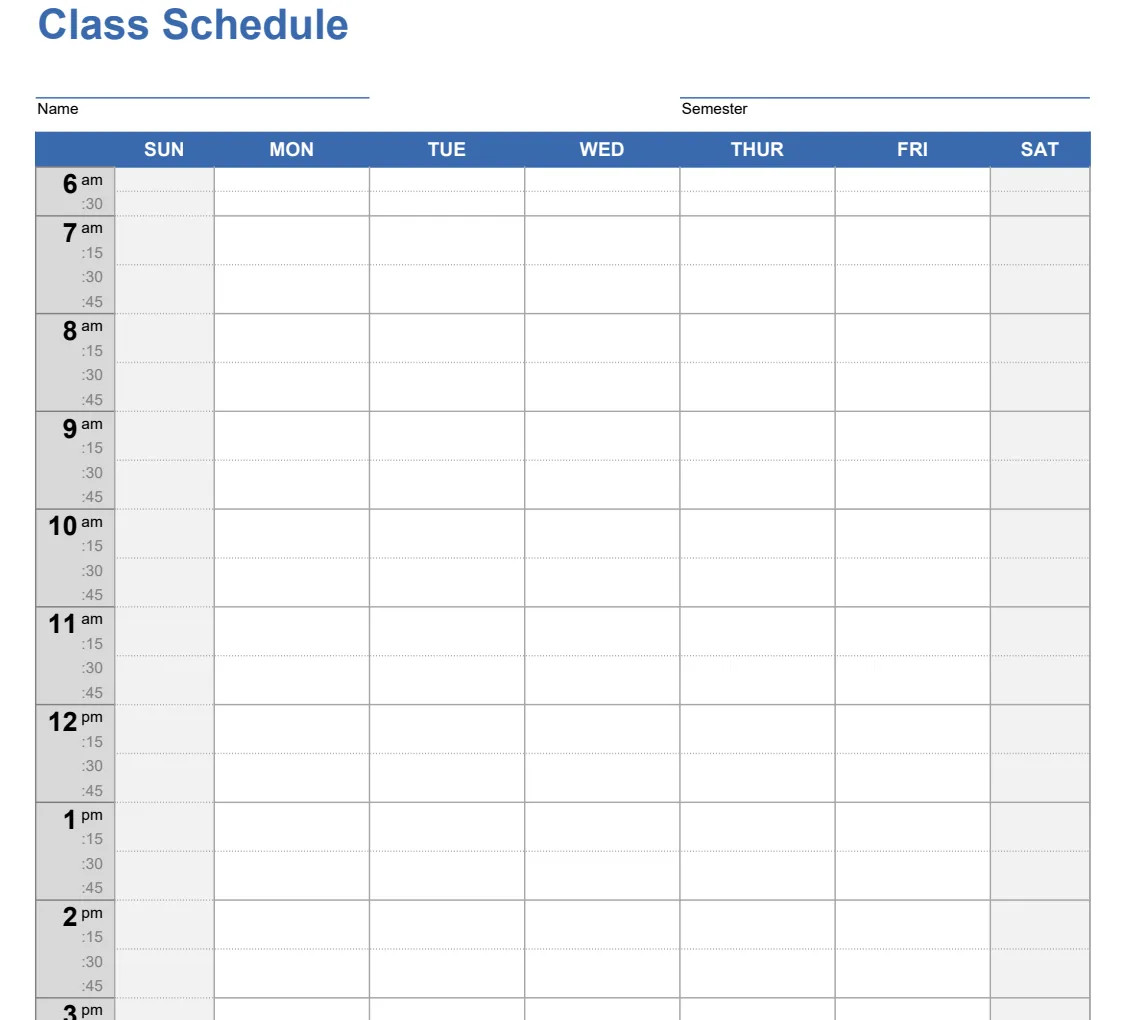
Consider the structure: A common and effective layout is to have columns for the date range (e.g., Monday, Tuesday, Wednesday), followed by columns for each person covering that period. Alternatively, a chronological list with date, primary on-call, secondary on-call, and contact details can work well. For a monthly view, a grid where rows represent days and columns represent shifts (e.g., Day Shift, Night Shift, Weekend) is often the most intuitive.
Key Information Columns to Include
Regardless of the exact layout, certain columns are non-negotiable for an effective on-call schedule. These form the backbone of your operational readiness.
- Date/Week Of: Clearly indicates the period the schedule covers.
- On-Call Primary: The main person responsible.
- On-Call Secondary: A backup contact if the primary is unavailable.
- Contact Number (Primary): Direct line or method to reach the primary.
- Contact Number (Secondary): Direct line or method to reach the secondary.
- Email (Optional but Recommended): For non-urgent notifications or follow-ups.
- Notes/Responsibilities: Any specific tasks, escalation points, or special instructions for that period.
- Hand-off Notes: A space for the outgoing on-call person to leave critical information for the incoming person.
Automating Your Schedule with Formulas
Even a basic on-call schedule can benefit from Excel's formula capabilities. For instance, you can use formulas to automatically calculate the date range for a given week, or to highlight the current on-call person.
Calculating Dates
If your schedule is set up with a starting date in cell A2, you can populate subsequent days with a simple formula. In cell A3, you might have =A2+1. You can then drag this formula down to fill in the entire month or quarter. For weekly views, if A2 is the start of a week, A3 could be =A2+7.
Highlighting the Current On-Call Person
Conditional formatting is your best friend here. Let's say your on-call person's name is in column B, and you have a cell (e.g., G1) that contains today's date. You can apply a rule to column B that says: "If the date in the same row as the name (column A) matches the date in G1, then fill the cell with a light color." The formula would look something like =A1=G$1. This makes it instantly obvious who is on call right now.
Handling Complex Rotation Patterns
Many on-call scenarios involve rotating schedules that aren't simply sequential. You might have a weekly rotation, a bi-weekly rotation, or even a more complex pattern involving multiple people. This is where a well-designed template or a more advanced setup becomes crucial.
For a simple weekly rotation where Person A is on for week 1, Person B for week 2, and so on, you can use the MOD function in conjunction with WEEKNUM. If your list of on-call personnel is in cells D1:D5, and your starting date is in A2, you could have a formula like =INDEX(D$1:D$5, MOD(WEEKNUM(A2)-WEEKNUM($A$2), COUNT(D$1:D$5))+1). This formula dynamically pulls the correct name based on the week number relative to your schedule's start. This is significantly more manageable than manually updating names every week.
Essential Features for a User-Friendly Template
Beyond basic data entry, a truly useful on-call schedule template Excel free should incorporate features that enhance usability and reduce errors. These elements transform a simple list into a functional operational tool.
- Clear Header Information: Include fields for the department or team name, the effective dates of the schedule, and emergency contact numbers for the organization.
- Color-Coding: Use subtle background colors to distinguish between day shifts, night shifts, weekdays, and weekends. This visual cue helps users quickly identify different types of shifts.
- Lookup Tables: For frequently changing contact information, consider a separate sheet where you can update contact details. Then, use
XLOOKUPorVLOOKUPin your main schedule to pull the correct phone number or email based on the on-call person's name. This prevents you from having to update contact info in multiple places. - Data Validation: Use data validation to create dropdown lists for selecting on-call personnel. This ensures names are entered consistently and prevents typos that could break lookup formulas.
Common Mistakes to Avoid
Even with a template, it's easy to fall into common traps that undermine the effectiveness of your on-call schedule. Being aware of these pitfalls can help you maintain accuracy and reliability.
- Outdated Contact Information: This is the most critical error. Make it a habit to review and update contact details regularly, perhaps monthly or quarterly. If your contact list is constantly changing, using a linked lookup table, as mentioned earlier, is a lifesaver.
- Overlapping Schedules: Failing to ensure a smooth hand-off between primary and secondary contacts, or not having a clear escalation path when the primary is unreachable.
- Lack of Clarity on Responsibilities: Not specifying what the on-call person is expected to handle, what constitutes an emergency, and when to escalate. This can lead to either under- or over-reaction.
- Forgetting to Include Time Zones: If your team is distributed geographically, failing to specify time zones for on-call duties can cause significant confusion and missed calls.
- Not Having a Backup for the Backup: In critical situations, even the secondary contact might be unavailable. Ensure there's a tertiary or escalation point defined.
For teams that need to manage shifts and employee assignments, the Employee Schedule Template - Shifts V1.1 can provide a solid foundation for organizing personnel.
Frequently Asked Questions About On-Call Schedules
How often should I update my on-call schedule?
You should update your on-call schedule whenever there's a change, such as an employee's availability changing, a new team member joining, or a shift swap. For a static rotation, a full review and re-distribution of the schedule should happen at least quarterly, or whenever a significant period (like a year) is covered. Keeping contact information current is an ongoing process; aim for monthly checks at a minimum.
Can I use a free online tool instead of Excel?
Yes, there are free online scheduling tools available. However, many of these have limitations on customization, data privacy, or may display advertisements. If you need a highly specific or integrated solution, or if you prefer to keep your data within your own controlled environment, a well-structured Excel spreadsheet remains a powerful and flexible option.
How do I handle vacation requests or sick days in my on-call schedule?
The best approach is to have a clear process for requesting time off and submitting swaps. When an employee requests vacation, immediately consult the schedule to see who can cover. If you use a template with lookup tables, you can quickly identify potential backups. For sick days, the secondary on-call person should be notified immediately, and if they are also unavailable, you'll need to activate your pre-defined escalation path. Many teams use a system where employees can propose swaps, which then require approval from a manager or the designated scheduler.
What if I need to track different types of on-call duties, like Tier 1, Tier 2, and specific system monitoring?
You can adapt your Excel template to accommodate this by adding more columns for each type of duty. For example, you might have columns for "Primary On-Call (Tier 1)", "Secondary On-Call (Tier 1)", "System X Monitor", and "System Y Monitor". Each column would then list the responsible individual for that specific role during the given time period. This allows for granular control and ensures all critical systems have coverage. If you find yourself needing to log call details as well, the Anrufliste (Call Log) template can be a useful companion to track individual incidents.