Stop overpaying with this free subscription tracker
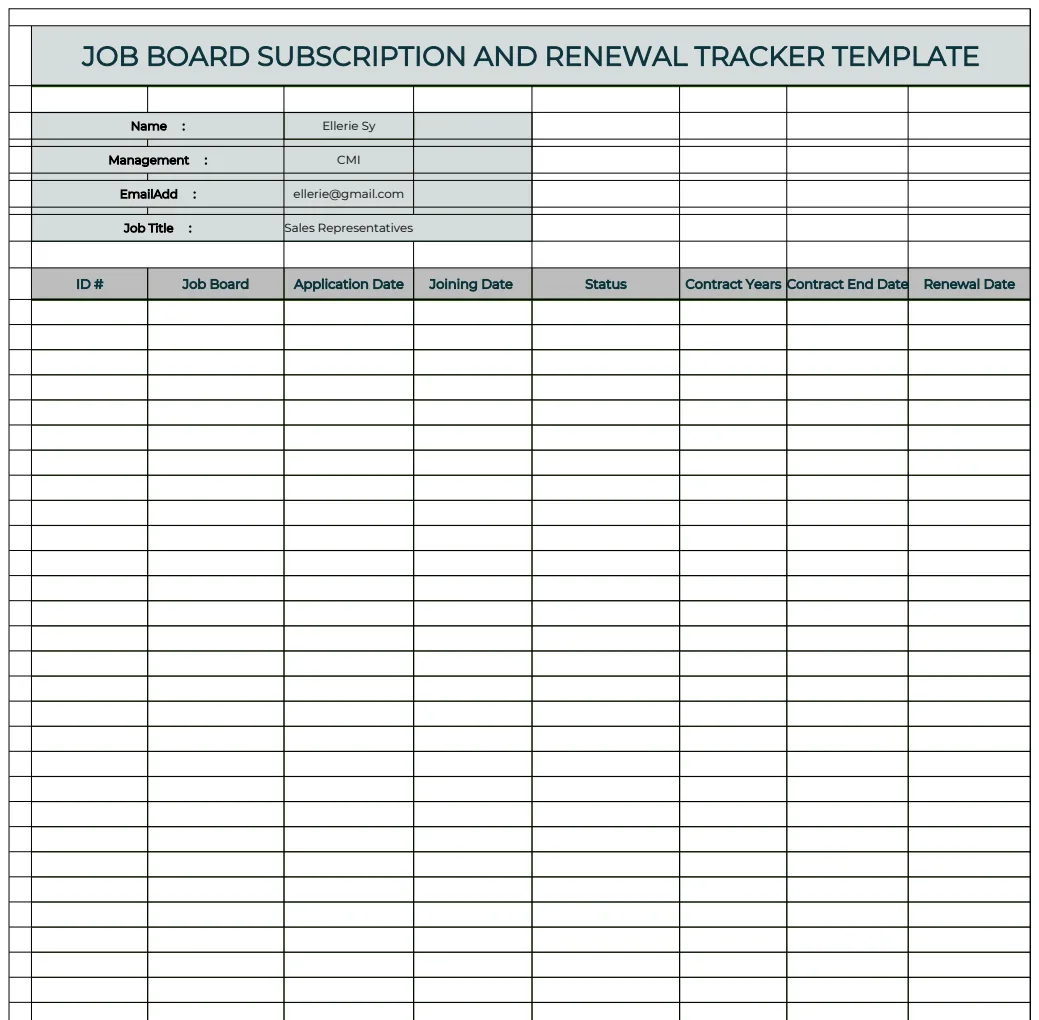
Discover how a free subscription tracker spreadsheet template can help you manage recurring expenses and stop overpaying for services you no longer use.
It's a common mistake to think that a simple list of subscriptions is enough. You actually need to track renewal dates, costs, and usage patterns to truly manage your recurring expenses effectively. Finding a good subscription tracker spreadsheet template free can be the first step, but understanding how to build and use it is key to saving money and avoiding unnecessary charges.
Many people download a template and consider their job done, only to be surprised by auto-renewals or services they no longer use. The real value comes from setting up a system that actively helps you review and prune your subscriptions. This means going beyond just listing what you pay for and actively analyzing their benefit.
Why Tracking Subscriptions Matters
Think about how many services you've signed up for over the years: streaming services, software licenses, cloud storage, news sites, gym memberships, and so on. Each one represents a recurring cost. Without a clear overview, these small monthly or annual fees can quickly add up to a significant portion of your budget. Auto-renewal features, while convenient, can also lead to paying for services long after you've stopped using them. A well-maintained tracker acts as your financial watchdog, alerting you to upcoming renewals and reminding you to assess if each subscription is still worth the cost.
Setting Up Your Spreadsheet
Let's build a basic but effective subscription tracker from scratch. You can adapt this structure to fit your specific needs, whether you're tracking personal subscriptions or business-related software.
Start with a new spreadsheet. You'll want to create columns to capture essential information for each subscription. Here are some suggested columns:
- Subscription Name: The name of the service (e.g., Netflix, Adobe Creative Cloud, Spotify Premium, Amazon Prime).
- Category: A broader classification to help you group similar expenses (e.g., Entertainment, Software, Productivity, News, Music, Cloud Storage).
- Provider: The company or organization providing the service.
- Billing Cycle: How often you're billed (e.g., Monthly, Annually, Quarterly).
- Cost Per Cycle: The exact amount you pay for each billing period.
- Currency: The currency of the cost (e.g., USD, EUR, GBP).
- Payment Method: How you pay for the subscription (e.g., Visa ending in 1234, PayPal, Bank Transfer). This can be helpful for tracking down specific charges.
- Start Date: The date you first subscribed.
- Next Billing Date: The date the next payment is due. This is crucial for managing renewals.
- Renewal Date: If different from the billing date (e.g., for annual contracts that renew on a specific calendar day), list it here.
- Duration: The length of the billing cycle in months (e.g., 1 for monthly, 12 for annual).
- Annual Cost: A calculated field to see the yearly expense. You can use a formula like
=IF(G2="Monthly", F2*12, IF(G2="Annually", F2, IF(G2="Quarterly", F2*4, "")))assuming "Cost Per Cycle" is in F2 and "Billing Cycle" is in G2. - Status: Whether the subscription is currently Active, Inactive, or Pending Cancellation.
- Notes/Usage: Any relevant details, such as who uses the account, specific features you value, or how often you use it.
Calculating Annual Costs
To get a clear picture of your total recurring expenditure, calculating the annual cost for each subscription is vital. This helps you spot where the bulk of your money is going.
- 01Add the "Annual Cost" Column: As mentioned above, create a new column.
- 02Enter the Formula: In the first row of this column (let's say it's column K, and your "Cost Per Cycle" is in F, and "Billing Cycle" is in G), you can use a formula like this:
=IF(G2="Monthly", F2*12, IF(G2="Annually", F2, IF(G2="Quarterly", F2*4, IF(G2="Bi-Annually", F2*2, "")))) This formula checks the "Billing Cycle" (G2) and multiplies the "Cost Per Cycle" (F2) accordingly. It handles monthly, annual, quarterly, and bi-annual payments. Add more IF statements for other cycles if needed.
- 03Drag Down: Drag the fill handle (the small square at the bottom-right of the cell) down to apply the formula to all your subscription rows.
This calculated column will give you an immediate, comparable view of each subscription's yearly impact.
Tracking Renewal Dates Effectively
The most common pitfall with subscriptions is forgetting to cancel before they auto-renew. Proactively managing renewal dates can save you significant amounts of money.
- 01Focus on "Next Billing Date" and "Renewal Date": These columns are your primary tools here.
- 02Use Conditional Formatting: This is where spreadsheets really shine. You can set up rules to automatically highlight upcoming renewals.
- For Monthly Renewals: Select your "Next Billing Date" column. Go to Conditional Formatting > New Rule > Use a formula to determine which cells to format. Enter a formula like
=AND(G2="Monthly", H2<=TODAY()+30, H2>TODAY()). This highlights monthly subscriptions due within the next 30 days. Set the format to a yellow fill. - For Annual Renewals: Select your "Renewal Date" column. Use a similar formula:
=AND(G2="Annually", I2<=TODAY()+30, I2>TODAY()). This highlights annual subscriptions renewing soon. Use a red fill for these as they represent a larger potential outlay. - For Expired/Past Renewals: You can also highlight dates that have already passed
=H2<TODAY()or=I2<TODAY()with a grey fill to indicate subscriptions that may need attention or cancellation.
Make sure to adjust the +30 to your preferred reminder period (e.g., +60 for two months, +15 for two weeks). Regularly reviewing these highlighted cells will keep you ahead of renewal dates.
Leveraging Formulas for Insights
Beyond basic calculations, formulas can provide deeper insights into your spending habits.
- Total Annual Spend: At the bottom of your "Annual Cost" column, use
=SUM(K2:K100)(adjusting K100 to your last row) to see your total annual subscription expenditure. - Spend by Category: You can use
SUMIFSto calculate total annual spending per category. For example, to sum annual costs for "Entertainment":=SUMIFS(K2:K100, C2:C100, "Entertainment")(assuming "Category" is in C and "Annual Cost" is in K). - Number of Subscriptions: Use
=COUNTIF(E2:E100, "Active")to count how many subscriptions are currently active.
If you're looking for a more pre-built solution to monitor recurring expenses, the Subscription and Membership Tracker template can be a great starting point. It’s designed to give you a clear overview of these costs.
Common Mistakes to Avoid
People often make a few recurring errors when tracking subscriptions:
- Inconsistent Data Entry: Not filling in all the required fields for each subscription, especially the billing and renewal dates.
- Ignoring Usage: Not periodically assessing if you actually use the service enough to justify the cost. A subscription to a service you haven't opened in six months is essentially wasted money.
- Not Reviewing Regularly: Letting the spreadsheet become a static list rather than an active management tool. Schedule a monthly or quarterly review to go through your tracker.
- Not Utilizing Alerts: Failing to set up conditional formatting or calendar reminders for upcoming renewals.
Finding a Free Template and Beyond
While building your own tracker offers maximum customization, you might be looking for a pre-made subscription tracker spreadsheet template free to get started quickly. Many resources offer basic templates that can be downloaded. If your needs grow, or you want more advanced features like automatic data fetching or advanced analytics, you might consider dedicated software or more specialized templates. For instance, if you manage software licenses and their associated costs, the Free Basic Software Budget Template can be very useful.
What if I have subscriptions in different currencies?
If you have subscriptions billed in various currencies, add a "Monthly Cost in USD" (or your primary currency) column. Then, use a formula that converts the "Cost Per Cycle" using a current exchange rate. For example, if your "Cost Per Cycle" is in F2, "Currency" is in E2, and you have a cell (say, Z1) with the USD to EUR exchange rate, the formula might look something like =IF(E2="EUR", F2*$Z$1, F2) for monthly subscriptions. You'd need to manually update the exchange rate periodically or explore more advanced solutions like Google Sheets' GOOGLEFINANCE function.
How often should I review my tracker?
A monthly review is ideal for keeping on top of upcoming monthly renewals and checking in on your spending. A deeper quarterly or semi-annual review is important to assess the value of annual or less frequently billed subscriptions and to identify services that have become redundant.
Can I track free trials with this?
Yes, absolutely. You can add a "Trial End Date" column and use conditional formatting similar to renewal dates to alert you before a free trial converts to a paid subscription. Ensure your "Status" column can accommodate "Trial" as an option.
What if I want to track usage more formally?
For services where usage is key, you could add columns like "Usage Frequency" (e.g., Daily, Weekly, Monthly) and "Key Features Used" (e.g., "Advanced Analytics," "Cloud Sync"). Then, during your review, you can actively compare the cost against your actual engagement with these features. For health-related tracking, even something as different as a Weight Loss Chart Tracker uses regular updates to show progress, a concept you can apply to subscription value.