Your 7 essential columns for an Excel product catalog
Stop the frantic copy-pasting. Learn the 7 essential columns for an organized Excel product catalog and impress clients.
You realize you need a product catalog when a potential client asks for a list of your available items, and you start frantically copying and pasting product names and prices from various spreadsheets, email drafts, and even sticky notes. This happens because most small businesses begin with informal tracking methods that quickly become unmanageable as the product line grows. Having a structured way to present your offerings is crucial for sales, marketing, and even internal operations. That's precisely why many people search for a product catalog template Excel free, seeking an immediate, no-cost solution to organize their product information.
A well-maintained product catalog isn't just a list; it's a powerful sales tool. It ensures consistency in how you present your products, reduces errors in quoting and ordering, and can even serve as the foundation for your website or e-commerce platform. Without one, you risk confusing customers, losing potential sales due to slow or inaccurate responses, and spending excessive time on administrative tasks.
Why a Structured Catalog Matters
Think about the last time you tried to find a specific product from a supplier. If they presented you with a clean, organized catalog, complete with descriptions, SKUs, pricing tiers, and even images, you likely had a much smoother experience. This is the power of a structured catalog. It communicates professionalism and efficiency. For your own business, this structure means:
- Consistency: Every customer gets the same, accurate information.
- Efficiency: Sales and customer service teams can quickly find what they need.
- Accuracy: Reduces errors in orders, invoices, and shipping documents.
- Scalability: As your product line expands, a good template can grow with you.
When you're ready to move beyond simple lists and need to formalize your invoicing process, a template like the Final Invoice Template with Product List Management can be invaluable. It integrates catalog data directly into your billing, ensuring accuracy and saving significant time.
Essential Columns for Your Product Catalog
Regardless of whether you're using a free template or building your own, certain columns are non-negotiable for a functional product catalog. These provide the core information needed for sales, inventory, and customer inquiries.
Here are the columns you should include:
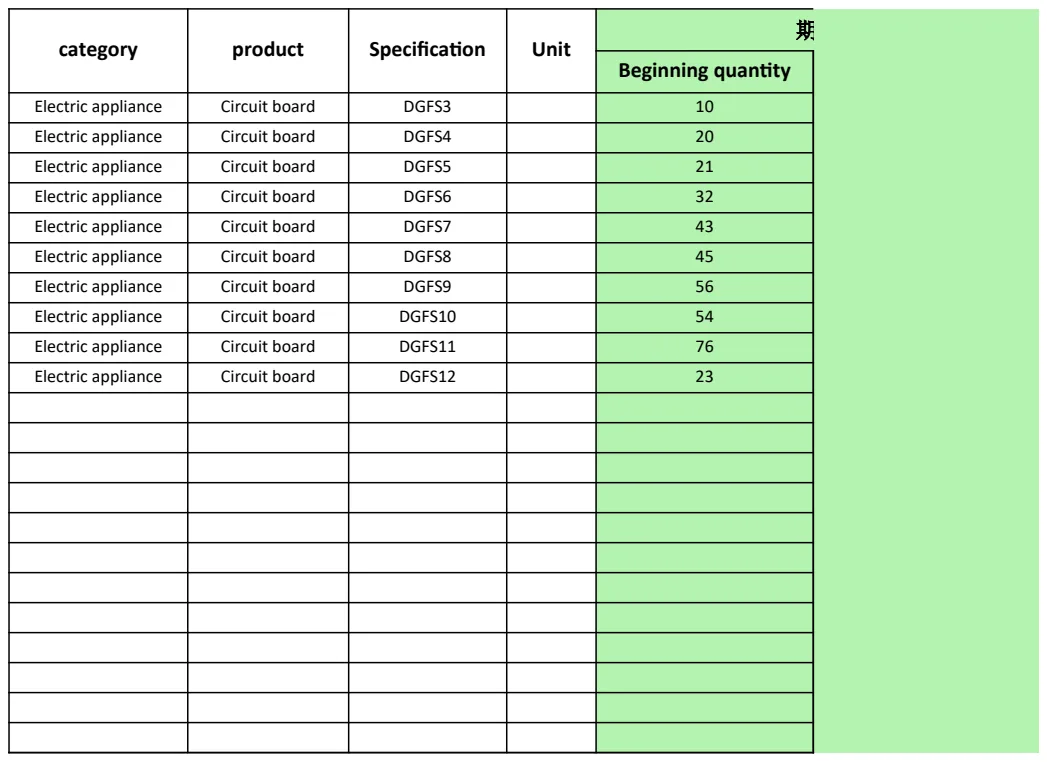
- Product ID/SKU: A unique identifier for each product. This is critical for tracking and inventory management.
- Product Name: A clear, descriptive name for the item.
- Category/Department: Helps organize products and filter them logically.
- Description: A brief but informative summary of the product's features and benefits.
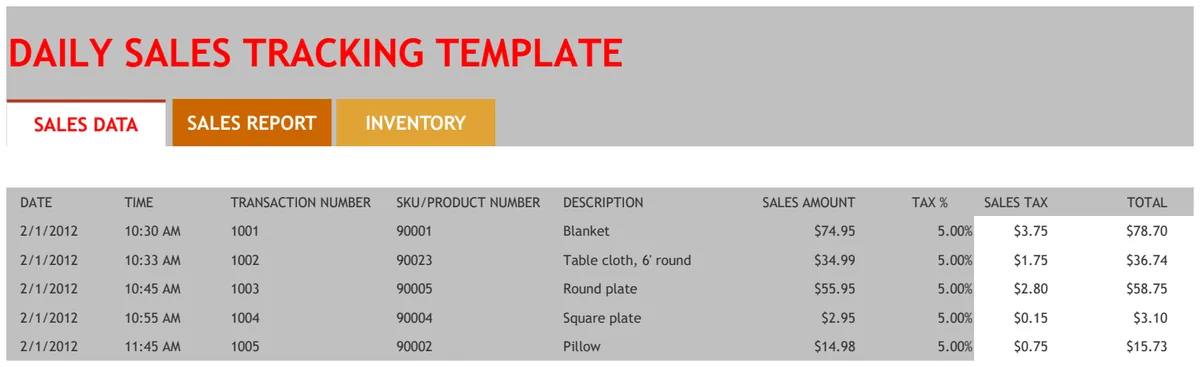
- Unit Price: The standard selling price per unit.
- Cost Price (Optional but Recommended): Your internal cost for the item, useful for profit margin calculations.
- Stock Quantity: The current number of units available.
- Supplier/Manufacturer: Who you source the product from.
- Image URL (Optional): A link to an image file if you host them online. This can be a placeholder if you don't have them readily available.
- Weight/Dimensions (Optional): Important for shipping calculations.
- Notes/Specifications: Any additional details, such as material, color options, or warranty information.
A well-defined set of columns will make your catalog immediately more useful and easier to manage.
Building Your Free Excel Product Catalog: A Step-by-Step Guide
Let's walk through setting up a basic product catalog in Excel. This approach focuses on clarity and functionality, using common Excel features.
- 01Set Up Your Worksheet: Open a new Excel workbook. Rename the first sheet to "Product Catalog".
- 02Add Column Headers: In the first row (Row 1), enter your column headers. For example:
- Cell A1:
SKU - Cell B1:
Product Name - Cell C1:
Category - Cell D1:
Description - Cell E1:
Unit Price - Cell F1:
Stock Qty - Cell G1:
Supplier
- 03Format Headers: Select Row 1, bold the text, and consider adding a fill color to make it stand out. You can also freeze this row so it remains visible as you scroll down. Go to
View>Freeze Panes>Freeze Top Row. - 04Enter Your Product Data: Starting from Row 2, enter your product information, one product per row. Be consistent with your data entry. For instance, if you have multiple categories, decide on standard names like "Electronics," "Apparel," or "Home Goods" and stick to them.
- 05Format Your Price Column: Select the
Unit Pricecolumn (Column E). Go to theHometab, and in theNumbergroup, chooseCurrencyorAccountingformat. This will add your local currency symbol and ensure prices are displayed correctly (e.g., $9.99). - 06Format Your Stock Quantity: Select the
Stock Qtycolumn (Column F). Ensure this is formatted as aNumberwith no decimal places. - 07Apply Data Validation (Optional but Recommended): For columns like
Category, you can use data validation to create a dropdown list. This prevents typos and ensures consistency.
- Select the cells in the
Categorycolumn where you want the dropdown (e.g., E2:E100). - Go to the
Datatab >Data Toolsgroup >Data Validation. - Under
Allow, selectList. - In the
Sourcebox, type your category names, separated by commas (e.g.,Electronics, Apparel, Home Goods, Office Supplies). - Click
OK.
- 08Use Conditional Formatting (Optional): You can highlight low stock items.
- Select the
Stock Qtycolumn (e.g., F2:F100). - Go to the
Hometab >Conditional Formatting>New Rule. - Choose
Format only cells that contain. - Set the condition to
Cell Valueless than10(or whatever threshold you define). - Click
Format, go to theFilltab, and choose a color (e.g., light red). - Click
OKtwice.
- 09Save Your Work: Save your workbook. You've just created a functional product catalog.
This process yields a product catalog template Excel free that is immediately usable and can be expanded upon.
Leveraging Excel's Features for a Better Catalog
Beyond the basic setup, Excel offers powerful features to enhance your product catalog, making it more dynamic and useful.
- Formulas: You can add columns for
Total Value(=E2*F2if E is Unit Price and F is Stock Qty) to quickly see the value of your inventory. - Filtering and Sorting: Use the
Datatab'sFilterandSortoptions to quickly find products by category, stock level, or price. - Tables: Convert your data range into an Excel Table (
Insert>Table). This automatically applies formatting, makes formulas easier to write (e.g.,=[Unit Price]*[Stock Qty]), and expands the range when you add new rows. - Lookup Functions: If you have a separate sheet for detailed product specifications, you can use
VLOOKUPorXLOOKUPto pull that data into your main catalog. For example,XLOOKUP(A2, 'Specifications'!A:A, 'Specifications'!B:B, "Not Found")could pull a warranty period from aSpecificationssheet based on the SKU in cell A2.
A more advanced catalog can even integrate with order management. For instance, if you use a template like the Product Purchase Order Form Template, you can reference your catalog's SKUs and descriptions to ensure accuracy when ordering new stock.
Common Mistakes to Avoid
Even with a free template, users can fall into common traps that diminish its usefulness.
- Inconsistent Data Entry: Using variations of the same category name (e.g., "Electronics" vs. "electronics" vs. "Elec.") or typos in product names. Data validation helps prevent this.
- Lack of Unique Identifiers: Relying only on product names, which can be similar or change over time. Always use a SKU or Product ID.
- Outdated Information: Not regularly updating stock levels, prices, or product availability. A catalog is only useful if it's current. Schedule regular reviews.
- Overly Complex Formatting: While nice to look at, excessive colors, fonts, and images can slow down the spreadsheet and make it harder to read or print. Focus on clarity first.
- Ignoring Formulas: Not using basic formulas for inventory value or not setting up conditional formatting for low stock can mean missing out on valuable insights.
When to Consider More Advanced Solutions
While a free Excel product catalog is a fantastic starting point, there are times when you might outgrow it. If you have thousands of products, require real-time inventory synchronization with an e-commerce platform, need multi-user access with different permission levels, or desire more sophisticated reporting on sales trends and profitability, a dedicated inventory management system or e-commerce platform might be a better fit. However, for many small businesses and startups, a well-maintained Excel sheet serves as an excellent, cost-effective foundation. For those needing to integrate catalog data with shipping documentation, a Delivery Note Template can simplify the process by pulling directly from your product list.
Can I add images to my Excel product catalog?
Yes, you can. The simplest way is to include a column for Image URL and paste links to images hosted online (e.g., on your website or cloud storage). Excel also allows you to insert images directly into cells or floating on the sheet. However, inserting many images directly into Excel can significantly increase file size and slow down performance, so linking to external images is often preferred for large catalogs.
How do I ensure my prices are always up-to-date?
The best practice is to designate a single person or role responsible for maintaining the catalog's pricing. Schedule regular price reviews, especially if you deal with suppliers who have fluctuating costs. Implementing a clear process for price changes, perhaps requiring approval before updates, can also help maintain accuracy. Using formulas that reference a separate "Price List" sheet can also centralize price management.
What if I have products with many variations (e.g., different colors, sizes)?
For products with many variations, you have