Your party planning spreadsheet: flawless events, every time.
A well-structured party planning checklist spreadsheet template can prevent overspending and financial scrambles for your next event.
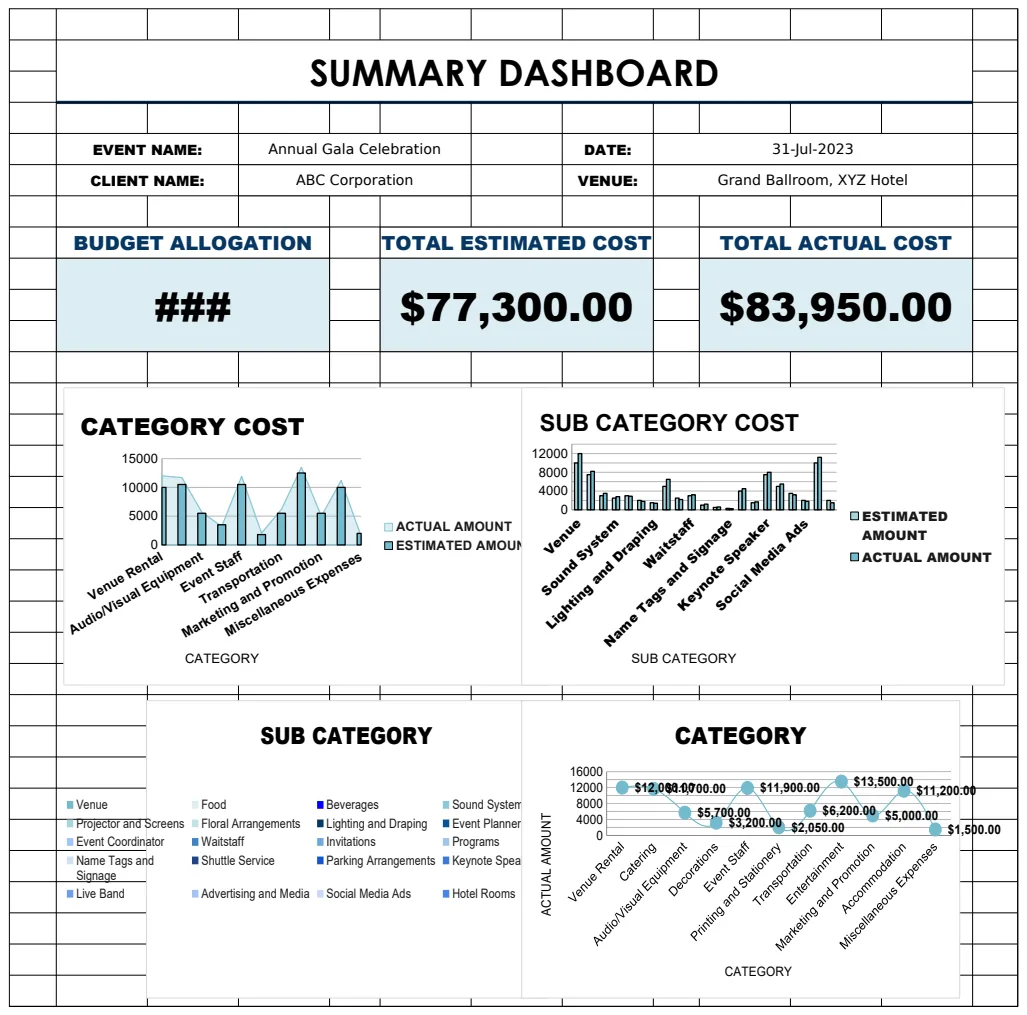
The most common pitfall for party planning spreadsheets is an inability to track spending against a budget, often because the budget itself is too vague or not integrated into the checklist. This leads to overspending and last-minute financial scrambles. A well-structured party planning checklist spreadsheet template can prevent this by linking tasks directly to allocated funds.
Here, you’ll find practical advice on building or adapting a spreadsheet to manage your next event, from birthdays to larger gatherings. We’ll cover essential components, useful formulas, and common mistakes to avoid.
Core Components of a Party Planning Checklist
At its heart, a party planning checklist spreadsheet template needs to be more than just a list of to-dos. It should act as a central hub for all event-related information. Start by setting up several key columns:
- Task/Item: A clear description of what needs to be done or purchased (e.g., "Book Venue," "Send Invitations," "Order Cake," "Confirm Guest Count").
- Category: Group similar tasks together for better organization (e.g., "Venue," "Guest Management," "Food & Drink," "Decorations," "Entertainment," "Budget").
- Due Date: When the task needs to be completed. This is crucial for staying on track.
- Assigned To: If multiple people are helping, assign responsibility to specific individuals.
- Status: Track progress (e.g., "Not Started," "In Progress," "Completed," "Cancelled").
- Estimated Cost: Your initial budget for this specific item.
- Actual Cost: What you actually spent. This is vital for budget tracking.
- Notes/Details: Any extra information, vendor contact details, or specific requirements.
This foundational structure allows you to see at a glance what’s ahead, who’s responsible, and how much you’re spending on each element.
Building Your Budget Tracker
Integrating a budget directly into your checklist is non-negotiable. For each item or category in your checklist, you should have a corresponding budget line.
- 01Create a separate "Budget" tab. This keeps your main checklist clean while providing a detailed financial overview.
- 02List your main budget categories in one column (e.g., Venue Rental, Catering, Decorations, Entertainment, Invitations, Favors, Contingency).
- 03In the next column, enter your "Allocated Budget" for each category. Be realistic here.
- 04In the third column, use a formula to sum the "Actual Cost" from your main checklist tab for that category. For instance, if your main checklist has an "Actual Cost" column and tasks are categorized, you could use a formula like:
=SUMIFS('Checklist'!G:G, 'Checklist'!B:B, "Decorations"). This sums all values in column G of the 'Checklist' sheet where column B (Category) matches "Decorations." - 05Create a "Difference" column. This will show
Allocated Budget - Actual Cost. A negative number here means you've overspent. - 06Add a "Total Budget" row at the bottom of your allocated column and a "Total Spent" row summing your actual costs. This gives you the overall financial picture.
This approach ensures that every expenditure is tied back to an original plan, making it much easier to identify potential overspending early on.
Leveraging Formulas for Efficiency
Beyond basic summing, several Excel or Google Sheets formulas can make your party planning spreadsheet template incredibly powerful.
- Conditional Formatting: This is your visual cue for budget status. You can set rules to automatically highlight cells. For example:
- Highlight the "Difference" column in red if the value is less than 0 (over budget).
- Highlight cells in the "Status" column in green when they say "Completed."
- Highlight "Due Date" cells in yellow if they are within 3 days of today and the status is not "Completed."
- `XLOOKUP` or `VLOOKUP`: If you have a separate list of vendor contact details or price lists, these functions can pull that information directly into your checklist when you enter a vendor name. For instance, if you have a "Vendors" sheet with columns for "Vendor Name" and "Phone Number," you could have a "Vendor Phone" column in your checklist and use
=XLOOKUP(E2, 'Vendors'!A:A, 'Vendors'!B:B, "Not Found")to automatically populate the phone number based on the vendor name in cell E2. - `IF` Statements: Use these for more complex status updates. For example, you could have a formula in a "Task Status" column that reads:
=IF(AND(G2>0, F2=""), "In Progress", IF(G2>0, "Completed", "Not Started")), assuming your "Actual Cost" is in G2 and you're tracking if a cost has been entered.
These formulas automate repetitive tasks and provide instant insights, freeing you up to focus on the actual party details.
Tracking Guest Management
Managing your guest list is a critical part of any party planning checklist spreadsheet template. Beyond just names and contact information, consider these columns:
- Guest Name: Full name of the attendee.
- Contact Email/Phone: For sending invitations and updates.
- Invitation Sent: A checkbox or date to mark when the invitation went out.
- RSVP Status: "Yes," "No," "Pending."
- Dietary Restrictions: Crucial for catering.
- Plus One: Note if they are bringing a guest.
- Children Attending: If relevant.
- Gift Received: For thank-you notes.
You can use formulas here too. For example, a simple count of "Yes" RSVPs can be done with =COUNTIF(C:C, "Yes") in a summary section, giving you an immediate headcount.
Vendor Management Details
For any significant party, you'll likely be dealing with vendors. Keep a dedicated section or tab for this:
- Vendor Name: The name of the business.
- Service Provided: What they are supplying (e.g., Catering, DJ, Photographer).
- Contact Person: The primary point of contact.
- Phone Number: Direct line.
- Email Address: For written communication.
- Contract Signed: Checkbox or date.
- Deposit Paid: Amount and date.
- Final Payment Due: Date.
- Notes: Any specific instructions or agreements.
This centralized vendor information prevents last-minute calls to find out payment due dates or confirm services. If you're planning a wedding, a comprehensive Wedding Checklist Template often includes detailed vendor tracking sections.
Common Mistakes to Avoid
- No Contingency Fund: Always budget an extra 10-15% for unexpected costs. Life happens, and parties are no exception.
- Vague Task Descriptions: "Decorations" is too broad. Break it down into "Buy Balloons," "Order Flowers," "Set up Tablecloths."
- Ignoring Smaller Costs: Those seemingly minor expenses add up quickly. Track everything.
- Forgetting Follow-Up: Tasks like sending thank-you notes or reconciling final vendor payments are often overlooked but are important for closing out the event properly.
- Overly Complex Formulas: While powerful, don't build a spreadsheet so complicated that you can't easily understand or update it. Stick to what you truly need.
Other Useful Sections and Considerations
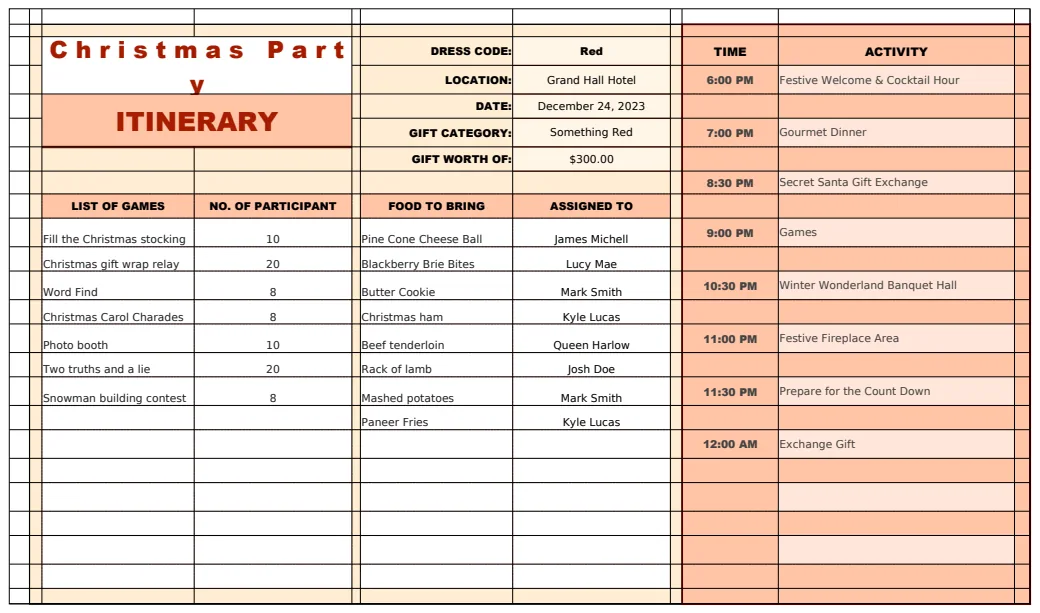
- Timeline/Schedule: For the day of the party itself, a minute-by-minute or hour-by-hour schedule can be invaluable. This is where something like a Christmas Party Itinerary Template can offer specific time-based planning.
- Guest Favors/Gifts: Track what you plan to give out, who needs one, and if they've been prepared or distributed.
- Contingency Plan: What happens if it rains? What if a key vendor cancels? Having a "Plan B" thought out, even if not detailed in the spreadsheet, is wise.
- Post-Party Tasks: Don't forget cleanup, returning rentals, sending thank-you notes, and settling final bills.
Can I use this for a business event?
Absolutely. While the core principles of budgeting, task management, and guest tracking apply universally, a business event might require additional columns like "Department Budget Code," "Internal Stakeholder Approval," or "Marketing Promotion Schedule." For strategic business events, a template like the IT Market Planning Checklist Template or the Business Plan Checklist with SWOT Analysis might offer relevant structures for strategic overview.
How do I share this spreadsheet with others?
If you're using Google Sheets, sharing is as simple as clicking the "Share" button and entering the email addresses of your collaborators. You can set permissions for viewing or editing. For Excel, you can use cloud storage services like OneDrive or SharePoint, or simply email the file. Just be mindful of version control if you're not using a cloud-based, collaborative platform.
What if I have too many tasks?
Break down large tasks into smaller, manageable sub-tasks. Instead of "Plan Menu," have "Research Appetizer Ideas," "Select Main Course," "Choose Desserts," "Confirm Dietary Needs with Caterer." This makes the checklist less overwhelming and easier to track progress on.
Is there a cost to using these templates?
OpenWorksheet offers a library of ready-made templates that can be downloaded for a one-time fee of $9, providing unlimited access. You can adapt these to your specific needs or build your own from scratch using the guidance provided here.