Streamline new hires with this Excel onboarding checklist
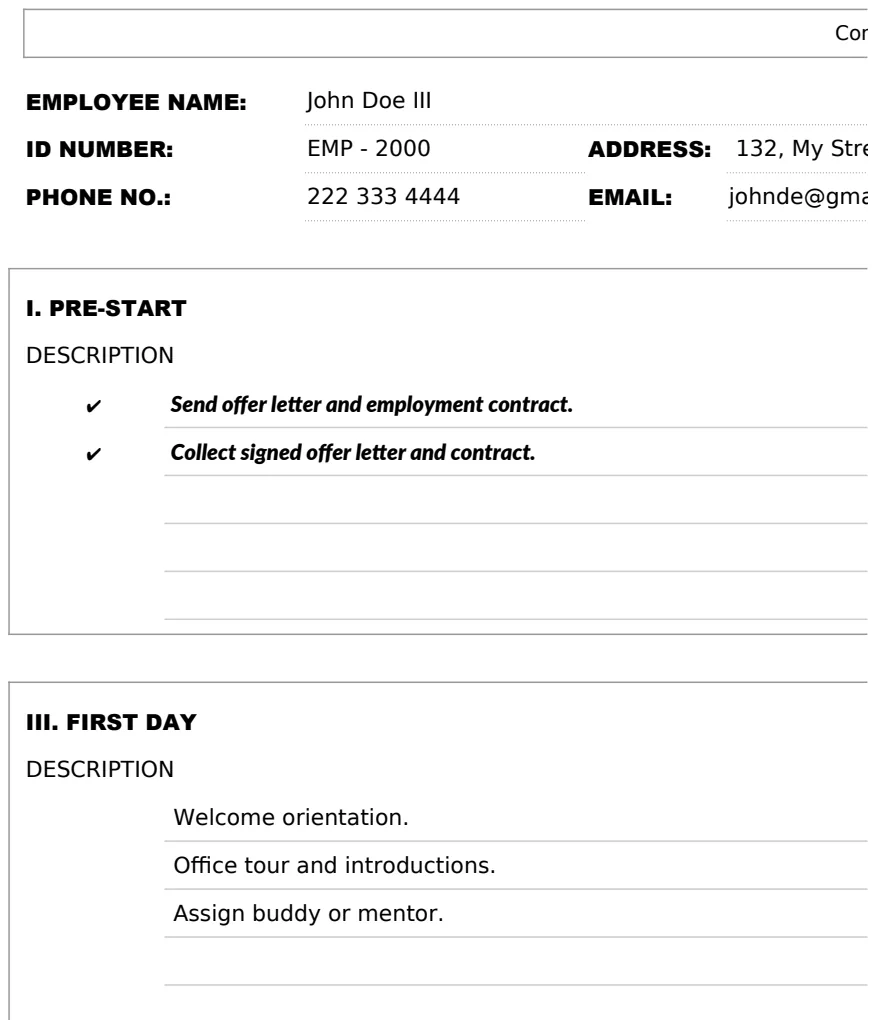
Use this employee onboarding checklist template Excel to improve your new hire process and ensure a smooth integration.
The Task Status column in your employee onboarding checklist template Excel is often overlooked, yet it’s the key to knowing if someone is actually progressing or stuck. If it’s just a simple "Done" or "Not Done," you're missing out on granular control. Consider adding options like "In Progress," "Awaiting Information," "Scheduled," and "Completed" to give yourself a much clearer picture.
Setting up an effective employee onboarding process from day one makes a massive difference. It’s not just about filling out paperwork; it's about integrating your new hire into the company culture and ensuring they have the tools and information they need to succeed. A well-structured checklist prevents crucial steps from falling through the cracks, leading to a smoother transition for both the employee and your HR team. This is where a solid employee onboarding checklist template Excel becomes invaluable.
Why Use a Checklist for Onboarding?
Onboarding is a critical phase. A new employee’s initial weeks set the tone for their entire tenure. Without a structured approach, vital tasks, from setting up payroll and benefits to introducing them to key team members and company policies, can easily be forgotten. This leads to confusion, frustration, and potentially, a disengaged employee. A checklist acts as a roadmap, ensuring consistency and completeness. It also serves as a historical record, demonstrating due diligence and providing a reference point if questions arise later.
Essential Components of an Onboarding Checklist
When building your own employee onboarding checklist template Excel, or adapting an existing one, consider these core areas:
- Pre-boarding (Before Day 1): This includes sending offer letters, background checks, setting up IT accounts, ordering equipment, and preparing the workspace.
- First Day Essentials: Welcome, introductions, office tour, IT setup completion, initial HR paperwork, and a review of the first week’s schedule.
- First Week Activities: Departmental introductions, role-specific training, initial project assignments, understanding company policies (e.g., PTO, code of conduct), and setting initial goals.
- First Month/90 Days: Regular check-ins with managers, performance reviews, ongoing training, integration into team projects, and feedback sessions.
- Documentation and Compliance: Ensuring all necessary legal and HR documents are signed and filed correctly.
Structuring Your Employee Onboarding Checklist Template Excel
Let’s walk through how you might structure a functional employee onboarding checklist in Excel. We’ll assume you want to track tasks for multiple new hires simultaneously.
- 01Sheet 1: Master Checklist: This sheet will list all possible onboarding tasks.
- Column A: Task ID: A unique identifier for each task (e.g., T001, T002).
- Column B: Task Description: A clear, concise description of the action (e.g., "Complete W-4 Form," "Schedule 1:1 with Manager").
- Column C: Department Responsible: Who owns this task (e.g., HR, IT, Hiring Manager).
- Column D: Due Date (Relative): How many days after the start date is this task due (e.g., 0 for day 1, 3 for end of week 1, 30 for end of month 1).
- Column E: Required? (Yes/No) - To differentiate between essential tasks and nice-to-haves.
- Column F: Category: Group tasks (e.g., IT, HR, Training, Compliance).
- 02Sheet 2: New Hire Tracker: This sheet will have rows for each new hire and columns for their tasks.
- Column A: Employee ID: A unique ID for each new hire.
- Column B: Employee Name: Full name of the new hire.
- Column C: Start Date: The official start date of the employee. This is crucial for calculating due dates.
- Column D onwards: Task Columns: For each task on your Master Checklist, create a corresponding column here. You can either link these dynamically or copy them over. Each cell will track the status for that specific employee and task.
- 03Connecting the Sheets (Example using Formulas):
- In Sheet 2, Column C (
Start Date), you'd enter the actual start date for each employee. - To automatically calculate the due date for a specific task for an employee, you could use a formula in Sheet 2. If Sheet 1, Row 2 has Task ID T001 with a Relative Due Date of 0, and Employee "Jane Doe" (Sheet 2, Row 2) started on 2026-01-15, then the Due Date for T001 for Jane Doe would be
=C2 + VLOOKUP("T001", 'Master Checklist'!$A:$D, 4, FALSE). You would apply this formula across all task columns for each employee. - Status Tracking: For each task column in Sheet 2, use Data Validation to create a dropdown list with options like "Not Started," "In Progress," "Completed," "N/A."
This structure allows you to manage multiple employees and their onboarding progress efficiently. You can easily see at a glance who is on track and who might need extra attention. If you're looking for a pre-built solution, an Employee Checklist Template can save you significant setup time.
Automating Status and Due Dates
To make your employee onboarding checklist template Excel truly dynamic, consider using formulas to automate.
- Calculating Actual Due Dates: As mentioned, use the employee's start date and the relative due date from your master list. If your Master Checklist is on a sheet named
Tasksand has Task IDs in column A, descriptions in B, and relative days in D, and your New Hire Tracker is on a sheet namedEmployeeswith Employee Name in B and Start Date in C, you can create columns on theEmployeessheet for each task. In the first task column (e.g., Column D, corresponding to Task "Send Welcome Email"), you’d enter a formula like:
=IF(ISBLANK(C2), "", C2 + VLOOKUP($D$1, Tasks!$A:$D, 3, FALSE)) Here, $D$1 would contain the Task ID for the column header. This formula checks if a start date exists, and if so, adds the relative days to it.
- Conditional Formatting for Status: Once you have your "Status" dropdowns (e.g., "Not Started," "In Progress," "Completed"), apply conditional formatting.
- Select the range of your status columns.
- Go to Conditional Formatting > New Rule > Use a formula to determine which cells to format.
- For "Completed" status, you might use a formula like
=D2="Completed"and set the cell fill to green. - For "In Progress,"
=D2="In Progress"and set fill to yellow. - For "Not Started" or "N/A," you might leave them blank or set a neutral color.
This visual cue immediately highlights progress and areas needing attention without needing to read every cell.
Common Pitfalls to Avoid
Many companies stumble when implementing onboarding checklists. Here are a few common mistakes:
- Overly Generic Checklists: A one-size-fits-all approach rarely works. Tailor checklists to different roles or departments where possible. A software engineer’s needs differ from a sales representative’s.
- Forgetting About "Soft" Onboarding: Tasks like team lunches, introductions to cross-functional partners, or explaining company culture are just as important as IT setup.
- Not Assigning Ownership: Every task needs a clear owner. If it's unclear who is responsible for "Schedule Manager Introduction," it likely won't happen.
- Infrequent Updates: Onboarding processes evolve. Your checklist should be a living document, reviewed and updated at least annually, or when company policies or tools change.
- Lack of Follow-Up: A checklist is only effective if it's actively used and monitored. Managers and HR should regularly review progress and address any bottlenecks.
A template like the Startup New Hire Onboarding Checklist Template can help ensure you're covering all bases, especially for smaller organizations that might not have extensive HR resources.
Advanced Features and Customization
Once you have the basics down, you can enhance your employee onboarding checklist template Excel:
- Integration with HRIS: For larger organizations, consider if your checklist can eventually integrate with your Human Resources Information System (HRIS) to pull employee data automatically and update task completion.
- Automated Reminders: While Excel itself doesn't send emails, you could explore add-ins or scripts that trigger email notifications for upcoming or overdue tasks.
- Version Control: If multiple people are updating the checklist, ensure you have a system for tracking changes. Saving versions or using cloud-based Excel/Google Sheets with revision history can be helpful.
- Feedback Mechanisms: Add sections or separate sheets for new hires to provide feedback on the onboarding process itself. This is invaluable for continuous improvement.
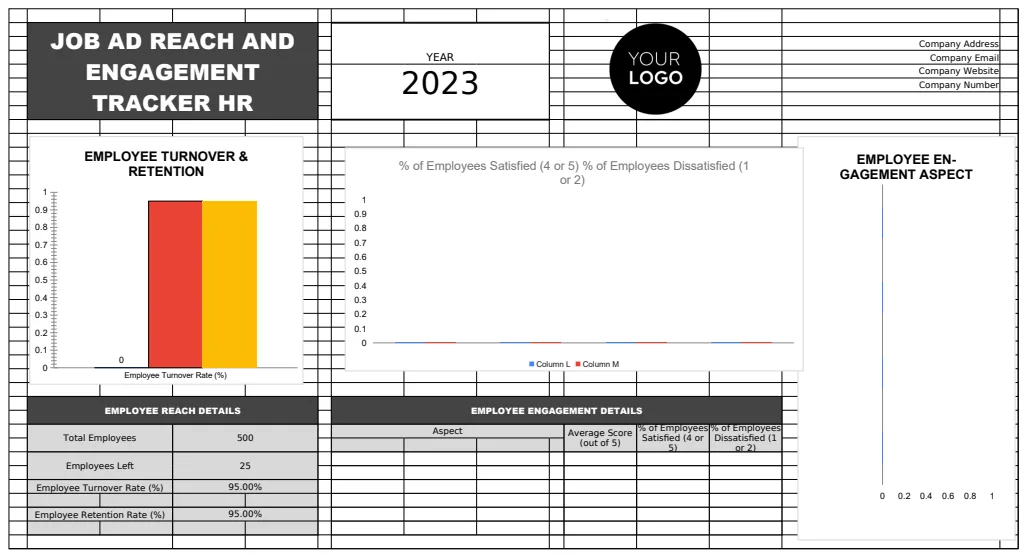
Consider the Onboarding Checklist Tracker HR Template if your organization needs robust tracking across multiple positions and statuses.
What if I have remote employees?
Onboarding remote employees requires a slightly different approach. Ensure your checklist includes tasks like shipping equipment well in advance, scheduling virtual introductions and training sessions, and providing clear instructions for accessing company systems remotely. Virtual "coffee chats" with team members can help bridge the social gap. Make sure IT support is readily available via video call or chat on their first day.
How do I track progress without being overbearing?
The key is clear communication and setting expectations. When a task is marked "In Progress" or "Awaiting Information," it provides context without requiring constant check-ins. Regular, scheduled one-on-one meetings with managers are crucial for discussing progress on role-specific goals and cultural integration. Using a visual tool like a well-formatted Excel sheet helps everyone stay informed transparently.
Can I adapt a template for internal transfers?
Absolutely. While many onboarding checklists focus on external hires, the core principles apply to internal transfers as well. You might simplify some sections (e.g., IT setup might be minimal if they're already within the company) but still need to cover role-specific training, introductions to the new team, and understanding new departmental policies or workflows. A New Hire Checklist Template can serve as a solid foundation that you can then customize for internal moves.
What's the cost of these templates?
Many of our templates, including various employee onboarding checklist templates, are available as part of a one-time purchase for unlimited downloads. This means you can access and use any template in our library, as many times as you need, for just $9.