Build a family budget in Google Sheets in under an hour
Tired of messy finances? Build a flexible family budget planner in Google Sheets quickly and easily.
When your family’s spending is a tangled mess of shared credit cards, individual allowances, and fluctuating income, a generic monthly budget can feel like trying to navigate a maze with a blindfold on. This is where a well-structured family budget planner Google Sheets template becomes an indispensable tool, offering clarity and control. You need a system that can handle the complexities of household finances, not just a simple income-versus-expenses tracker.
A robust family budget planner Google Sheets template should allow you to categorize spending, track multiple income sources, and visualize your financial health over time. It needs to be flexible enough to accommodate unexpected expenses and adaptable to your family’s unique financial habits. Let’s look at how to build or adapt one to fit your needs, ensuring you can finally get a clear picture of where your money is going.
Understanding Your Family's Cash Flow
Before diving into a template, take an honest look at your family's actual spending patterns. This isn't about setting arbitrary limits; it's about understanding the reality. Gather bank statements, credit card bills, and receipts from the last three to six months. Categorize every single outgoing transaction. Don’t just lump everything into “Miscellaneous.” Break it down: groceries, dining out, utilities, rent/mortgage, transportation (gas, public transit, maintenance), entertainment, personal care, children’s activities, debt payments, and savings.
Identifying where your money truly goes is the first, and often most eye-opening, step. You might discover that seemingly small, recurring expenses add up to a significant portion of your income. This awareness is crucial for setting realistic budget goals.
Key Components of an Effective Family Budget Planner
A good family budget planner Google Sheets template will typically include several core sections to provide a holistic view of your finances. Think of these as the building blocks for financial control.
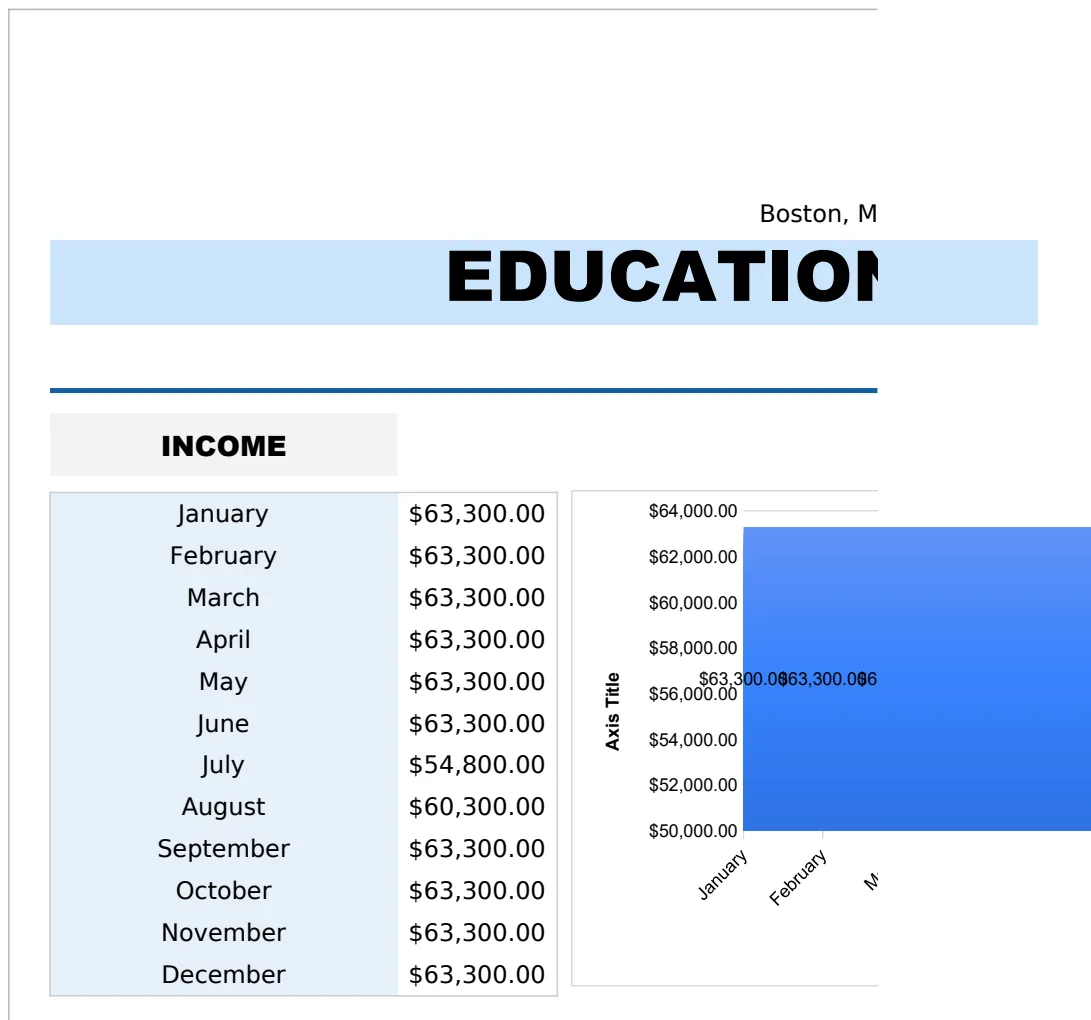
- Income Tracker: This section should list all sources of income for the household. Be specific: salaries, freelance income, child support, rental income, etc. Differentiate between regular and irregular income.
- Expense Categories: As mentioned, detailed categorization is vital. Include both fixed expenses (rent, mortgage, loan payments) and variable expenses (groceries, utilities, entertainment).
- Budgeted vs. Actual Spending: This is the heart of the budget. For each category, you’ll set a budgeted amount and then track your actual spending against it. This comparison highlights areas where you’re overspending or underspending.
- Savings Goals: Whether it’s for a down payment, a vacation, or an emergency fund, clearly define your savings goals and allocate funds towards them.
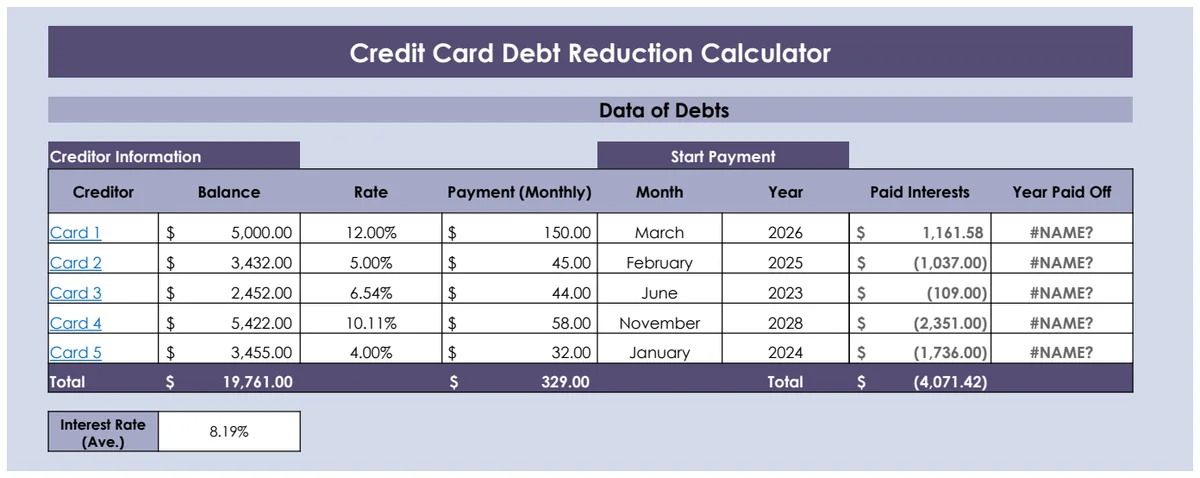
- Debt Tracking: If your family has debts, a dedicated section to track balances, interest rates, and minimum payments is essential.
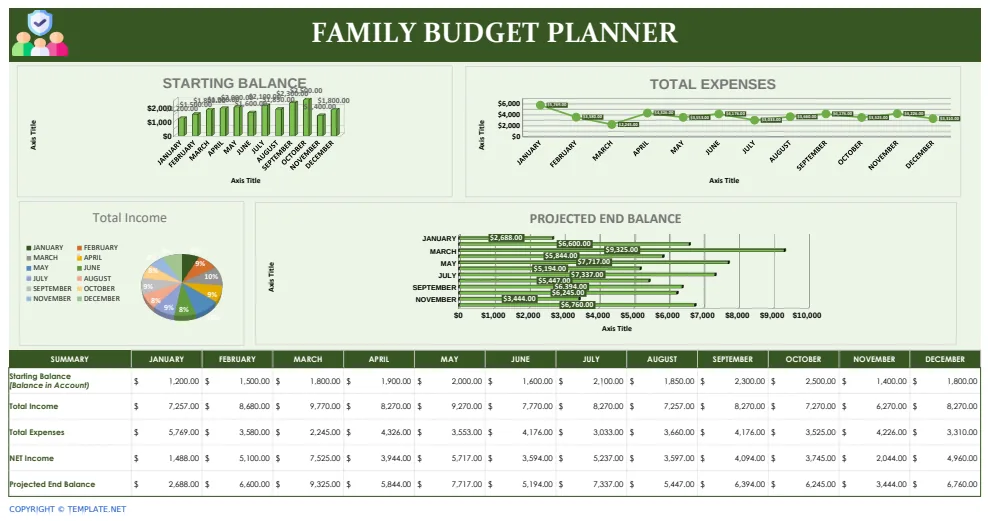
- Summary/Dashboard: A visual overview is incredibly helpful. This could include charts showing spending by category, net income, and progress towards savings goals.
A template like the Family Budget Planner Template is designed with these components in mind, offering a structured starting point that you can customize.
Setting Up Your Google Sheets Budget
Let’s walk through setting up a basic, yet effective, family budget planner in Google Sheets. This approach emphasizes clarity and ease of use.
- 01Create a New Sheet: Open Google Sheets and start a new blank spreadsheet. Name it something like "Family Budget - [Month/Year]".
- 02Set Up Columns: In the first row, create the following column headers:
- Category: (e.g., Income, Housing, Food, Transportation, Utilities, Personal, Entertainment, Savings, Debt)
- Sub-Category: (e.g., Salary, Rent, Groceries, Gas, Electricity, Clothing, Movies, Emergency Fund, Credit Card Payment)
- Budgeted Amount: The amount you plan to spend or receive.
- Actual Amount: The amount actually spent or received.
- Difference: This column will show
=(D2-C2)(assuming Actual is in column D and Budgeted in C, adjusting cell references as needed) to highlight over or under spending. - Notes: For any specific details about a transaction.
- 03Populate Income: In the "Category" column, enter "Income." Under "Sub-Category," list your sources (e.g., "Salary - John," "Freelance Gigs"). Enter the budgeted amount in column C. Leave column D blank initially.
- 04Populate Expenses: In the "Category" column, add your main expense categories. Under "Sub-Category," list specific items. For example, under "Food," you might have "Groceries" and "Dining Out." Enter your budgeted amounts in column C.
- 05Add Savings and Debt: Create categories for "Savings" and "Debt." List specific goals or debts under "Sub-Category."
- 06Formulas for Tracking:
- Difference: In cell
E2(assuming your data starts in row 2), enter the formula=C2-D2. Drag this formula down to apply it to all rows. A positive number means you are under budget (or have more income than expected), and a negative number means you are over budget. - Summary Totals: At the bottom of your "Budgeted Amount" and "Actual Amount" columns (say, in cells
C30andD30for illustrative purposes), use the formula=SUM(C2:C29)to get total budgeted income/expenses. Do the same for actual amounts. - Net Income/Savings: You might add a row at the bottom to calculate your net position:
=SUM(D2:D29)for actual net income, or a similar calculation comparing total income to total expenses.
- 07Conditional Formatting: To quickly see overspending, select the "Difference" column (column E). Go to Format > Conditional formatting. Set a rule: "If cell is less than 0, then format with red background." This visually flags any categories where you've exceeded your budget.
This manual setup provides a deep understanding of your finances. For those who prefer a pre-built solution, a template like Copy of Household Budget Planner Template can save significant time.
Handling Variable and Irregular Income
Families often experience fluctuating income, whether from freelance work, seasonal jobs, or commission-based sales. A budget needs to account for this uncertainty.
- Budget with the Lowest Expected Income: When budgeting for variable income, err on the side of caution. Base your essential budget on your lowest predictable income month. Treat any income above this as a bonus.
- Create an "Irregular Income" Category: If you have a significant portion of income that is unpredictable, create a specific category for it. When this income arrives, decide beforehand where it will go: extra debt payment, boosted savings, or a "fun money" fund.
- Use a Rolling Average: For slightly more predictable, but still variable, income, you could use a rolling average from the past three to six months to set your monthly budget. However, always have a buffer for months that fall below the average.
This approach ensures your essential expenses are covered even in lean months, preventing budget crises.
Tracking Transactions Effectively
The best budget template is useless if you don't diligently track your spending. Here are a few methods:
- Daily Check-ins: Spend 5-10 minutes each day entering transactions into your Google Sheet. This prevents the task from becoming overwhelming.
- Weekly Review: Dedicate a block of time each week (e.g., Sunday evening) to reconcile your budget. Go through your bank and credit card statements and enter any missed transactions.
- Mobile Entry: Use your phone to quickly jot down expenses in a notes app or a dedicated expense tracking app, and then transfer them to your Google Sheet later.
- Shared Access: If multiple family members contribute to spending, ensure they have access to the budget sheet and understand how to enter their transactions. Google Sheets makes this simple with its collaboration features.
The key is consistency. Find a system that works for your family’s lifestyle and stick to it.
Visualizing Your Financial Health
Numbers on a spreadsheet are helpful, but visual representations can make your financial picture much clearer and more motivating. Google Sheets offers robust charting capabilities.
- Pie Charts for Spending Breakdown: Create a pie chart showing your actual spending by category for the month. This instantly reveals where the largest portions of your budget are going.
- Bar Charts for Budget vs. Actual: Use a bar chart to compare your budgeted amount against your actual spending for each category. This provides a quick visual comparison, highlighting areas of concern.
- Line Graphs for Trends: Over several months, a line graph can show trends in income, spending categories, or savings progress, helping you identify patterns and make informed adjustments.
Many pre-built templates, such as the Family Budget Planner, include these dashboards and charts already configured, saving you the effort of setting them up from scratch.
Common Budgeting Mistakes to Avoid
Even with a great tool, families can stumble. Here are a few common pitfalls:
- Unrealistic Budgets: Setting spending targets that are impossible to meet will lead to frustration and abandonment of the budget. Start with your actual spending and make gradual adjustments.
- Not Tracking All Expenses: Small, forgotten purchases add up. Be thorough; if you spend it, log it.
- Forgetting Irregular Expenses: Annual insurance premiums, property taxes, or holiday gifts can derail a budget if not planned for. Set aside a small amount each month for these.
- Lack of Family Involvement: If only one person is managing the budget, it’s easy for others to feel disconnected or unaware of financial goals. Involve your partner and older children in the process.
- Not Reviewing and Adjusting: A budget isn't static. Life changes, income shifts, and priorities evolve. Review your budget regularly (at least quarterly) and make necessary adjustments.
Avoiding these common errors will significantly increase your chances of success.
What if my income varies wildly month-to-month?
For wildly fluctuating income, consider a "zero-based budget" approach applied differently. Instead of assigning every dollar a job at the start of the month, focus on covering your essential, fixed expenses first. Any income that arrives is then allocated to variable expenses, savings goals, or debt repayment in a pre-determined order of priority. This ensures your non-negotiables are met before anything else.
Can I use this for long-term financial planning?
Yes, by extending the timeframe. Instead of just one month, you can create tabs for each month of the year. At the end of each month, duplicate the sheet, rename it for the next month, and reset the "Actual Amount" column to zero while keeping your budgeted amounts. You can then create a summary tab that pulls key figures from each monthly sheet to track annual progress towards larger financial goals.
How do I get my partner on board?
Approach the budget conversation as a team effort to achieve shared goals, rather than a way to control spending. Focus on what you can do with a budget, like saving for a family vacation or reducing financial stress. Show them the potential benefits and how the tool can simplify things for both of you. Using a shared Google Sheet allows for transparency and collaborative input, making it a joint project.
Using a dedicated family budget planner Google Sheets template can transform your approach to household finances, moving you from confusion to clarity. Whether you choose to build one from scratch or adapt a pre-made solution like the Family Budget Planner Template, the act of planning and tracking is what truly makes the difference. Remember, the library offers unlimited downloads for a single one-time fee of $9, which can be a smart investment for accessing a variety of tools.