How to track rent payments with a free spreadsheet
Discover how a free spreadsheet can be your ultimate landlord rent tracker, simplifying payment management and providing instant financial clarity.
People often assume managing rental income is as simple as noting down a number. In reality, a robust landlord rent tracker spreadsheet template needs to handle more than just the rent amount. It needs to track payment dates, identify late payments instantly, and ideally, connect with expenses for a full financial picture. You're looking for a way to organize this information efficiently, and a well-structured spreadsheet is the best tool for the job.
A good landlord rent tracker spreadsheet template moves beyond a simple list. It should offer clarity at a glance, allowing you to see which tenants are current, who is overdue, and how much you've collected over time. This proactive approach prevents small issues, like a missed payment, from snowballing into larger problems that impact your cash flow.
Setting Up Your Core Rent Tracker Sheet
Start with a sheet named "Rent Payments" or similar. You'll want columns that capture the essential details for each transaction. Imagine you have a property with a few units; you'll need to distinguish between them.
Here’s a breakdown of the essential columns you should include:
- Unit/Property ID: If you manage multiple properties or units within a building, this is crucial. It could be "Unit 101," "Apt B," or "123 Main St."
- Tenant Name: Who is responsible for this payment?
- Payment Date: The date the rent was actually received. This is different from the due date.
- Due Date: The date the rent was officially due.
- Payment Period: What month or period does this payment cover? (e.g., "July 2024").
- Rent Amount: The base rent amount for the period.
- Late Fee: Any additional amount charged for a late payment.
- Total Received: This is the sum of Rent Amount and Late Fee.
- Payment Method: How was the rent paid? (e.g., "Bank Transfer," "Check," "Online Portal").
- Notes: A space for any specific details, like partial payments or communication about the tenant.
- Status: This is a key column for quick review. You can use formulas to automatically populate this based on the dates and amounts.
Automating Payment Status with Formulas
The "Status" column is where you gain efficiency. Instead of manually scanning dates, let the spreadsheet do the work. We can use a combination of IF and ISBLANK or ISNUMBER functions here.
Let's say your columns are as follows:
Due Dateis in column DTotal Receivedis in column HPayment Dateis in column C
In cell I2 (assuming your data starts on row 2), you could enter a formula like this:
``Excel =IF(ISBLANK(H2), IF(D2 < TODAY(), "Overdue", "Unpaid"), IF(H2 < E2, "Underpaid", "Paid")) ``
- This formula first checks if
Total Received(H2) is blank. - If it's blank, it then checks if the
Due Date(D2) is before today. If yes, it's "Overdue." If no, it's "Unpaid." - If
Total Received(H2) is NOT blank, it checks if the amount received is less than the expected rent amount (let's assume yourRent Amountis in E2). If it's less, it's "Underpaid." - Otherwise, if the amount is as expected or more, it's "Paid."
This single formula provides immediate insight into the payment status of each unit.
Tracking Late Fees Effectively
Late fees can be a contentious point, so clear tracking is vital. You can implement a system where late fees are automatically calculated or manually added.
If you have a policy, say a flat $50 late fee applied 5 days after the due date, you can incorporate this into your "Status" formula or have a separate column that calculates it.
For example, in a dedicated Late Fee column (column G), you could use:
``Excel =IF(AND(D2 < TODAY()-5, ISBLANK(H2)), 50, 0) ``
This formula checks if the Due Date (D2) is more than 5 days ago AND if no payment has been received yet (H2 is blank). If both are true, it adds a $50 late fee. Otherwise, it's $0. You'd then adjust your Total Received to sum the Rent Amount and the calculated Late Fee.
Summarizing Income with SUMIFS
Beyond individual transactions, you need an overview. A summary section at the top of your sheet, or on a separate "Dashboard" sheet, is invaluable. Here, SUMIFS is your best friend.
Suppose you want to know the total rent collected for a specific month. You could have cells for:
- Selected Month: A cell where you input the month and year (e.g., "July 2024").
- Total Rent Collected: A cell that calculates the sum.
In the "Total Rent Collected" cell, you would use a formula like:
``Excel =SUMIFS('Rent Payments'!H:H, 'Rent Payments'!E:E, "July 2024") ``
This formula sums the Total Received (column H) from your 'Rent Payments' sheet, but only for rows where the Payment Period (column E) matches "July 2024."
You can create similar SUMIFS formulas to track:
- Total late fees collected.
- Number of payments received.
- Number of overdue payments.
- Income by Unit/Property ID.
Connecting Rent Payments to Property Expenses
A landlord rent tracker spreadsheet template is most powerful when it’s part of a larger financial management system. Simply tracking income isn't enough; you need to know your net profit. This is where integrating with an expense tracker becomes essential.
You could have a separate sheet for "Expenses." Columns here might include:
- Date: When the expense occurred.
- Description: What was the expense for? (e.g., "Plumbing Repair," "Property Tax," "Insurance").
- Category: (e.g., "Repairs," "Taxes," "Insurance," "Utilities").
- Amount: The cost of the expense.
- Property/Unit: Which property did this expense relate to?
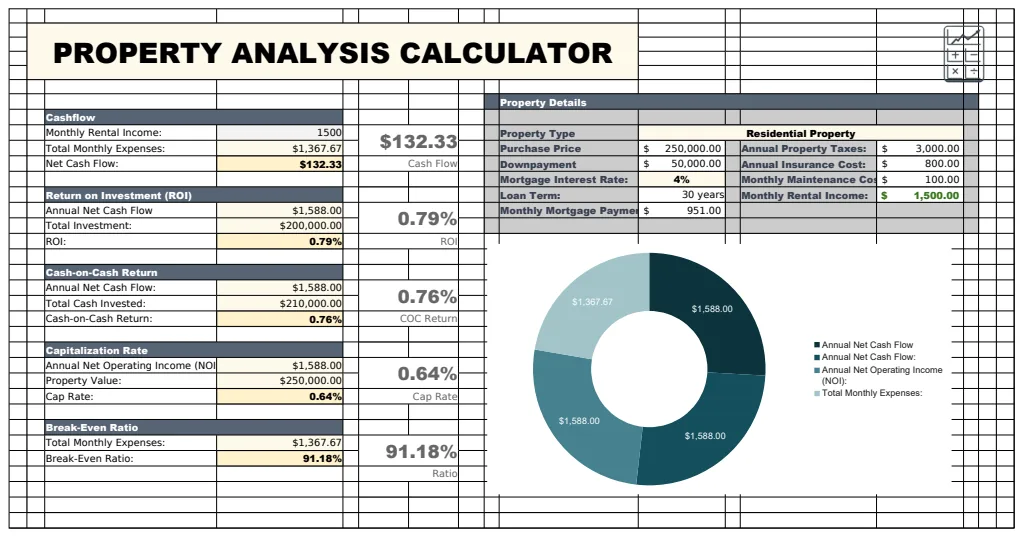
Using a template like the Rental Property Income and Expenses Tracker can provide a pre-built structure for this. You can then link your rent collection summary to your expense summary to calculate net profit.
For instance, on a "Dashboard" sheet:
- Total Rent Income:
=SUM(Rent Payments!H:H)(or a more specificSUMIFSfor a period). - Total Expenses:
=SUM(Expenses!D:D)(assuming expense amounts are in column D). - Net Profit:
= [Total Rent Income Cell] - [Total Expenses Cell]
Using Conditional Formatting for Visual Cues
Conditional formatting can transform your spreadsheet from a data dump into an intuitive dashboard. It’s a visual way to highlight important information.
On your "Rent Payments" sheet:
- Highlight Overdue Payments: Select the entire row or just the "Status" column. Apply a rule that turns the cell (or row) red if the "Status" column contains "Overdue" or "Unpaid."
- Highlight Paid in Full: Use green for rows where the "Status" is "Paid."
- Highlight Underpaid: Use yellow or orange for "Underpaid."
To do this:
- 01Select the range of cells you want to format (e.g.,
A2:I100). - 02Go to the "Format" menu and choose "Conditional formatting."
- 03Set the rule type to "Custom formula is."
- 04For overdue, enter
= $I2="Overdue"(assuming your Status column is I, and you start formatting from row 2). Choose a red fill. - 05Add another rule for "Paid" (
= $I2="Paid") with a green fill, and for "Underpaid" (= $I2="Underpaid") with a yellow fill.
This visual system makes it incredibly quick to scan your rent roll and identify problem areas.
Common Mistakes to Avoid
Many landlords fall into the same traps when setting up their trackers. Be mindful of these:
- Not tracking payment dates: Relying only on the due date doesn't tell you when you actually received funds, which is crucial for cash flow.
- Forgetting partial payments: If a tenant pays half rent, record it as such. Don't let it disappear into a "missing payment" category without explanation.
- Inconsistent categorization of expenses: If you lump "repairs" and "maintenance" together, you lose the ability to see trends in specific types of costs.
- Not backing up your spreadsheet: A technical glitch can wipe out months of data. Use cloud storage (like Google Sheets) or save regular backups.
- Overcomplicating the initial setup: Start with the core columns. You can add more detailed tracking later if needed. A complex sheet that's hard to use won't get used.
Advanced Features and Next Steps
Once your basic landlord rent tracker spreadsheet template is functioning well, you might want to add more sophistication.
Generating Rent Receipts
When a tenant pays, they often need a receipt. Instead of manual creation, you can use a dedicated template. The Rent Receipt Template or Rental Receipts can automatically generate these, saving you time and ensuring professionalism. You can link these to your main tracker by inputting the payment details into the receipt template, which then populates the main sheet.
Tracking Tenant Information
You might want a separate sheet for tenant details: contact numbers, lease start/end dates, security deposit amounts, and move-in/move-out inspection notes. This keeps your rent payment sheet focused on financial transactions while still providing access to crucial tenant data.
Budgeting and Forecasting
With historical data on rent collection and expenses, you can start to forecast future income and identify potential budget shortfalls. This helps in planning for vacancies, major repairs, or property upgrades. A tool like the Rental Property Income and Expenses Tracker is a great starting point for this level of financial insight.
What if I manage commercial properties?
The principles are the same, but commercial leases can be more complex, often including CAM (Common Area Maintenance) charges, percentage rent, or tiered rent structures. Your spreadsheet will need additional columns to account for these variables, potentially including separate fields for base rent, CAM fees, and other charges, with formulas to sum them correctly.
Can I use this for vacation rentals?
Yes, though the frequency of payments and the nature of tracking might differ. For short-term rentals, you might track bookings rather than monthly payments. You'll need columns for booking dates, check-in/check-out, guest names, and payment per booking, alongside cleaning fees, service charges, and any other associated costs.
How do I handle multiple payment methods in one month?
If a tenant makes a partial payment via one method and the rest via another, record each payment separately. For example, one row for a $500 check payment received on the 3rd, and another row for a $500 bank transfer received on the 10th, both for the same "July 2024" rent period. Ensure your Total Received for the period accurately reflects the sum of all entries for that period.
Is there a limit to how many properties I can track?
No, a well-structured spreadsheet can handle a virtually unlimited number of properties or units. The key is consistent data entry and using unique identifiers (like "Unit ID") to keep everything organized. As your portfolio grows, consider organizing your sheets by property or using a dedicated "Property List" sheet that links to all other financial data. The OpenWorksheet library offers many templates designed to scale, with a one-time purchase for unlimited downloads.