Need to track inventory with barcodes? Try this spreadsheet.
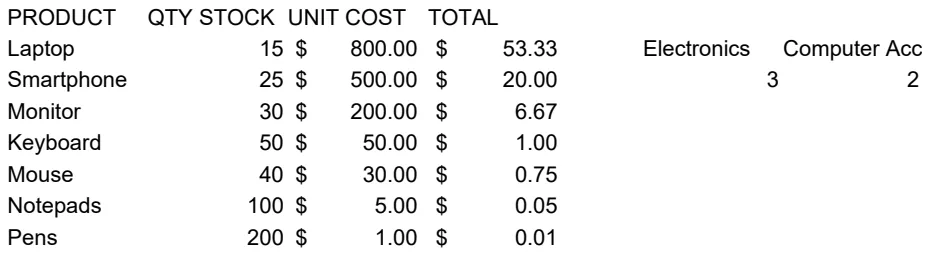
Discover how to build a dynamic barcode inventory spreadsheet template that goes beyond a simple list.
The most common mistake people make with a barcode inventory spreadsheet template is assuming that simply listing items and their barcodes is enough. Without a clear system for tracking quantities, locations, and movement, the template quickly becomes a static list rather than a dynamic tool. A functional barcode inventory spreadsheet template needs to account for inflow and outflow, providing a real-time snapshot of your stock.
This approach ensures you're not just recording what you have, but actively managing it. We'll cover how to set up your sheet for efficient tracking, including essential columns, formulas, and best practices to avoid common pitfalls. Think of it as building a miniature ERP system right in your spreadsheet.
Essential Columns for Your Barcode Inventory
To effectively manage inventory with barcodes, your spreadsheet needs more than just a product name and its corresponding barcode. Each row should represent a unique item or a specific batch of an item. Here are the core columns you'll want to include:
- Item ID/SKU: A unique identifier for each product. This might be your existing SKU or a new one you generate.
- Product Name: A descriptive name for the item.
- Barcode (UPC/EAN/Internal): The actual barcode number. Ensure this is formatted as text to prevent leading zeros from being dropped.
- Description: Additional details about the product, such as color, size, or material.
- Category: Grouping items by type (e.g., "Electronics," "Apparel," "Office Supplies") helps with reporting and analysis.
- Supplier: Who you purchase the item from.
- Purchase Cost: The cost per unit when you buy the item. This is crucial for calculating inventory value.
- Quantity on Hand: The current number of units you have in stock. This is the most critical dynamic field.
- Reorder Point: The minimum quantity that triggers a reorder.
- Location: Where the item is stored (e.g., "Warehouse A, Shelf 3B," "Retail Floor, Rack 2"). This is especially important if you have multiple storage areas.
- Last Count Date: The date the quantity for this item was last verified.
For more advanced cost tracking, you might consider a template like the Inventory Cost Template, which automates the calculation of total inventory value based on your purchase costs and quantities.
Setting Up Your Barcode Column
The barcode column is foundational. When you scan a barcode, you want that data to accurately populate the correct field.
- 01Format as Text: In Excel or Google Sheets, select the entire 'Barcode' column. Right-click and choose "Format Cells" (Excel) or "Format" > "Number" > "Plain Text" (Google Sheets). This prevents numbers like "0012345" from being displayed as "12345."
- 02Data Validation (Optional but Recommended): You can add data validation to ensure that only numbers or alphanumeric characters within a certain length are entered into the barcode field. This helps catch typos before they become problems.
- 03Consistency is Key: Decide on a standard for your barcodes. Are you using UPCs, EANs, or internal codes? Ensure all entries in this column adhere to that standard.
Tracking Quantity Changes with Formulas
The "Quantity on Hand" column is where the magic happens. It needs to be updated dynamically as items are sold, received, or moved. While manual updates are possible, using formulas makes it far more robust.
One effective method is to have separate sheets for "Sales Transactions" and "Receiving Transactions." Your main inventory sheet can then pull data from these transaction logs.
Example using Google Sheets or Excel with dynamic arrays:
Let's say your main inventory sheet is named "Inventory" and has columns A through K as listed above. Your "Sales" sheet has columns: "Date," "Item ID," "Quantity Sold." Your "Receiving" sheet has columns: "Date," "Item ID," "Quantity Received."
In your "Inventory" sheet, in the "Quantity on Hand" column (Column H), you could use a formula like this for each Item ID:
``Excel =SUMIFS('Receiving'!C:C, 'Receiving'!B:B, A2) - SUMIFS('Sales'!C:C, 'Sales'!B:B, A2) ``
A2refers to the Item ID in the current row of your "Inventory" sheet.'Receiving'!C:Cis the "Quantity Received" column in your "Receiving" sheet.'Receiving'!B:Bis the "Item ID" column in your "Receiving" sheet.'Sales'!C:Cis the "Quantity Sold" column in your "Sales" sheet.'Sales'!B:Bis the "Item ID" column in your "Sales" sheet.
This formula calculates the total received for that Item ID and subtracts the total sold, giving you the current "Quantity on Hand." You would then drag this formula down for all your items.
Important Considerations:
- Initial Stock: You'll need to manually enter the initial "Quantity on Hand" for existing stock before implementing these formulas.
- Data Integrity: Ensure your Item IDs are perfectly matched between the inventory and transaction sheets. Any mismatch will cause the calculations to be inaccurate.
- New Items: When you add a new item, it will start with a quantity of 0 based on this formula until you record its first receipt.
Implementing Barcode Scanning
The beauty of a barcode inventory spreadsheet template is its integration with scanning hardware.
- USB Scanners: Most USB barcode scanners act like a keyboard. When you scan a barcode, it simply types the number into the active cell. For this to work efficiently, you'll typically want your cursor in the "Barcode" column of a new row when receiving new inventory, or in a dedicated "Scan Here" cell that then triggers a lookup.
- Mobile Scanners/Apps: Many smartphone apps can scan barcodes and send the data to your spreadsheet, often via cloud sync or by generating a CSV file you can import.
- Automation: For higher volumes, consider dedicated inventory management software that integrates directly with barcode scanners and your sales channels. However, for many small businesses, a well-structured spreadsheet is a cost-effective starting point.
Using Formulas for Reorder Points and Low Stock Alerts
Once your quantities are being tracked accurately, you can use formulas to flag items that need reordering.
- 01Conditional Formatting for Low Stock: Select your "Quantity on Hand" column. Go to "Conditional Formatting" > "New Rule" (Excel) or "Format" > "Conditional formatting" (Google Sheets). Set a rule that, for example, turns the cell red if the value is less than or equal to the value in the "Reorder Point" column.
- Rule Example (Excel):
=H2<=I2(assuming H is "Quantity on Hand" and I is "Reorder Point," and you're applying this starting from row 2). - Rule Example (Google Sheets): Apply to range
H2:Hand use a custom formula like=H2<=I2.
- 02Status Column: You can add another column, perhaps named "Reorder Status," with a formula that says "Reorder" if the quantity is low, or "OK" otherwise.
``Excel =IF(H2<=I2, "Reorder", "OK") ``
This makes it immediately obvious which items require your attention without manually checking each one.
Advanced Tracking and Reporting
Beyond basic stock counts, a barcode inventory spreadsheet template can support more complex needs.
- Inventory Turnover: To understand how quickly you're selling items, you can adapt your data for an inventory turnover analysis. This involves tracking sales volume over specific periods. A dedicated template like the Inventory Turnover Analysis Template can provide pre-built calculations and visualizations for this.
- Batch/Lot Tracking: If you need to track specific batches or lots of products (e.g., for expiration dates or recalls), you'll need to modify your structure. Instead of each row being a unique SKU, each row might represent a specific batch of a SKU. This means your "Barcode" column might refer to a batch-specific barcode, or you might add a "Batch/Lot Number" column.
- Serialization: For high-value items where each individual unit must be tracked (e.g., laptops, specific electronic components), each row in your inventory must represent a single unit, and the barcode would be unique to that unit. This is where a system like the Equipment Inventory Template might be more suitable if you're tracking physical assets with serial numbers and depreciation.
Common Mistakes to Avoid
Even with a well-structured template, errors can creep in.
- Inconsistent Barcode Data: Scanners might misread barcodes, or manual entry can lead to typos. Regularly audit your barcode column for duplicates or invalid entries.
- Forgetting to Update Transactions: The most common failure point is not recording every sale or receipt. This leads to inaccurate "Quantity on Hand."
- Using Formulas Incorrectly: Errors in
SUMIFSorVLOOKUP/XLOOKUPformulas can silently corrupt your data. Double-check your ranges and criteria. - Lack of Physical Counts: Relying solely on spreadsheet data without periodic physical inventory counts is risky. Stock takes help identify discrepancies caused by theft, damage, or administrative errors.
- Poor Item ID Management: If your Item IDs or SKUs are not unique or change frequently, your tracking formulas will break. Establish a strict policy for item creation and modification.
Frequently Asked Questions
How do I handle returns with my barcode inventory spreadsheet template?
Returns should be treated as a "receipt" transaction. You'll record the item ID and the quantity returned in your "Receiving Transactions" log, or directly update the "Quantity on Hand" in your main inventory sheet, similar to how you handle new stock coming in. Ensure your system distinguishes between new receipts and customer returns if needed for reporting.
Can I use this for multiple warehouse locations?
Yes, absolutely. You'll need to add a "Location" column to your main inventory sheet. If you use transaction logs, you'll also need to add a "Location" column to those sheets to specify where items were received or shipped from. Your SUMIFS formulas might then need to incorporate the location criteria if you want to track stock per location.
How do I convert my existing inventory list into a barcode inventory spreadsheet template?
Start by ensuring you have a unique identifier (SKU or Item ID) for every item. If your current list doesn't have barcodes, you'll need to assign them. You can generate internal barcodes using online tools or spreadsheet functions and then print labels to attach to your physical inventory. Once you have barcodes assigned, you can populate the template columns, being careful to format the barcode column as text.
What if I need more advanced features like multi-currency or kitting?
For more complex requirements, a dedicated inventory management system might be more appropriate. However, you can often build in some advanced logic using more complex spreadsheet formulas, array formulas, or even scripts. If your needs grow beyond what a spreadsheet can comfortably handle, explore specialized software solutions. Remember, OpenWorksheet offers a Data Inventory Template Letter which can be a good starting point for organizing item details before moving to more transactional tracking.