Stop overpaying: Fix your mortgage amortization errors
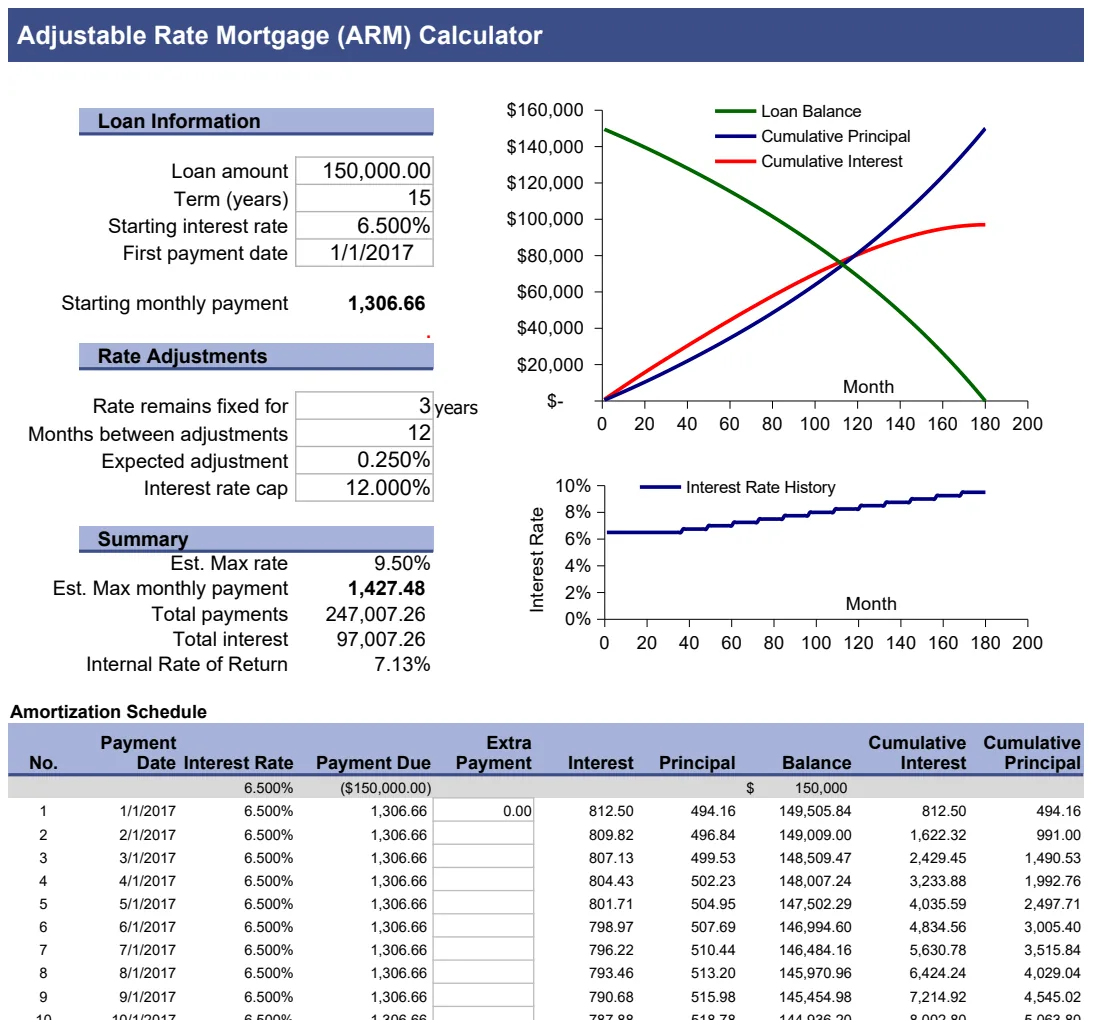
A functional mortgage amortization spreadsheet template separates inputs, calculations, and outputs for clarity and easy updates.
The core of a functional mortgage amortization spreadsheet template is a clear separation between input cells, calculation cells, and output cells. Most people struggle because they mix these, making formulas hard to follow and updates a headache.
This structure is key to understanding your loan and predicting future payments. A well-built template allows you to see exactly how each payment is applied to principal and interest, and how that changes over the life of the loan. This is the foundation for effective financial planning, whether you're buying a home or managing an investment property.
Understanding the Amortization Schedule
An amortization schedule is a table detailing each periodic payment on an amortizing loan. For a mortgage, this typically means breaking down each monthly payment into its principal and interest components. Crucially, it also shows the remaining loan balance after each payment.
At the start of a mortgage, a larger portion of your payment goes toward interest. As time passes and the principal balance decreases, more of your payment shifts to principal. A good mortgage amortization spreadsheet template will make this shift visually obvious. You can see the interest portion shrink and the principal portion grow with each passing payment.
Essential Components of Your Template
To build your own effective mortgage amortization spreadsheet template, or to evaluate a pre-built one, focus on these key elements:
- Loan Details Input Area: This is where you'll enter the fundamental information about your mortgage.
- Loan Amount: The total amount borrowed. For example, $300,000.
- Annual Interest Rate: The stated yearly interest rate. If your rate is 5.5%, enter
5.5%. - Loan Term (Years): The total duration of the loan in years, e.g., 30 years.
- Loan Term (Months): Often calculated automatically as
Loan Term (Years) * 12. So, 30 years becomes 360 months. - Payment Frequency: Usually "Monthly", but could be bi-weekly.
- Start Date of Loan: The date the first payment is due.
- Calculated Payment: This cell will hold your fixed monthly payment amount. This is often calculated using the
PMTfunction in Excel or Google Sheets. The formula might look something like:
=PMT(Annual Interest Rate / 12, Loan Term (Months), -Loan Amount) For a $300,000 loan at 5.5% for 30 years, this calculates to approximately $1,702.97.
- Amortization Table: This is the heart of the template. It's a series of rows, one for each payment, with the following columns:
- Payment Number: A simple counter from 1 to the total number of payments (e.g., 1 to 360).
- Payment Date: Calculated based on the loan start date and payment frequency.
- Starting Balance: The loan balance at the beginning of the period. For the first row, this is your initial Loan Amount. For subsequent rows, it's the Ending Balance from the previous row.
- Payment Amount: This will be a static reference to your calculated monthly payment.
- Interest Paid: The portion of the payment that goes to interest. The formula is typically:
Starting Balance * (Annual Interest Rate / 12). - Principal Paid: The portion of the payment that reduces the loan balance. This is calculated as:
Payment Amount - Interest Paid. - Ending Balance: The loan balance after the payment. Calculated as:
Starting Balance - Principal Paid. This figure becomes the Starting Balance for the next row.
Building Your Amortization Table Step-by-Step
Let's walk through setting up the amortization table in a new spreadsheet. Assume your loan details are in cells B1 (Loan Amount), B2 (Annual Interest Rate), and B3 (Loan Term Years). We'll put the calculated monthly payment in cell B5.
- 01Set up Input Cells:
- In cell
A1, type "Loan Amount". InB1, enter300000. - In cell
A2, type "Annual Interest Rate". InB2, enter5.5%. - In cell
A3, type "Loan Term (Years)". InB3, enter30. - In cell
A4, type "Loan Term (Months)". InB4, enter=B3*12. - In cell
A5, type "Monthly Payment". InB5, enter=PMT(B2/12, B4, -B1). Format this cell as currency.
- 02Set up Amortization Table Headers:
- In cell
A7, type "Payment #". - In cell
B7, type "Payment Date". - In cell
C7, type "Starting Balance". - In cell
D7, type "Payment". - In cell
E7, type "Interest Paid". - In cell
F7, type "Principal Paid". - In cell
G7, type "Ending Balance".
- 03Populate the First Row of Data (Row 8):
- In cell
A8, enter1. - In cell
B8, enter your loan's first payment date. For example, if your loan started on2024-01-15and payments are due on the 15th of each month, the first payment date would be2024-02-15. - In cell
C8, enter the initial loan amount:=B1. Format as currency. - In cell
D8, enter a reference to your calculated monthly payment:=$B$5. The dollar signs create an absolute reference, so it doesn't change when you copy the formula down. Format as currency. - In cell
E8, enter the interest calculation:=C8*(B2/12). Format as currency. - In cell
F8, enter the principal calculation:=D8-E8. Format as currency. - In cell
G8, enter the ending balance calculation:=C8-F8. Format as currency.
- 04Populate the Second Row of Data (Row 9):
- In cell
A9, enter2. - In cell
B9, enter the next payment date. IfB8is2024-02-15, this would be=EDATE(B8,1). - In cell
C9, the starting balance is the previous row's ending balance:=G8. Format as currency. - In cell
D9, copy the absolute reference fromD8:=$B$5. Format as currency. - In cell
E9, copy the interest formula fromE8:=C9*(B2/12). Format as currency. - In cell
F9, copy the principal formula fromF8:=D9-E9. Format as currency. - In cell
G9, copy the ending balance formula fromG8:=C9-F9. Format as currency.
- 05Copy Formulas Down:
- Select cells
A9throughG9. - Drag the fill handle (the small square at the bottom-right of the selection) down for the total number of payments (e.g., 360 rows). Excel and Google Sheets will automatically adjust the relative cell references for each row.
Important Note: The last row's "Ending Balance" should be very close to zero. Minor discrepancies can occur due to rounding.
Advanced Features for Your Template
Once you have the basic amortization schedule working, you can add features to make your mortgage amortization spreadsheet template even more powerful.
- Extra Payments: Add a column where you can input an extra principal payment each month. You'll need to adjust the "Payment Amount" and "Principal Paid" calculations to account for this. For example, your "Principal Paid" could become
(Payment Amount - Interest Paid) + Extra Principal Payment. The "Ending Balance" calculation remains the same. - Cumulative Interest: Add a cell at the top that sums the "Interest Paid" column to show total interest paid to date.
- Amortization Charts: Visualizing the breakdown of principal vs. interest over time can be very insightful. Most spreadsheet software can create a stacked bar chart using the "Interest Paid" and "Principal Paid" columns against the "Payment Date" or "Payment #".
If you prefer not to build this from scratch, a pre-built template can save you a lot of time. For fixed-rate mortgages, the Home Mortgage Calculator offers a solid amortization schedule.
Common Mistakes to Avoid
Building or using an amortization template can lead to errors if you're not careful. Here are a few common pitfalls:
- Incorrect Interest Calculation: Failing to divide the annual interest rate by 12 when calculating monthly interest is a very common mistake. Always use
Annual Rate / 12for monthly calculations. - Forgetting Absolute References: When copying formulas, forgetting to use dollar signs (
$) for references to cells like the monthly payment or annual interest rate will cause your calculations to break as you move down the table. - Rounding Errors: While usually minor, be aware that if your final balance isn't exactly $0.00, it's often due to cumulative rounding. The last payment might need a slight adjustment to bring the balance to zero.
- Ignoring Fees: Most basic templates don't account for property taxes, homeowner's insurance (PMI), or private mortgage insurance. These are often escrowed and added to your monthly payment but do not affect the principal balance of the loan itself. If you need to factor these in, you'll need to modify the "Payment Amount" and potentially add separate tracking.
Frequently Asked Questions
How do I calculate the total interest paid over the life of the loan?
You can sum the "Interest Paid" column of your amortization schedule. Alternatively, for a fixed-rate loan, you can calculate it as (Monthly Payment * Total Number of Payments) - Loan Amount. For example, ($1,702.97 * 360) - $300,000 = $313,069.20 in total interest paid.
Can I use this template to see the effect of paying extra on my mortgage?
Yes, you absolutely can. By adding an "Extra Principal Payment" column and adjusting your formulas, you can model how additional payments accelerate principal reduction and save you money on interest. This is a powerful feature for debt reduction planning. For more complex scenarios involving variable rates, the ARM Calculator - Adjustable Rate Mortgage is a better fit.
What if my mortgage has an escrow account for taxes and insurance?
A standard amortization spreadsheet template focuses solely on the loan principal and interest. Escrowed amounts for property taxes and homeowner's insurance are typically added to your monthly mortgage payment but do not go towards reducing the loan balance. To track these, you would need to add separate sections or use a more comprehensive home finance tracker. The Mortgage Loan Payments template provides a detailed breakdown of interest, but doesn't inherently manage escrow.
How can I compare different mortgage offers using a spreadsheet?
You can set up multiple instances of your mortgage amortization spreadsheet template, each with different loan amounts, interest rates, or terms. By comparing the monthly payments, total interest paid, and payoff times across these scenarios, you can make an informed decision. A tool like the Home Mortgage Calculator often includes features for comparing multiple scenarios side-by-side.