Track your donations with this free spreadsheet template
Avoid common mistakes with a dynamic fundraising tracker spreadsheet template that helps you engage donors and refine campaign strategy.
The most common mistake people make with a fundraising tracker spreadsheet template is treating it as a static data dump rather than a dynamic tool for engagement. This means they input data and then rarely revisit it, missing opportunities to nurture donor relationships or adjust campaign strategy based on real-time results. A well-structured tracker should not only record donations but also prompt action, helping you understand who is giving, how much, and how often, all within a clear, actionable format.
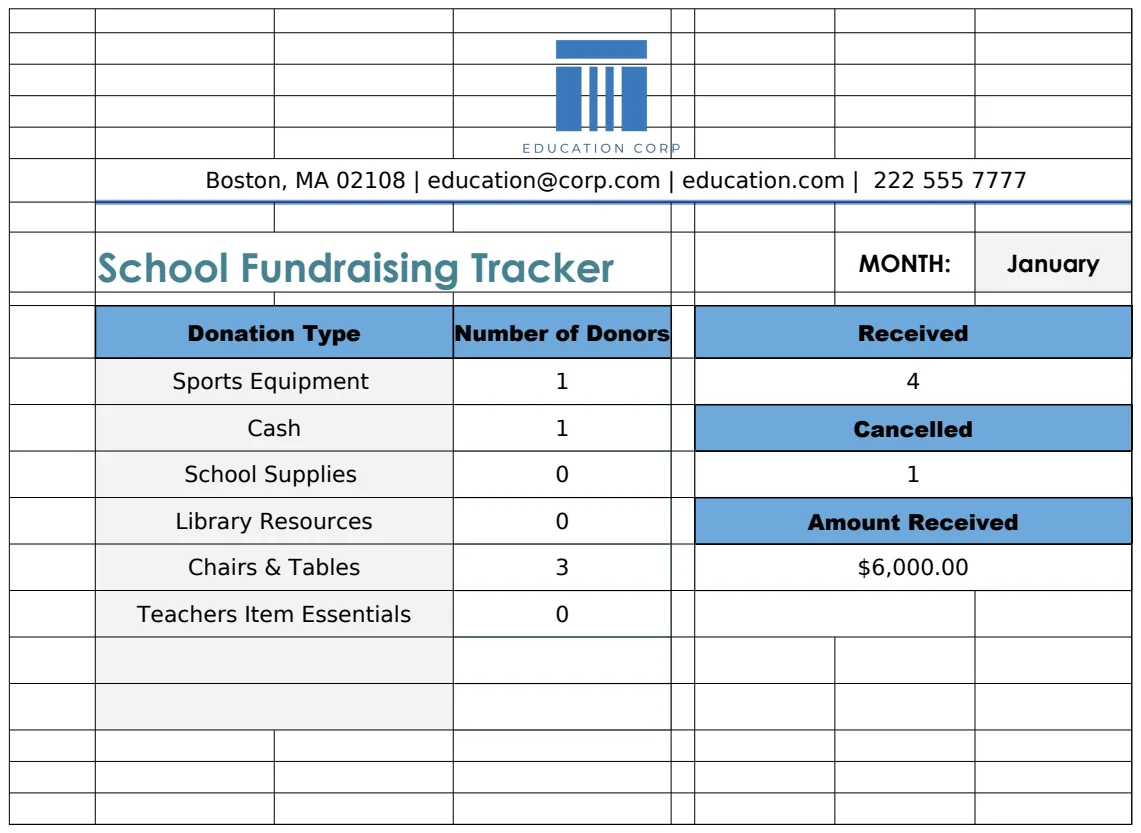
To effectively manage your nonprofit's outreach and contributions, a robust fundraising tracker spreadsheet template is essential. It provides a centralized hub for all donor information, donation amounts, campaign performance, and pledge statuses. Without this, you risk losing track of valuable contacts, overlooking potential major donors, and failing to adequately thank those who support your cause. This document will walk you through building and utilizing such a tracker, ensuring your fundraising efforts are both organized and impactful.
Core Components of Your Fundraising Tracker
At its heart, a fundraising tracker needs to capture specific data points to be useful. Think of it as building a database within your spreadsheet. You’ll want columns for essential information that allows you to segment donors, analyze campaign success, and identify trends.
Here are the fundamental columns to include:
- Donor ID: A unique identifier for each donor, helpful for deduplication and linking to other sheets.
- Donor Name: Full name of the individual or organization.
- Contact Email: Primary email address for communication.
- Contact Phone: Primary phone number.
- Mailing Address: For traditional mailings and tax receipts.
- Donation Date: The date the donation was received or pledged.
- Donation Amount: The monetary value of the contribution.
- Donation Type: e.g., One-time, Recurring, In-kind, Pledge.
- Campaign/Event: The specific initiative this donation is attributed to (e.g., Annual Gala, Spring Appeal, specific project).
- Payment Method: e.g., Credit Card, Check, Bank Transfer, Online Platform.
- Transaction ID: If applicable, the ID from your payment processor.
- Status: e.g., Received, Pledged, Pending, Failed.
- Thank You Sent: A checkbox or date indicating when a thank you was dispatched.
- Notes: Any relevant context about the donation or donor.
Structuring Your Spreadsheet for Clarity
Beyond just listing columns, the organization of your spreadsheet matters. Most effective trackers use multiple sheets, each serving a distinct purpose. This prevents a single, overwhelming sheet and allows for more focused analysis.
A common setup includes:
- Donations Log: This is your primary sheet where every single transaction is recorded chronologically.
- Donor Database: A separate sheet listing unique donors and their contact information, which can be linked to the Donations Log via Donor ID. This sheet can also include fields for donor segmentation (e.g., "First-time Donor," "Major Donor," "Lapsed Donor").
- Campaign Tracker: A summary sheet for each fundraising initiative, showing total raised, number of donors, average gift size, and progress towards goals.
- Pledge Tracker: If you accept pledges, a dedicated sheet to monitor outstanding commitments, payment schedules, and collection status.
This multi-sheet approach mirrors the complexity of real-world fundraising and allows for more powerful reporting.
Building a Simple Donations Log
Let’s start with the most critical sheet: the Donations Log. This is where every dollar and every donor interaction gets recorded.
Walkthrough: Setting Up Your Donations Log
- 01Open a New Spreadsheet: In Excel or Google Sheets, start with a blank workbook.
- 02Add Column Headers: In the first row (Row 1), enter the column headers identified earlier: "Donor ID", "Donor Name", "Contact Email", "Contact Phone", "Mailing Address", "Donation Date", "Donation Amount", "Donation Type", "Campaign/Event", "Payment Method", "Transaction ID", "Status", "Thank You Sent", "Notes".
- 03Format Dates: Select the "Donation Date" column. Right-click and choose "Format Cells" (Excel) or "Format" > "Number" (Google Sheets). Select a date format (e.g.,
MM/DD/YYYY). - 04Format Currency: Select the "Donation Amount" column. Format it as currency (e.g.,
$#,##0.00). - 05Data Validation for Status: To ensure consistency, use data validation for the "Status" column. Select the entire column (e.g., A2:A1000), go to "Data Validation" (Excel) or "Data" > "Data validation" (Google Sheets). Choose "List" and enter your valid statuses separated by commas:
Received,Pledged,Pending,Failed. This creates a dropdown menu. - 06Data Validation for Thank You Sent: For the "Thank You Sent" column, you could use a checkbox for quick marking. Select the column, go to "Insert" > "Checkbox" (Google Sheets) or use a simple text entry like "Yes" or a date. If using dates, format the column as dates.
- 07Enter Sample Data: Input a few rows of sample donations to test your setup.
This basic structure provides a solid foundation. As you grow, you might want to add more sophisticated fields like "Source of Donation" or "Donor Segment."
Tracking Campaigns and Performance
A good fundraising tracker spreadsheet template doesn't just record data; it helps you understand campaign effectiveness. This is where the Campaign Tracker sheet comes into play. You can use formulas to pull data from your Donations Log.
For example, on your "Campaign Tracker" sheet, you might have rows for each campaign and columns for:
- Campaign Name: e.g., "Winter Gala 2026", "Online Giving Day".
- Target Goal: The financial goal for the campaign.
- Total Raised: This can be calculated using
=SUMIFS('Donations Log'!G:G, 'Donations Log'!I:I, A2)assuming Column G is "Donation Amount", Column I is "Campaign/Event", and cell A2 on the Campaign Tracker sheet contains the Campaign Name. - Number of Donors:
=COUNTIFS('Donations Log'!I:I, A2, 'Donations Log'!H:H, "Received")to count unique donors for that campaign (you might need a helper column in the Donations Log to identify unique donor/campaign combinations first for true unique donor counts). - Average Gift Size:
=IFERROR([Total Raised]/[Number of Donors], 0). - Progress to Goal:
=IFERROR([Total Raised]/[Target Goal], 0). Format this as a percentage.
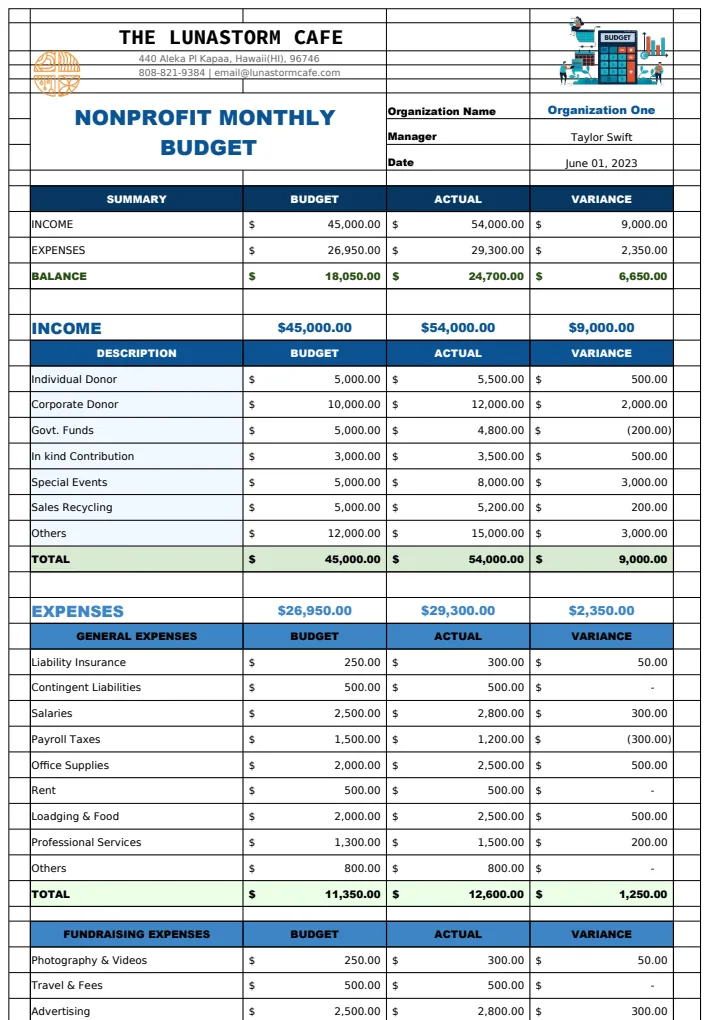
This allows you to see at a glance which campaigns are performing well and which might need extra attention or a different approach next time. If you’re running a specific event, a template like the Budget for Fundraiser Event can complement your overall tracking by detailing the costs associated with achieving those goals.
Managing Pledges Effectively
Pledges represent future income, and it’s crucial to track them diligently. A dedicated "Pledge Tracker" sheet helps prevent missed payments and provides a clear forecast of expected revenue.
Key columns for a Pledge Tracker include:
- Pledge ID: Unique identifier for each pledge.
- Donor Name: Who made the pledge.
- Pledge Date: When the pledge was made.
- Pledge Amount: Total amount pledged.
- Payment Schedule: e.g., "Monthly," "Quarterly," "One-time."
- Next Payment Due: The date the next installment is expected.
- Amount Due: The amount for the upcoming payment.
- Date Paid: When the installment was actually received.
- Status: e.g., "Active," "Completed," "Overdue," "Cancelled."
- Notes: Any details about the pledge terms.
You can use conditional formatting to highlight pledges where "Next Payment Due" is past due or where the "Status" is "Overdue." This proactive approach ensures you follow up appropriately.
Donor Communication and Segmentation
A fundraising tracker is more than just numbers; it’s about people. Using the data you collect, you can segment your donors and tailor your communications.
For example, you might create segments based on:
- Giving Level: Identify major donors for personalized outreach.
- Frequency of Giving: Recognize loyal, repeat donors.
- Campaign Interest: See who responded to specific appeals.
- Engagement Level: Note donors who also volunteer or attend events.
Tools like XLOOKUP can be invaluable here. If you have a "Donor Database" sheet with a "Donor Segment" column, you can use `=XLOOKUP(A2, 'Donor