Zero-based budget spreadsheet: A Google Sheets guide
Build a functional zero-based budget spreadsheet in Google Sheets to ensure every dollar has a job and achieve financial clarity.
The most common failure of a zero-based budget is overestimating income or underestimating expenses, which leaves you with a phantom surplus that disappears by month's end. This often stems from a lack of granular tracking, leading to an inaccurate picture of where money actually goes.
Building a functional zero-based budget spreadsheet in Google Sheets requires careful setup to ensure every dollar has a job. This method forces you to account for every cent of your income, allocating it to specific categories like housing, food, transportation, savings, and debt repayment. The goal is for your total income minus your total allocated expenses to equal zero.
Why Zero-Based Budgeting Works
Zero-based budgeting, at its core, is about intentionality. Instead of just tracking spending, it proactively assigns every dollar. This means you're not just reacting to your bank balance; you're directing your money towards your financial goals. Whether that's paying off debt faster, saving for a down payment, or simply having more control, this approach provides a clear roadmap. It shifts your mindset from "what's left over?" to "where do I want this money to go?"
Setting Up Your Google Sheets Zero-Based Budget
Let's walk through creating a basic yet effective zero-based budget spreadsheet in Google Sheets. You'll want a few key columns to make this work.
Sheet 1: Income This sheet will list all your expected income sources for the month.
- Column A: Income Source: (e.g., "Paycheck 1", "Freelance Income", "Interest")
- Column B: Expected Amount: The amount you anticipate receiving.
- Column C: Actual Amount: The amount you actually receive.
- Column D: Difference: Formula:
=C2-B2(This helps identify income shortfalls or windfalls).
Sheet 2: Expenses This is where the bulk of your work will be. It's crucial to break down expenses into meaningful categories.
- Column A: Category: (e.g., "Rent/Mortgage", "Groceries", "Utilities", "Car Payment", "Student Loans")
- Column B: Sub-Category: (e.g., under "Utilities": "Electricity", "Water", "Internet")
- Column C: Budgeted Amount: The amount you've allocated for this specific expense. This is the core of your zero-based budget.
- Column D: Actual Amount: The amount you actually spend. You'll update this throughout the month.
- Column E: Difference: Formula:
=D2-C2(A negative number here means you're over budget; a positive number means you're under).
Sheet 3: Summary & Allocation This sheet will pull everything together and show your zero-based calculation.
- Cell A1: Total Expected Income: Formula:
=SUM(Sheet1!B2:B) - Cell A2: Total Actual Income: Formula:
=SUM(Sheet1!C2:C) - Cell A3: Income Variance: Formula:
=A2-A1 - Cell B1: Total Budgeted Expenses: Formula:
=SUM(Sheet2!C2:C) - Cell B2: Total Actual Expenses: Formula:
=SUM(Sheet2!D2:D) - Cell B3: Expense Variance: Formula:
=B2-B1 - Cell C1: Zero-Based Buffer: Formula:
=A2-B2
The goal is for the Zero-Based Buffer to be $0.00. If it's positive, you have unallocated income that needs to be assigned to a category (savings, debt, or a discretionary fund). If it's negative, you've over-budgeted and need to cut back in some expense categories.
Tracking Your Spending Effectively
Accurate tracking is non-negotiable for a zero-based budget. You need to record every transaction. Here are a few methods:
- Manual Entry: Dedicate 5-10 minutes each day to inputting expenses into your Google Sheets template. This is the most hands-on approach and can really build awareness.
- Bank Statement Review: At the end of the week, review your bank and credit card statements and reconcile them with your spreadsheet. This catches anything you might have missed.
- Receipt Stacking: Keep all receipts in one place and input them periodically.
For specific spending areas like groceries, you might find a dedicated tool helpful. The Food Budget Tracker can complement your main zero-based sheet by offering more detailed analysis of your food-related expenditures.
Allocating Every Dollar: The "Job" System
The "zero" in zero-based budgeting means every dollar of your income is assigned a "job." Your income is $X. Your total expenses (including savings and debt payments) must also equal $X.
Consider these allocation examples:
- Needs: Rent/Mortgage, Utilities, Groceries, Transportation, Insurance.
- Wants: Dining out, Entertainment, Hobbies, Subscriptions.
- Savings: Emergency Fund, Retirement Contributions, Down Payment Fund.
- Debt Repayment: Extra payments on credit cards, loans beyond the minimum.
When you're setting your "Budgeted Amount" in Sheet 2, ask yourself: "What is this dollar for?" If you can't answer, it needs to be reallocated.
Common Mistakes to Avoid
Many people abandon zero-based budgeting because of a few common pitfalls:
- Unrealistic Budgeting: Setting your "Budgeted Amount" too low for variable expenses like groceries or utilities. This leads to constant overspending and frustration. Use past spending data to set realistic targets.
- Not Tracking Consistently: Sporadic tracking means your "Actual Amount" column won't reflect reality, making the "Zero-Based Buffer" calculation inaccurate.
- Forgetting Irregular Expenses: Things like annual insurance premiums, car maintenance, or holiday gifts can derail a budget if not planned for. Create sinking funds for these by setting aside a small amount each month.
- Lack of Flexibility: Life happens. If an unexpected expense arises, don't throw the whole budget out. Adjust other categories to accommodate it. This might mean temporarily cutting back on "Wants" to cover a "Need."
- Not Reviewing and Adjusting: A budget isn't static. Review it monthly. Did you consistently overspend in one area? Adjust the budget for the next month. Did you consistently underspend? Reallocate that surplus.
Advanced Tips and Customization
Once you're comfortable with the basics, you can enhance your zero-based budget spreadsheet.
Sinking Funds
Create separate line items in your expense sheet for sinking funds. For example, "Sinking Fund - Car Maintenance" or "Sinking Fund - Holiday Gifts." Budget a specific amount each month towards these, so when the expense occurs, the money is already there.
Visualizations
Use Google Sheets' charting features to visualize your spending. A pie chart showing expense categories can quickly highlight where most of your money is going. Conditional formatting can also be useful, for instance, highlighting expense rows in red if they exceed 90% of their budgeted amount.
Monthly Rollover
For a more sophisticated zero-based budget spreadsheet Google Sheets setup, consider creating a new sheet for each month. You can then have a master sheet that pulls summary data from each monthly sheet, allowing you to track year-over-year trends.
Business Integration
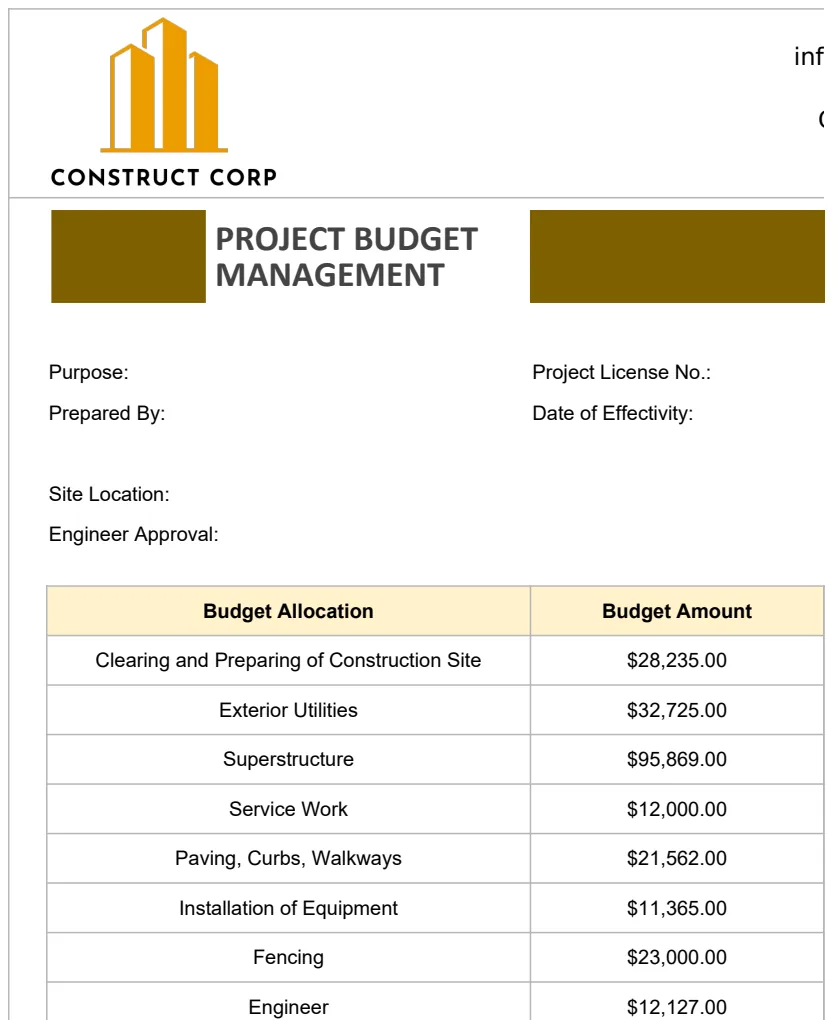
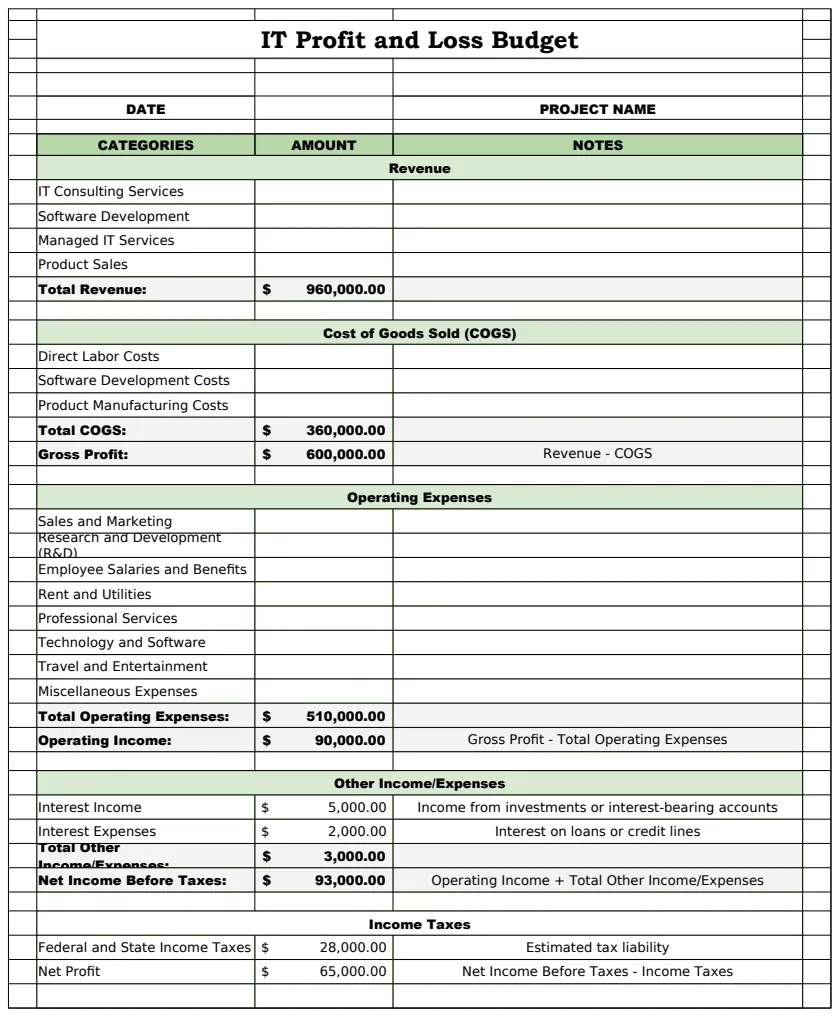
If you're a freelancer or small business owner, managing personal and business finances can be complex. While this template focuses on personal use, business budgeting has its own nuances. For businesses, templates like the IT Profit and Loss Budget Template or the Budget Estimate with Project & Resource Management can help manage revenue and expenses separately.
Frequently Asked Questions
How often should I update my zero-based budget?
You should update your actual spending at least weekly, if not daily, to ensure accuracy. A full budget review and adjustment should happen at the end of each month, before the next month begins.
What if my income varies significantly month-to-month?
If your income is highly variable, budget based on your lowest expected income for the month. Any additional income received can then be intentionally allocated to savings, debt reduction, or specific goals once it arrives.
Can I use this for retirement planning?
While this zero-based budget provides a solid framework for current spending, retirement planning requires a longer-term view. For that, a specialized tool like the Retirement Budget Planner would be more appropriate to project income and expenses over decades.
How do I handle unexpected expenses with a zero-based budget?
The best way is to have an emergency fund that you've budgeted for. If an unexpected expense exceeds your emergency fund, you'll need to reallocate funds from other non-essential categories in your current month's budget. This might mean temporarily reducing spending on entertainment or dining out.