Build your book tracker spreadsheet in under an hour
Build a functional book tracker spreadsheet to manage your reading habits and library in under an hour.
By the end of this, you'll have a functional book tracker spreadsheet, ready to log your reading habits, manage your library, and even remind you what's next on your list. You'll know exactly how many books you've read this year, by genre, and which ones you loved enough to reread. This is about building a simple, effective tool for personal use, not managing a commercial library. Finding a good book tracker spreadsheet template free can save you hours of setup time.
This system will help you move beyond scattered sticky notes or a forgotten digital list. You'll create a central hub for all your literary pursuits. Think of it as your personal bibliographer, always ready with an answer to "What should I read next?" or "What was that one book about again?" We'll build this from the ground up, assuming you're comfortable with basic spreadsheet functions.
Setting Up Your Core Book Data
Let's start with the absolute essentials for tracking your books. Open a new spreadsheet, whether it's Excel, Google Sheets, or another program. You'll want to set up a few key columns to capture the fundamental information for each book.
Here’s a recommended starting list of columns:
- Title: The full title of the book.
- Author: The author's full name.
- Genre: A category for the book (e.g., Fiction, Non-Fiction, Sci-Fi, Mystery, Biography).
- Read Status: Simple indicators like "To Read," "Reading," "Finished."
- Date Started: When you began reading the book.
- Date Finished: When you completed the book.
- Rating (1-5 stars): Your personal rating.
- Notes/Summary: A brief space for your thoughts or a plot recap.
For the "Genre" column, consider creating a dropdown list to ensure consistency. This will make filtering and analysis much easier later on. To do this in Excel, select the cells in your Genre column, go to the "Data" tab, and choose "Data Validation." Under "Allow," select "List," and in the "Source" box, type your genres separated by commas (e.g., Fiction,Non-Fiction,Mystery,Thriller,Fantasy,Biography,History). In Google Sheets, it's under "Data" > "Data validation" > "Add rule."
Expanding Your Tracker with More Detail
Once you have the basic structure, you can add more columns to capture richer data. This is where your book tracker spreadsheet template free can really shine, adapting to your specific interests.
Consider adding these:
- ISBN: The International Standard Book Number. Useful for exact identification, though less critical for personal tracking.
- Publisher: The publishing house.
- Publication Year: The year the book was first published.
- Page Count: The total number of pages.
- Format: Hardcover, Paperback, Ebook, Audiobook.
- Series Name: If the book is part of a series.
- Book Number in Series: The position of this book within its series.
- Date Added to Library: When you acquired or logged the book in your tracker.
- Source: Where you got the book (e.g., Bought, Library, Gift, Borrowed).
- Lent To: If you've lent the book, who has it.
- Date Lent: When you lent it out.
- Location: For physical books, where you store them (e.g., Living Room Shelf, Office).
Adding these details allows for more nuanced analysis. For instance, you could see how many audiobooks you listened to last year versus physical books.
Automating Your Reading Status
Managing the "Read Status" column manually can be tedious. We can automate this using a simple formula. Let's assume your "Date Finished" column is Column G, and your "Read Status" is Column D.
In cell D2 (assuming your headers are in row 1), you can enter this formula:
=IF(G2="", IF(F2="", "To Read", "Reading"), "Finished")
Here's what this formula does:
- 01It first checks if
G2(Date Finished) is blank. - 02If
G2is blank, it then checks ifF2(Date Started) is blank.
- If
F2is also blank, it means you haven't started and haven't finished, so it sets the status to "To Read." - If
F2is not blank, it means you've started but not finished, so it sets the status to "Reading."
- 03If
G2is not blank, it means you've finished the book, so it sets the status to "Finished."
This formula will automatically update the status as you fill in your start and finish dates, keeping your tracker current without extra effort.
Tracking Your Reading Progress Over Time
One of the most rewarding aspects of a book tracker is seeing your reading habits evolve. We can use formulas to summarize this data.
Let's say you want to know how many books you've finished this year. Assuming your "Date Finished" is in Column G and your "Read Status" is in Column D, and you want to count finished books in the current year:
=COUNTIFS(G:G, ">="&DATE(YEAR(TODAY()),1,1), G:G, "<="&TODAY(), D:D, "Finished")
This formula uses COUNTIFS to count rows where:
- The "Date Finished" is on or after January 1st of the current year.
- The "Date Finished" is on or before today's date.
- The "Read Status" is "Finished."
If you want to count books finished in a specific previous year, replace YEAR(TODAY()) with the desired year, for example, DATE(2023,1,1).
Analyzing Your Reading by Genre and Rating
To understand your tastes better, you'll want to analyze books by genre and rating. This is where the power of pivot tables or SUMIFS/COUNTIFS functions comes into play.
Let's say you want to see the average rating for each genre. Assuming "Genre" is in Column C and "Rating" is in Column H:
You could create a separate summary table. In one column, list your unique genres. In the adjacent column, use a formula like this, assuming your unique genres are listed starting in cell K2:
=AVERAGEIF(C:C, K2, H:H)
This formula calculates the average of the "Rating" (Column H) for all rows where the "Genre" (Column C) matches the genre listed in cell K2. Drag this formula down to apply it to all your genres.
If you wanted to count how many books you've finished in each genre, you'd use COUNTIF:
=COUNTIF(C:C, K2)
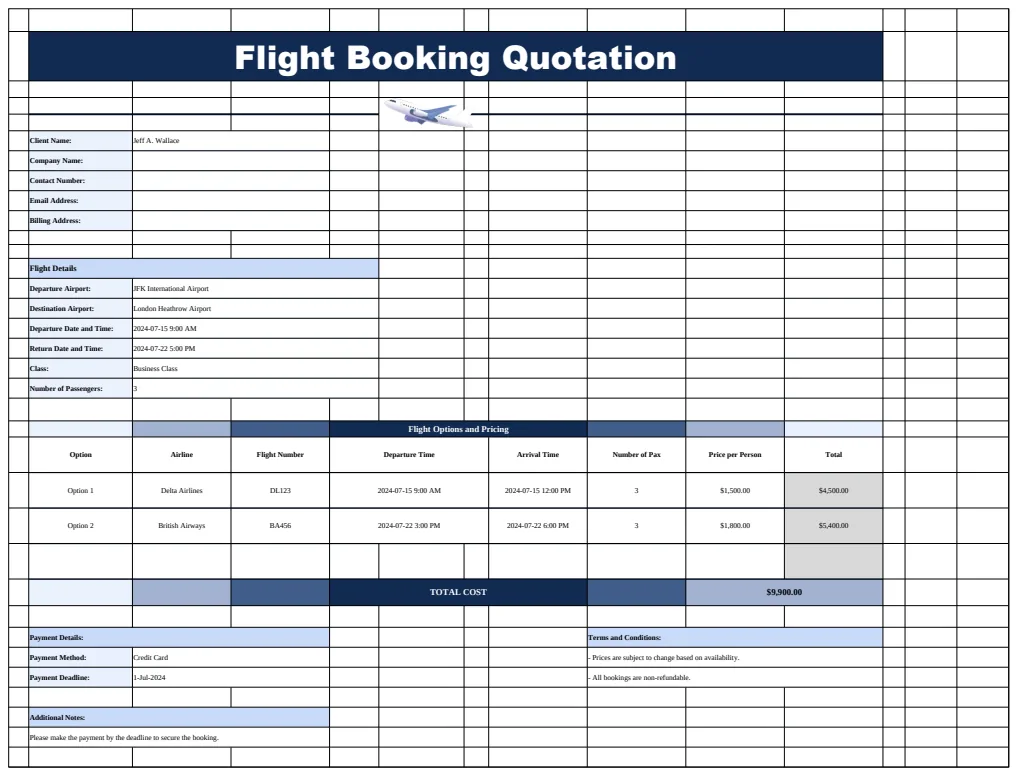
This gives you a clear overview of which genres you read most and how you rate them. This kind of data can inform future reading choices, much like understanding travel expenses might inform your next booking. For example, if you're planning a trip, seeing your past flight costs can help you manage your budget. You might find a template like the Flight Booking Quotation Template useful if you're a travel agent, or the Flight Itinerary Template for personal travel tracking.
Advanced Features: Series Tracking and Wishlists
For avid readers, tracking series is crucial. If you've included "Series Name" and "Book Number in Series" columns, you can sort your data by these columns to see your progress.
To make it even more effective, you could add a calculated column that displays the "Next Book in Series." This is a bit more complex and might involve looking up information from another sheet or using advanced formulas like XLOOKUP or VLOOKUP if you maintain a separate list of series and their next installments. However, for a basic tracker, simply sorting by series and book number is often sufficient.
A "Wishlist" can be a separate tab or a section within your main tracker. You can use the "Read Status" column to manage this. Simply add books you want to read to the list and mark them as "To Read." When you start a book, update its status. This keeps your reading queue organized and visible.
Common Mistakes to Avoid
When building your book tracker, a few common pitfalls can trip you up:
- Inconsistent Data Entry: Not using dropdowns for genres or statuses leads to variations (e.g., "Sci-Fi" vs. "Science Fiction" vs. "SF"). This makes filtering and analysis difficult.
- Overly Complex Setup: Trying to build too many advanced features at once can be overwhelming. Start with the basics and add complexity as you get comfortable.
- Forgetting to Update: The tracker is only useful if it's kept current. Make it a habit to update your status or add new books as soon as you start or finish them.
- Ignoring Data Validation: Not using validation for dates or numerical ratings can lead to text entries that break formulas and sorting.
- Not Backing Up: While most cloud-based spreadsheets auto-save, it's a good idea to periodically save a copy of your tracker, especially if you've made significant changes.
Next Steps and Further Customization
Your book tracker spreadsheet template free is now a solid foundation. You can continue to customize it based on your needs.
How do I add more books quickly?
If you have a list of books to add, you can often paste them directly into your spreadsheet. Ensure the columns align. For very large lists, consider if you might need a system designed for bulk import, though for most personal use, manual entry or pasting is sufficient.
Can I track books I've borrowed or lent?
Yes, by adding columns like "Source" and "Lent To" as suggested earlier. You can then filter your sheet to see only books you've lent out, or filter by source to see how many books came from the library versus those you purchased.
How do I create a visual summary of my reading?
Once you have your data, you can create charts. A bar chart showing the number of books finished per month, or a pie chart showing the distribution of genres, can be very insightful. Select the data you want to visualize (e.g., your genre summary table) and use the "Insert Chart" function in your spreadsheet software.
What if I want to track my reading progress within a book?
This is a more advanced feature. You could add a column for "Current Page" and "Total Pages." Then, calculate "Reading Progress %" with a formula like =IFERROR(CurrentPage/TotalPages, 0). You could even use conditional formatting to visually represent this progress with a data bar. This level of detail is great if you're tracking progress on very long books or textbooks. For managing bookings, a system like the Operations Facility Booking System Template might offer a visual calendar view, which is a different kind of progress tracking.