Where to find a free Excel chore chart template?
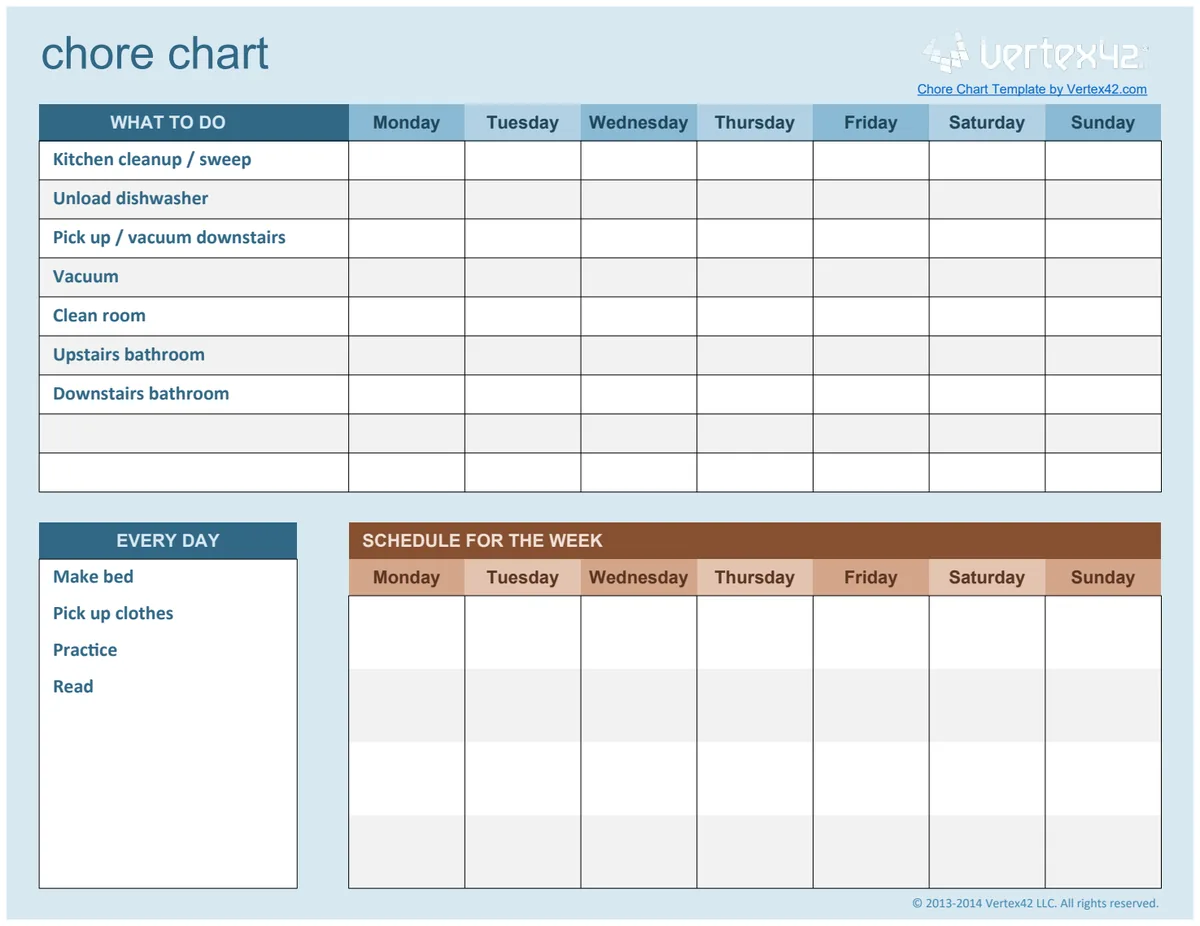
Discover where to find a free Excel chore chart template to organize your household tasks effectively and assign responsibilities clearly.
The most crucial element of a successful chore chart isn't the fancy formatting; it's the clear assignment of responsibility. Most people get this wrong by making chore lists too general, leading to confusion about who is supposed to do what. If you're searching for a chore chart template Excel free download, you're likely looking for a practical way to organize household tasks, and that means clear columns for names, tasks, days, and completion status.
A well-structured spreadsheet can transform chaotic home management into a predictable routine. Think of it as a mini-project management system for your household. When tasks are clearly defined and assigned, everyone knows their role, and you can easily track progress. This is why finding the right template is key, and understanding how to adapt it to your family's specific needs will make all the difference.
Understanding Chore Chart Structure
At its core, a functional chore chart needs a few key components to be effective. You'll want dedicated columns for:
- Chore Name: A clear, concise description of the task (e.g., "Empty Dishwasher," "Take out Trash," "Walk Dog").
- Assigned To: The name of the person responsible for the chore.
- Day(s) Assigned: Which day(s) of the week the chore needs to be completed.
- Status: A way to mark completion (e.g., "Pending," "Complete," "Skipped").
- Date Completed: The specific date the chore was finished. This is especially useful for tracking recurring tasks.
- Notes/Comments: An optional column for any special instructions or observations.
Many people start with a simple list, but without these distinct columns, it's easy for tasks to fall through the cracks. The goal is to create a system that is both easy to understand and simple to update daily.
Building Your Chore Chart in Excel
You don't need a complex setup to get started. Here’s a straightforward way to build your own chore chart in Excel:
- 01Open a New Workbook: Start with a blank Excel sheet.
- 02Set Up Column Headers: In the first row (Row 1), enter your column titles. For instance, in cell A1, type "Chore"; in B1, "Assigned To"; in C1, "Monday"; in D1, "Tuesday," and so on through "Sunday." In the next row (Row 2), you can add "Status" and "Date Completed" if you want to track those details separately for each day. Alternatively, you can have one "Status" column and one "Date Completed" column at the end of the week's columns.
- 03Populate Chores: In Column A, starting from Row 2, list out all the recurring household chores.
- 04Assign Responsibilities: In Column B, assign each chore to a specific family member.
- 05Mark Days: For each chore, place an "X" or the assigned person's initial in the column corresponding to the day the chore is due. For example, if "Empty Dishwasher" is assigned to "Mom" and due every day, you'd put "Mom" in Column B and an "X" in Columns C through I.
- 06Add Status/Completion Tracking: If you have separate "Status" and "Date Completed" columns, you can use these to mark when a chore is done. For a simpler approach, you can add a column at the end, say Column J, labeled "Completed." Family members can then type "Done" or their initial here when a chore is finished for the day.
- 07Formatting for Clarity: Use Bold for your header row. You can also use Conditional Formatting to visually highlight completed tasks. For example, select the cells in your "Completed" column, go to Conditional Formatting > Highlight Cells Rules > Text that Contains, and enter "Done." Then, set the formatting to a light green fill.
This basic structure provides a clear overview for everyone involved.
Using Formulas for Enhanced Tracking
While a basic chart works, formulas can add a layer of automation and insight. For example, you might want to see how many chores each person has completed for the week.
Let's assume your chore assignments run from Column A (Chore) to Column I (Sunday), and your "Completed" status is in Column J, with the assigned person's name in Column B. You can add a new section, perhaps starting in Row 10, for weekly summaries.
In cell A11, type "Weekly Summary." In cell B11, type "Chores Completed." Then, in cell B12, you could enter a formula to count completed chores for the first person. If "Alice" is assigned chores in rows 2-5, and her name appears in Column B for those rows, you can use a formula like this:
=COUNTIFS(B2:B5, "Alice", J2:J5, "Done")
This formula counts how many times "Alice" is listed in the assigned column (B2:B5) AND the "Completed" column (J2:J5) shows "Done." You would adjust the ranges and the name "Alice" for each family member you want to track.
Another useful formula, if you're tracking specific dates, could be =COUNTIF(K2:K8, TODAY()) if Column K is where you record the date completed, and you want to see how many chores were finished today.
Essential Columns for Accountability
When you're looking for a chore chart template Excel free download, ensure it includes columns that directly support accountability. This means:
- Clear Assignment: A dedicated column for the person's name. Avoid shared assignments unless absolutely necessary, as they often lead to no one taking ownership.
- Due Date/Day: Specificity is key. Is it daily, weekly, or on a particular day?
- Completion Indicator: A simple checkbox, a "Done" text field, or a dropdown list with options like "Pending," "Complete," "Skipped."
- Verification (Optional but Recommended): A column for a parent or supervisor's initial or signature can add an extra layer of accountability, especially for younger children.
Without these, the chart becomes more of a suggestion list than a functional tool.
Common Mistakes to Avoid
People often make a few common errors that undermine their chore chart's effectiveness:
- Overloading the Chart: Assigning too many chores to one person or too many chores overall can lead to burnout and resentment. Start with essentials and gradually add more as the system becomes established.
- Vague Chore Descriptions: "Clean room" is less effective than "Make bed," "Put away toys," and "Put dirty clothes in hamper." Specificity prevents arguments.
- Inconsistent Enforcement: If chores aren't consistently expected and checked, the chart loses its authority. Parents must follow through.
- Lack of Flexibility: Life happens. Sometimes a chore might need to be swapped or postponed. Build in a way to handle these exceptions without abandoning the system.
- No Reward System (for kids): For younger children, a simple reward system tied to chore completion can be a powerful motivator. This could be points, stickers, or allowance. A Reward Chart for Kids can be a great companion to a chore chart.
Customizing Your Template
Even the best chore chart template needs a bit of customization to fit your household.
- Task Granularity: Break down large tasks. "Clean the kitchen" might be too much, but "Wipe down counters," "Load dishwasher," and "Sweep floor" are manageable.
- Frequency Adjustment: Some chores are daily, others weekly. Ensure your template can accommodate this variation. You might have separate sections or columns for daily vs. weekly tasks.
- Visual Appeal: Especially for children, making the chart visually engaging can help. Use colors, icons, or even print it out and laminate it.
- App Integration (Advanced): For tech-savvy families, consider apps that offer chore tracking features, though a well-made Excel sheet can often suffice.
If you're looking for a starting point, a good Chore Chart Template can provide a solid foundation that you can then adapt. The key is to make it work for your family's unique rhythm and needs.
What About Specific Age Groups?
The complexity and type of chores assigned will vary greatly by age.
- Young Children (Ages 3-6): Focus on simple, observable tasks like putting toys in a bin, helping set the table (napkins, placemats), or putting their own dirty clothes in the hamper. A Chore Chart for this age should be visually driven with clear icons and a simple completion marker. Rewards are often very effective here.
- Older Children (Ages 7-12): Tasks can become more involved, such as taking out trash and recycling, feeding pets, helping with laundry (sorting, folding), or cleaning their own rooms thoroughly. The Chore Chart Template can be more text-based, but still needs clear assignments. Allowance can be tied directly to chore completion.
- Teenagers (Ages 13+): Teens can handle more significant responsibilities, including cooking simple meals, yard work, vacuuming, or assisting younger siblings. They can also manage more complex tracking systems, perhaps even helping to update a shared digital version. Accountability here might shift towards earning privileges or contributing to household expenses.
Regardless of age, ensure the assigned chores are age-appropriate and that clear expectations are set and reinforced.
Can I Use This for More Than Just Chores?
Absolutely. The structure of a chore chart is highly adaptable. You can use a similar spreadsheet format for:
- Homework Tracking: Assign subjects or specific assignments to days.
- Project Management: Break down a larger project into smaller tasks, assign them to team members, and track completion dates.
- Fitness Goals: Log daily workouts, water intake, or other health-related activities.
- Hobby Tracking: Monitor practice time for musical instruments, reading goals, or creative projects.
The core principles of clear tasks, assignments, and completion tracking apply broadly, making your spreadsheet a versatile tool beyond just household duties.
How Often Should Chores Be Reviewed?
It's a good practice to review the chore chart and assignments regularly, perhaps on a monthly or quarterly basis. As children grow, their capabilities change, and new responsibilities can be introduced. Similarly, household needs evolve. A quick review ensures the chart remains relevant and fair for everyone involved. This is also a good time to discuss any challenges or successes with chore completion.
What If Someone Doesn't Do Their Chores?
This is where consistent enforcement comes in. The consequences for not completing chores should be clearly communicated beforehand, ideally when the chore chart is first introduced or reviewed. Consequences can range from losing privileges (like screen time) to a small deduction from allowance, or having to complete an extra task. It's important to be firm but fair, and to avoid emotional reactions. The goal is to teach responsibility, not to punish.
Is There a Cost for These Templates?
OpenWorksheet offers a library of templates, including various chore charts, for a one-time purchase of $9, granting unlimited downloads. You can explore more options at /templates.